
A client’s HR team kept their employee records in an Excel workbook, but their onboarding app read the same data from a SharePoint list. Every time someone changed a department or an address in Excel, the list fell out of date, and one of the team had to copy the changes across by hand. They asked me for a flow that would do it for them every morning.
The flow I built compares each row in the Excel table with the SharePoint list. If an employee already exists in the list, it updates their item; if not, it creates a new one. In this tutorial, I’ll rebuild that flow step by step.
Quick answer: Create a scheduled cloud flow, read the Excel table with List rows present in a table, and for each row use Get items with a Filter Query such as Title eq '@{items('For_each')?['Employee ID']}'. Then add a Condition: if length(outputs('Get_items')?['body/value']) is 0, use Create item; otherwise use Update item with the ID of the item that was found.
Along the way, I’ll show you how to handle Yes/No and Choice columns, and point out the limits that trip people up once the Excel file grows.
The SharePoint list and the Excel file
The SharePoint list is called EmployeeDetails. It starts with two employees and has these columns:
| Column | Type |
|---|---|
| Employee ID | Single line of text (the renamed Title column) |
| Employee Name | Single line of text |
| Joining Date | Date and time |
| Department | Choice |
| Permanent Address | Multiple lines of text |
| PF Included? | Yes/No |
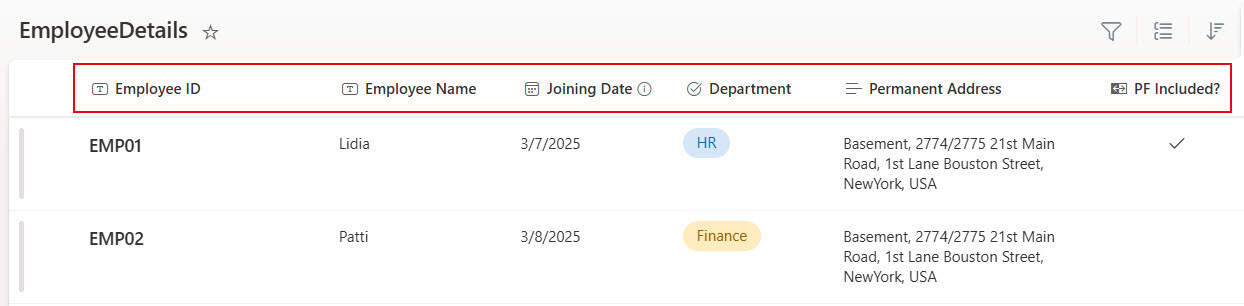
The Excel workbook, also called Employee Details, has the same columns and four employees: the two already in the list, with updated details, and two new starters. The data has to be formatted as a table (select the range and choose Format as Table), because Power Automate can only read Excel data from tables.

The goal is simple: match each Excel row to a list item by Employee ID. If a match exists, update all its columns with the Excel values; if not, create a new item.
Step 1: Create a scheduled cloud flow
In Power Automate, create a Scheduled cloud flow. Give it a name, choose a start date and time, and set it to repeat every 1 Day. Then select Create. The flow starts with a Recurrence trigger, so it runs automatically each day.
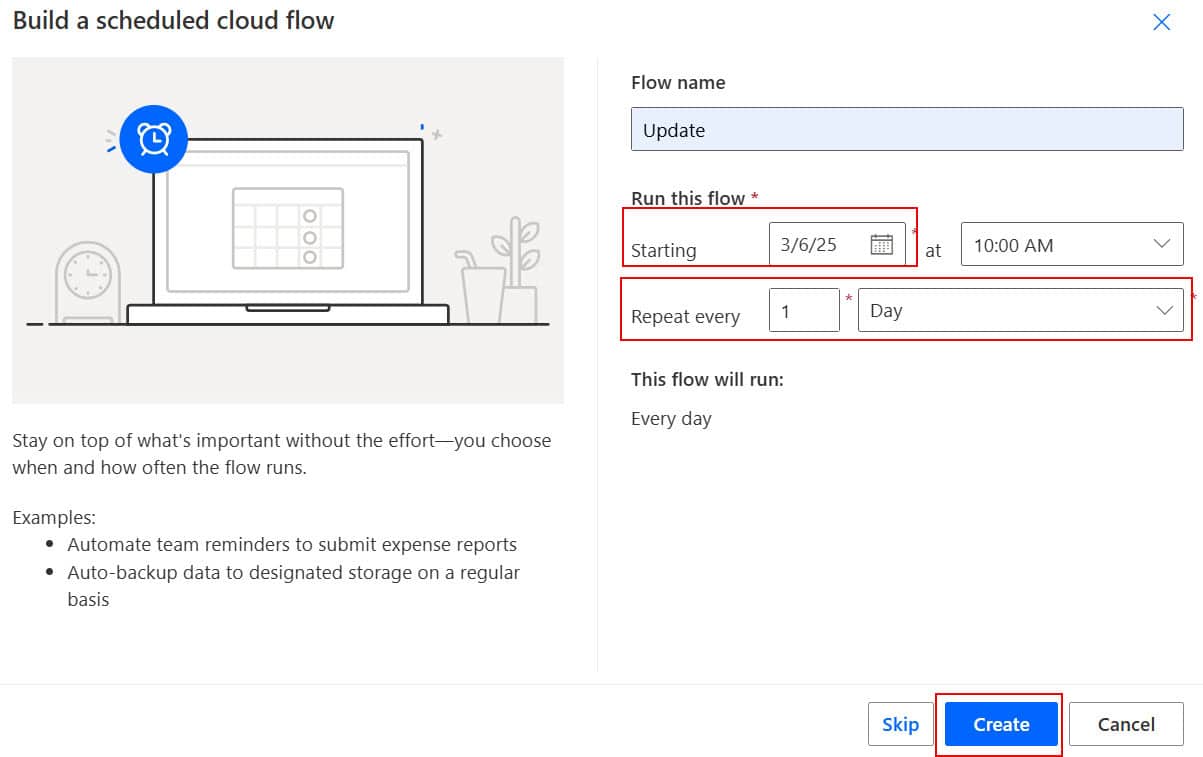
While you’re building and testing, you can run it on demand with Test, so you don’t have to wait for the schedule.
Step 2: Read the rows from Excel
Add the Excel Online (Business) action List rows present in a table. Set Location to where the file is stored, either OneDrive for Business or a SharePoint site, then pick the Document Library, the File and the Table.
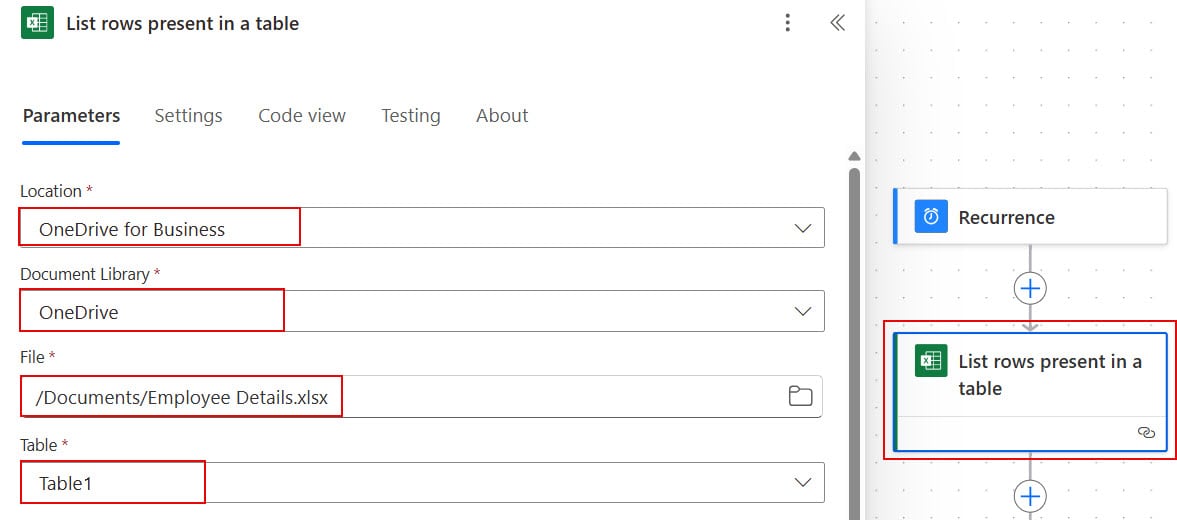
Before you move on, check two settings on this action. First, it returns only 256 rows by default. If your table can grow beyond that, open the action’s Settings, turn on Pagination and set a threshold (Excel connector reference).
Second, in my flows I set DateTime Format (under Advanced parameters) to ISO 8601. Otherwise, date columns such as Joining Date can arrive as Excel serial numbers like 45723, which SharePoint can’t store as a date.
Step 3: Look up each employee in SharePoint
Next, add the SharePoint Get items action and choose the Site Address and List Name. Select Show all to see the advanced parameters, and enter this Filter Query:
Title eq '@{items('For_each')?['Employee ID']}'
Because the Filter Query uses a value from the Excel rows, Power Automate wraps Get items in a For each loop automatically, so the lookup runs once per row.
Note that the filter uses the column’s internal name, Title, even though the list shows it as Employee ID. Microsoft explains the filter syntax in its Get items guidance, and you can also set Top Count to 1, since each Employee ID should only match one item.
Step 4: Check whether the employee exists
Still inside the loop, add a Condition. In the left box, enter this expression, which counts how many items Get items found:
length(outputs('Get_items')?['body/value'])Choose is equal to and enter 0 on the right. If the count is 0, the employee isn’t in the list yet, so the True branch creates them. Otherwise, the False branch updates the existing item.

Step 5: Create new employees (True branch)
In the True branch, add Create item with the same site and list. Select Show all and map each column to the matching Excel value from the dynamic content: Employee ID to Title, and Employee Name, Joining Date and Permanent Address to their columns.
Two columns need a small expression. PF Included? is a Yes/No column, but Excel holds the text “Yes” or “No”, so convert it to true or false:
if(equals(items('For_each')?['PF Included'], 'Yes'), true, false)For Department, which is a Choice column, use the Department Value field and pass the text from Excel: items('For_each')?['Department']. The text must match one of the column’s choices exactly.

Step 6: Update existing employees (False branch)
In the False branch, I first added a Compose action, renamed to Compose – PF Included, to convert the Yes/No value with the same expression as above. Replace PF Included with your own Excel column name if it’s different.
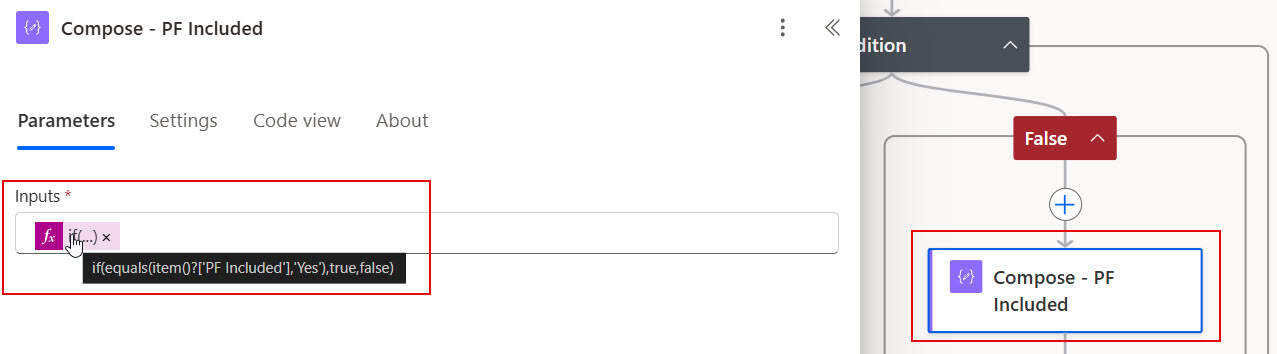
Then add Update item with the same site and list, and map the columns just as in Create item, using outputs('Compose_-_PF_Included') for PF Included?.

For Id, you need the ID of the item that Get items found. If you pick ID from the Get items dynamic content, Power Automate adds a second, inner For each around Update item, as you can see in the screenshot.
That works because only one item matches, but it has a catch: inside the inner loop, item() refers to the SharePoint item, not the Excel row. That’s why I use items('For_each') for every Excel value.
A tidier option is to avoid the inner loop altogether by entering this expression in the Id field:
first(outputs('Get_items')?['body/value'])?['ID']Step 7: Test the flow
Save the flow and run it with Test. When it finishes, open the SharePoint list. The two new employees from Excel have been added by the True branch:

To check the False branch, I cleared the address and PF Included? values of the existing items before running the flow:

After the run, those items were updated with the values from Excel:

Limits and tips for larger files
The flow works well for a few hundred rows, but a few limits matter as the file grows. The Excel connector supports files up to 25 MB in .xlsx or .xlsb format, and allows 100 calls per connection every 60 seconds.
The SharePoint connector allows 600 calls every 60 seconds. Because this flow makes several calls per row, a large table can be throttled. And with a Microsoft 365 license, pagination and Apply to each both stop at 5,000 items (Power Automate limits).
By default, the For each loop processes one row at a time. You can speed it up by raising Concurrency in the loop’s settings (up to 50), but keep it low if your flow uses variables, because parallel runs can overwrite each other’s values.
Finally, the Excel connector can keep the file locked for up to six minutes after it last used it, so people editing the workbook at the same time may find it locked. Scheduling the flow early in the morning, as I did for this client, avoids most of those clashes.
These guides cover more ways to update SharePoint lists with Power Automate:
- Import Data From Excel to a SharePoint List Using Power Automate [2 Methods]
- How to Update SharePoint List Items Using Power Automate?
- How to Update Only One Field in a SharePoint List Item Using Power Automate?
- How to Update SharePoint List Items Based On Condition Using Power Automate?
- How to Update a SharePoint List Item from another SharePoint List Using Power Automate?
- Power Automate Read Excel File From SharePoint
Frequently Asked Questions
How do I update a SharePoint list from Excel with Power Automate?
Read the Excel table with List rows present in a table, find the matching item for each row with Get items and a Filter Query, then use Update item when a match exists and Create item when it doesn’t.
Why does my flow only read 256 rows from Excel?
List rows present in a table returns 256 rows by default. Turn on Pagination in the action’s settings and set a threshold to read more rows.
How do I set a Yes/No column from Excel in Power Automate?
Convert the Excel text to a boolean, for example if(equals(items(‘For_each’)?[‘PF Included’], ‘Yes’), true, false), and use that in Create item or Update item.
Why do Excel dates arrive as numbers in Power Automate?
Excel stores dates as serial numbers. Set DateTime Format to ISO 8601 in the advanced parameters of List rows present in a table to get readable dates.
How do I avoid the extra For each loop around Update item?
Instead of picking ID from dynamic content, set Id to first(outputs(‘Get_items’)?[‘body/value’])?[‘ID’], which takes the ID of the first matching item.

I have worked with Microsoft technologies for more than 18 years, including SharePoint, Microsoft 365 and the Power Platform (Power Apps, Power Automate and Power BI), at companies like HP, TCS and KPIT. I started EnjoySharePoint in 2011 to share the solutions I build in real projects with readers in the United States, Canada, the United Kingdom, Australia, New Zealand and beyond. Microsoft has recognized this work with the Microsoft MVP award 13 times since 2014.