
A marketing coordinator I worked with wanted the company logo at the top of every automated welcome email. Her first attempt linked to the logo in SharePoint, and it looked perfect in her own inbox. Every new customer saw a broken image icon instead, because they couldn’t sign in to the company’s SharePoint.
There are three ways to put an image inside a Power Automate email, and each behaves differently in different mail apps. In this tutorial, I’ll show you all three, explain when to use each, and cover the size limits that make images disappear.
Quick answer: In Send an email (V2), switch the Body to code view and add an <img> tag. For recipients outside your company, point it to a publicly accessible image URL. To embed the image itself, get the file with Get file content and use <img src="@{dataUri(body('Get_file_content'))}">. Keep embedded images small: the connector limits each one to 1 MB after encoding, and Microsoft suggests 100 KB or less.
Which method should you use?
| Method | How it works | Best for |
|---|---|---|
| Public URL | The email links to an image on a web server; the mail app downloads it | Newsletters and external recipients |
| Data URI (base64) | The image is encoded into the email’s HTML | Small logos and icons, internal email |
| Attachment with cid: | The image is attached and referenced by name | Testing only; not documented for this connector |
For this tutorial, I stored the images in a SharePoint document library called Embed Images:

Method 1: Link to a public image
This is the most reliable option for people outside your organization. The image lives on a web server, and the email only contains a link to it. The important part is that the address must work without signing in. A SharePoint or OneDrive address usually doesn’t, which is why recipients see a broken image.
Host the image somewhere public, such as your website’s media library or a public blob storage container, and copy its address. Then, in Send an email (V2), select the </> icon to switch the Body to code view, and add:
<img src="https://www.contoso.com/images/logo.png" width="200" alt="Contoso logo">Set a width so large images don’t overflow the email, and add alt text for people whose mail app blocks images.
Linking to a SharePoint image for internal email
If every recipient is in your organization and has access to the library, a SharePoint address can work. Get file metadata using path returns the file’s path:

Build the image address from your site URL and the path:

The recipient’s mail app still has to load the image with their credentials, which some apps don’t do, so test it with a colleague before relying on it.
Method 2: Embed the image as a data URI
A data URI puts the image itself into the email’s HTML as base64 text, so nothing has to be downloaded. Get the file with Get file content using path (SharePoint or OneDrive for Business):
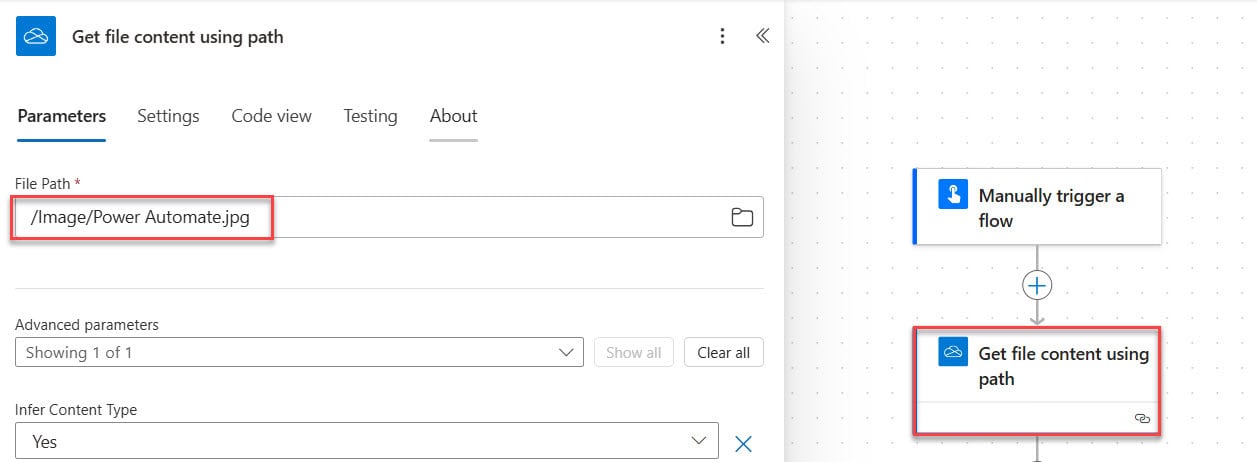
Then build the tag with the dataUri() function, in a Compose action or directly in the email body’s code view:
<img src="@{dataUri(body('Get_file_content_using_path'))}" width="200" alt="Company logo">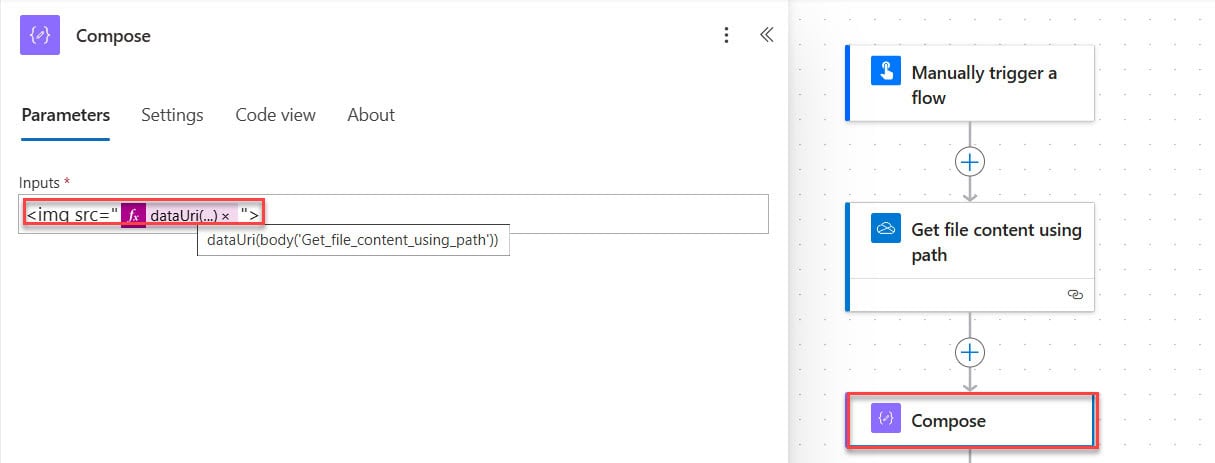
Put the Compose output in the email’s Body:

The image appears in the message without an attachment:

The same thing, written out
Some tutorials show a separate “base64 method” that builds the string by hand from Get file content. It produces exactly the same data:image/jpeg;base64,... text as dataUri():
<img src="data:@{body('Get_file_content')?['$content-type']};base64,@{body('Get_file_content')?['$content']}">
Use whichever you find easier to read. Both need the Get file content action’s Infer Content Type set to Yes, which is the default, so the type is image/png or image/jpeg.
Size limits for embedded images
The Office 365 Outlook connector limits each data URI to 1 MB. Base64 makes a file 25 to 50 percent bigger, so anything over about 700 KB is likely to fail. Microsoft’s own email guidance suggests keeping inline images to 100 KB or less, and I’d aim for that: resize logos to the width they’ll be shown at and save them as PNG or compressed JPEG.
Mail apps also differ. Classic Outlook shows data URI images reliably, but there are reports of them appearing broken in the Outlook on the web reading pane and inconsistently in the new Outlook. Send a test to each app your recipients use.
Method 3: Attach the image and reference it with cid:
In classic email HTML, you can attach an image and show it inline with <img src="cid:filename">. You can try this in Power Automate: get the file content, add it under Attachments in Send an email (V2), and reference the same name in the body:


The Attachments parameter only has a Name and Content, with no Content-ID or inline setting, and Microsoft doesn’t document cid: images for this connector. Whether the image shows inline depends on the mail app, and it usually also appears as an attachment, as in this test:
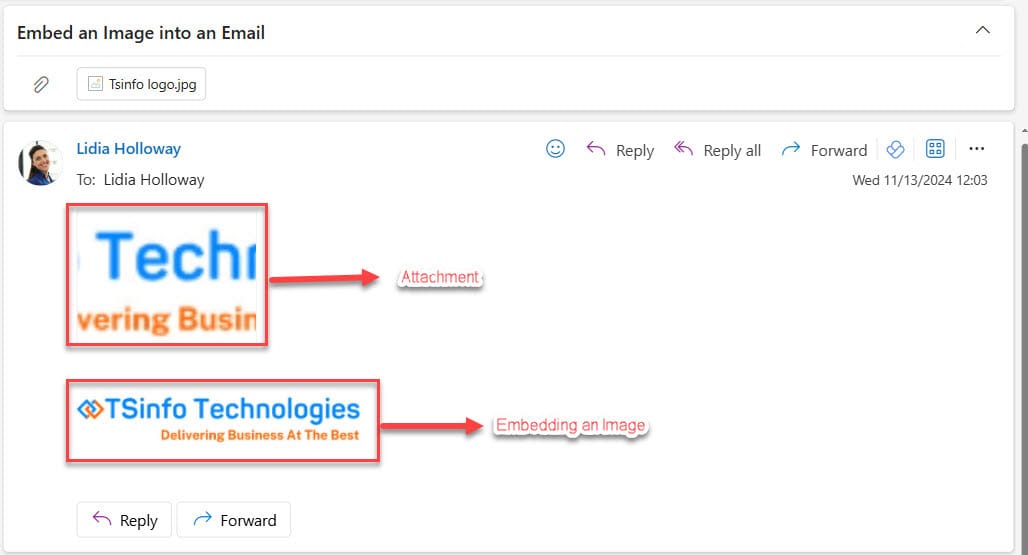
If you do try it, make the name in cid: match the attachment’s Name exactly, including the extension, and avoid spaces in the file name.
What about the SharePoint SendEmail API?
Older tutorials send email with Send an HTTP request to SharePoint and _api/SP.Utilities.Utility.SendEmail. Microsoft retired that API on October 31, 2025, and it no longer sends messages. Use Send an email (V2) instead, or Send an email from a shared mailbox (V2) to send from a team address. See the Send an email (V2) guide for its options.
Troubleshooting
- Broken image icon. The image address needs a sign-in, or the recipient’s app blocks external images. Use a public address or a data URI.
- The HTML shows as text. You typed the tag in the rich text Body. Switch to code view (</>) first.
- The image is missing or the flow fails. The embedded image is too large. Resize it well below 1 MB, ideally under 100 KB.
- It works in one app but not another. Mail apps handle images differently; test in each one, and prefer a public URL for external mail.
These Power Automate email tutorials go further:
- How to Use Power Automate Send an Email (V2) Action?
- How to Send Emails to Multiple Recipients from a SharePoint List Using Power Automate?
- the ‘inputs parameters’ of workflow operation ‘Send_an_email_(V2)’ of type ‘openapiconnection’ is not valid
- Power Automate Send Email Based on Form Response
- How to Create an HTML Table from an Array in Power Automate + Formatting
- How to Send Birthday Email Using Power Automate? [SharePoint List & Excel]
Frequently Asked Questions
How do I embed an image in a Power Automate email?
Switch the Send an email (V2) Body to code view and add an img tag, either with a public image URL or with dataUri() and the file content. Microsoft lists the image size limit in the Office 365 Outlook connector known issues.
Why does my embedded image show as a broken icon?
The image address needs a sign-in, such as a SharePoint link, or the mail app blocks images. Use a publicly accessible image URL or embed the image as a data URI.
What’s the size limit for embedded images?
The Outlook connector allows 1 MB per data URI after base64 encoding, so keep source images under about 700 KB. Microsoft recommends 100 KB or less.
Can I still use the SharePoint SendEmail API?
No. Microsoft retired it on October 31, 2025. Use the Send an email (V2) action instead.

Preeti Sahu is a Microsoft MVP for Power Apps with over six years of experience working with SharePoint Online and the Power Platform. She is the co-author of the book Microsoft Power Platform: A Deep Dive. As a Power Platform developer, she has built various tools with Power Apps and Power Automate, and she makes Microsoft 365 videos for YouTube.