
Contoso’s finance team set a simple rule for 2025 and 2026: any month under $150K in revenue gets reviewed. Their trend report had a nice line chart, but someone still had to read the axis and squint at every dip to find the bad months. They wanted the line itself to turn red below target.
For years, conditional formatting in a Power BI line chart wasn’t possible, and tutorials (including the first version of this one) faked it with a column chart. That changed in 2026. In this tutorial, I’ll show you the real way: rules, gradients, a DAX color measure, segment settings and marker colors.
Quick answer: Select the line chart, open Format visual > Visual > Lines > Color, and select fx. In the Color – Categories dialog, pick a Format style (Gradient, Rules or Field value), base it on your measure, and select OK. Segments of the line change color by value when the chart has a single series.
What changed in 2026
Until mid-2026, line charts had one fixed color per series. Microsoft’s July 2026 feature summary made conditional formatting for line charts and legends generally available, so Lines > Color now has the same fx button you know from tables. If you’re new to line charts, start with my Power BI line chart guide.
If you don’t see an fx button next to Lines > Color, update Power BI Desktop. I took the screenshots below in the October 2026 version.
What you can color conditionally
| Setting | Where | What changes |
|---|---|---|
| Line color | Lines > Color > fx | Each segment of a single line, or each whole line when there’s a legend |
| Marker color | Markers > Color > fx | The dot on each data point |
| Shaded area | Shade area | Follows the conditional line colors |
All of them offer the three standard format styles: Gradient, Rules and Field value. They work the same way as in tables, and my Power BI conditional formatting guide explains the dialog in depth.
Before you start: one series for segment colors
Coloring parts of one line works only when the chart has a single series. My chart has Order Date (Year and Month) on the X-axis and Sum of Revenue on the Y-axis, nothing in Legend and no second measure.
If you add a Legend field or a second measure, Power BI turns segment coloring off. The fx rules then color each whole line by its value instead, which is useful for graying out older years. See how to add multiple lines to a line chart for that setup.
Method 1: Color the line with rules
Rules are the best fit for a target, because the color switches at an exact number.
- Select the line chart and open Format visual > Visual. Type Lines in the Format pane search box to jump to the card.
- Expand Lines, then Color, and select the fx button next to the color swatch.
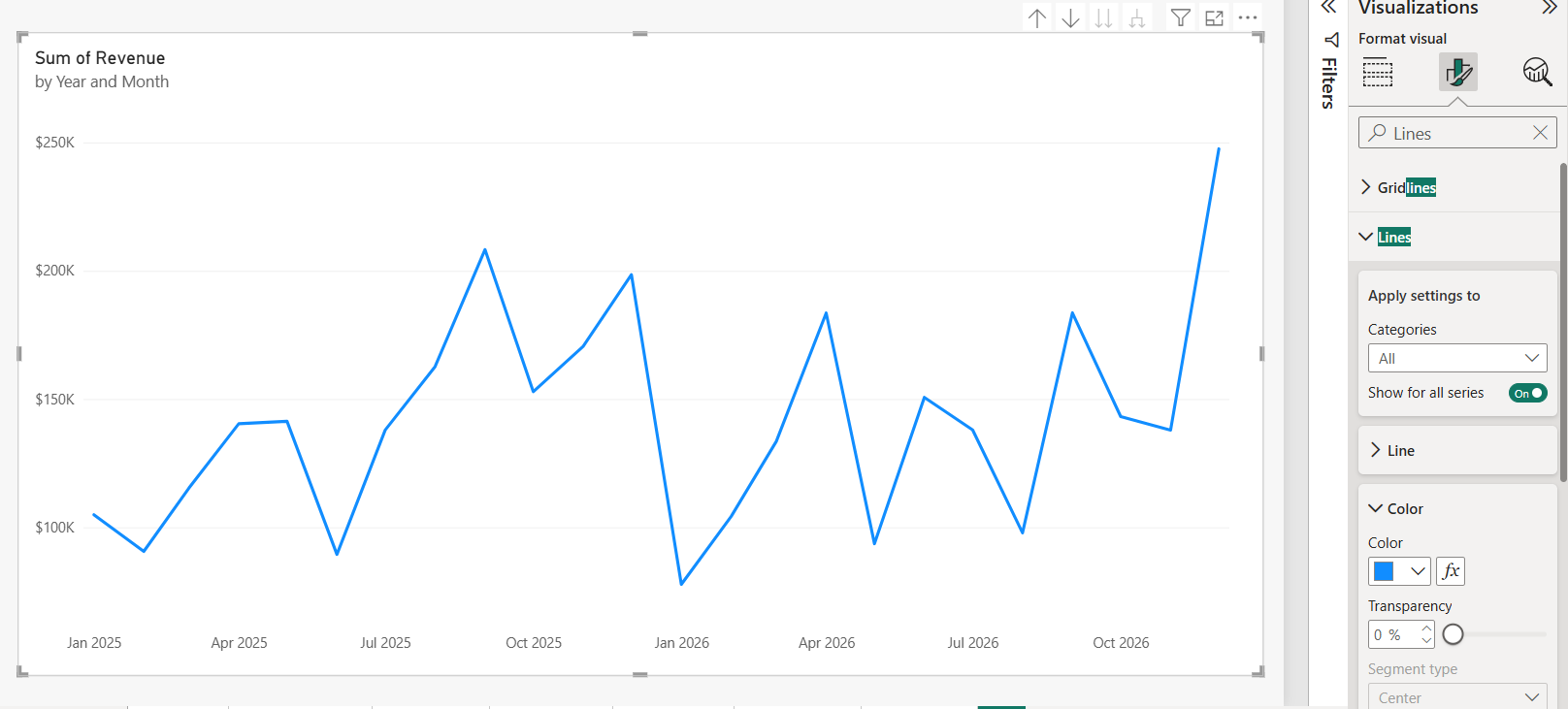
- In the Color – Categories dialog, set Format style to Rules.
- Under What field should we base this on?, choose Sum of Revenue. Summarization changes to Sum.
- First rule: If value >= 0 Number and < 150000 Number, then red.
- Select New rule. Second rule: >= 150000 Number and < 1000000 Number, then dark blue.
- Select OK.
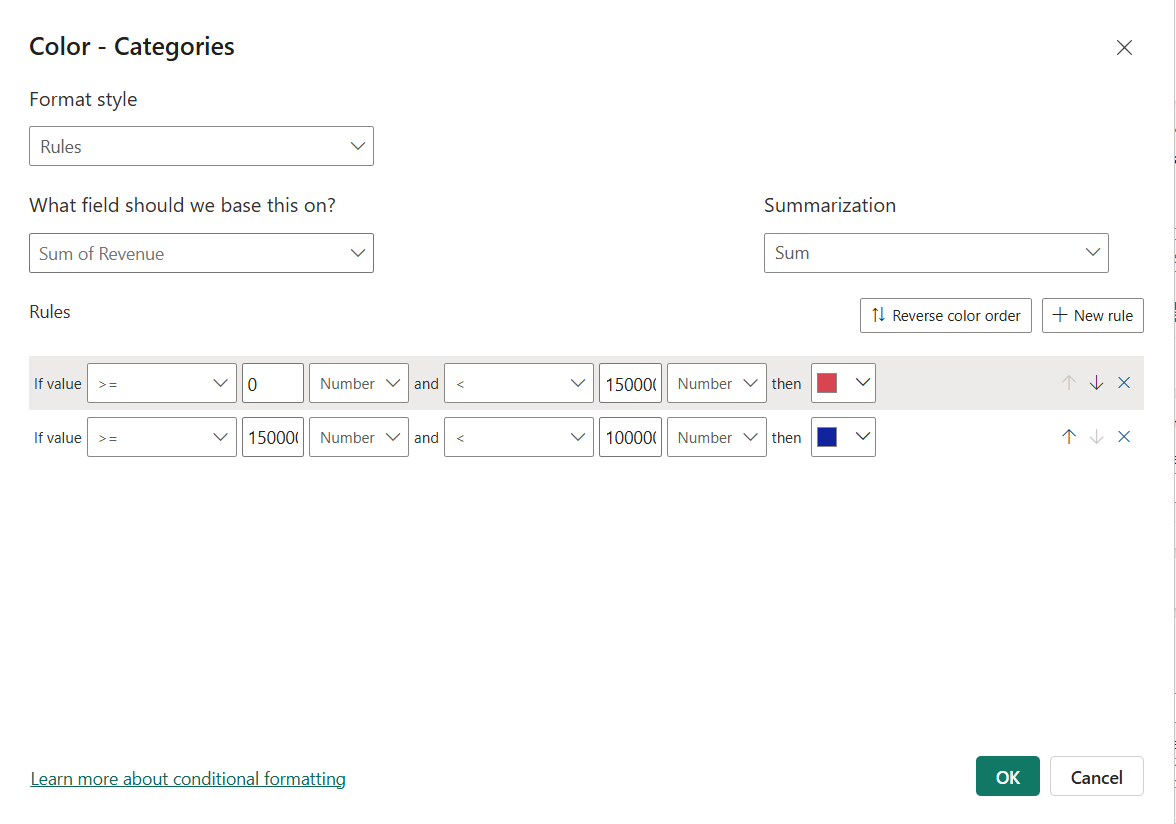
Two details trip people up. First, a new rule’s value type defaults to Percent, which means a percentage of the range between the lowest and highest month. Switch every box to Number for dollar amounts. Second, use >= on one side and < on the other, so a month at exactly $150,000 isn’t left uncolored.
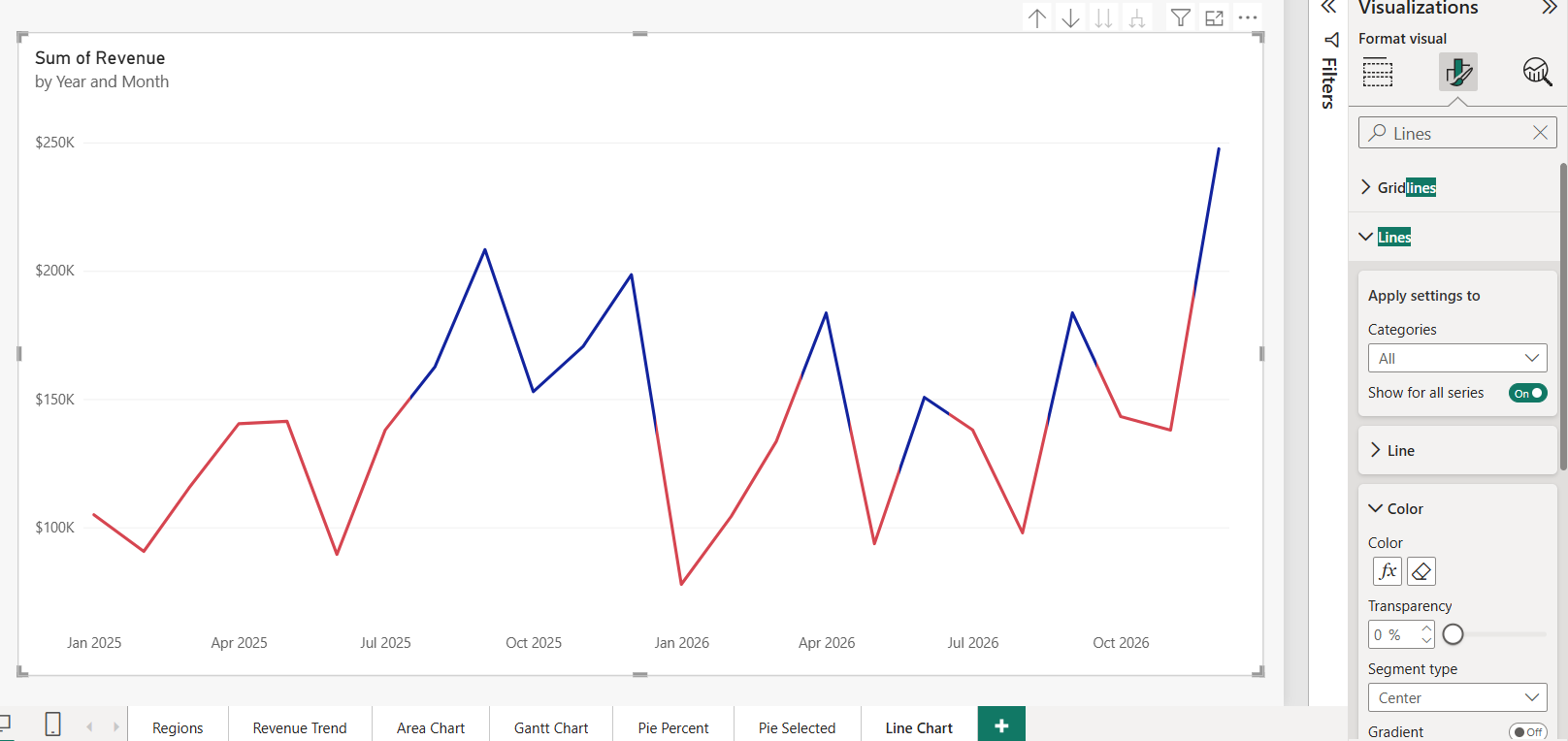
Here’s the result. Every stretch under $150K is red, and the strong fall months stay blue:
Segment type and gradient blending
After you apply a rule, the Color section shows two more settings:
- Segment type: where the color changes between two points. Center (the default) switches halfway; Left or Right gives each segment the color of the point on that side.
- Gradient: blends the two colors along the segment instead of switching sharply. It was off in my chart. Gradient blending works only with Center.
I like Right for monthly targets: the segment leading into a below-target month turns red, which reads as "this is where it went wrong". Turn on Shade area if you want the area under the line to follow the same colors.
Method 2: Use a gradient
A gradient is better when you care about how high or low each month is, not pass or fail. In the same dialog, set Format style to Gradient, base it on Sum of Revenue, and pick colors for Minimum (Lowest value) and Maximum (Highest value). Check Add a middle color for a three-color scale.
Switch Minimum and Maximum from Lowest and Highest value to Number if you want stable colors. Otherwise the colors shift every time a slicer changes the data.
Method 3: Field value with a DAX color measure
For anything beyond a fixed number, such as a target that differs by month or region, write a measure that returns a color:
Total Revenue = SUM ( Sales[Revenue] )

Revenue Target = 150000

Revenue Color =
IF (
    [Total Revenue] >= [Revenue Target],
    "#12239E",   -- dark blue: on or above target
    "#D64550"    -- red: below target
)
Open Lines > Color > fx, set Format style to Field value, and choose Revenue Color. The measure must return text: a hex code, a CSS color name such as red, or a theme name. Replace the fixed 150000 with a real target measure later. More patterns are in these Power BI measure IF examples.
Color only the highest and lowest markers
Markers are off by default. Turn on Markers, expand Color, and select its fx. A Field value measure can return a color for the best and worst months and a fully transparent color for the rest. This version assumes you create a date table in Power BI and put its Year Month column on the axis:
Marker Color =
VAR CurrentValue = [Total Revenue]
VAR MonthValues =
    CALCULATETABLE (
        ADDCOLUMNS ( VALUES ( 'Date'[Year Month] ), "@Revenue", [Total Revenue] ),
        ALLSELECTED ( 'Date' )
    )
VAR MaxValue = MAXX ( MonthValues, [@Revenue] )
VAR MinValue = MINX ( MonthValues, [@Revenue] )
RETURN
    SWITCH (
        TRUE (),
        CurrentValue = MaxValue, "#12239E",
        CurrentValue = MinValue, "#D64550",
        "#FFFFFF00"   -- transparent: hide the other markers
    )
MAXX and MINX scan the months that are visible after slicers, so the highlights follow the filters. The guide to the MAX, MIN, MAXX and MINX functions explains the X versions.
The old column chart workaround
Before 2026, the usual trick was to build a column chart, set Columns > Color > fx, and then switch the visual to a line chart. The column colors carried over to the markers, but the line itself stayed one color, and the colors could reset when you edited the visual.
You don’t need it anymore. If you’re stuck on an older Desktop version or want colored columns anyway, see conditional formatting in a stacked column chart.
Troubleshooting
- No fx next to Lines > Color: update Power BI Desktop to a 2026 release from July or later.
- The fx works, but the line is one color: there’s a Legend field or a second measure. Remove them for segment colors.
- Nothing changes after OK: the rules use Percent, or the ranges don’t cover your values. Switch to Number and check the boundaries.
- Field value does nothing: the measure returns a number or a misspelled color name. Return text such as "#D64550".
- The color changes between points, not at them: change Segment type from Center to Left or Right.
Formatting other visuals in the same report? These tutorials use the same fx dialog:
Frequently Asked Questions
Can you use conditional formatting on a Power BI line chart?
Yes. Since the July 2026 release, Format visual > Lines > Color has an fx button with Gradient, Rules and Field value. The Microsoft Learn article on line and legend conditional formatting has more examples.
How do I change a line color based on a value in Power BI?
Use Lines > Color > fx with Rules: one rule below your threshold and one at or above it, both set to Number.
Why doesn’t my line change color in segments?
Segment coloring needs a single series. Remove the Legend field and any extra measures from the Y-axis.
What is Segment type in Power BI line formatting?
It sets where the color changes between two points: halfway (Center), or using the color of the left or right point.
Can I color markers differently from the line?
Yes. Markers > Color has its own fx button, so you can highlight only the highest and lowest points with a Field value measure.

I have worked with Microsoft technologies for more than 18 years, including SharePoint, Microsoft 365 and the Power Platform (Power Apps, Power Automate and Power BI), at companies like HP, TCS and KPIT. I started EnjoySharePoint in 2011 to share the solutions I build in real projects with readers in the United States, Canada, the United Kingdom, Australia, New Zealand and beyond. Microsoft has recognized this work with the Microsoft MVP award 13 times since 2014.