
Do you know you can create meetings in Microsoft Teams using Power Automate?
In this tutorial, I will explain how to schedule meetings in Microsoft Teams using Power Automate.
I will show you how to automatically schedule a team meeting in Outlook calendar or a calendar in Teams by using a manual trigger flow. Also, we will see how to schedule team meetings in the Microsoft Teams calendar using a SharePoint list.
Then, I will describe how to Schedule a meeting from a message in teams using the Power Automate Template.
Create Teams Meeting in Power Automate [Manually]
With Power Automate, we can create Teams meetings and invite people to attend them. Follow the steps below to create a team meeting using Power Automate.
1. Open Power Automate Home page -> Select +Create -> Click Instant cloud flow -> Provide a flow name and select Manually trigger a flow -> Click Create button.
Inside the trigger, click on +Add an input to add the following parameters:
- Subject: Text Input
- Description: Text Input
- Attendees: Email Input
- Start Date: Date Input
- Start Time: Text Input
- End Date: Date Input
- End Time: Text Input

2. Next, I will create a Teams meeting in Power Automate; for this, click on the +New step -> select Create a Teams meeting action.
Then provide the below information:
- Subject: Provide the subject of teams from dynamic content.
- Message: Take a Description from the dynamic content.
- Time zone: Select the time zone from the drop-down.
- Start time: Provide the start time of the team meeting. I have used the below expression:
Here, I have concatenated Start Date + T + Start Time Inputs.
concat(triggerBody()['date'],'T',triggerBody()['text_1'])- End time: Please provide the end time of the team meeting in the code below.
Here, I have concatenated End Date + T + EndTime Inputs.
concat(triggerBody()['date_1'],'T',triggerBody()['text_2'])- Required Attendees: Provide the required attendees from dynamic content.
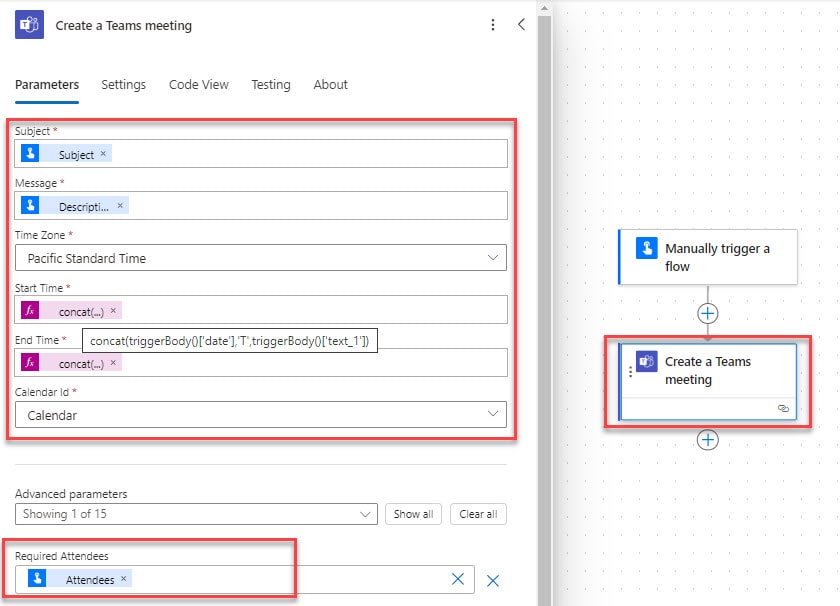
3. Now, click on Save. After that, click on Test. Select the Manually radio button. Click Runflow.
In the Run flow window, provide the below details:
- Subject
- Provide Attendees email
- Start Date
- Start Time
- End Date
- End Time
- Description of the meeting

4. Now, the attendees will get the scheduled meeting notification in the Microsoft Teams calendar like below:

This is how to easily create team meetings in Microsoft Teams with Power Automate in an Instant cloud flow.
Power Automate Create Teams Meeting using SharePoint list
This section will explain scheduling a meeting from a SharePoint list of values in the Microsoft Teams calendar with Power Automate.
For example, I have a SharePoint list with the following columns.
- User Name: Single line of text [Title column]. It is not a particular column; you can also rename it to include the Team Meeting subject.
- User: Person or Group column
- Start Date: Date and Time column [Toggle Yes to Include Time option]
- End Date: Date and Time column [Include Time – Toggle Yes button]
- Subject: Single line of text
- Message: Single line of text

When we create a new item in the SharePoint list, meetings will automatically get created in the Microsoft Teams calendar.
To do this using Power Automate, I have followed the below steps.
1. Navigate to https://make.powerautomate.com to open the Power Automate Home page -> Select +Create -> Click Automated cloud flow -> Provide a flow name and select When an item is created -> Click Create button. Then, provide the information below:
- Site address: Provide the SharePoint site address.
- List name: Select the List name from the dropdown.

2. Then, take the Initialize variable flow action to initialize the User email address.
Provide the information below:
- Name: Provide the variable name.
- Type: Select the variable type as string.

3. Add an Append to string variable flow action to collect the user’s email address. Give the below details:
- Name: Select the Name of the variable.
- Value: Select the User Email from dynamic content following with semicolon ‘;’.
Then, Apply to each loop will be added automatically.

Note:
By default, the Date and Time column in the SharePoint and Microsoft Teams calendar will be in the UTC zone.
4. Add Convert time zone flow action, which converts UTC to the destination time zone.
Ensure to give the below-mentioned parameters.
- Base Time: Select the Start Date column from dynamic content.
- Format string: Select date time format from the option.
- Source time zone: Provide the Source time as UTC.
- Destination time zone: Provide the Destination time zone.

5. Similarly, take another Convert Time zone flow action to convert the time zone SharePoint column End Date.
Provide the below information:
- Base Time: Take the End Date column from the dynamic content.
- Format string: Select date time format from the option.
- Source time zone: Provide the Source time as UTC
- Destination time zone: Provide the Destination time zone.

6. To create a Teams meeting, click the +New step -> select the ‘Create a Teams meeting‘ flow action. Then provide the below information:
- Calendar Id: Select the Calendar Id.
- Subject: Select Title from dynamic content.
- Message: Select the Message from dynamic content.
- Time zone: Select the preferred time zone from the drop-down.
- Start time: Select the Start date [Converted time] from dynamic content.
- End time: Select the End date [Converted time] from dynamic content.
- Required Attendees: Select the User’s email from dynamic content.

7. Now save and run the flow manually. At this point, add a new item to the SharePoint list as shown below:

8. After that, teams will be created with the given timings in the Microsoft Teams calendar for all the given users.

Other Way:
We can also create team meeting in Microsoft Teams without taking Convert timezone flow action.
Here, I have directly selected the Time Zone from the drop-down in the Create a Teams meeting flow action.
- Format Start Date and End Date values in a specific format, like in the given code:
formatDateTime(triggerOutputs()?['body/StartDate'],'yyyy-MM-ddThh:ss:mm')
formatDateTime(triggerOutputs()?['body/EndDate'],'yyyy-MM-ddThh:mm:ss')
This is how to create a Microsoft Teams meeting in the calendar using a SharePoint list with Power Automate.
Schedule a Teams Meeting from a message in Power Automate [Template]
Here, I will show how to schedule a meeting from a team message using the Power Automate pre-built template.
To do this in Power Automate, I have followed the below steps.
1. In Power Automate Home page -> Select Templates -> Search and select Schedule a meeting from a message template [Schedule a meeting with the person who sent the message].
It will the options to connect as mentioned below:
- Microsoft Teams
- Office 365 Users
Click on the Continue button.

2. After that, the prebuilt template will be added to the flow studio. The flow is disabled with Manual Testing.

3. Now, go to the Microsoft Teams chat with whom you want to schedule a meeting. Hover to the Message and Select More options icon -> Then select Schedule a meeting from a message option.

4. In the next window, provide the following details for a meeting to schedule: Meeting subject, Meeting details, Meeting date, Meeting time, and Duration.
After that, click on Submit.

4. Then, a meeting with that person will be automatically created in the Microsoft Teams or Outlook calendar, as shown below.

Conclusion
A user can easily use Power Automate to create Teams meetings in the Microsoft Teams calendar. I trust this article helps you to understand how to schedule a meeting in Teams with Power Automate
Here, I have also covered different ways of creating meetings in Microsoft Teams, as mentioned below:
- Scheduling teams meeting with Power Automate Instant cloud flow
- How to add team meetings in Outlook calendar using a SharePoint list using flow
- Create a meeting in MS Teams using the Power Automate template from a message.
You may also like:
- How to Create a Team using Power Automate in Microsoft Teams?
- How to Send Teams Messages using Power Automate?
- How to join Microsoft teams meeting anonymously
- How to create a Power BI Dashboard in Microsoft teams
- Add Members to Microsoft Teams using Power Automate

After working for more than 18 years in Microsoft technologies like SharePoint, Microsoft 365, and Power Platform (Power Apps, Power Automate, and Power BI), I thought will share my SharePoint expertise knowledge with the world. Our audiences are from the United States, Canada, the United Kingdom, Australia, New Zealand, etc. For my expertise knowledge and SharePoint tutorials, Microsoft has been awarded a Microsoft SharePoint MVP (12 times). I have also worked in companies like HP, TCS, KPIT, etc.

