
An HR team I worked with sent a weekly reminder to managers about incomplete employee records: missing job titles, missing phone numbers, missing start dates. The first version of their flow pulled all 1,200 records and checked each one in a loop, which took several minutes and used thousands of actions. A Filter Query that asked SharePoint only for the blanks got it down to a few seconds.
The trick is knowing the right syntax for each column type, and which columns SharePoint can’t filter at all. This guide covers both.
Quick answer: In Get items, open Advanced parameters and set the Filter Query to ColumnName eq null for blank values or ColumnName ne null for values that aren’t blank, using the column’s internal name and no quotes around null. For person and lookup columns, add Id: ManagerId eq null. Multiple lines of text and multi-value columns can’t be filtered this way; use a Filter array action instead.
How the Filter Query works
By default, Get items returns up to 100 items from a list. The Filter Query goes to SharePoint with the request, so SharePoint does the filtering and only the matching items come back. That’s faster, and it saves the actions you’d use looping over everything.
Microsoft’s Get items guidance lists the supported operators: eq, ne, lt, le, gt and ge, plus the functions startswith and substringof. It doesn’t document comparing to null, but eq null and ne null are the standard approach and work for the column types below. Check the run history on your own list the first time.
Quick reference by column type
| Column type | Blank | Not blank |
|---|---|---|
| Single line of text | Col eq null | Col ne null |
| Choice (single selection) | Col eq null | Col ne null |
| Number or Currency | Col eq null | Col ne null |
| Date and Time | Col eq null | Col ne null |
| Person or Group (single) | ColId eq null | ColId ne null |
| Lookup (single) | ColId eq null | ColId ne null |
| Multiple lines of text | Not supported; use Filter array | Not supported |
| Multi-select choice, person or lookup | Not supported; use Filter array | Not supported |
Two rules apply to all of them. Don’t put quotes around null: eq 'null' looks for the text “null”. And write the operators and null in lowercase.
Find the internal column name
The Filter Query needs the column’s internal name, not the name you see in the list. Go to List settings, select the column, and look at the end of the browser’s address: the part after Field= is the internal name.
SharePoint encodes special characters in internal names, so a space becomes _x0020_ (Employee Designation becomes Employee_x0020_Designation) and a hyphen becomes _x002d_. The internal name is set when the column is created, and renaming the column later doesn’t change it. There’s no square-bracket syntax to work around it, so use the encoded name.
The sample list and flow
My examples use an Employee list with Employee ID (Title), Employee Name (Person), Employee Designation (Single line of text), Date of Joining (Date and Time), Employee Status (Choice) and Contact Number (Number). Some rows are missing values.
The flow is the same for each example: Manually trigger a flow, then Get items with the Filter Query, then whatever you want to do with the results.
Example 1: Blank text column
In Get items, pick the site and list, open Advanced parameters, select Filter Query, and enter:
EmployeeDesignation eq null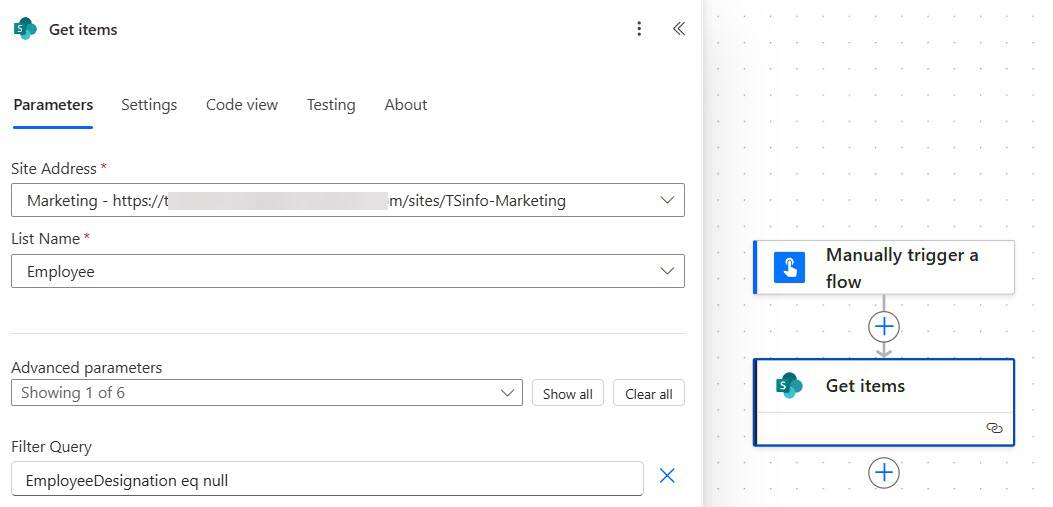
To flag the incomplete records, add Update item (Power Automate wraps it in Apply to each for you). Set Id to the ID from Get items and put a marker such as #### in Employee Designation:
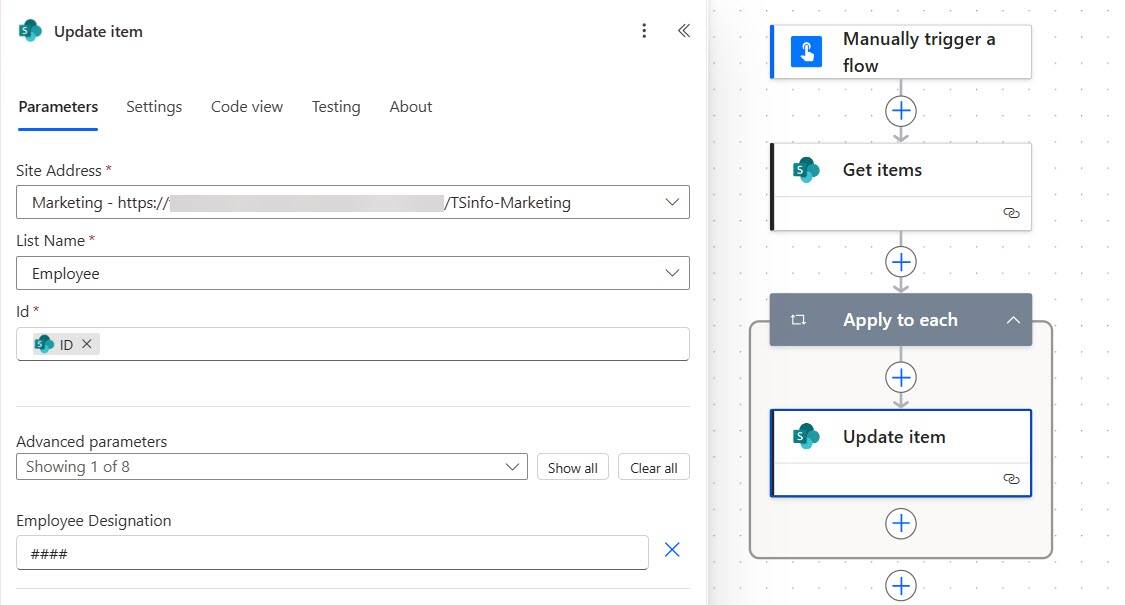
After the run, only the rows that had no designation show ####. If a required column other than Title needs a value, Update item asks for it too.
Example 2: Blank choice column
EmployeeStatus eq null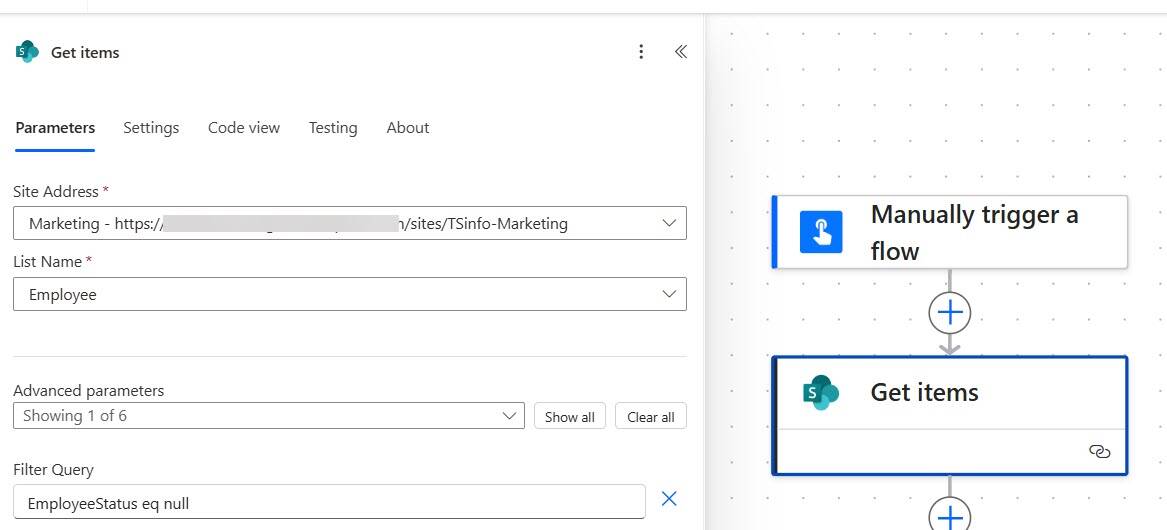
This works for single-selection choice columns. If the column allows multiple selections, SharePoint can’t filter it; see the section on columns you can’t filter below.
Example 3: Blank number column
ContactNumber eq null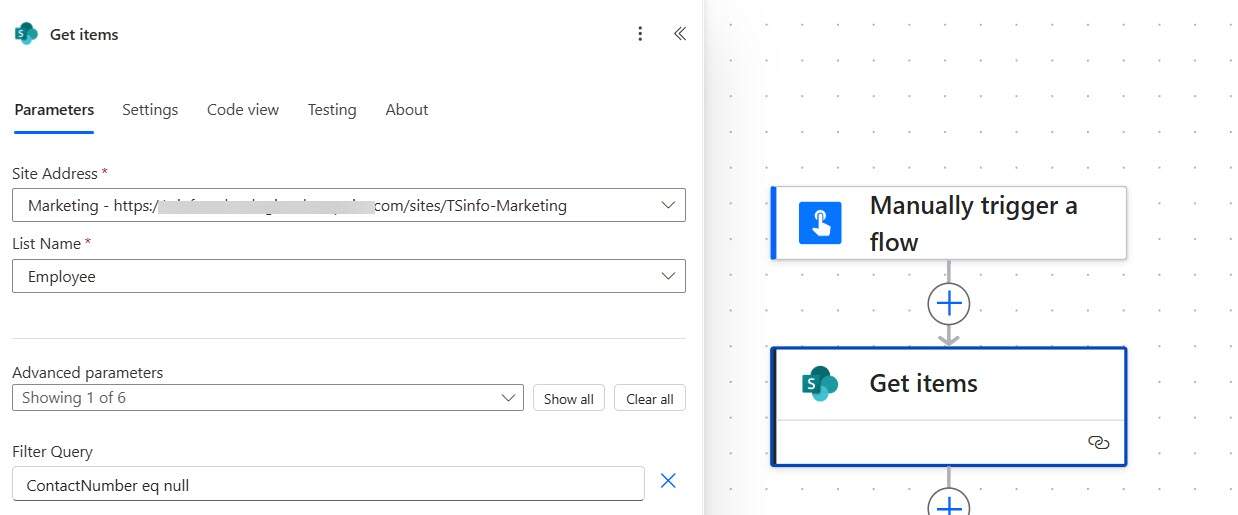
A blank number is null, not 0, so ContactNumber eq 0 won’t find it. Keep that in mind in calculations, too: blank and zero aren’t the same.
Example 4: Blank date column
DateofJoining eq null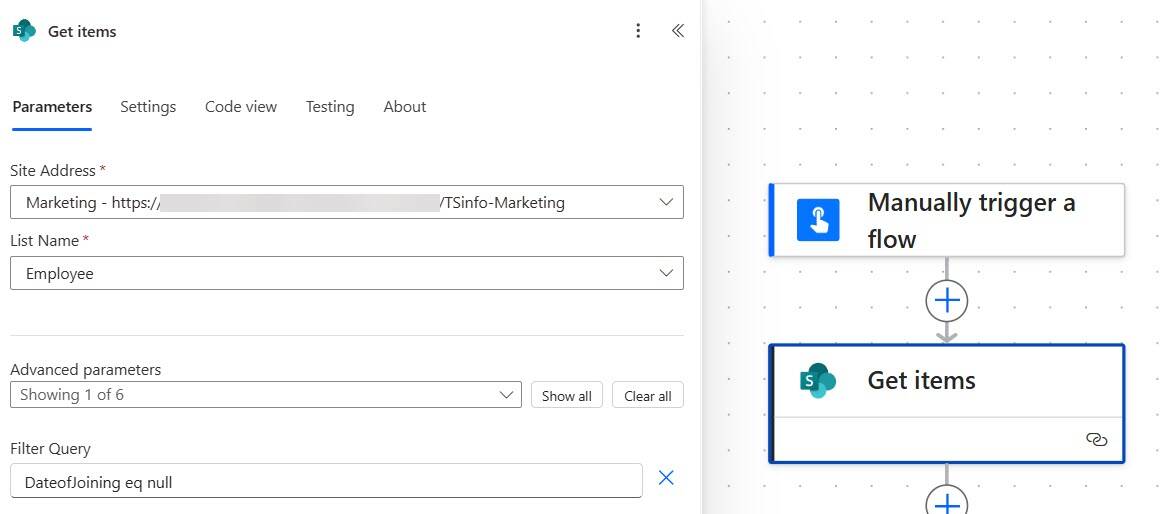
Don’t compare dates with empty text (eq ''). For more date filters, see Get items filter query by date, and for checking a single item’s date inside a flow, see how to check if a date is blank.
Example 5: Blank person column
For a person column, SharePoint stores the person’s ID in a separate field named after the column plus Id. Filter on that:
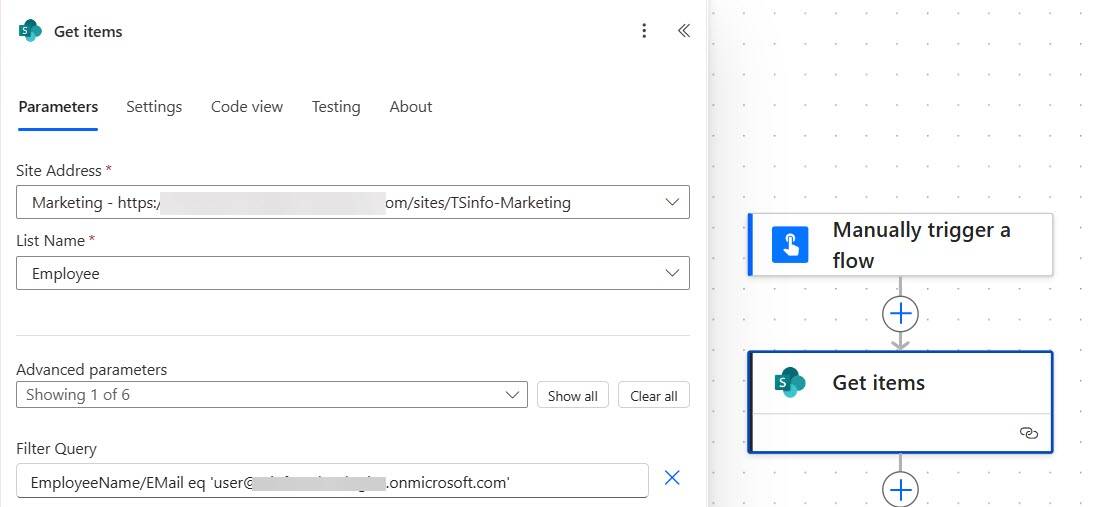
EmployeeNameId eq nullSome tutorials use EmployeeName/Claims eq null. “Claims” is a property Power Automate shows in the action’s output, not a field SharePoint can filter on, so use the Id field. To find items for a specific person, filter on the email instead:
EmployeeName/EMail eq '@{variables('ManagerEmail')}'Here the address comes from a variable; you can also type an address between the quotes, as in this screenshot:
Example 6: Blank lookup column
Lookup columns work the same way as person columns, with an Id field:
DepartmentId eq nullTo filter on a value from the other list, use the column and field name, such as Department/Title eq 'Finance'.
Columns you can’t filter (and what to do instead)
SharePoint can’t filter Multiple lines of text columns, or any column that allows multiple values: multi-select choice, person or lookup. Microsoft’s moderators confirm there’s no built-in way. Get the items without that condition, then add a Filter array action with the Get items value as the input, in advanced mode:
@empty(item()?['Notes'])empty() returns true for both null and empty text, which also covers text columns that were imported with empty strings. For more on this action, see the Power Automate Filter array tutorial.
Yes/No columns are a special case. They have a default value, usually No, so they’re rarely blank. Items created before the column was added can be blank; test eq null on your list if that matters.
Combine several blank checks
Use and and or, with parentheses when you mix them:
EmployeeDesignation eq null and ContactNumber eq null

EmployeeDesignation eq null or ContactNumber eq null or DateofJoining eq null

(EmployeeDesignation eq null or ContactNumber eq null) and EmployeeStatus eq 'Active'
Put it together: a weekly data quality report
Here’s the HR team’s flow:
- Recurrence trigger: every Monday at 8:00 AM, with your time zone set.
- Get items with
EmployeeDesignation eq null or ContactNumber eq null or DateofJoining eq null. - Condition:
length(body('Get_items')?['value'])is equal to0. - If true: post “No incomplete records this week” in Teams.
- If false: build a table with Create HTML table and email it to HR. See how to create an HTML table from an array.
Why your blank filter isn’t working
- You get an error. An invalid query doesn’t fail silently; SharePoint returns an error such as “The expression is not valid.” Check the internal name, the spaces around
eq, and that you didn’t use a multi-line or multi-value column. - You get fewer items than expected. Get items returns 100 items unless you change Top Count (up to 5,000). On lists with more than 5,000 items, SharePoint may return nothing if no match is in the first 5,000; turn on Pagination in the action’s Settings and set a threshold above your list size (up to 100,000 on most plans).
- The person filter returns everything or errors. Use
ColId eq null, not/Claims. - A “blank” text value isn’t found. Imported data can hold empty text instead of null. Try
Col eq null or Col eq '', or use Filter array with empty().
Other connectors and Power Apps
Dataverse (List rows) uses OData too, and it supports null comparisons such as revenue ne null. Excel (List rows present in a table) supports only eq, ne, contains, startswith and endswith, one filter per column, so check for blanks with Filter array. In Power Apps, use Filter(Employee, EmployeeDesignation = Blank()), which SharePoint can delegate; IsBlank() in a filter isn’t delegable.
These Get items and filter tutorials may also help:
- Power Automate get items filter query equals null | Power Automate get items filter query not equal null
- How to Use Power Automate Get Items Filter Query + 8 Examples
- Power Automate Get Items Filter Query Multiple Conditions
- How to Get More Than 100 Items Using The Get Items Action in Power Automate?
- Power Automate Filter Query Operators [With Examples]
- Power Automate OData Filter Query Yes/No (Boolean) Column
Frequently Asked Questions
How do I filter for blank values in Power Automate Get items?
Use ColumnName eq null in the Filter Query, with the internal name and no quotes around null. Microsoft explains the Filter Query in Working with Get items and Get files.
How do I filter a blank person column in Get items?
Filter on the Id field: EmployeeNameId eq null. The /Claims property isn’t a filterable SharePoint field.
Can I filter a multiple lines of text column for blanks?
No. SharePoint can’t filter those columns. Get the items and use a Filter array action with @empty(item()?[‘ColumnName’]).
Why does my filter query return only 100 items?
That’s the Get items default. Raise Top Count to up to 5,000, or turn on Pagination for larger lists.
Should I put quotes around null in a filter query?
No. ‘null’ in quotes is the text null. Write null without quotes, in lowercase.

I have worked with Microsoft technologies for more than 18 years, including SharePoint, Microsoft 365 and the Power Platform (Power Apps, Power Automate and Power BI), at companies like HP, TCS and KPIT. I started EnjoySharePoint in 2011 to share the solutions I build in real projects with readers in the United States, Canada, the United Kingdom, Australia, New Zealand and beyond. Microsoft has recognized this work with the Microsoft MVP award 13 times since 2014.
Thanks. That was helpful