
A sales operations team I worked with created a folder for every new client by hand: open the library, select New, type the client name, and hope nobody had already made one with a slightly different spelling. We moved it into a flow that creates the folder automatically when a client is added, with the same naming every time.
In this tutorial, I’ll show you three ways to create a SharePoint folder with Power Automate: the built-in Create new folder action, the same action with a check that the folder doesn’t exist yet, and the SharePoint REST API for full control over the path.
Quick answer: Add the SharePoint action Create new folder, choose the Site Address and the library in List or Library, and enter the Folder Path, such as Clients/Contoso. One action can create a whole nested path. To avoid surprises when a folder may already exist, check first with Get folder metadata using path and run Create new folder only if that check fails.
Which method should you use?
| Method | Best for | Checks for existing folders |
|---|---|---|
| 1. Create new folder | Most flows, including nested paths | No |
| 2. Check first, then create | Flows that run again with the same names | Yes |
| 3. REST API | Special cases where you need the exact server path | Only if you add a check |
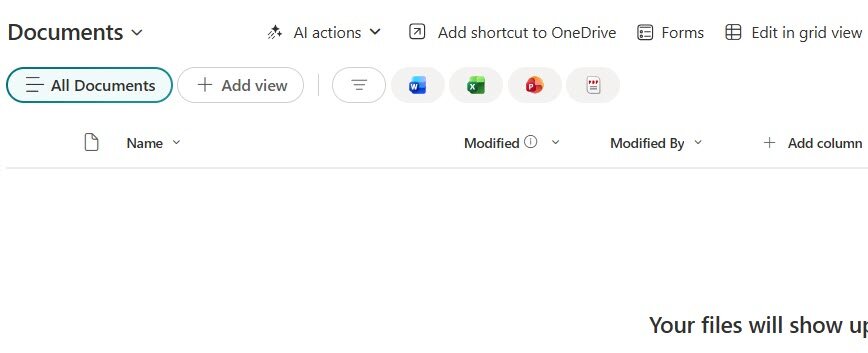
You need Edit (or Contribute) permission on the library, and all three methods use the standard SharePoint connector, so no premium license is required. Here’s the empty Documents library used in the examples:
Method 1: Create a folder with the Create new folder action
Step 1: Create the flow with a folder name input
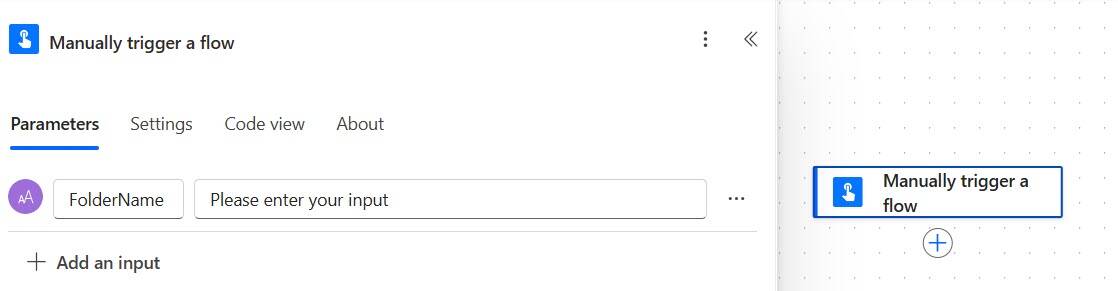
Create an instant cloud flow with Manually trigger a flow, and add a Text input called FolderName. In a real flow, the name usually comes from somewhere else, such as a list item, a form response or today’s date, but a manual input makes testing easy.
Step 2: Add Create new folder
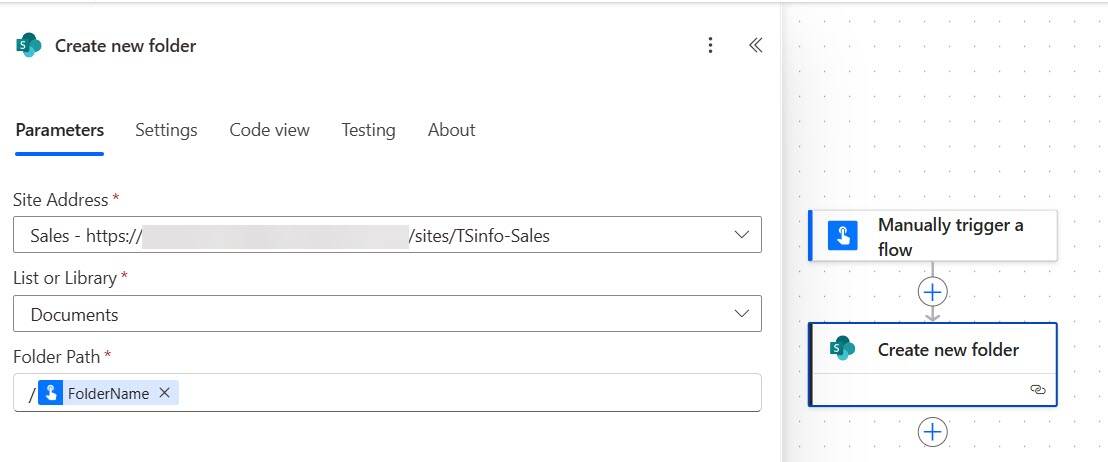
Add the SharePoint action Create new folder and fill in three fields:
- Site Address: your SharePoint site.
- List or Library: the document library, here Documents.
- Folder Path: the folder to create, here the FolderName input.
Step 3: Run the flow
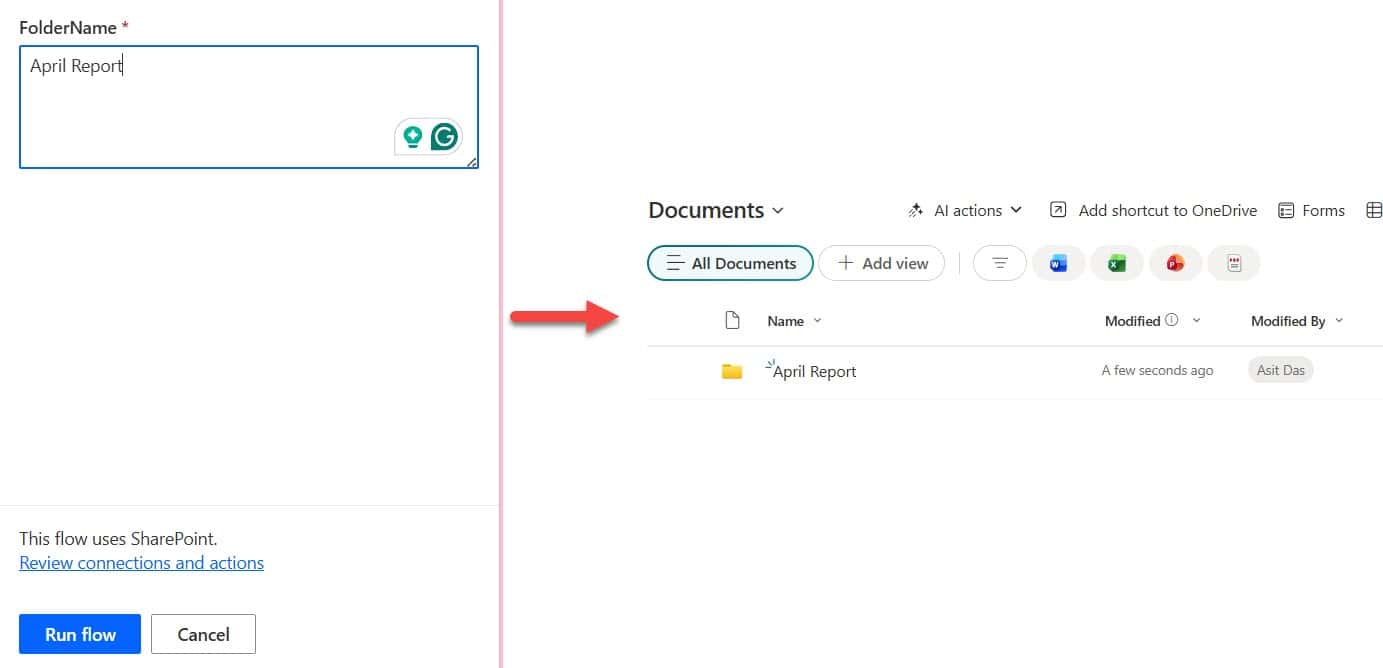
Save the flow, select Test, and run it with a folder name such as April Report. Refresh the library, and the new folder is there:
Create a nested folder path in one step
Create new folder doesn’t just make one folder; Microsoft describes it as creating a new folder or folder path. Enter a path such as Projects/2026/March, and the action creates every level that’s missing. For a monthly folder, build the path with an expression:
concat('Reports/', formatDateTime(utcNow(), 'yyyy'), '/', formatDateTime(utcNow(), 'MMMM'))That creates, for example, Reports/2026/September. If you need the month to follow your local time rather than UTC, wrap utcNow() in convertTimeZone().
Method 2: Create the folder only if it doesn’t exist
Microsoft doesn’t document what Create new folder does when the folder is already there, so for flows that may run more than once with the same name, I check first. There are two good ways.
Option A: Get folder metadata using path
Add the SharePoint action Get folder metadata using path with the same site and the full folder path, such as /Shared Documents/@{triggerBody()?['text']}. If the folder exists, the action succeeds; if not, it fails.
Then add Create new folder after it, open its Settings tab, and under Run after select only has failed. Now the folder is created only when the check didn’t find it. This is the simplest and fastest check, because it looks up one path instead of listing the whole library.
Option B: List the folders and filter them
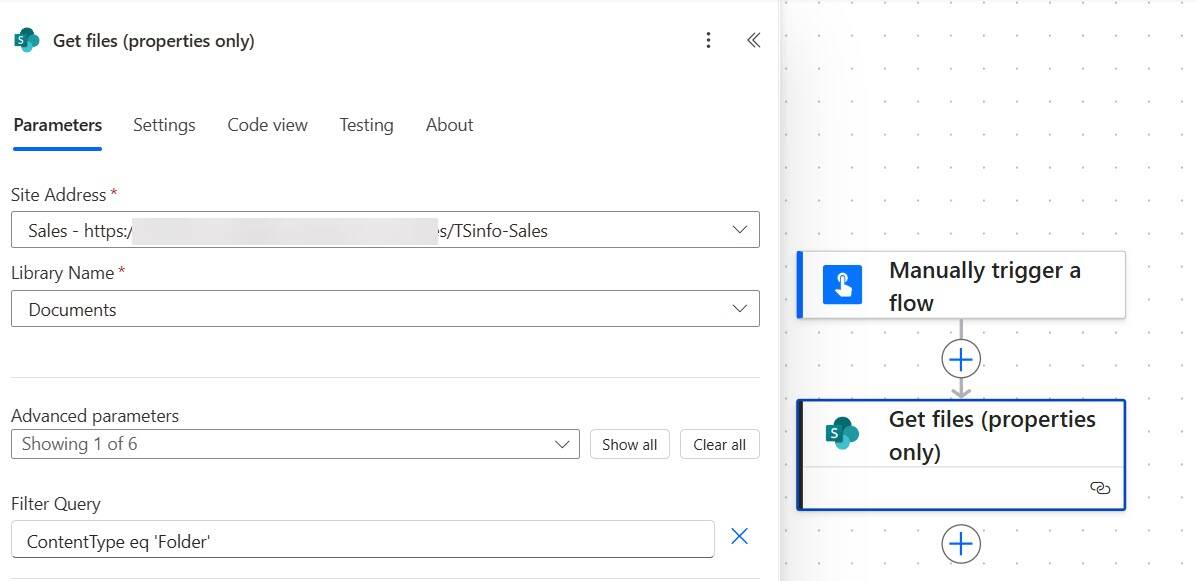
If you’d rather see the logic in the flow, list the folders and filter them. Add Get files (properties only) for the library, with the Filter Query ContentType eq 'Folder' so it returns only folders:
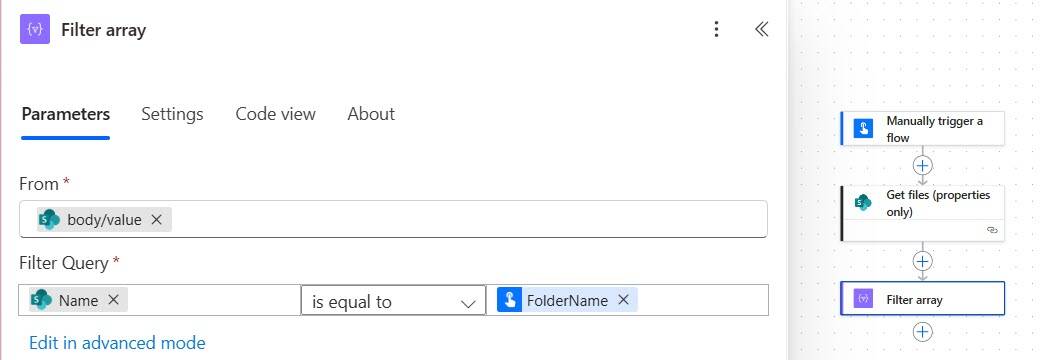
Add Filter array. Set From to the value of Get files, and the condition to Name is equal to the FolderName input:
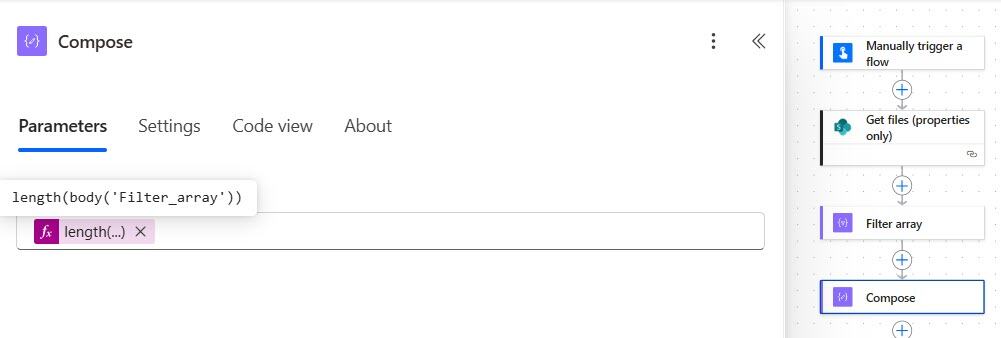
Next, count the matches. You can do it in a Compose action with length(body('Filter_array')), as shown here, or put the expression straight into the Condition:
Add a Condition that checks whether the count is equal to 0, and put Create new folder in the True branch. If a folder with that name exists, the count is 1 and nothing is created.
For libraries with thousands of folders, remember that Get files returns only 100 items by default; raise Top Count or turn on pagination, or use Option A instead.
Method 3: Create a folder with the SharePoint REST API
The REST API is useful when you already work with server-relative paths, or when you’re building something the connector actions don’t cover. Add Send an HTTP request to SharePoint and fill it in like this:
- Method: POST
- Uri:
_api/web/folders - Headers:
acceptandcontent-type, bothapplication/json;odata=verbose - Body: the JSON below, with your site and library in the path
{
  "__metadata": { "type": "SP.Folder" },
  "ServerRelativeUrl": "/sites/TSinfo-Sales/Shared Documents/@{triggerBody()?['text']}"
}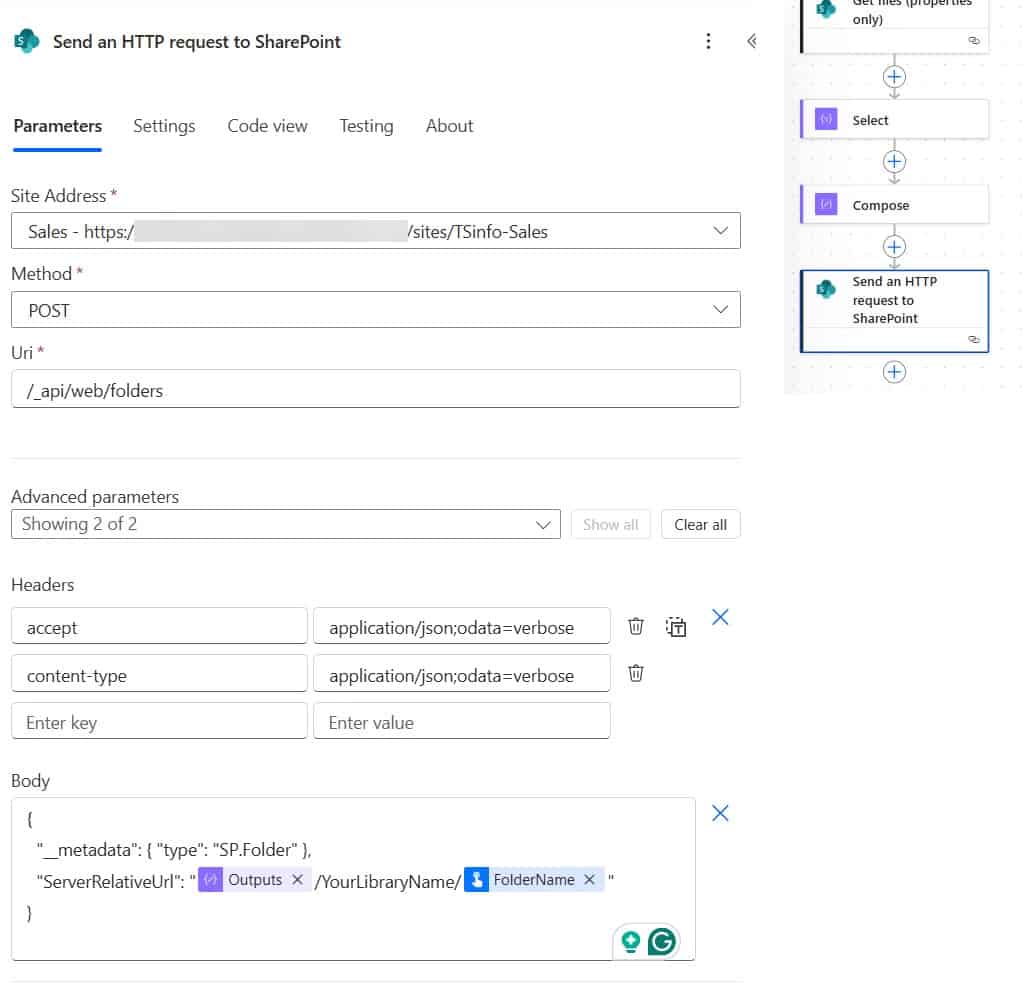
The ServerRelativeUrl starts with the site path, followed by the library’s name as it appears in its URL (for the default library, usually Shared Documents) and the folder name. In the screenshot, the first part of the path comes from a Compose action; typing it as shown above is simpler. A 403 error means the connection account doesn’t have permission; a 400 error usually means the path is wrong.
Folder names SharePoint won’t accept
SharePoint rejects folder names that contain any of these characters: " * : < > ? / \ |, as well as names that start or end with a space. You also can’t create a folder called forms at the top of a library, because SharePoint uses that name internally. If your folder names come from user input, clean them first with replace().
Set column values on the new folder
Create new folder doesn’t fill in library columns. To set metadata, such as a client ID or status, add Update file properties after it and use the item ID the folder action returns. Folders are items in the library, just like files.
Real-world examples
I’ve used these patterns for new-hire folders created from an HR form, project folders with Contracts and Deliverables subfolders when a project is added to a list, monthly report folders created on a schedule, and client folders created when a new customer record is added. In each case, the folder path comes from list data or a date expression, and a check keeps reruns from causing trouble.
For more SharePoint document automation, see these guides:
- How to Overwrite Files Using Create File Action in Power Automate?
- Power Automate: Get Attachments From a SharePoint List Item and Send by Email
- Stop Creating SharePoint Site Columns Manually – Use Power Automate Flow [6 Column Types Covered]
- How to Upload File in SharePoint Using Power Automate Desktop?
- How to Create an Excel File from SharePoint list Items using Power Automate?
- How to Create an Excel File When an Item is Created in SharePoint List Using Power Automate?
Frequently Asked Questions
Can Power Automate create nested folders in SharePoint?
Yes. The Create new folder action creates a folder or a whole folder path, so entering Projects/2026/March creates every level that’s missing.
How do I check if a SharePoint folder exists in Power Automate?
Use Get folder metadata using path with the folder’s path. If it fails, the folder doesn’t exist, so run Create new folder with Run after set to has failed.
Can I create a folder in a SharePoint list?
Yes, if folders are enabled for the list in List settings > Advanced settings. Create new folder accepts a list or a library.
Do I need a premium license to create SharePoint folders with Power Automate?
No. SharePoint is a standard connector. Microsoft documents the Create new folder action in the SharePoint connector reference.

I have worked with Microsoft technologies for more than 18 years, including SharePoint, Microsoft 365 and the Power Platform (Power Apps, Power Automate and Power BI), at companies like HP, TCS and KPIT. I started EnjoySharePoint in 2011 to share the solutions I build in real projects with readers in the United States, Canada, the United Kingdom, Australia, New Zealand and beyond. Microsoft has recognized this work with the Microsoft MVP award 13 times since 2014.