
An HR coordinator I helped had an onboarding flow that sent new hires a welcome email with their start date. It worked for months, until someone added a new employee before the start date was confirmed. The flow failed with an error about a null value, and nobody noticed for a week. One blank-date check would have caught it.
In this tutorial, I’ll show you the check I use for blank dates from SharePoint, Microsoft Forms and variables, how to format a date without errors, and how to fill in or clear a date column.
Quick answer: Use empty(). It returns true for both null and empty text, so it works for SharePoint dates, Forms answers and variables: empty(triggerBody()?['JoiningDate']). In a Condition, compare it with the expression true. Before formatting a date that might be blank, guard it: if(empty(x), '', formatDateTime(x, 'MM/dd/yyyy')).
Why blank dates break flows
When a SharePoint date column is empty, the flow gets null (or no value at all). Many functions can’t handle null. formatDateTime(), for example, fails with an error that starts with InvalidTemplate. Unable to process template language expressions and ends with The provided value is of type ‘Null’.
Other sources send an empty string, '', instead of null. That’s why I use empty(): Microsoft documents that it returns true for both. The one thing it can’t check is a number; use it on text, dates, arrays and objects.
| Source | Blank value | Check |
|---|---|---|
| SharePoint date column | null | empty(triggerBody()?['JoiningDate']) |
| Microsoft Forms date question | Usually empty text | empty(variables('varFormDate')) |
| String variable | Empty text (null becomes ” in a string variable) | empty(variables('varJoiningDate')) |
| Parse JSON output | null | empty(body('Parse_JSON')?['DateField']) |
The ? in triggerBody()?['JoiningDate'] matters too. It returns null instead of failing when the property is missing.
Method 1: Check a SharePoint date and fill it in
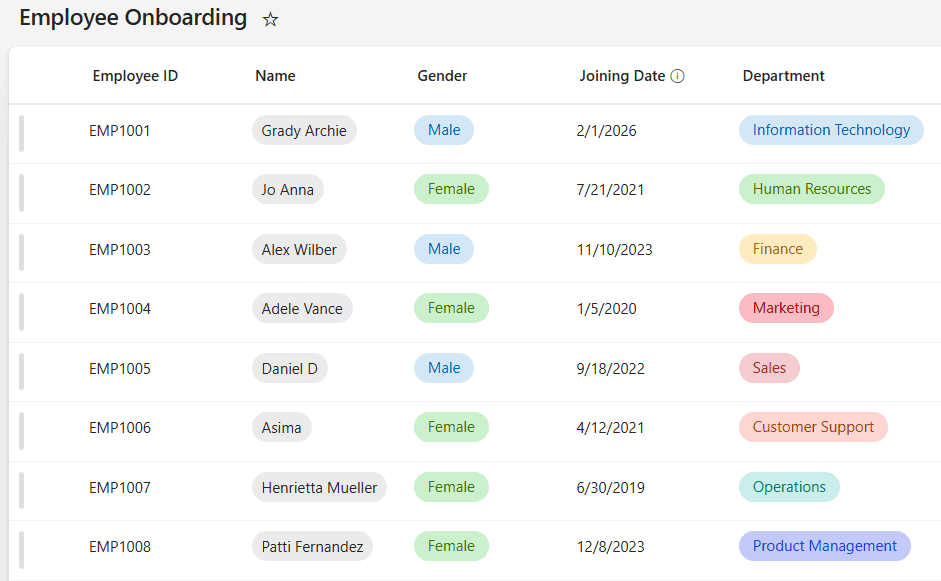
This Employee Onboarding list has a Joining Date column. If someone adds an employee without a date, the flow should set it to today, so there’s always something to work with:
Step 1: Create the flow
Create an automated cloud flow with the SharePoint trigger When an item is created, and select your site and list:
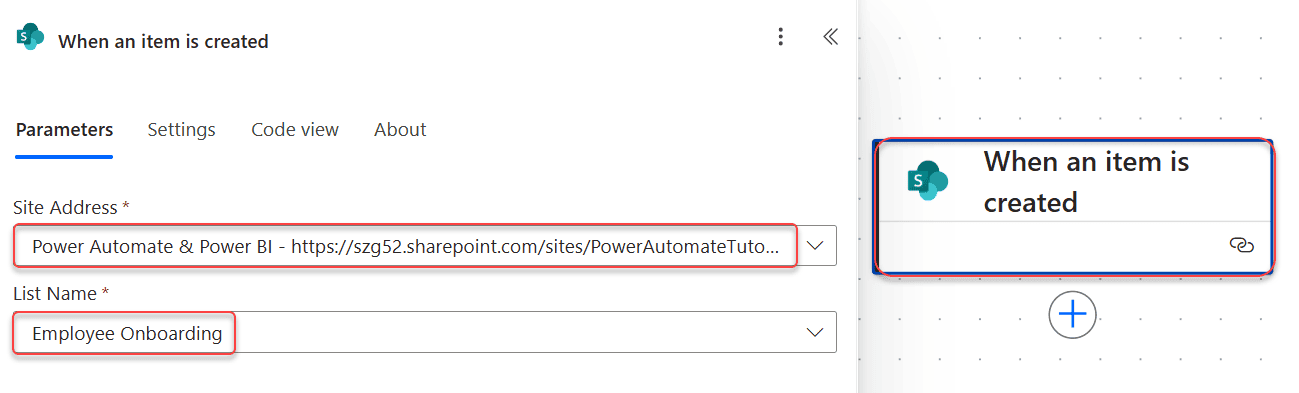
Use When an item is created here, not created or modified. The flow updates the item, and a modified trigger would fire again on its own update.
Step 2: Check the date with empty()
Select + > Add an action, search for Compose, and enter this expression in Inputs (select fx or type /):
empty(triggerBody()?['JoiningDate'])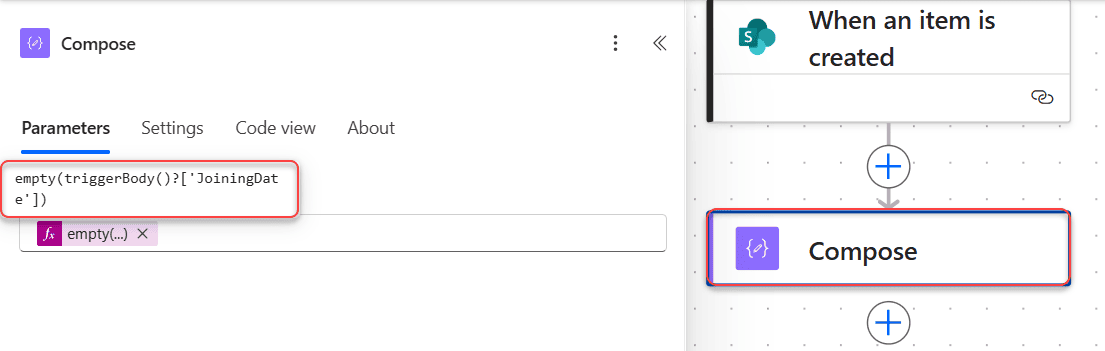
Use your column’s internal name. If it has a space, it may look like Joining_x0020_Date; the dynamic content shows the right name if you add the column and switch to code view.
Step 3: Add a Condition
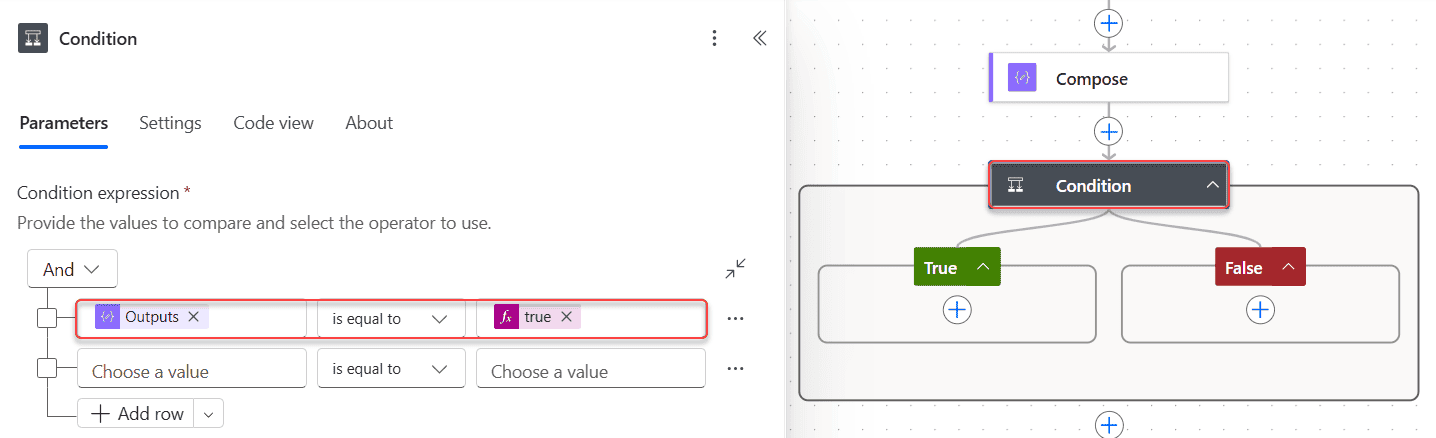
Add a Condition. Put the Compose Outputs on the left, choose is equal to, and on the right, enter true as an expression. If you type it as plain text, you’re comparing against the word “true”, and the condition never matches:
Step 4: Set the date in the True branch
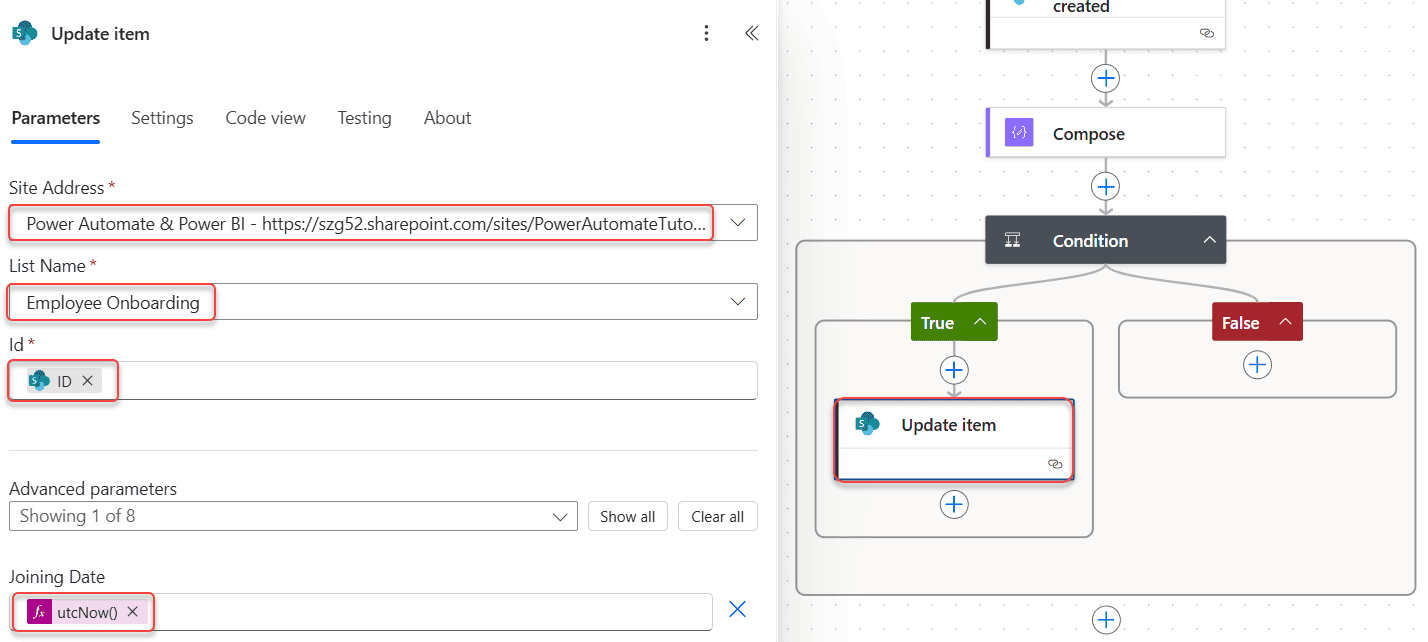
In True, add Update item. Select the site and list, set Id to the trigger’s ID, and set Joining Date to utcNow(). Leave False empty, or add the actions for items that already have a date:
Step 5: Test it
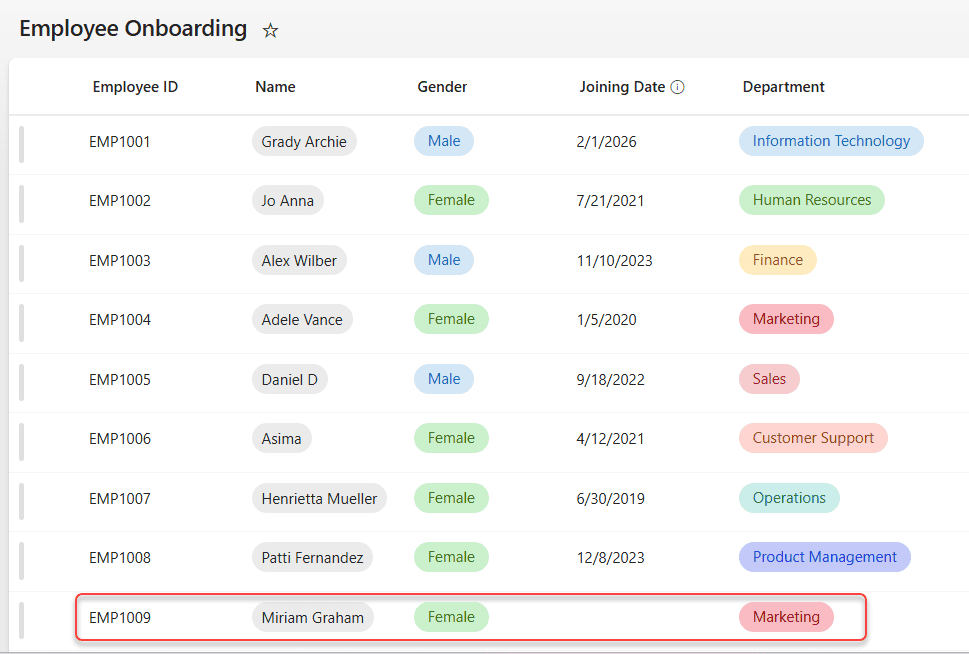
Save, select Test > Manually > Test, and add an item without a date:
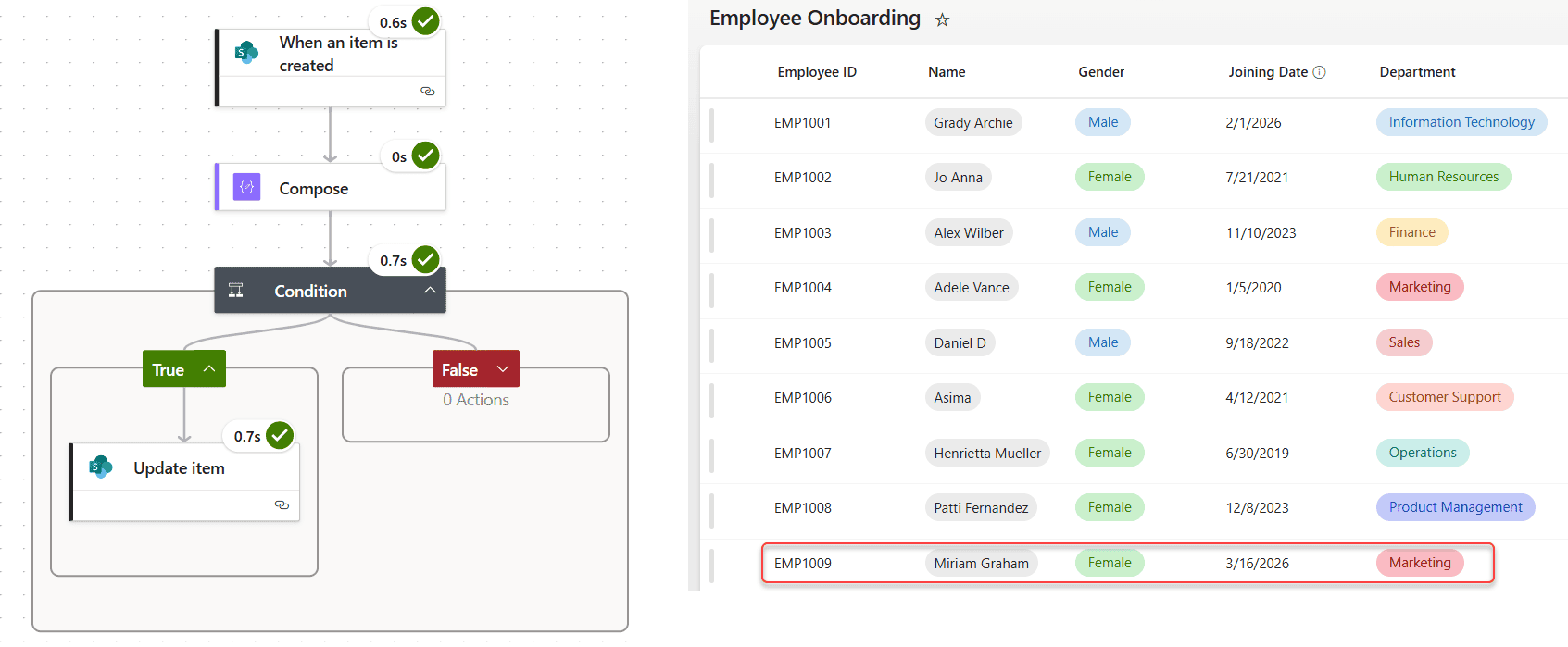
The run takes the True branch, and the Update item fills in today’s date:
Method 2: Format a date that might be blank
Most blank-date errors happen when you format the date for an email or a file name. Guard formatDateTime() with if(), so it only runs when there’s a date. Add Initialize variable, name it varJoiningDate, choose String, and use this expression:
if(empty(triggerBody()?['JoiningDate']), '', formatDateTime(triggerBody()?['JoiningDate'], 'MM/dd/yyyy'))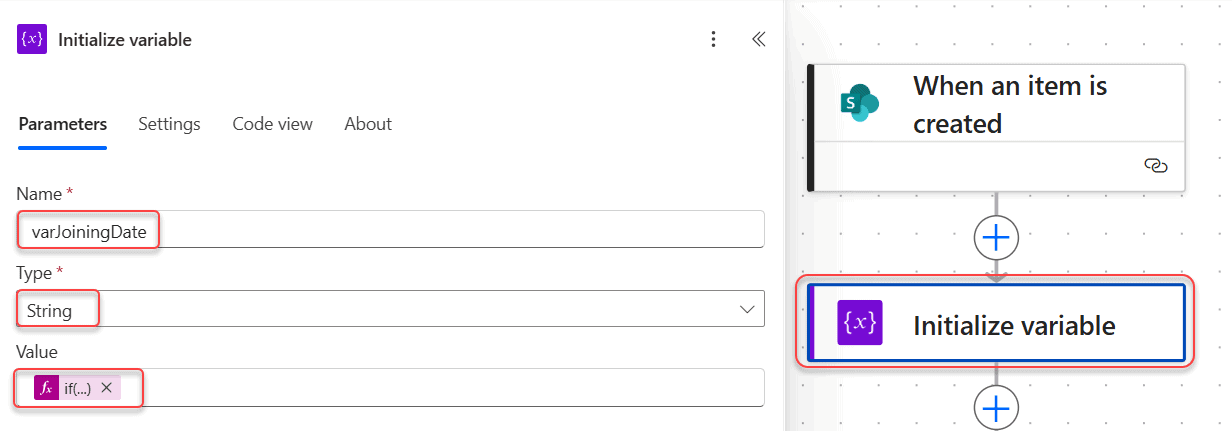
The variable holds the date in US format, such as 03/16/2026, or empty text when there’s no date. Use capital MM for the month; lowercase mm is minutes.
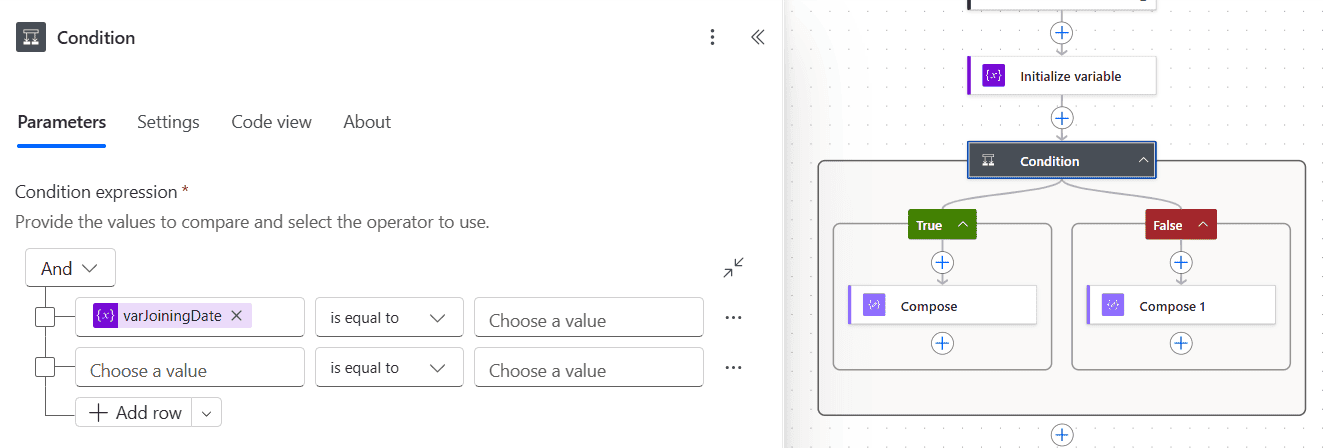
Now you can check the variable in a Condition. With varJoiningDate on the left and is equal to, leaving the right side empty compares it with empty text. Or put empty(variables('varJoiningDate')) on the left and the expression true on the right, which is easier to read:
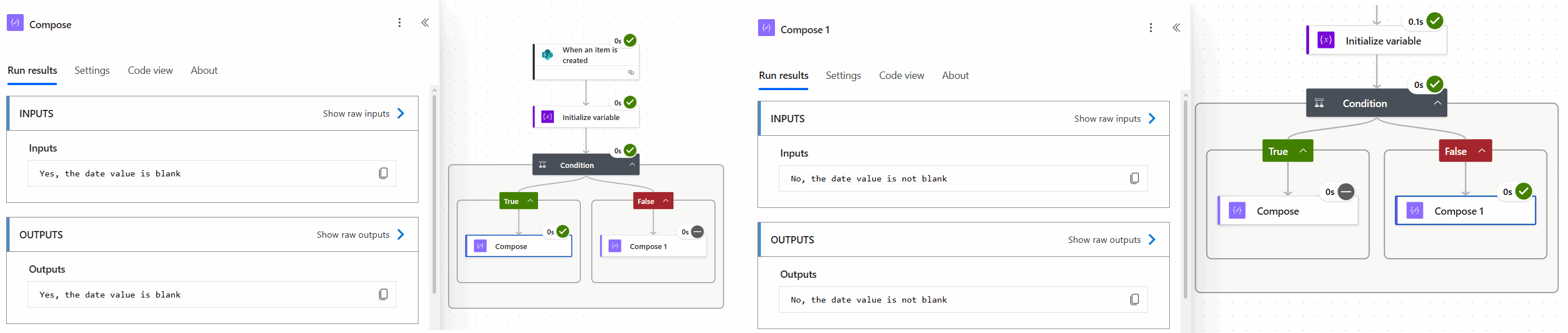
In my test, each branch writes a message with a Compose action. The blank item goes to True, and an item with a date goes to False:
Method 3: Dates from Microsoft Forms
For an optional date question, use the When a new response is submitted trigger and Get response details. I store the answer in a String variable called varFormDate:
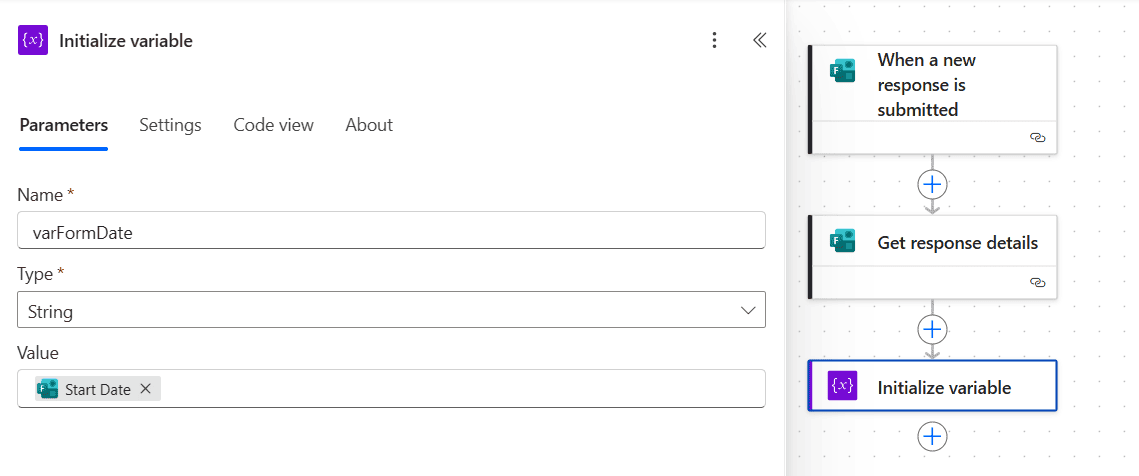
Check it with empty(variables('varFormDate')) is equal to the expression true. Don’t type two quote marks into the Condition’s value box; that’s the text "", not an empty value. For more Forms examples, see how to add a condition based on a Forms response.
Method 4: Use coalesce() for a default value
coalesce() returns the first value that isn’t null, which is handy for defaults:
coalesce(triggerBody()?['JoiningDate'], utcNow())It only skips null, though, not empty text. For a value that might be either, use if() and empty() instead: if(empty(x), utcNow(), x).
How to clear a SharePoint date
To empty a date column with Update item, set the field to the expression null. Don’t use empty text; SharePoint rejects it with an error that the value isn’t in the expected date format. Leaving the field empty in Update item usually leaves the existing date unchanged, so test it with your own list before you rely on it.
To find items with blank dates before the flow processes them, filter Get items with JoiningDate eq null. See Power Automate filter query if blank for all column types.
Common errors
- The provided value is of type ‘Null’. A function like formatDateTime() got a blank date. Use the if(empty()) pattern from Method 2.
- The Condition never matches. You typed
trueornullas text. Enter them as expressions. - The check works for SharePoint but not Forms. You compared with null. Use empty(), which covers both.
- The flow runs twice. The trigger is created or modified, and your Update item changed the item. Use When an item is created, or add a trigger condition.
These tutorials cover other blank-value checks in Power Automate:
- How to Check If a String is Empty in Power Automate?
- How to Check the Condition If Blank in Power Automate?
- Power Automate get items filter query equals null | Power Automate get items filter query not equal null
- Unable to process template language expressions in action inputs at line ‘0’ and column ‘0’ in Power Automate
- How to Use formatDateTime() Function in Power Automate?
- How to Update SharePoint List Items Using Power Automate?
Frequently Asked Questions
How do I check if a date is empty in Power Automate?
Use empty(), which returns true for null and empty text, for example empty(triggerBody()?[‘JoiningDate’]). Microsoft covers empty() in its expression cookbook.
Why does formatDateTime fail on a blank date?
It can’t format a null value. Wrap it: if(empty(x), ”, formatDateTime(x, ‘MM/dd/yyyy’)).
Does a blank SharePoint date come through as 1/1/1900?
No. A blank SharePoint date arrives as null. A 1/1/1900 value only appears if someone or something saved that date.
How do I clear a SharePoint date column with Power Automate?
In Update item, set the date field to the expression null. Empty text causes a date format error.
What’s the difference between null and empty text in Power Automate?
Null means no value; empty text is a string with nothing in it. A null stored in a String variable becomes empty text. empty() returns true for both.

I have worked with Microsoft technologies for more than 18 years, including SharePoint, Microsoft 365 and the Power Platform (Power Apps, Power Automate and Power BI), at companies like HP, TCS and KPIT. I started EnjoySharePoint in 2011 to share the solutions I build in real projects with readers in the United States, Canada, the United Kingdom, Australia, New Zealand and beyond. Microsoft has recognized this work with the Microsoft MVP award 13 times since 2014.