
Last week, I was working on a Power Automate flow where I needed to check if a specific field was blank before proceeding with further actions. This requirement was essential to ensure that subsequent steps in the flow were only executed when the necessary information was provided.
In this tutorial, I will explain how to check the condition if it is blank in Power Automate and how to check the condition if it is not blank.
Check the Condition If Blank in Power Automate
Let’s say you have a SharePoint list named Customer Feedback, which contains fields like Customer Name, Email, and Feedback Comments.

Sometimes, users may submit items without filling out the Feedback Comments field. If this field is blank, you want to assign a default message (e.g., “No feedback provided”) to ensure you always have data to process.
Now follow the below steps:
1. Create an automated cloud flow. Give the flow name and select the trigger When an item is created. Also, provide the Site Address and List Name.

2. Now, we will add the Condition action to check whether the Feedback Comments field is blank.
In this Condition action, select the Feedback Comments (from when an item is created action) value equal to null.

3. Then, Add the update item action inside the true section and provide the below parameters:
- Site Address: The SharePoint site address from the drop-down menu.
- List Name: Select your list from the drop-down.
- ID: Provide ID from dynamic content when an item is created.
- Feedback Comments: Provide text as No feedback provided.

Now click on Save and run the Flow manually. Once the flow runs, add an item to the SharePoint list, but do not add a Feedback Comments value.

After the flow runs successfully, go to the SharePoint list, and you’ll see that the Feedback Comments are filled in as No feedback provided.

Check the Condition If Not Blank in Power Automate
Suppose you have a SharePoint list called Project Tasks where team members create tasks.

Sometimes, the Due Date field might be left empty. You want to notify the manager only when the Due Date is set, so they know which tasks have a deadline approaching.
Now follow the below steps:
1. Create an automated cloud flow. Give the flow name and select the trigger When an item is created. Also, provide the Site Address and List Name.

2. Now, we will add the Condition action to check whether the due date field is not blank.
In this Condition action, select the Due Date (from when an item is created action) value that is not equal to null.

3. Then, Add the Send an email action inside the true section and provide the below parameters:
- To: Provide manager email.
- Subject: Provide a subject line for a mail.
- Body: Provide a detailed description of a mail.

Now click on Save and run the Flow manually. Once the flow runs, add an item to the SharePoint list.

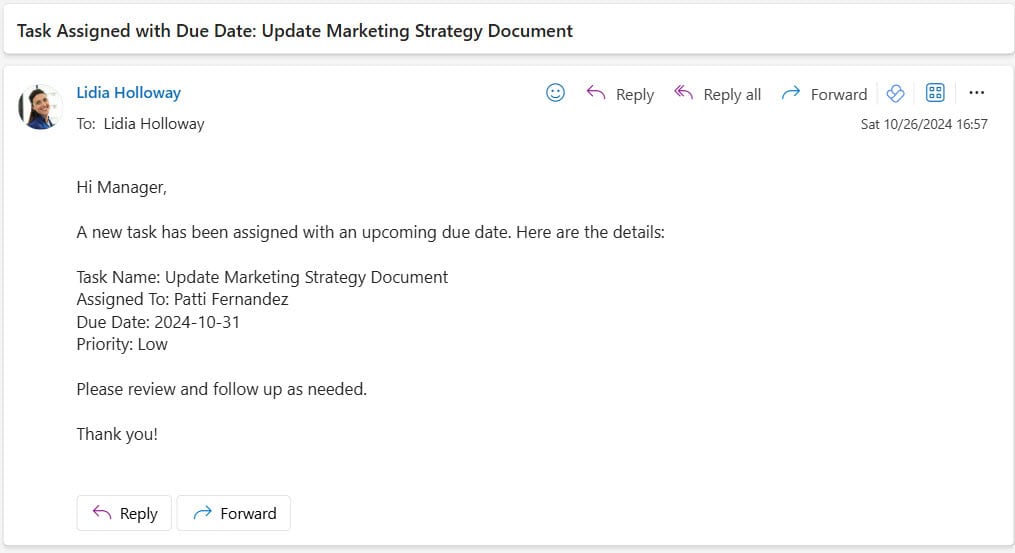
After the flow runs successfully, your manager gets an email.
In this tutorial, I explained how to use Power Automate to check if specific fields in a SharePoint list are blank. I also explained two scenarios: handling a situation where the Feedback Comments field is empty by assigning a default message and how to notify a manager when a Due Date field is filled out.
Related Power Automate articles:
- Check If an array Contains a Value using Power Automate
- Check If a row exists in Excel using Power Automate
- Check Condition Contains String in Power Automate
- Check if a String Contains Numbers in Power Automate
- Check if an item exists in a SharePoint list using Power Automate

I have worked with Microsoft technologies for more than 18 years, including SharePoint, Microsoft 365 and the Power Platform (Power Apps, Power Automate and Power BI), at companies like HP, TCS and KPIT. I started EnjoySharePoint in 2011 to share the solutions I build in real projects with readers in the United States, Canada, the United Kingdom, Australia, New Zealand and beyond. Microsoft has recognized this work with the Microsoft MVP award 13 times since 2014.