
Checkboxes in a gallery look simple until you try to do something with them. On one project, the team wanted to tick several projects in a list and act on all of them at once, with a “select all” option, a reset button and a running count of how many were ticked. Each of those needed a slightly different trick, because the checkboxes sit inside the gallery, one per row.
In this tutorial, I’ll walk you through the scenarios I use most often, each with the formulas. The screenshots use the classic Check box control, and I’ll point out where the modern Checkbox is different, because its property names aren’t the same.
Quick answer: Add a Check box inside the gallery’s template, so every row gets its own. Use OnCheck with Collect(colSelected, ThisItem) and OnUncheck with Remove(colSelected, ThisItem) to track the ticked rows. Count them with CountRows(colSelected), and reset them by toggling a variable in the check box’s Reset property (classic) or by clearing the collection that drives Checked (modern).
Classic vs modern checkbox
Before you start, check which control you’re using. The classic Check box uses Text for its label, Default for its starting state, Value for whether it’s ticked, and has a Reset property (classic Check box reference).
The modern Checkbox uses Label and Checked instead, and it has no Default, Value or Reset property (modern Checkbox reference). Both have OnCheck, OnUncheck and DisplayMode, so most formulas below work on both once you swap .Value for .Checked.
1. Add checked items to a collection
The foundation for most checkbox scenarios is a collection that always holds the ticked rows. My example uses a SharePoint list called Projects with a Title column:

Add a vertical gallery connected to the list, then insert a check box into the gallery’s template and set its Text property to ThisItem.Title. Every row now shows a checkbox labelled with the project name:

Set the check box’s OnCheck property to add the row to a collection called CollProjects:
Collect(CollProjects, ThisItem)
And set OnUncheck to remove it again:
Remove(CollProjects, ThisItem)
Play the app and tick a few projects:

Those projects now appear in the collection:

Untick some of them, and the collection updates straight away:


Remove() only takes out one copy of a matching record, which is exactly what you want here, since each row is collected once. The collection is also what you’d use to act on the selection later, for example with ForAll(CollProjects, Patch(...)).
2. Select all checkboxes with one checkbox
For this example, the list has a Choice column called Skills, and the gallery shows one checkbox per choice:

Add a blank vertical gallery and set its Items property to the column’s choices:
Choices(Projects.Skills)
Insert a check box in the gallery and set its Text to ThisItem.Value:
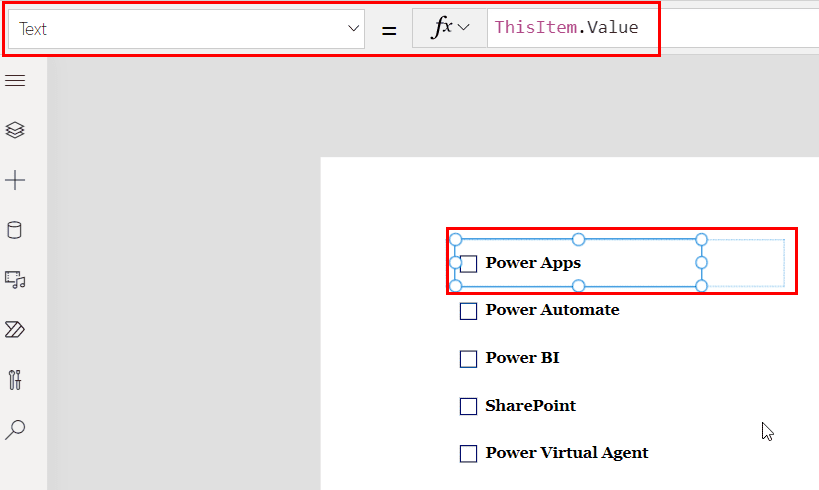
Now add another check box outside the gallery, just above it, and set its Text to All:

Set the All checkbox’s OnCheck to Set(VarAllCheckbox, true) and its OnUncheck to Set(VarAllCheckbox, false):


Finally, set the Default property of the checkbox inside the gallery to the variable (on the modern control, use Checked):
VarAllCheckbox
Ticking All now ticks every checkbox in the gallery, and unticking it clears them all:

If your gallery also collects the ticked rows, the easiest way to keep the collection in step is to fill or clear it in the same formulas, for example Set(VarAllCheckbox, true); ClearCollect(CollSkills, Choices(Projects.Skills)).
3. Show multiple selections
Using the same Skills gallery, you can list everything that’s been ticked. Set the gallery checkbox’s OnCheck to:
Collect(CollSkills, ThisItem.Value)
And its OnUncheck to remove that skill from the collection:
RemoveIf(CollSkills, Value = ThisItem.Value)
Then add a data table next to the gallery, set its Items to CollSkills, and add the Value field under Edit fields:

As you tick skills, they appear in the table, and unticking removes them:


4. Reset the checkboxes in a gallery
This is where people often get stuck. The Reset() function can’t reset controls inside a gallery from a button outside it; Microsoft’s Reset reference says so explicitly. For the classic check box, the solution is its Reset property, which resets the control whenever it becomes true.
Add a reload icon above the gallery and set its OnSelect to switch a variable on and straight off again:
UpdateContext({VarChecked: true}); UpdateContext({VarChecked: false})
Then set the Reset property of the checkbox inside the gallery to VarChecked:

Selecting the icon now clears every checkbox in the gallery. Remember to clear any collection too, for example with Clear(CollSkills) in the same OnSelect.
Resetting a modern checkbox in a gallery
The modern Checkbox has no Reset or Default property, so the toggle trick doesn’t apply. The approach I use instead is to let the collection decide whether each row is ticked. Set the modern checkbox’s Checked property to:
!IsBlank(LookUp(CollProjects, ID = ThisItem.ID))Keep OnCheck and OnUncheck adding and removing the row as in scenario 1. To reset every checkbox, all you need is Clear(CollProjects): the collection empties, and every checkbox follows it.
5. Tick checkboxes based on another control
In this scenario, a list of workers has a Department column, and picking a department from a dropdown should tick the workers who belong to it:

Add a dropdown with the Department choices, and a gallery showing the workers:

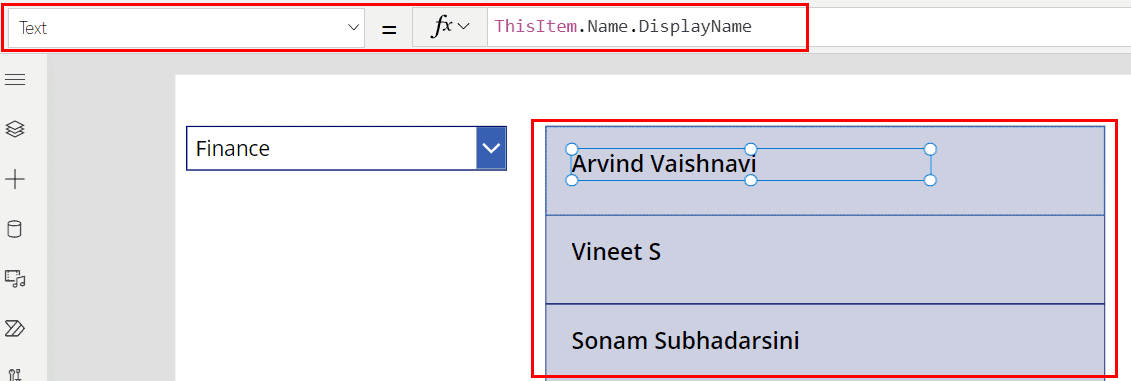
Insert a check box in the gallery with its Text set to ThisItem.Department.Value, so each row shows its department:

Then set the check box’s Default so it’s ticked when its department matches the dropdown, where Department_dd is the dropdown’s name:
Department_dd.Selected.Value in ThisItem.Department.Value
Pick IT in the dropdown, and the checkboxes for IT workers are ticked:

6. Disable one checkbox when another is ticked
Sometimes a row has two options that shouldn’t both be ticked, such as Active and Not Active. Put two check boxes in the gallery template and name them Active_Checkbox and NotActive_Checkbox:

Set the DisplayMode of the Active checkbox to:
If(NotActive_Checkbox.Value, DisplayMode.Disabled, DisplayMode.Edit)
And the DisplayMode of the Not Active checkbox to the opposite:
If(Active_Checkbox.Value, DisplayMode.Disabled, DisplayMode.Edit)
Now, ticking one option disables the other on the same row:

For more on how DisplayMode works, see Power Apps DisplayMode.
7. Count the ticked checkboxes
Back to the Skills gallery. To show how many skills are ticked, add a label outside the gallery:

Set the label’s Text to count the rows whose checkbox is ticked, using the gallery’s AllItems property. Microsoft uses the same pattern in its bulk update example:
CountRows(Filter(Skills_Gallery.AllItems, Skills_Chckbx.Value))
The count updates as you tick and untick:

This works well for short galleries like a list of skills. For long galleries, be careful: AllItems only contains the rows that have been loaded so far, not every item (gallery best practices). In that case, count the collection instead, with CountRows(CollSkills).
8. Allow only one checkbox per row
In this example, each worker in a gallery has a nested gallery of department checkboxes, and only one department should be ticked per worker:

The nested gallery’s Items is Choices(Workers.Department), and its checkbox shows ThisItem.Value:

The trick in the original app is a label placed in front of each checkbox, whose Visible property hides it only on the selected row. Its fill matches the gallery background, so the other checkboxes are covered while one is ticked:
!ThisItem.IsSelected || !Department_Checkbox.Value

It works, but it’s a visual trick. If you’re building this today, a Radio control is the cleaner choice, because it’s designed for exactly this: several options, only one of which can be selected.
9. Disable checkboxes for times that have passed
For an interview booking app, time slots in the past shouldn’t be selectable:
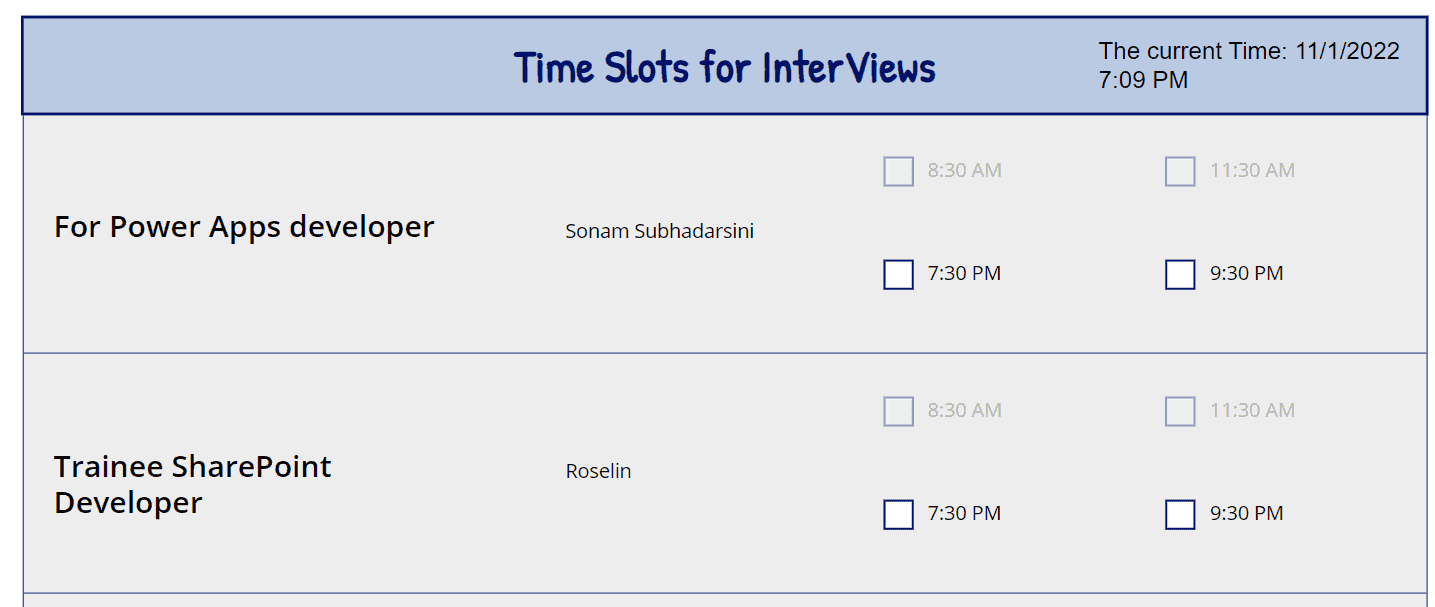
The time slots come from a Choice column called Time Slots in an Interviews list:

A gallery shows each interview, and a nested gallery inside it shows the slots, with Items set to Choices(Interviews.'Time Slots') and a checkbox showing ThisItem.Value:


Set the checkbox’s DisplayMode so slots earlier than the current time are disabled. TimeValue() converts the slot text, such as 8:30 AM, into a time, and the formula compares only the time of day:
If(
    TimeValue(ThisItem.Value) < TimeValue(Text(Now(), "hh:mm AM/PM")),
    DisplayMode.Disabled,
    DisplayMode.Edit
)
To make it easy to check, I added a label above the gallery showing the current time with "The current time: " & Text(Now(), "hh:mm AM/PM"). At 7:09 PM, the 8:30 AM and 11:30 AM slots are disabled:

Filter a gallery with checkboxes
The opposite scenario, using checkboxes outside a gallery to filter what it shows, is covered in how to filter a Power Apps gallery by radio button and our other gallery filter guides.
These Power Apps gallery and collection tutorials go well with this one:
- Easiest Way to Filter Gallery By Radio Button in Power Apps
- Power Apps Error Fix: The Reset function can only be used with a resettable control
- Power Apps Collection Contains [With Various Examples]
- How to Patch a Collection in Power Apps [Single/Multiple Items]
- Power Apps Gallery Filter: Search, Dropdown, Date & More
- Power Apps Display Mode: A Complete Guide (With Real Examples)
Frequently Asked Questions
How do I get the checked items from a gallery in Power Apps?
Collect them as they’re ticked: set the checkbox’s OnCheck to Collect(CollProjects, ThisItem) and OnUncheck to Remove(CollProjects, ThisItem). The collection always holds the checked rows.
How do I reset checkboxes in a Power Apps gallery?
Reset() can’t reset controls inside a gallery from outside it. For the classic check box, set its Reset property to a variable and toggle it with Set(var, true); Set(var, false). For the modern checkbox, drive Checked from a collection and clear the collection.
How do I select all checkboxes in a Power Apps gallery?
Add an All checkbox outside the gallery that sets a variable in OnCheck and OnUncheck, and set the gallery checkbox’s Default (classic) or Checked (modern) to that variable.
How do I count checked checkboxes in a gallery?
Use CountRows(Filter(Gallery.AllItems, Checkbox.Value)) for short galleries, or count the collection of checked items with CountRows(CollSkills), which also works for long galleries.
What is the difference between the classic and modern checkbox?
The classic Check box uses Text, Default, Value and a Reset property. The modern Checkbox uses Label and Checked and has no Default, Value or Reset property.

I have worked with Microsoft technologies for more than 18 years, including SharePoint, Microsoft 365 and the Power Platform (Power Apps, Power Automate and Power BI), at companies like HP, TCS and KPIT. I started EnjoySharePoint in 2011 to share the solutions I build in real projects with readers in the United States, Canada, the United Kingdom, Australia, New Zealand and beyond. Microsoft has recognized this work with the Microsoft MVP award 13 times since 2014.
We need information about how to remove items from collection when checkbox is unchecked after using Select All checkbox outside of gallery.