
The combo box is the control I reach for whenever users pick from a list: a work mode, a person, a related item. Saving that selection with Patch is where most people get stuck, because SharePoint Choice, Person and Lookup columns each expect a record in a slightly different shape.
In this tutorial, I’ll walk you through six examples, from a single choice to people and lookups, and show you the shortest formula that works for each. I’ll also cover the differences between the classic and the new modern combo box, because they behave differently.
Quick answer: Set the combo box Items to Choices(List.Column) and patch ComboBox.Selected for a single value or ComboBox.SelectedItems for a multi-select column, for example Patch(Workers, Defaults(Workers), {WorkMode: Cmb_WorkMode.Selected}). For a collection, patch ComboBox.Selected.Value.
What each column type expects
| SharePoint column | Combo box Items | What to patch |
|---|---|---|
| Choice | Choices(List.Column) | Cmb.Selected |
| Choice, multiple selections | Choices(List.Column) | Cmb.SelectedItems |
| Person | Choices(List.Column) or Office 365 Users | Cmb.Selected or a person record |
| Lookup | Choices(List.Column) | Cmb.Selected (a record with Id and Value) |
| Text, or a collection | A table of text, like ["A", "B"] | Cmb.Selected.Value |
The most common mistake is patching Cmb.Selected.Value into a Choice or Lookup column. That’s just text, and those columns need a record, so the Patch fails or saves a blank.
Not sure whether you need a combo box at all? See Power Apps combo box vs dropdown.
Classic or modern combo box?
Power Apps now has two combo boxes. Insert > Combo box under Classic gives you the older one, and the one under Modern is the new Fluent version. The formulas in this tutorial work with both, but watch these differences:
| Classic | Modern | |
|---|---|---|
| Multiple selections | Off by default (SelectMultiple) | On by default. Turn it off for single-value columns |
| What shows in the list | DisplayFields and SearchFields | ItemDisplayText, for example ThisItem.Value |
| Selected in multi-select mode | The last item the user picked | The first selected item |
| Default value | DefaultSelectedItems (Default is deprecated) | DefaultSelectedItems |
| OnChange | When the selection changes | Every time an item is selected or unselected |
So if you add a modern combo box for a single Choice column, set Select multiple to off first. Otherwise, users can pick several values and Selected only gives you the first one.
New to the control? Start with how to use the Power Apps combo box control.
Example 1: Patch a Choice column
My SharePoint list Workers has a Title column and a WorkMode Choice column with WFH, WFO and Hybrid.

In the app, add a text input named Txt_WorkerTitle and a combo box named Cmb_WorkMode with this Items formula:
Choices(Workers.WorkMode)
Choices() returns the column’s allowed values as records, in exactly the shape the column expects. Now add a Save button with this OnSelect:
Patch(
    Workers,
    Defaults(Workers),
    {
        Title: Txt_WorkerTitle.Text,
        WorkMode: Cmb_WorkMode.Selected
    }
)
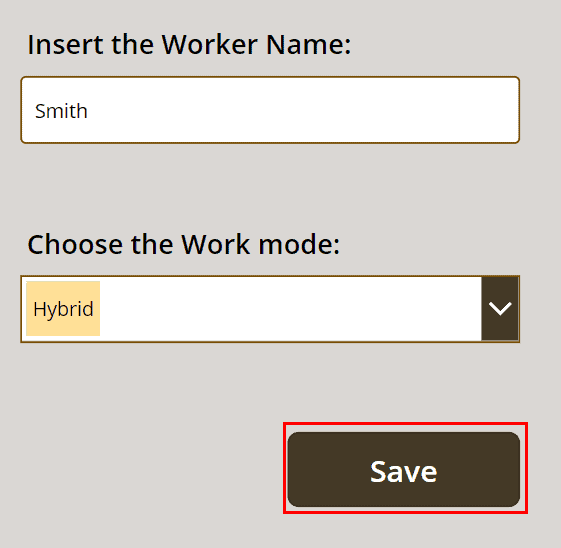
Preview the app, type Smith, pick Hybrid and select Save:
The new item shows up in the list with the right work mode:

To read the selection elsewhere in the app, for example in a label, see how to get the combo box selected value.
Example 2: Save as soon as the user picks a value
For small internal tools, you can skip the Save button and put the same Patch formula in the combo box’s OnChange property:

Each time the user picks a work mode, a new item is created:


Use this carefully. The modern combo box runs OnChange on every select and unselect, so in multi-select mode, one user could create several items. For forms where people expect to review before saving, keep a Save button.
It also helps to check that something is selected before you save. See how to check if a combo box has a selected value.
Example 3: Patch multiple values to a multi-choice column
Now let’s allow one worker to have several work modes. In SharePoint, edit the WorkMode column, turn on Allow multiple selections and save.

In Power Apps, turn on multiple selections for the combo box (it’s on by default in the modern one) and keep the same Items:

Then change Selected to SelectedItems in the Patch formula:
Patch(
    Workers,
    Defaults(Workers),
    {
        Title: Txt_WorkerTitle.Text,
        WorkMode: Cmb_WorkMode.SelectedItems
    }
)
SelectedItems is already a table of choice records, so you don’t need ForAll. If the SharePoint column doesn’t allow multiple selections, only one value is saved.

Both work modes are saved in the same item:

For more on this, see how to save multiple combo box values to SharePoint.
Example 4: Patch a Person column
Next, I added a Name column of type Person or Group to the Workers list, plus a radio control Rdo_WorkMode with Items Choices(Workers.WorkMode). There are two ways to fill the people combo box.
Option A: Use Choices() on the Person column
Set the combo box Cmb_Worker Items to Choices(Workers.Name). It returns people in the shape the column expects, so the Patch stays short:
Patch(
    Workers,
    Defaults(Workers),
    {
        Name: Cmb_Worker.Selected,
        WorkMode: Rdo_WorkMode.Selected
    }
)
This is also what the Person card in an Edit form uses, so if you use a form with SubmitForm, you don’t need a custom Patch at all.
Option B: Search the whole directory with Office 365 Users
To search everyone in your organization, add the Office 365 Users connector and set the Items of Cmb_Worker to:
Office365Users.SearchUserV2({searchTerm: Self.SearchText, top: 20}).valueThe older Office365Users.SearchUser() is deprecated, so use the V2 action and its .value. Show DisplayName in the list (DisplayFields in the classic combo box, ItemDisplayText in the modern one).
The user records from Office 365 Users have a different shape than a SharePoint person, so build the record in the Patch:
Patch(
    Workers,
    Defaults(Workers),
    {
        Name: {
            Claims: "i:0#.f|membership|" & Lower(Cmb_Worker.Selected.UserPrincipalName),
            DisplayName: Cmb_Worker.Selected.DisplayName,
            Email: Cmb_Worker.Selected.Mail,
            Department: "",
            JobTitle: "",
            Picture: ""
        },
        WorkMode: Rdo_WorkMode.Selected
    }
)
Claims is the SharePoint user ID. I build it from the user principal name rather than the mail address, because the two can be different. Department, JobTitle and Picture can stay empty.
Multiple people
For a Person column that allows multiple selections, patch a table. With Choices(), use Cmb_Team.SelectedItems. With Office 365 Users, build one record per person:
Team: ForAll(
    Cmb_Team.SelectedItems,
    {
        Claims: "i:0#.f|membership|" & Lower(ThisRecord.UserPrincipalName),
        DisplayName: ThisRecord.DisplayName,
        Email: ThisRecord.Mail,
        Department: "",
        JobTitle: "",
        Picture: ""
    }
)
See how to use a combo box with Office 365 Users for more search tips.
Example 5: Patch a Lookup column
I have an Organizer list with company names, and an Events list with a Title and an Organizer lookup column that points to it.

Add a text input Txt_Event_Title and a combo box Cmb_Organizer with Items:
Choices(Events.Organizer)
Choices() on a lookup returns records with an Id and a Value, which is exactly what the column needs:
Patch(
    Events,
    Defaults(Events),
    {
        Title: Txt_Event_Title.Text,
        Organizer: Cmb_Organizer.Selected
    }
)
The new event is saved with its organizer:

For a multi-select lookup column, patch Cmb_Organizer.SelectedItems instead.
For more on connecting the control to a list, see the Power Apps combo box with a SharePoint list.
When the lookup list is large
Choices() can’t be delegated, so with a big lookup list, the combo box may not show every item. In that case, add the Organizer list as a data source, set Items to Organizer, and build the lookup record yourself:
Organizer: {
    Id: Cmb_Organizer.Selected.ID,
    Value: Cmb_Organizer.Selected.Title
}
Example 6: Patch a combo box value to a collection
You don’t always need SharePoint. Here, I keep projects in a collection named collProject. In the screen’s OnVisible:
ClearCollect(collProject, {ProjectName: "Project1", Technology: "Python"})Add a gallery with Items set to collProject:

Add a text input Txt_ProjectName and a combo box Cmb_Technology with Items ["Python", "SharePoint", "Power Apps"]:
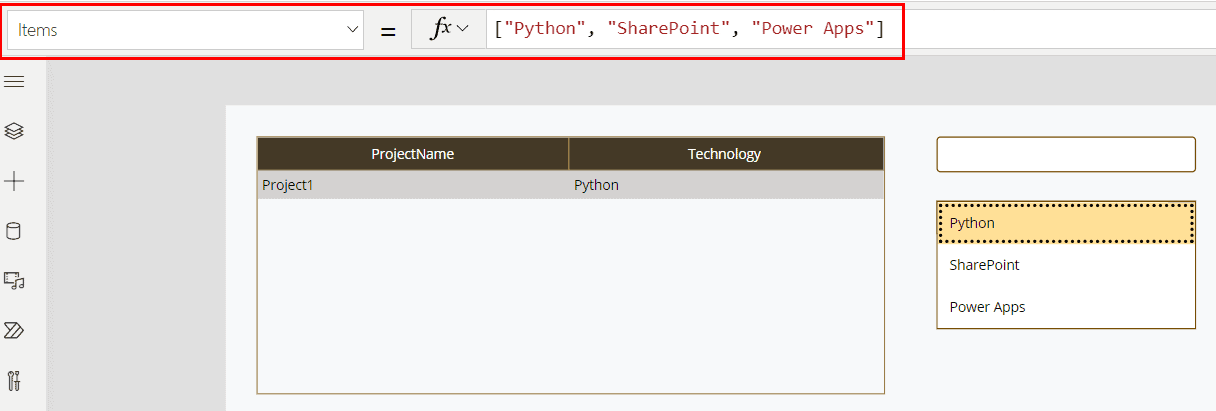
A table written with square brackets has a single column named Value, so patch Selected.Value:
Patch(
    collProject,
    Defaults(collProject),
    {
        ProjectName: Txt_ProjectName.Text,
        Technology: Cmb_Technology.Selected.Value
    }
);
Reset(Txt_ProjectName);
Reset(Cmb_Technology)


For a collection, Collect(collProject, {ProjectName: Txt_ProjectName.Text, Technology: Cmb_Technology.Selected.Value}) does the same thing with less typing. See the Power Apps collection guide.
Update an existing item
So far, every example created a new item with Defaults(). To change an existing one, pass the record to update instead:
Patch(
    Workers,
    LookUp(Workers, ID = Gallery_Workers.Selected.ID),
    {
        WorkMode: Cmb_WorkMode.Selected
    }
)
Only the columns you include change. On an edit screen, also set the combo box DefaultSelectedItems so it shows the current value: Table(Gallery_Workers.Selected.WorkMode) for a single choice, or Gallery_Workers.Selected.WorkMode for a multi-choice column.
After saving, clear the control for the next entry. See how to reset a Power Apps combo box.
Common mistakes
- Patching Selected.Value into a Choice or Lookup column. Use Selected or SelectedItems with Choices() as the Items.
- Only one value saved. Turn on Allow multiple selections on the SharePoint column, and use SelectedItems.
- The modern combo box saves only the first choice. It’s in multi-select mode. Turn Select multiple off, or patch SelectedItems.
- Using a drop-down for multiple values. Drop-downs allow only one selection, so use a combo box.
- No error shown to the user. Add validation before the Patch. See how to validate a Power Apps combo box.
- Selections vanish in a gallery. A combo box inside a scrolling gallery doesn’t keep its selections when it scrolls out of view, so save them as soon as they change.
- Older formulas with ‘@odata.type’. You’ll still see them in old posts. They aren’t needed with today’s SharePoint connector, so leave them out unless you get a type error.
These combo box tutorials will help you go further:
Frequently Asked Questions
How do I patch a combo box value to a SharePoint Choice column?
Set the combo box Items to Choices(List.Column) and patch ComboBox.Selected, or ComboBox.SelectedItems if the column allows multiple selections.
Why does my modern combo box save only one value?
In multi-select mode, Selected returns only the first item. Patch SelectedItems instead, or turn off Select multiple. Microsoft lists all the properties in its modern combo box reference.
Do I still need ‘@odata.type’ to patch a Person or Lookup column?
Usually not. Use Choices() as the Items and patch Selected, or build a record with Claims, DisplayName and Email for a person.
How do I patch a combo box value to a collection?
Use Patch(collection, Defaults(collection), {Column: Cmb.Selected.Value}) or simply Collect(collection, {Column: Cmb.Selected.Value}).

Preeti Sahu is a Microsoft MVP for Power Apps with over six years of experience working with SharePoint Online and the Power Platform. She is the co-author of the book Microsoft Power Platform: A Deep Dive. As a Power Platform developer, she has built various tools with Power Apps and Power Automate, and she makes Microsoft 365 videos for YouTube.