
An HR coordinator I worked with entered leave requests for a whole department one after another. Every time she submitted one, the Approver box still showed the last person she’d picked, and twice a request went to the wrong manager. The app needed one thing: reset the combo box after each submit.
Resetting sounds simple, but it trips people up because Reset() doesn’t always clear the box; it puts it back to its default. In this tutorial, I’ll show you how to clear a combo box, reset it to a default value, reset it inside a form, and reset several at once.
Quick answer: Use Reset(ComboBox1) in a button’s OnSelect. Reset returns the combo box to its DefaultSelectedItems, so leave that property blank if you want it cleared, or set it to a value you want restored. For a combo box inside an edit form, use ResetForm(Form1); NewForm(Form1) instead, because you can’t reset a control inside a form from outside it.
How Reset works
Reset() sets a control back to its default. For a combo box, the default is the DefaultSelectedItems property (the older Default property is deprecated). So:
- If DefaultSelectedItems is blank, Reset clears the selection.
- If DefaultSelectedItems holds a value, such as a manager or “Annual,” Reset restores that value.
- On the modern combo box, Reset also clears the search text.
Decide first what “reset” should mean for your users: an empty box, the saved value, or a sensible default. The formula follows from that.
The sample app
My examples use a SharePoint list called Leave Requests:
| Column | Type | Example |
|---|---|---|
| Title | Single line of text | Family event |
| Employee | Person or Group | Megan Bowen |
| Approver | Person or Group | Alex Wilber |
| Department | Choice | IT |
| Leave Type | Choice | Annual |
| Start Date / End Date | Date only | 8/18/2026 to 8/21/2026 |
| Status | Choice | Pending |
Clear a combo box with a button
This is the most common case: a Clear button next to an approver picker. Insert a modern Combo box named cmbApprover (my screenshots call it cmbApprovers). To search your organization’s people, set its Items to:
Office365Users.SearchUserV2({searchTerm: cmbApprover.SearchText, top: 25, isSearchTermRequired: true}).value
Set ItemDisplayText to ThisItem.DisplayName so each person shows by name:
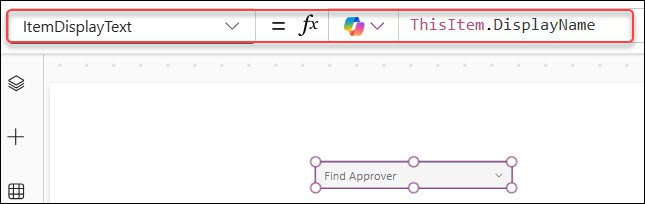
The modern combo box allows multiple selections by default, so set SelectMultiple to false for a single approver. Leave DefaultSelectedItems empty (or set it to Blank()).
Add a button labeled “Clear approver” with this OnSelect:
Reset(cmbApprover)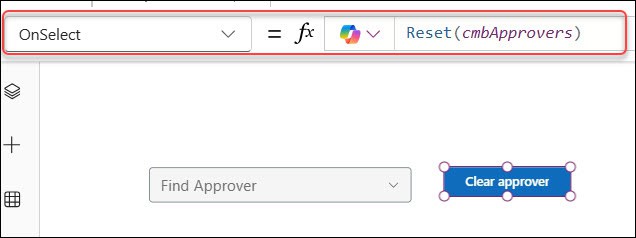
Selecting the button empties the box and leaves the rest of the screen alone. This works for any combo box that isn’t inside a form or gallery, such as the filters above a gallery.
Reset a combo box inside a form
Most combo boxes live in an edit form’s data cards. Reset() can’t reach a control inside a form from a button outside it, so reset the whole form instead.
After submitting
Use SubmitForm(frmLeaveRequest) on the Submit button, and put this in the form’s OnSuccess property:
Notify("Leave request submitted.", NotificationType.Success);
ResetForm(frmLeaveRequest);
NewForm(frmLeaveRequest)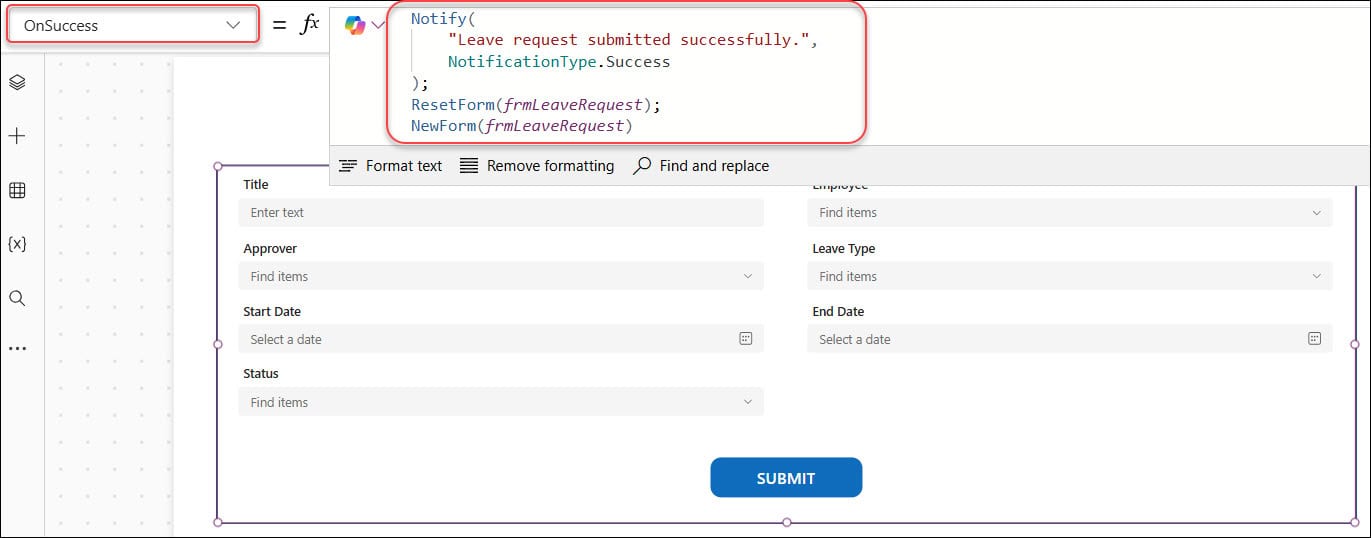
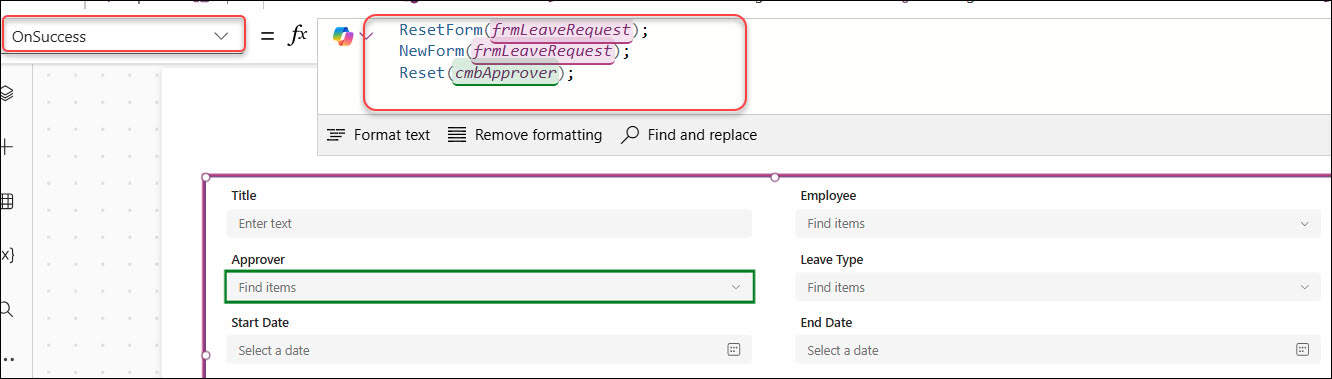
ResetForm clears every card back to its default, including the combo boxes. NewForm matters too: after a successful save, a form in New mode switches to Edit mode, and NewForm sets it back to New for the next request. You don’t need separate Reset() calls for each combo box; ResetForm covers them. This version adds Reset(cmbApprover), which you can leave out:
On a Cancel button
ResetForm(frmLeaveRequest); NewForm(frmLeaveRequest)That throws away unsaved changes and starts a fresh request.
Saving a person from a people picker
If you replaced the card’s control with an Office 365 Users combo box, its card Update property has to turn the selected user into a SharePoint person. This pattern is widely used; test it with your list:
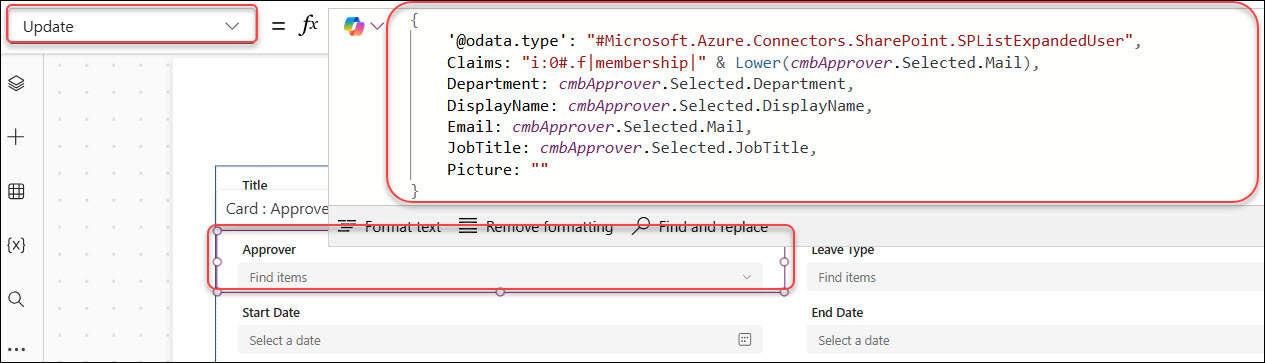
Update decides what’s saved; it doesn’t affect resetting. For forms in general, see how to create a form in Power Apps.
Reset to a default value
A default choice
For a Leave Type combo box, set Items to the choice column:
Choices([@'Leave Requests'].'Leave Type')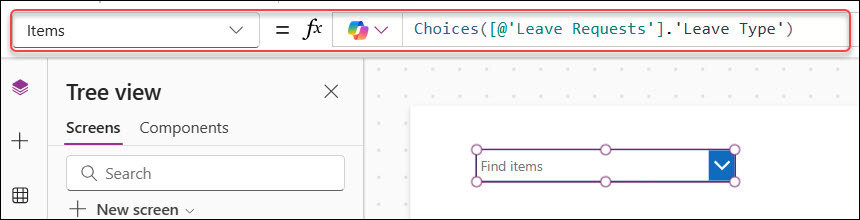
and DefaultSelectedItems to the choice you want restored:
Filter(Choices([@'Leave Requests'].'Leave Type'), Value = "Annual")
Now Reset(cmbLeaveType) puts it back to Annual. Filter returns a table, which is what the modern combo box needs.
The user’s manager
To pre-fill the approver with the signed-in user’s manager, load the manager in the screen’s OnVisible. ManagerV2 returns an error when a user has no manager in Microsoft Entra ID, so wrap it:
Set(varCurrentManager, IfError(Office365Users.ManagerV2(User().Email), Blank()))
Then set the combo box’s DefaultSelectedItems. The record has to match the shape of the Items (SearchUserV2), which uses capitalized names such as DisplayName and Mail, while ManagerV2 returns lowercase ones:
If(
    !IsBlank(varCurrentManager),
    Table({
        DisplayName: varCurrentManager.displayName,
        Mail: varCurrentManager.mail,
        Department: varCurrentManager.department,
        JobTitle: varCurrentManager.jobTitle,
        UserPrincipalName: varCurrentManager.userPrincipalName
    })
)
Reset(cmbApprover) now restores the manager, and new hires without a manager simply get an empty box.
Reset dependent combo boxes
When one combo box filters another, clear the child when the parent changes. For a Department box that decides which approvers are listed, set the Department box’s OnChange:
Reset(cmbApprover); Reset(cmbBackupApprover)Otherwise, someone can pick an IT approver, switch the department to Finance, and submit an invalid combination. For building the filtered list itself, see how to build a cascading dropdown in Power Apps.
Reset several combo boxes at once
A Clear filters button above a gallery can reset every filter in one go:
Reset(cmbDepartmentFilter); Reset(cmbLeaveTypeFilter); Reset(cmbStatusFilter)With blank defaults, the gallery then shows everything, as long as its Items treats an empty filter as “all”:
Filter(
    'Leave Requests',
    IsBlank(cmbDepartmentFilter.Selected.Value) || Department.Value = cmbDepartmentFilter.Selected.Value,
    IsBlank(cmbStatusFilter.Selected.Value) || Status.Value = cmbStatusFilter.Selected.Value
)
Using the Reset property instead
Classic controls also have a Reset property. Set it to a variable, such as varReset, on each control, and in the button use:
Set(varReset, true); Set(varReset, false)The control resets when the property becomes true, so set it back to false right away. Toggling with Set(varReset, !varReset) only resets on every other click. The modern combo box doesn’t list a Reset property, so for modern controls, call Reset() directly.
Keep saved values when editing
In an edit form, the approver should show the saved person when editing, and start empty for new requests. Set DefaultSelectedItems to:
If(frmLeaveRequest.Mode = FormMode.Edit, Parent.Default, Blank())Parent.Default is the saved value from SharePoint, so resetting in Edit mode restores it instead of wiping it.
Common problems
- Reset doesn’t clear the box. DefaultSelectedItems has a value; Reset restores it. Clear the property, or make it conditional.
- Reset does nothing on a form’s combo box. The button is outside the form. Use ResetForm.
- The default person doesn’t appear. The record’s field names don’t match the Items source. Use DisplayName, Mail and so on.
- People can pick several approvers. Set SelectMultiple to false on the modern combo box.
- Choices lists are incomplete on huge lists. Choices isn’t delegable, but choice columns are usually short, so this rarely matters.
These Power Apps combo box tutorials may help next:
- How to Use Power Apps Combo Box Control?
- How to Set Combo Box Default Value in Power Apps? [With Useful Examples]
- How to Check if Power Apps Combobox Has a Selected Value?
- Power Apps Error Fix: The Reset function can only be used with a resettable control
- How to Use Power Apps Combo Box With Office 365 Users
- How to Patch Power Apps Combo Box [With Examples]
Frequently Asked Questions
How do I clear a combo box in Power Apps?
Leave DefaultSelectedItems blank and call Reset(ComboBox1) from a button. Microsoft explains how Reset works in its Reset function reference.
Why doesn’t Reset clear my combo box?
Reset returns the control to DefaultSelectedItems. If that property holds a value, Reset restores it instead of clearing it.
How do I reset a combo box after submitting a form?
Put ResetForm(Form1); NewForm(Form1) in the form’s OnSuccess property.
Can I reset a control inside a form from outside it?
No. Reset can’t reach controls inside a form or gallery from outside. Use ResetForm for the whole form.
How do I reset a combo box to a default value?
Set DefaultSelectedItems to that value, such as Filter(Choices([@List].Column), Value = “Annual”), and call Reset().

I have worked with Microsoft technologies for more than 18 years, including SharePoint, Microsoft 365 and the Power Platform (Power Apps, Power Automate and Power BI), at companies like HP, TCS and KPIT. I started EnjoySharePoint in 2011 to share the solutions I build in real projects with readers in the United States, Canada, the United Kingdom, Australia, New Zealand and beyond. Microsoft has recognized this work with the Microsoft MVP award 13 times since 2014.
Hi Sir,
Thanks for this explanation.
I want to clear(make it an empty selection) a combo box – even if it has default selected items property in use. And it must not affect the entire gallery items. Can you please give me a quick solution?
Thanks in advance
Can you clear the selected item in the combo box from an icon in a gallery?