
In this Power Automate tutorial, I will explain what is split in Power Automate, split function in Power Automate, and how to work with Power Automate split string.
Also, we will discuss Power Automate split string into array, and Power Automate split variable including many more like:
- Power Automate split by new line
- Power Automate split string by delimiter
- Power Automate split string into array get last element
- Power Automate split string into array and loop
Power Automate split function
The Power Automate split() function can split the string into substrings of arrays separated by commas based on the delimiter value.
Syntax:
split( text: string, separator: string)Power Automate Split String
To split a text string into an array using Power Automate, check out the below example:
1. Navigate to the Power Automate home page and click +Create -> Select Instant cloud flow. Then, set the flow name, choose Manually trigger a flow, and click on the Create button.
2. Then, select an Initialize variable to provide the text string. Enter details such as Name, Type, and value.

3. To split the string with a text, add Compose flow action. In the Inputs parameter, insert the below expression:
split(variables('Text'),'and')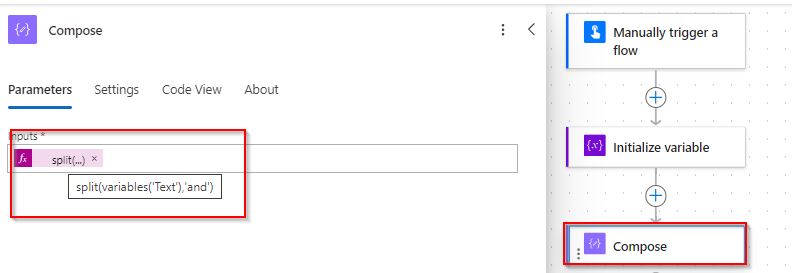
4. Now, save and test the flow. Click Test -> Select Manually -> Click Runflow.
5. Now, you can see the text string has been split into an array in the screenshot below:

This way, how to use the split function to split a text string into an array using Power Automate.
Power Automate split string into array
To split the array of items from a text string with the help of Power Automate, follow the below points:
Example:
Suppose I will take a text string with special characters like:
[Employee Name: Age: David:25 | Employee Name: Age: Henry:32 | Employee Name: Age: Jhon:40].
My task is to split the string to get the array of each item like “Employee Name“, “Age“,”David“, “25” and so on.
1. Create a Power Automate Instant cloud flow.
2. Select the Compose action to take the string value as shown below:

3. After that, take an Initialize variable flow action. Set the parameters like Name, Type as an array, and Value.
Value: Add the split() expression in the value section.
split(outputs('Compose'),'|')
4. Next to that, insert Apply to each loop by taking the value of the initialized variable from dynamic content.

5. Inside the loop, take the Compose flow action and insert the below expression that will split an array into items.
split(items('Apply_to_each'),':')
6. Once the flow gets ready, save and test the flow.
7. The below image represents that the text string has been split into an array of items.

This way, we can convert an array of text strings into an array of substrings using Power Automate.
Power Automate Split by New Line
To split string values into an array having line breaks in Power Automate, go through the example below:
Example:
Assume to take string values with line break like below:
Power Apps
Power Automate
Power BI
Power Virtual Agents
The result will be like an array: [“Power Apps, Power Automate, Power BI, Power Virtual Agents”]
1. Take the Compose action to include the string value separated by a line.

2. Take an Initialize variable action. Provide the below properties:
- Name: Select a name for a variable
- Type: Choose the type as a String.
- Value: Give the below expression.
split(outputs('Compose_-_Split_by_line_break'),'\n')
3. Again, take one more Initialize variable to format the value received from the previous action as a string.
Ensure to give details like Name, Type as string, and Value from the expression below.
split(variables('Power Platform'),'\n')
Output:
The result will come out as displayed in the figure below:

This is all about how to split the string separated by a new line using Power Automate.
Power Automate Split String by Delimiter
To split a string separated by a specific delimiter ‘space‘ in a Power Automate flow, dive into the example.
Example: Suppose I will take text strings as Employee Names [Amy Jackson, David Henry, Henrietta Mueller]. The output will result in an array of items where the given string is separated by space.
1. As in the above examples, initialize the variable with name, type, and value.

2. Now, we will split the string by space, then select Compose action to split the string by space. Then, in Input, set the below expression:
split(variables('Names'),' ')Replace the delimiter ‘Comma‘ in the above expression if you want to split the string by comma.

Output:
Now save and run the flow manually; after that, you can see the result in the compose output.

With the help of Power Automate, we can split a string into an array by a specific delimiter.
Power Automate Split String into Array Get Last Element
To get the last array element of a splitter string in the flow, see the below points:
Example:
If I have taken a string as [San Francisco, Seattle, Boston, Los Angeles], the output will give the last array element as [Los Angeles].
1. Take out an Initialize variable action, and initialize the string values as below:

2. In the Compose action, include the expression to get the last element of an array from the splitter string.
last(split(variables('United States'),','))
Then, save and run the flow.
Note:
To get the first element of an array by splitting a string value in Power Automate, you can replace the expression with the first() function of Power Automate:
first(split(variables(‘United States’),’,’))
Output:
You can see from the image below that the output will give the last array element from the split string.

By using the last() function along with the split() function, we can split the string into an array to get the last element.
Power Automate Split String into Array and Loop
To split a string into an array and loop through each element, check the below example:
Example:
Suppose, assume a string like the one below:
Course Title; Cost ; SharePoint; 250$ & Course Title; cost; Salesforce ;325$ & Course Title; Cost; Python; 400$.
The result will give each array of elements that are present inside apply to each loop:
[
  " Course Title",
  " cost",
  " Salesforce ",
  "325$ "
]
1. Inside a manually triggered flow, add the Compose action and write the string below in the input.

2. Select the Initialize variable to split the string and save it to the array variable. Provide Name, Type as array and in the Value, insert the expression.
split(outputs('Compose'),'&')
3. Next, use apply to each loop to split each item in the array variable. Select the Apply to each action.
Value: Take array variable from dynamic content.

4. Then, inside the loop and select Compose action. Add the below expression:
split(items('Apply_to_each'),';')
5. Once the flow gets ready, save and manually run the flow to obtain the results in the compose output.

This is how to loop through each array variable into a split string using Power Automate.
Some more articles you may also like:
- Power Automate Read Excel File From SharePoint
- Power Automate String Functions
- Power Automate Rename File
- Power Automate Parse Email Body
- Power Automate Date Functions
- Create HTML Table in Power Automate + Formatting
Conclusion
I hope from this tutorial guide; you can get an idea of how to split the string in various ways. Here, I have covered the below-mentioned topics:
- Power Automate splits a string into an array
- Split a text string into an array of items
- Split by new line Power Automate
- Power Automate split string by space
- Split string into an array to get the last element in Power Automate
- Power Automate split string to array and loop

After working for more than 18 years in Microsoft technologies like SharePoint, Microsoft 365, and Power Platform (Power Apps, Power Automate, and Power BI), I thought will share my SharePoint expertise knowledge with the world. Our audiences are from the United States, Canada, the United Kingdom, Australia, New Zealand, etc. For my expertise knowledge and SharePoint tutorials, Microsoft has been awarded a Microsoft SharePoint MVP (12 times). I have also worked in companies like HP, TCS, KPIT, etc.


What would be a use case for this scenario?
I had one case that i had to get the file name and split it to get some values that were a pattern of the file name, so i used the split to get this values and add to others variables
Hi Tiago – I’m in a similar position whereby I need to split the file name into some values and then put the values under respective columns in SharePoint. May you please kindly point me into the right direction?
Can we have an example to load null values with a split function?
Great tutorial! Need next step: once I have broken a string into separate lines (i.e.: “Alex”, “Emma”, “Ruby”, “Stwart”) how can I transfer each line into, for example, the fields in a “Create Item” action?
I have a SharePoint list contains different columns but for me one colomn which have data like ZDFTR5F,ZXD4DF,ZXD5F,ZXDR56,ZXDS4R I want this data in different rows or colomns for each data in a excel sheet how can I create a powerautomation flow or give me some expression for compose field please help me guys
I got compose variable output is this, I want to split these into three words (1: Test Match, 2: Dressing Room and 3.reconnected) I want to remove (‘s)
[
“Test Match’s Dressing Room “,
” reconnected.”
]