
Every Monday, Contoso’s sales director opens the same report and asks one question: is revenue going up or down? A table of 24 monthly numbers doesn’t answer that quickly. A line does. One look at the slope, the peaks in the fall, and the dip every January tells the story.
In this guide, I’ll show you how to build a Power BI line chart from scratch, then turn it into something useful: several lines, a secondary y-axis, cleaner formatting, a trend line and a forecast. I’m using a Contoso sales table with 900 orders from 01/01/2025 to 12/31/2026.
Quick answer: In Power BI Desktop, select Line chart in the Visualizations pane, put a date field in X-axis and a numeric field or measure in Y-axis. Add a field to Legend for one line per category, or add more measures to Y-axis. Format it in Format visual > Lines, and add trend lines or a forecast in the Analytics pane.
When to use a line chart
A line chart connects data points in order, so it’s built for change over time: revenue by month, tickets per week, average response time per day. The X-axis should be something with a natural order, usually a date. If you want the volume under the line to stand out, use an area chart in Power BI instead.
| You want to show | Best visual |
|---|---|
| A trend over time for one or a few series | Line chart |
| Totals that add up over time | Area or stacked area chart |
| Amounts by category, no time order | Bar or column chart |
| Amounts and a rate together (revenue and margin %) | Line and column chart |
The last row is the one people search for as a "bar and line chart". Power BI calls it a combo chart, and the guide on how to create a Power BI combo chart covers it.
How to create a line chart in Power BI Desktop
- Select Home > Excel workbook, pick your file, check the table in Navigator, and select Load.
- Select an empty spot on the canvas and choose Line chart in the Visualizations pane. An empty placeholder appears.
- In the Data pane, check Order Date. It goes to the X-axis well.
- Check Revenue. It goes to the Y-axis well as Sum of Revenue.
Don’t panic if you see only two points. A date column comes in as a Year, Quarter, Month, Day hierarchy, and the chart starts at the year level. Expand it to months, or swap to the plain date field, as I explain in the post on the line chart date hierarchy.
The line chart has six wells: X-axis, Y-axis, Secondary y-axis, Legend, Small multiples and Tooltips. You’ll use most of them below.
Show multiple lines on one chart
There are two ways to get more than one line, and you can’t combine them:
- A field in Legend: one line per value. Region in Legend gives you Central, East, South and West.
- Several measures in Y-axis: one line per measure, for example Revenue and Profit.
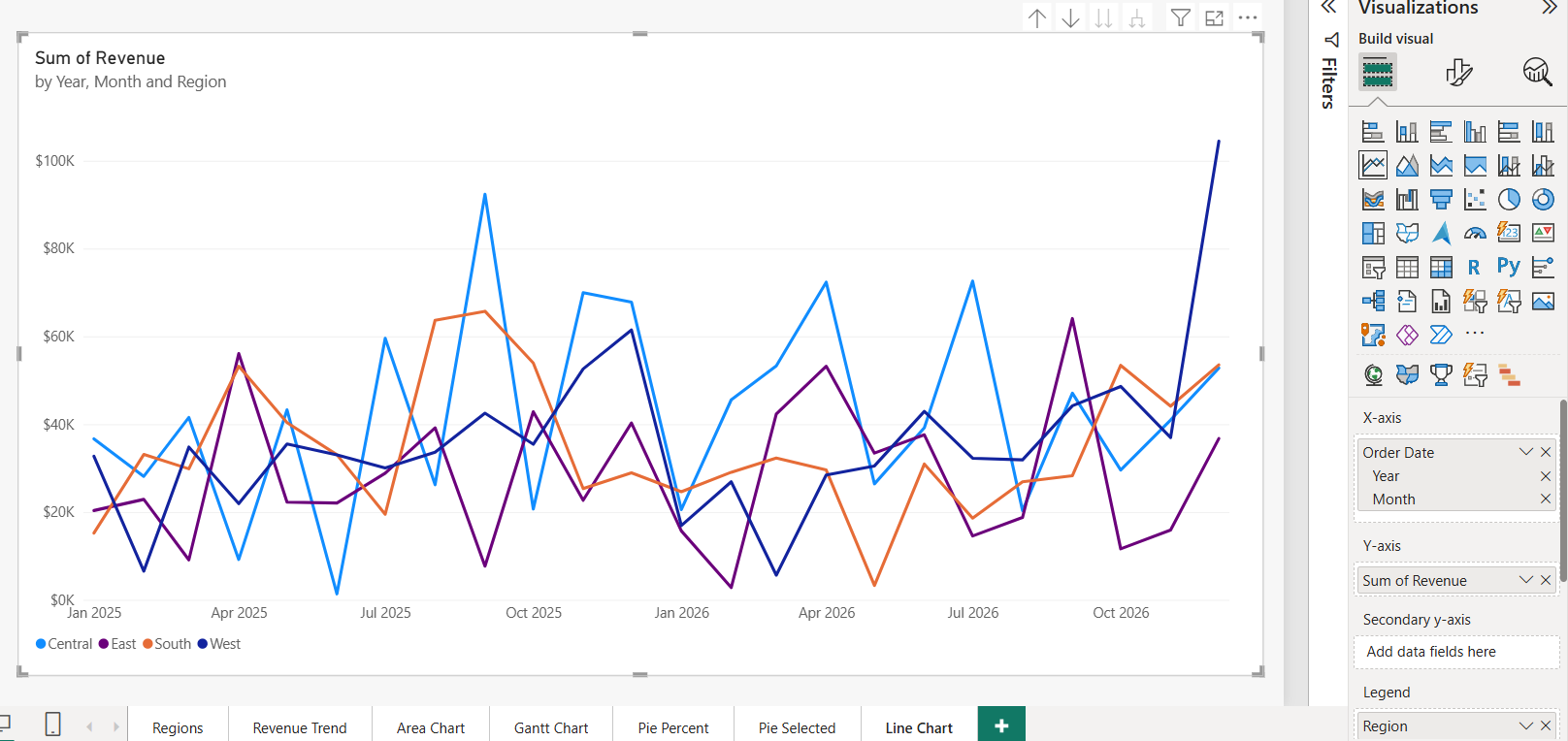
Once the Y-axis has two or more measures, the Legend well won’t accept a field, and the other way around. If you need both, use small multiples or unpivot the measures. The post on how to add multiple lines in a line chart walks through both setups with year-over-year examples.
Four lines is about the limit before a chart turns into spaghetti, like the one above. With more series, highlight one and gray out the rest, or split them with small multiples.
Add a secondary y-axis (dual axis line chart)
When two measures have very different scales, such as revenue in hundreds of thousands and units in hundreds, the smaller line looks flat. Drag the second measure into the Secondary y-axis well. Power BI adds a second scale on the right side.
Label both axes clearly with Format visual > Y-axis > Title and Secondary y-axis > Title. Readers often compare the heights of two lines without noticing they use different scales, so a title such as "Units (right axis)" prevents bad conclusions.
Format the lines
Select the chart, open Format visual > Visual, and type Lines in the search box to jump to the card. These are the settings I change most often; my guide to Power BI visual formatting covers the rest of the Format pane.
- Apply settings to: pick one series in the Categories drop-down to style it separately, for example to make the current year thicker.
- Line style: Solid, Dashed, Dotted or Custom. Dashed works well for targets and forecasts.
- Width: 3 px is a good default; go thinner when you have several series.
- Interpolation type: Linear (straight segments), Smooth (curves) or Step.
- Color: one color per series, or fx for conditional colors.
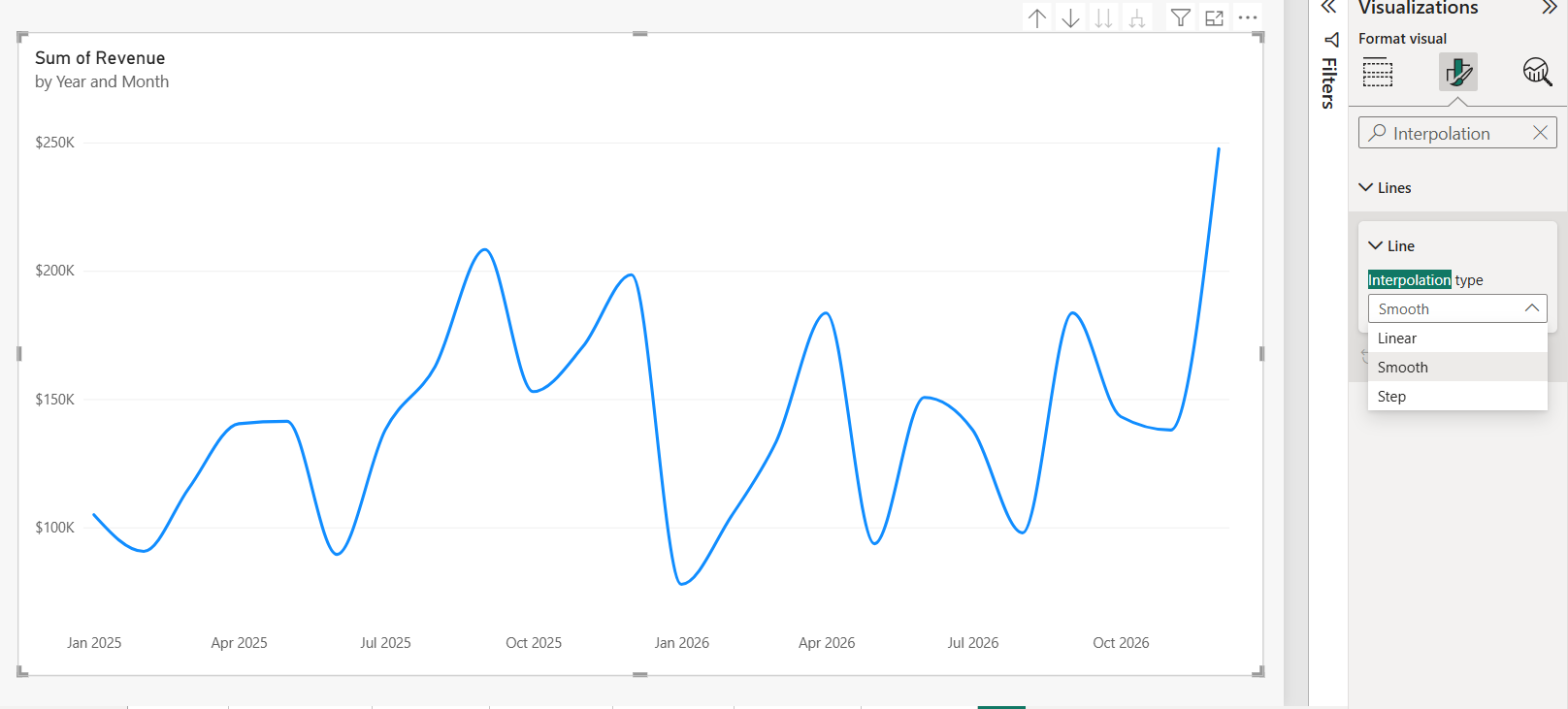
Be careful with Smooth. It looks friendly, but the curve can dip below a real low point between months, which suggests values that never happened. I use Linear for financial data and Step for values that change at fixed moments, such as prices or headcount.
Since 2026, the fx button next to Lines > Color lets you color a single line by value, for example red below target. I cover the rules, gradients and DAX color measures in conditional formatting in a line chart.
Markers, data labels and series labels
- Markers: turn them on to show each data point. You can change the shape, size and color per series. They help when the line has only a few points.
- Data labels: show the value on each point. With 24 months that’s crowded, so I keep them off and rely on tooltips, or turn them on for one series only with Apply settings to.
- Series labels: write the series name at the end of each line, so you can turn off the legend.
If the line drops to the X-axis or breaks where a month has no sales, the issue is blanks rather than formatting. See how to show zero values in a line chart.
Continuous vs. categorical X-axis
In Format visual > X-axis, Type decides how Power BI spaces the points:
- Continuous (default for dates and numbers) places points proportionally on a time scale and thins the labels, for example Jan 2025, Apr 2025, Jul 2025.
- Categorical gives every point its own slot and label, and adds a scroll bar when they don’t fit.
Trend lines and forecasts need a continuous axis, so keep it continuous unless you have a reason to change it. For time intelligence beyond the built-in hierarchy, create a date table in Power BI and use its Date column on the axis.
Add a trend line and a forecast
Select the chart and open the Analytics pane (the magnifying glass icon next to Format visual). A line chart with a continuous axis gets the most options of any visual:
| Analytics option | What it adds |
|---|---|
| Trend line | A straight regression line through the data |
| X-Axis Constant Line / Y-Axis Constant Line | A fixed reference line, such as a $150K target |
| Min, Max, Average, Median and Percentile line | Lines calculated from the data |
| Error bars | Upper and lower bounds from measures you choose |
| Forecast | Predicted values with a shaded confidence band |
| Anomalies | Flags unexpected points and can explain them |
Turn on Trend line and Forecast, then expand Forecast to set the Forecast length and the Confidence interval. I left both at their defaults here.
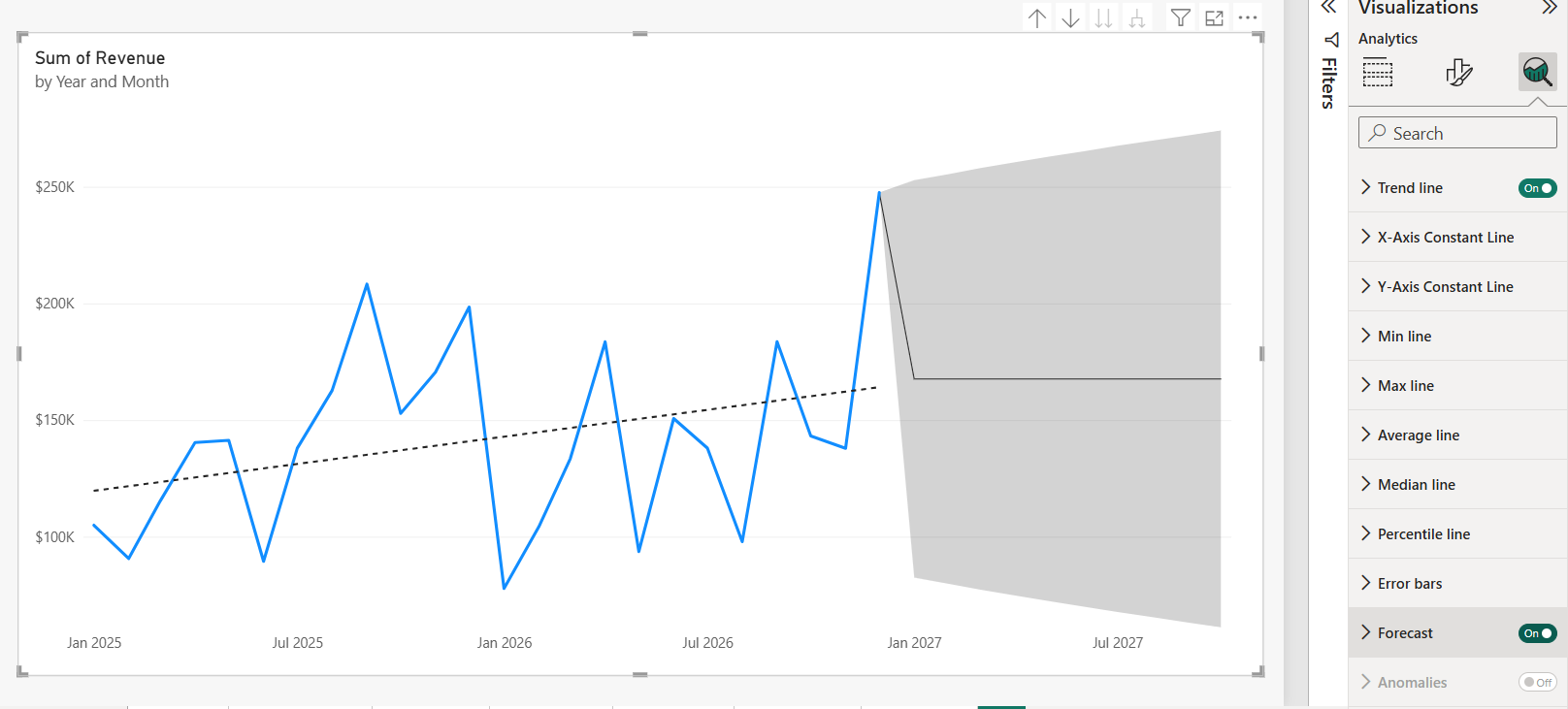
Forecast and Anomalies work only on a single-series chart: one measure, nothing in Legend, and a continuous X-axis. When I switched my axis to Categorical, Trend line and Forecast disappeared from the pane. While Forecast is on, Anomalies is grayed out.
Don’t oversell the forecast. With two years of monthly data, the shaded band is wide, as you can see above. Use it to start a conversation, not to set a budget.
Split one chart with small multiples
Drag a field such as Region into the Small multiples well. Power BI draws one small line chart per region in a grid, all with the same axes. It’s the cleanest fix for a chart with too many lines.
By default, the panels share one y-axis scale, which makes them easy to compare. If one region is much larger and flattens the others, turn off Shared y-axis under Y-axis > Range, and add a note that the scales differ.
Troubleshooting common line chart problems
- The chart shows only two or three points: it’s at the Year level of the date hierarchy. Expand the hierarchy or use the plain date field.
- I can’t add a field to Legend: you have two measures in Y-axis. Remove one, or use Small multiples.
- Forecast or Trend line is missing: the axis is categorical, the X-axis isn’t a date or number, or there’s more than one series.
- The months are in alphabetical order: you used a text month column. Sort it by a month-number column, or use the date hierarchy.
- Lines show only dots: there’s one data point per series. Check that the X-axis field isn’t summarized to a single value.
If you’re building a trend report, these chart tutorials pair well with this one:
Frequently Asked Questions
How do I create a line chart in Power BI?
Select Line chart in the Visualizations pane, add a date field to X-axis and a measure to Y-axis. Add a field to Legend for one line per category.
How do I add multiple lines to a Power BI line chart?
Either add more measures to the Y-axis well or add a category field to Legend. You can’t use both at the same time.
How do I add a secondary y-axis to a line chart?
Drag the second measure into the Secondary y-axis well. Power BI adds a separate scale on the right.
Why is the forecast option missing in my line chart?
Forecast needs one series and a continuous X-axis. Remove Legend fields and extra measures, and set X-axis Type to Continuous. The Microsoft Learn line chart article lists the other limits.
How do I make a smooth or stepped line in Power BI?
Open Format visual > Lines and change Interpolation type to Smooth or Step. Linear draws straight segments.
Can I change the line color based on value?
Yes. Since 2026, Lines > Color has an fx button for rules, gradients and field values, as long as the chart has a single series.

I have worked with Microsoft technologies for more than 18 years, including SharePoint, Microsoft 365 and the Power Platform (Power Apps, Power Automate and Power BI), at companies like HP, TCS and KPIT. I started EnjoySharePoint in 2011 to share the solutions I build in real projects with readers in the United States, Canada, the United Kingdom, Australia, New Zealand and beyond. Microsoft has recognized this work with the Microsoft MVP award 13 times since 2014.