
An HR director I worked with found out the hard way that their Salary Adjustments list was visible to the whole company. The list lived on the HR site, the site was open to all employees, and the list simply inherited that access. Nobody had done anything wrong; they just hadn’t known that a list takes its permissions from its site unless you change it.
In this guide, I’ll show you how list permissions work in SharePoint Online, how to give a list its own permissions, how to let people see only the items they created, and how to share a list or an item with people outside your organization, safely.
Quick answer: Open the list, select Settings (gear) > List settings > Permissions for this list, and select Stop Inheriting Permissions. Then use Grant Permissions to add people with a permission level, such as Contribute or Read, and remove anyone who shouldn’t have access. To let people see only their own items, go to List settings > Advanced settings > Item-level Permissions.
How list permissions work
Every SharePoint site has its own permissions, usually managed through three groups: Owners (Full Control), Members (Edit) and Visitors (Read). A new list inherits those permissions, so anyone who can edit the site can edit the list, and anyone who can read the site can read it.
That’s fine for most lists. You break inheritance when a list needs different access from its site, for example a Finance Requests list only the finance team should see, or a feedback list where everyone can submit but no one can read each other’s entries.
Permission levels
Choosing the right level matters more than most people think. The difference between Edit and Contribute is the one that causes the most trouble:
| Level | What people can do |
|---|---|
| Full Control | Everything, including managing permissions and settings |
| Design | Create lists and libraries, edit pages, and apply themes and styles |
| Edit | Add, edit and delete items, and manage the list itself: columns, views and even deleting the list |
| Contribute | View, add, update and delete items, but not change the list |
| Read | View items and pages, and download documents |
Because the site’s Members group has Edit, members can delete your list. If people should only work with items, give them Contribute.
Give a list its own permissions
Step 1: Open the list permissions
Open the list, select the Settings gear at the top right, and choose List settings. Under Permissions and Management, select Permissions for this list:

Step 2: Stop inheriting permissions
On the Permissions tab, select Stop Inheriting Permissions and confirm with OK. The list now keeps its own copy of the site’s permissions, and changes to the site no longer affect it:

If the list has more than 100,000 items, SharePoint won’t let you break or restore inheritance on it; the same applies to libraries and folders. Plan permissions before a list grows that large.
Step 3: Grant permissions
Select Grant Permissions:

Enter the people or groups, select Show options, and choose the permission level. Clear Send an email invitation if you don’t want to notify them. Granting access to a group, such as a Microsoft 365 group or a security group, is far easier to manage than adding people one by one:

Select Share:

The person now appears on the permissions page with the level you chose:

Then remove anyone who shouldn’t have access; breaking inheritance copies the site’s groups, including Visitors.
Change or remove someone’s permissions
To change a level, check the box next to the user or group, select Edit User Permissions, choose the new level and select OK:
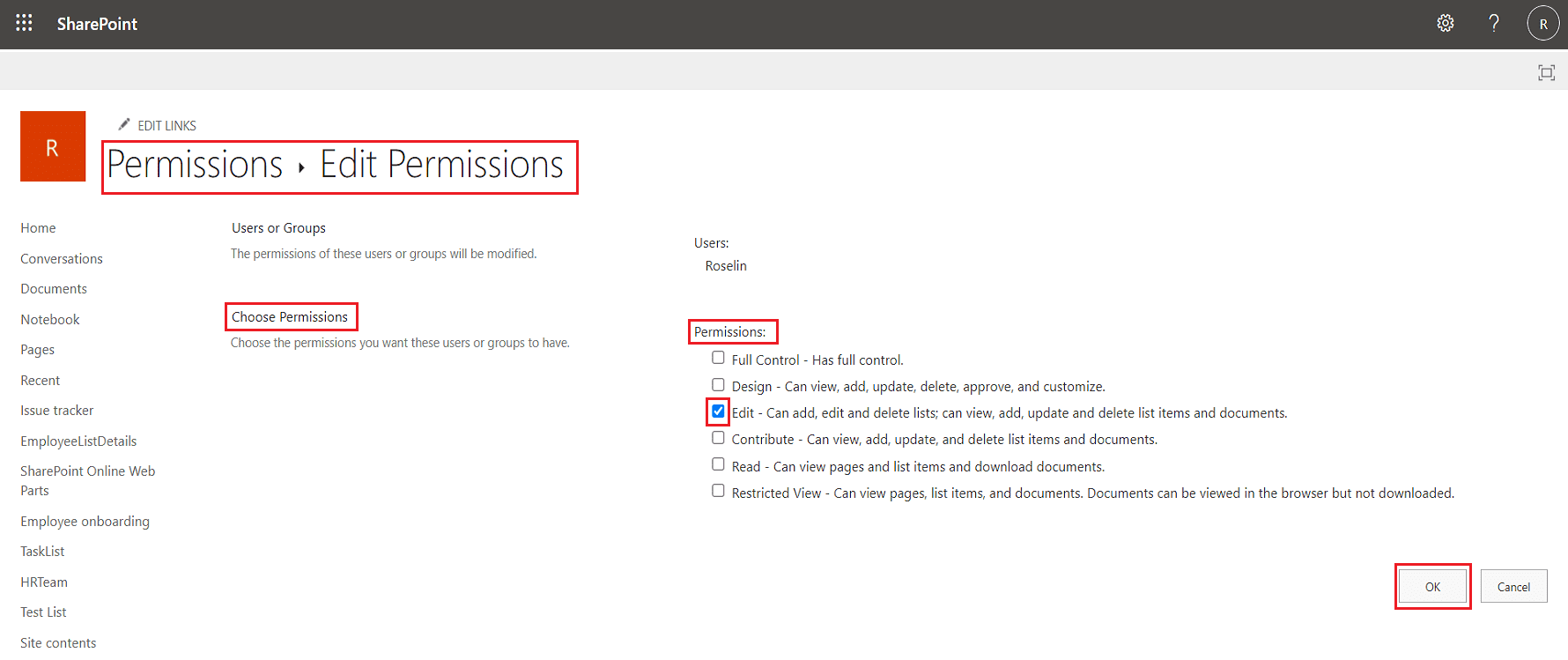
To remove access, check the box and select Remove User Permissions:

Removing a user also removes them from every item in the list, including items with their own permissions, and it can’t be undone. People can still get in through another group they belong to, so check group memberships too.
Go back to the site’s permissions
If the list no longer needs separate access, select Delete unique permissions and confirm. The page then says the list inherits permissions from its parent, and every custom permission on the list is removed:

Let people see only their own items
For requests, feedback or time-off forms, people often should see only what they submitted. That’s what item-level permissions do. Go to List settings > Advanced settings and find Item-level Permissions:

- Read access: Read all items, or Read items that were created by the user.
- Create and Edit access: Create and edit all items, Create items and edit items that were created by the user, or None for a read-only list.
For a feedback list, choose Read items that were created by the user and Create items and edit items that were created by the user, then select OK. Keep in mind that site owners and people with Design permission still see every item, because their permissions include overriding these rules.
Unique permissions: limits to plan for
Every item, folder or list with its own permissions is a “unique permission scope”. Microsoft supports up to 50,000 in a list or library but recommends staying under 5,000, because large numbers slow things down and are hard to manage.
They add up faster than you’d expect: when someone shares a single item with a person who doesn’t have access, SharePoint breaks inheritance on that item automatically. Prefer groups and list-level permissions over item-by-item sharing.
Share a list or item with people outside your organization
Step 1: Check the sharing settings
Sharing with guests has to be allowed at two levels, and only a SharePoint administrator can change them. First, the organization-wide setting in the SharePoint admin center under Policies > Sharing. Then the site, under Sites > Active sites: select the site, open the Settings tab and choose More sharing settings:

New and existing guests lets people share with anyone outside the organization, who signs in or gets a verification code. Anyone also allows links that work without signing in; use it only if you really need it. A site can never be more open than the organization-wide setting.
Step 2: Share an item or the whole list
Select an item (or open the list) and choose Share. Open the link settings and choose who the link works for: Anyone, People in your organization, People with existing access or Specific people. Decide whether they can edit, set an expiration date if you can, and select Apply:

Then enter the person’s email and select Send, or copy the link and share it yourself:

When sharing a whole list, you can choose between Can edit list (items, columns and views), Can edit items (items only) and Can view. Can edit items is the safer choice for most guests.
Audience targeting is not a permission
Lists have an audience targeting setting, and it’s easy to mistake it for a way to hide items. It isn’t. You turn it on in List settings > Audience targeting settings, which adds an Audience column where you can pick up to 50 groups:

The audience decides where an item is promoted, for example in a Highlighted content web part on a page. It doesn’t filter the list’s own views, and anyone with access to the list can still open every item. Use item-level or list permissions when people must not see something.
A quick checklist
- Keep inheritance when everyone on the site may see the list.
- Break inheritance for sensitive lists, and remove the groups that shouldn’t be there.
- Give Contribute rather than Edit when people only work with items.
- Use item-level permissions for “see only my own” lists.
- Share with guests through New and existing guests, and use Anyone links only when you must.
- Review permissions on sensitive lists a couple of times a year.
These SharePoint guides go well with list permissions:
- “Sharing is Limited on This Item” Error in SharePoint and OneDrive
- Your Organization’s Policies Don’t Allow You To Share With These Users While Sharing Files In SharePoint Online
- How to Give Unique Permissions For a SharePoint Library
- Share SharePoint Site With External Users and Anonymous Users
- Access Requests in SharePoint Online
- How to Create and Use Lookup Column in SharePoint Online List (Step by Step)
Frequently Asked Questions
How do I give a SharePoint list different permissions from its site?
In List settings, open Permissions for this list, select Stop Inheriting Permissions, and then grant or remove access. Microsoft walks through it in Customize permissions for a SharePoint list or library.
What is the difference between Edit and Contribute in SharePoint?
Contribute lets people add, edit and delete items. Edit also lets them manage the list itself, including columns, views and deleting the list.
How do I let users see only their own items in a SharePoint list?
Go to List settings > Advanced settings > Item-level Permissions and choose Read items that were created by the user, plus Create items and edit items that were created by the user.
How many unique permissions can a SharePoint list have?
Up to 50,000 unique permission scopes are supported per list or library, but Microsoft recommends staying under 5,000.
Does audience targeting hide list items from other users?
No. It only controls where items are promoted, such as in a Highlighted content web part. Anyone with access to the list can still see every item.

I have worked with Microsoft technologies for more than 18 years, including SharePoint, Microsoft 365 and the Power Platform (Power Apps, Power Automate and Power BI), at companies like HP, TCS and KPIT. I started EnjoySharePoint in 2011 to share the solutions I build in real projects with readers in the United States, Canada, the United Kingdom, Australia, New Zealand and beyond. Microsoft has recognized this work with the Microsoft MVP award 13 times since 2014.