
Recently, I was working on a Power Apps gallery where I needed to set a default value from a SharePoint list. To achieve this, we can use the Power Apps Default property that helps to set the default value of any control.
In this Power Apps article, I will explain how to set default item in Power Apps gallery manually and many more like:
- Set default item in Power Apps gallery from a SharePoint list
- Set the default selected item to the Power Apps gallery after submitting the form
- Set the Power Apps gallery default selected item based on another gallery
Set Default Item in Power Apps Gallery
This section will describe how to set the default item in a Power Apps gallery using two ways:
- Set Power Apps gallery default item manually
- Set Power Apps gallery default item from a SharePoint list
Power Apps Gallery Set Default Selected Item Manually
I will show you how to set the Power Apps Gallery default selected item manually.
Example:
I have created a Power Apps Canvas app and then added a Gallery Control.
The gallery contains the “Product Details” [Which I added manually]. Next, whenever the user opens or loads an app, the Power Apps gallery will automatically select its default value, as shown below:

Let me show you how to achieve this:
1. On the Power Apps screen, insert a Gallery control -> Set its Items property to:
[
    "Laptop",
     "Xbox Series S 1-TB",
     "Mouse",
     "Smart Phone",
     "Head Phone",
]
2. Select the Gallery control -> Set its Default property to:
{Value:"Xbox Series S 1-TB"}
3. To highlight the default selected value in the gallery control -> Set its TemplateFill property as:
If(
    ThisItem.IsSelected,
    Color.GoldenRod,
    Color.WhiteSmoke
)
4. Save, Publish, and close the app. Then, reopen and preview the app. The Power Apps gallery item will be selected as “Xbox Series S 1-TB” by default.

This is how I manually set the Power Apps Gallery default selected item.
Set Power Apps gallery default selected item from SharePoint list
Let us see how to set a Power Apps gallery default selected item from a SharePoint list.
For example, I have a SharePoint list [Employee Details] that has various columns like:
| Column Name | Data Type |
|---|---|
| Employee ID | Title |
| Employee Name | Single line of text |
| Employee Department | Choice [HR, Marketing, Finance, IT] |
| Employee Joining Date | Date and time |

I created a Power Apps canvas app and then added a Gallery control connected to the above SharePoint list.
Whenever the user opens or loads an app, the Power Apps gallery control will automatically select its default value from the above list choice column value of “Marketing,” as shown below:

Let me show you how to achieve this:
1. Create a Power Apps Blank canvas app -> Connect to the SharePoint Online list -> as in the screenshot below:

2. On the Power Apps screen, insert a Gallery control -> Set its Items property to:
'Employee Details'Where,
- Employee Details = SharePoint list name

3. Select the Gallery control -> Set its Default property to:
LookUp(
    'Employee Details',
    'Employee Department'.Value = "Marketing"
)
Where,
- Employee Details = SharePoint list name
- Employee Department = SharePoint list choice column name
- Marketing = SharePoint list choice column value
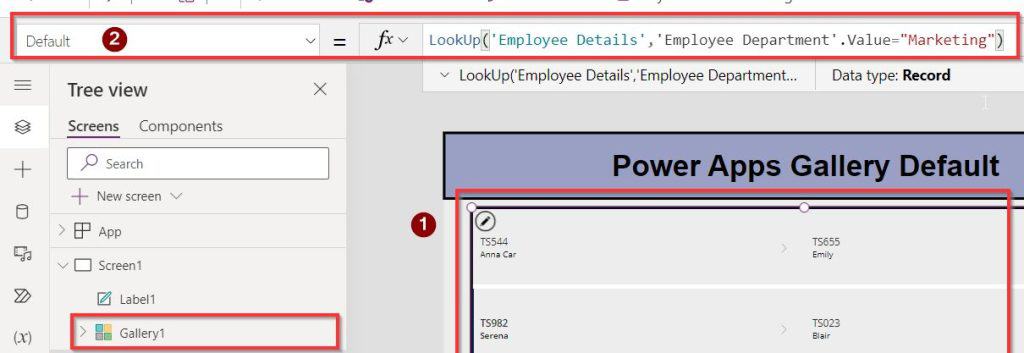
4. To highlight the default selected value in the gallery control -> Set its TemplateFill property as:
If(
    ThisItem.IsSelected,
    RGBA(
        187,
        221,
        140,
        1
    ),
    Color.WhiteSmoke
)
5. Save, Publish, and close the app. Then, reopen and preview the app. The gallery control will automatically select its default value from the above list choice column value of “Marketing.”

I achieved this by setting a default selected item for a Power Apps gallery control.
Set the default selected item to the Power Apps gallery after submitting the form
In this section, I will explain how to set a Power Apps default selected item to the gallery after submitting the form.
Example:
I created a Power Apps canvas app and then added an Edit form and a Gallery control, both are connected to the above SharePoint list.
Whenever the user provides the details in the form and clicks the Submit Button control, the provided details will be displayed in the gallery control. That particular item will be selected as default, as shown below:

Follow the below steps to achieve this:
1. On the Power Apps screen, insert an Edit form. Then, add a new data source for the above SharePoint list and set the Edit form’s Data source property:
'Employee Details'Where,
- Employee Details = SharePoint list name

2. Insert a Button control -> Set its OnSelect property to:
SubmitForm(Form1);NewForm(Form1);
3. Insert a Gallery control -> Set its Items property to:
Employee DetailsWhere,
- Employee Details = SharePoint list name

4. Select the Gallery control -> Set its Default property to:
First(
    Sort(
        'Employee Details',
        Created,
        SortOrder.Descending
    )
)
5. To highlight the default selected value in the gallery control -> Set its TemplateFill property as:
If(
    ThisItem.IsSelected,
    Color.Gold,
    Color.WhiteSmoke
)
6. Save, Publish, and close the app. Then, reopen and preview the app. When the user provides the details in the form and clicks the Submit button, the provided details will be displayed in the gallery control. That particular item will be selected as default.

After submitting the form, I achieved this by setting a Power Apps default selected item to the gallery.
Set default item in the Power Apps Gallery based on another gallery
Here, I will explain how to set the Power Apps gallery default selected item based on another gallery.
Example:
I have added two gallery controls to my Power Apps screen, both of which are connected to the above SharePoint list.
Whenever the user selects a particular item from the 1st gallery, then by default, the 2nd gallery item will be selected based on it as shown below:

Follow the below steps to achieve this:
1. On the Power Apps screen, insert a first Gallery control -> Set its Items property to:
'Employee Details'Where,
- Employee Details = SharePoint list name

2. Insert a second Gallery control -> Set its Items property to:
'Employee Details'
3. Select the second gallery control -> Set its Default property to:
LookUp(
    'Employee Details',
    ThisRecord.Title = Gallery1.Selected.Title
)
4. To highlight the default selected value in the gallery control -> Set its TemplateFill property as:
If(
    ThisItem.IsSelected,
    Color.Bisque,
    Color.WhiteSmoke
)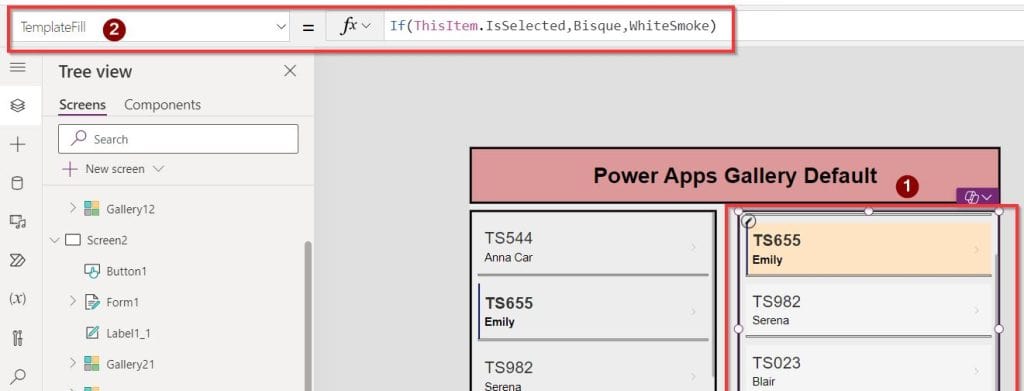
5. Save, Publish, and close the app. Then, reopen and preview the apps. Whenever the user selects a particular item from the 1st gallery, then by default, the 2nd gallery item will be selected based on it.
This is how to set the Power Apps gallery default selected item based on another gallery.
Conclusion
I hope this article helped you learn how to set the default item in a Power Apps gallery manually and from a SharePoint list.
Additionally, we discussed how to set the Power Apps gallery default item after submitting the form and set the Power Apps gallery default item based on another gallery with various examples.
Moreover, you may like some more Power Apps tutorials:
- Power Apps Gallery Conditional Formatting
- Alternate Row Color in Power Apps Gallery
- Display Dataverse Choices in Power Apps Gallery
- Filter Power Apps Gallery By Quarter
- Save Power Apps Combobox Multiple Values to SharePoint List

Preeti Sahu is an expert in Power Apps and has over six years of experience working with SharePoint Online and the Power Platform. She is the co-author of Microsoft Power Platform: A Deep Dive book. As a Power Platform developer, she has worked on developing various tools using Power Apps and Power Automate. She also makes Microsoft 365 videos and shares them on YouTube.

