
I recently worked on a Power Automate project where I had to divide the string into equal segments according to the given length. One amazing function offered by Power Automate is the Chunk() function. By using this function, I achieved my task.
Also, at the same time, I thought about writing an article on what the Power Automate Chunk() function is, its syntax, and how to use it with various examples like:
- Use the Power Automate Chunk() function manually.
- How to use the Power Automate Chunk() function using the SharePoint list
Power Automate Chunk() Function
The Power Automate Chunk() function will break the string into equal parts based on the provided length. If the string remains with extra special characters, the remaining characters will also be considered one chunk.
It will also split an ‘Array’ into equal halves. Moreover, this Chunk function calculates and includes spaces while separating the string into equal sizes. If the string is left with extra characters, the remaining characters will also be considered one part.
Aside from that, Chunk() can also be used to convert a string to an array in Power Automate.
Power Automate Chunk() Function Syntax
The below represents the syntax of the Chunk() function in Power Automate:
chunk('<String>', <length>)It returns the output as an array with the text provided in particular defined sizes.
- String: The text string that should be divided into equal sizes.
- Length: It should be in the form of an integer, which results in the size of chunks.
Example:
chunk(‘[Lynne Robbins]’,3) // Output – [“Lyn”, “ne “, “Rob”, “bin” ,”s”]
How to Use Power Automate Chunk() Function Manually
Here, we will see how to use the chunk() function in Power Automate manually. Follow the steps below:
1. Open the Power Automate home page, click +Create -> select Instant cloud flow -> give the flow a name -> select Manually trigger a flow -> click Create. Again, click +Add an input -> Select Text to provide text manually inside the trigger.
2. Under the flow trigger, add an ‘Initialize variable’ flow action to store the text value during the flow. Set parameters like Name, Type, and Value as shown below.

3. Then, add a ‘Compose’ data operation to add the chunk() function expression in the inputs section as placed in the code below.
chunk(variables('Name'),3)
4. Now, it’s time to save and test the flow Manually. Click on Save and Test. In the Run flow window, provide the text value in the box to test it. Click on Runflow.

5. When the flow runs successfully, it will display the array of equal chunks from the provided text as shown below:
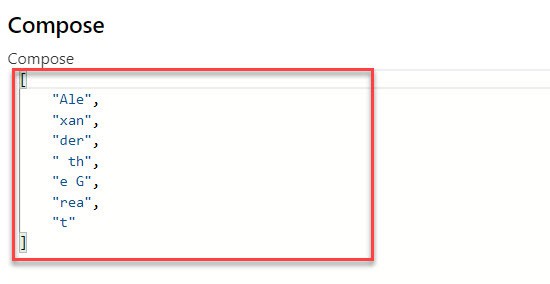
This is how to use the string chunk() function inside a Power Automate flow to get equal parts of a text string.
How to Use Power Automate Chunk() Function using SharePoint List
In this example, I will explain another example of the Power Automate chunk() function based on the SharePoint list.
- There is a SharePoint list named Medical Camp Registration with the columns below:
| Column | Data type |
|---|---|
| Full Name | Title [Single line of text] |
| Date of Birth | Date |
| Health Insurance Policy | Yes no |
| Policy Code | Single line of text |

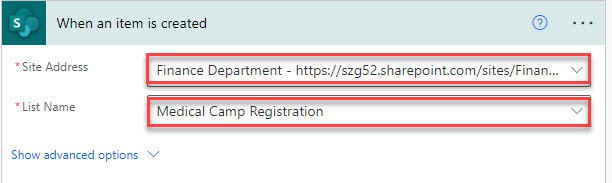
1. Open the Power Automate home page and click + Create -> select Automated cloud flow and provide a flow name. Choose the When an item is created trigger and click on Create. Then, select the site address and list name.
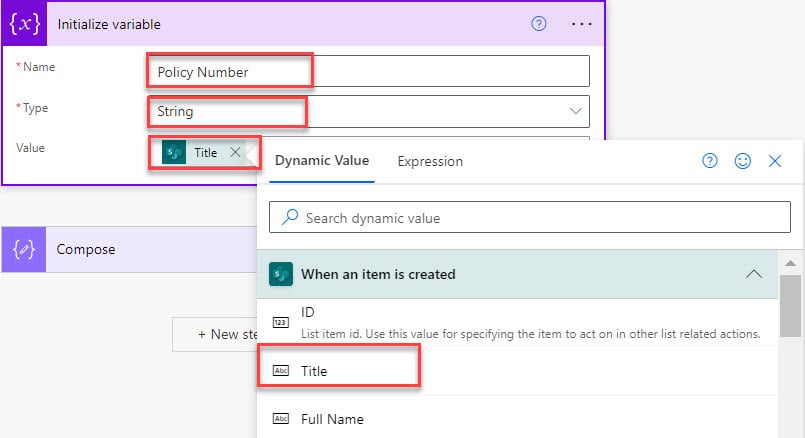
2. Under that, ‘Initialize a variable’ of the SharePoint list column, so that it will store the values of that column during the flow. Add the details like:
- Name: Give a name for an initialized variable.
- Type: Select the datatype from the drop-down.
- Value: Take value from the dynamic content.
3. Finally, add the ‘Compose’ data operation to provide a chunk() expression along with the variable.
chunk(variables('Policy Number'),3)
4. Now, the flow is ready to save and test. So, click on Save and then Test it. Test the flow Manually.
At this step, add a new list item to the SharePoint list.
5. Open the ‘Compose’ data operation to check the output returned from the chunk() expression.

This is how to use Power Automate’s chunk() function expression to split strings into equal chunks.
Conclusion
I hope you understand how to work with the Power Automate chunk() function to split the string or an array into equal chunks.
Additionally, we saw how to use the Power Automate Chunk() function manually and a SharePoint list with different examples.
You may also like:
- Power Automate LastindexOf() Function
- Power Automate IndexOf() Function
- Power Automate toUpper() Function
- Power Automate substring() Function
- Power Automate formatNumber() Function

Preeti Sahu is an expert in Power Apps and has over six years of experience working with SharePoint Online and the Power Platform. She is the co-author of Microsoft Power Platform: A Deep Dive book. As a Power Platform developer, she has worked on developing various tools using Power Apps and Power Automate. She also makes Microsoft 365 videos and shares them on YouTube.

