
A help desk app I built had a Submit button that people kept pressing before choosing a category, which saved tickets with no category at all. The fix was a one-line check on the combo box: if nothing is selected, the button stays gray. It sounds simple, but the obvious formula, IsBlank(), doesn’t work the way most people expect here.
In this tutorial, I’ll show you the reliable way to check whether a combo box has a value, and two ways to use it: showing a message and disabling a button.
Quick answer: Use IsEmpty(ComboBox1.SelectedItems), which returns true when nothing is selected. CountRows(ComboBox1.SelectedItems) = 0 does the same. For a single-select combo box, IsBlank(ComboBox1.Selected) also works. Don’t use IsBlank(ComboBox1.SelectedItems): SelectedItems is a table, and IsBlank always returns false for a table, even an empty one.
Which check to use
| Formula | Works? | Why |
|---|---|---|
IsEmpty(cmb.SelectedItems) | Yes | SelectedItems is a table; IsEmpty is the function for tables |
CountRows(cmb.SelectedItems) = 0 | Yes | Counts the selected items |
IsBlank(cmb.Selected) | Yes, for single-select | Selected is blank until the user picks something |
IsBlank(cmb.SelectedItems) | No | An empty table isn’t blank, so this is always false |
In a multi-select combo box, Selected only reflects one of the chosen items, so check SelectedItems.
The sample list
My SharePoint list, Product List, has two columns: Name (the Title column, single line of text) and Vendors (a lookup column):

Example 1: Show whether a value is selected
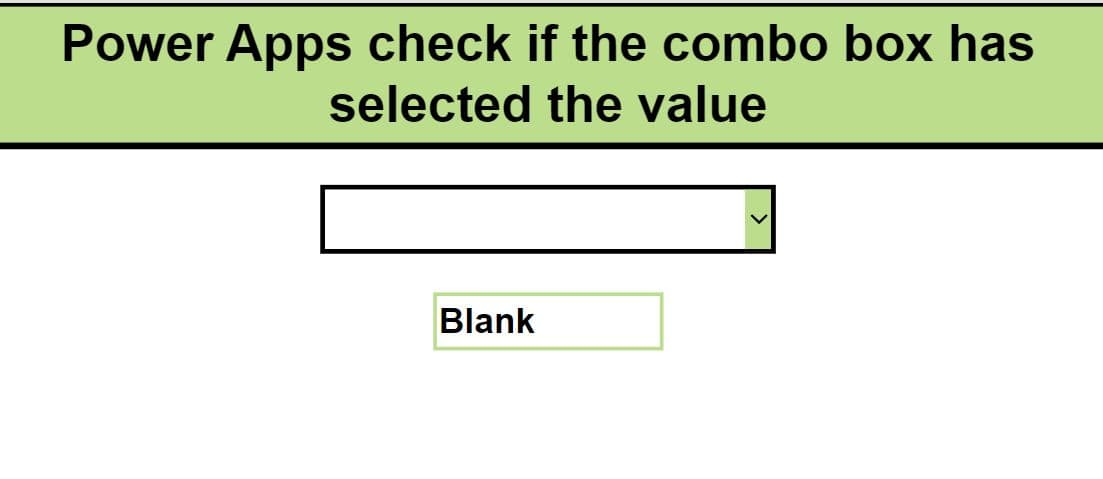
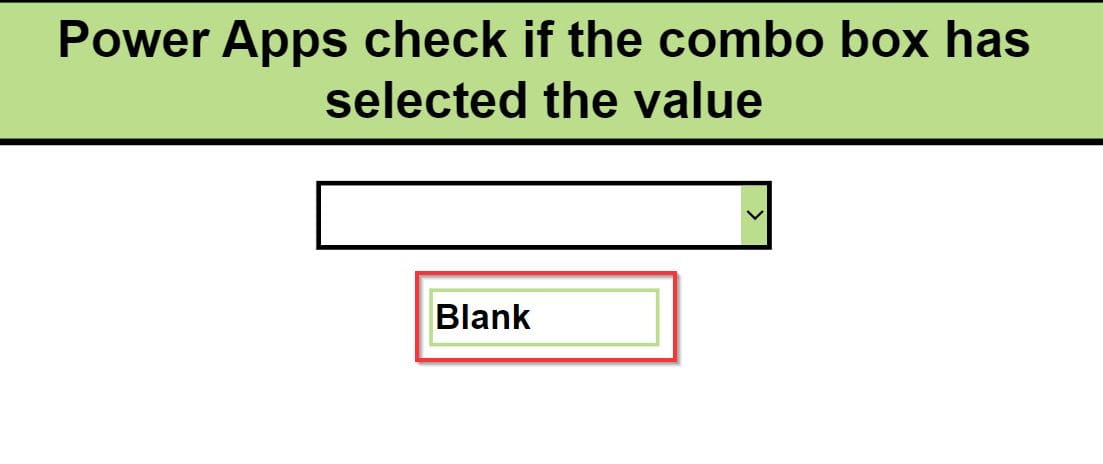
When nothing is selected, a label says “Blank”:
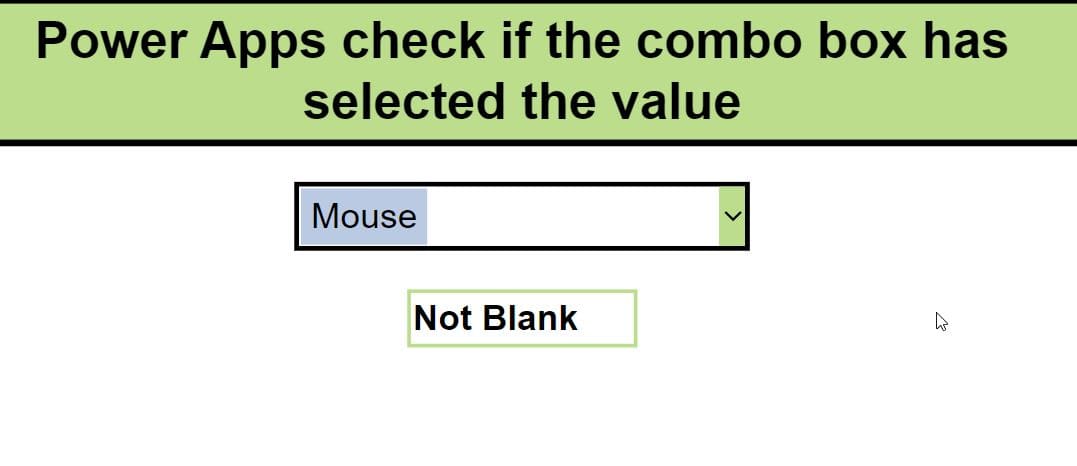
When the user picks a product, it says “Not Blank”:
Add a combo box named Cmb_Product and set its Items to the product names:
Distinct('Product List', Title)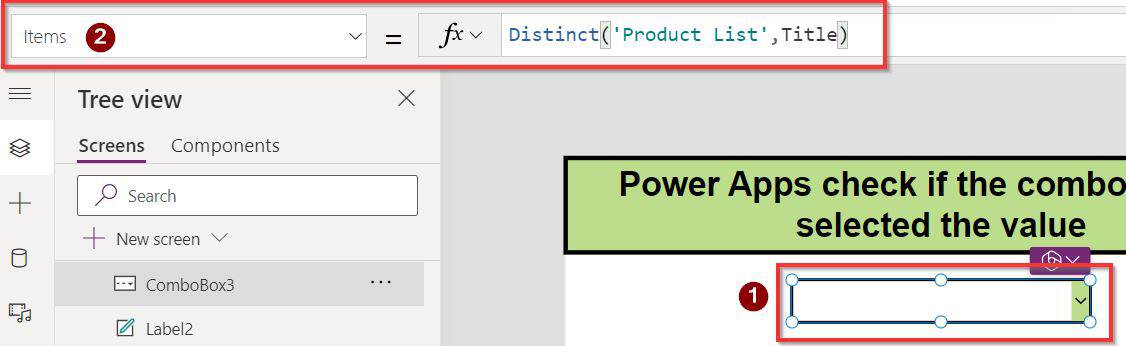
Distinct returns a one-column table named Value, which is why the selected text is Cmb_Product.Selected.Value. It isn’t delegable, so on lists with more than 500 items (2,000 at most, with the data row limit raised), some names may be missing.
Then add a label and set its Text to:
If(IsEmpty(Cmb_Product.SelectedItems), "Blank", "Not Blank")The original version of this formula combined three checks, IsEmpty, IsBlank and Len, but only IsEmpty is needed:
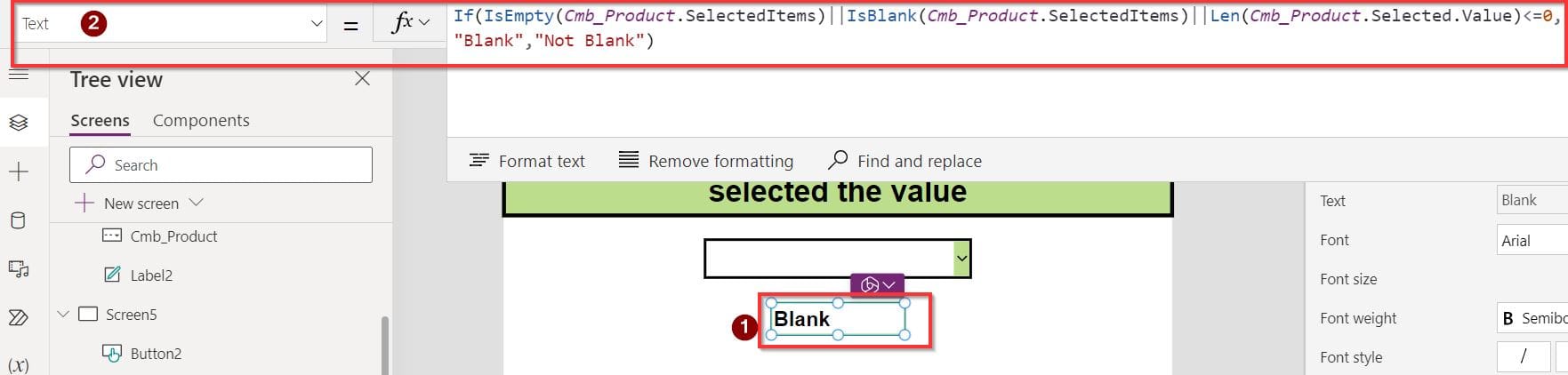
Preview the app, and the label changes as you select and clear a value:
To show what was picked instead, use Concat(Cmb_Product.SelectedItems, Value, ", "), which lists every selected value separated by commas.
Example 2: Disable a button until a value is picked
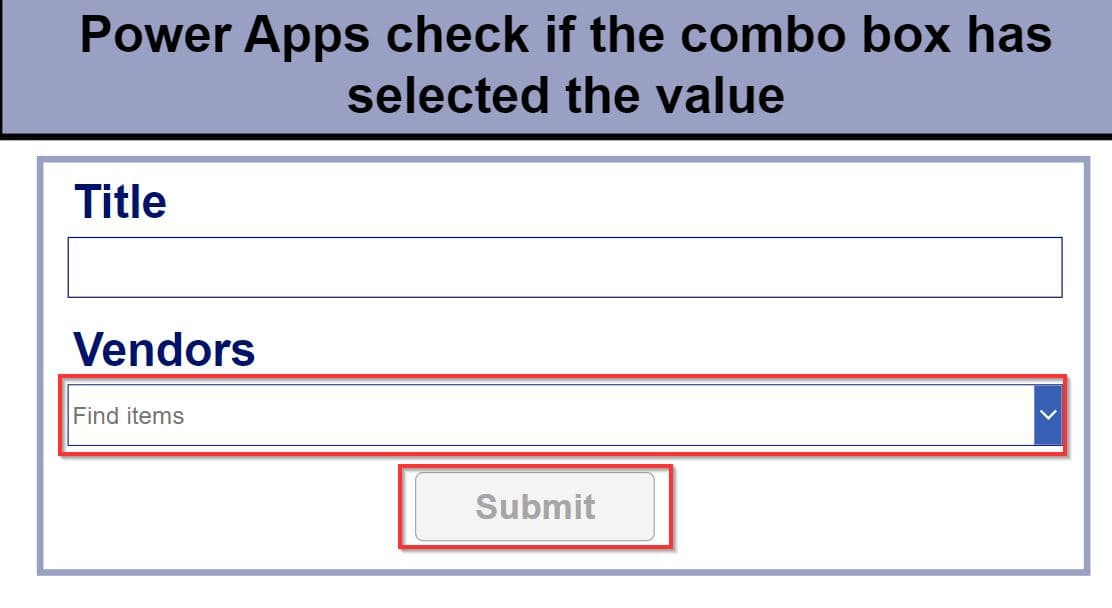
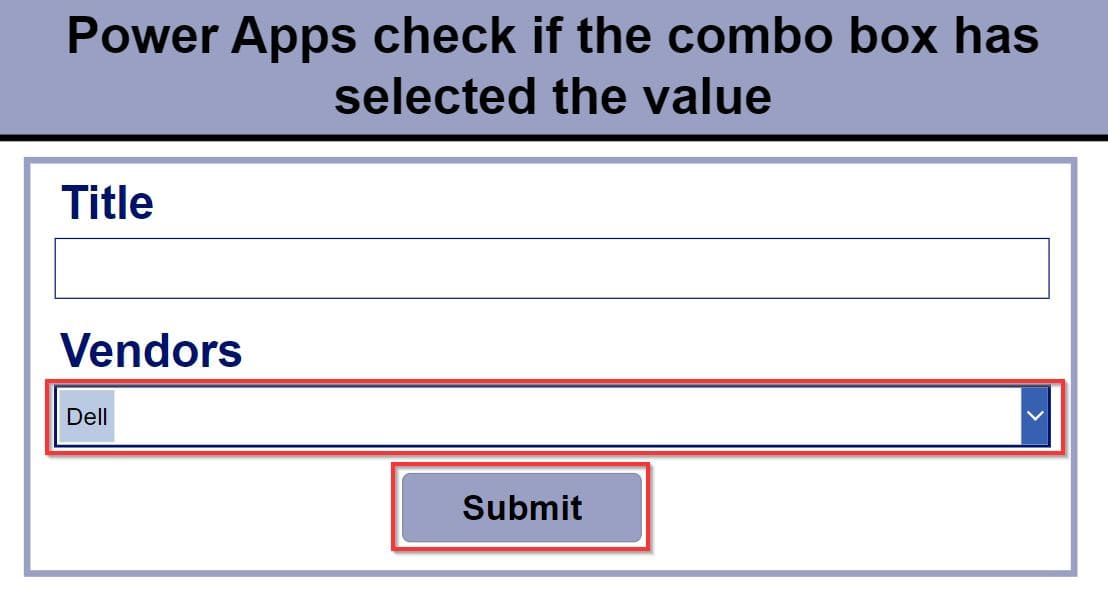
Here an edit form is connected to the Product List, and the Submit button stays gray until someone chooses a vendor:
Set the form’s DataSource to the list:

Then set the button’s DisplayMode. The Vendors combo box inside the form is named DataCardValue4:
If(IsEmpty(DataCardValue4.SelectedItems), DisplayMode.Disabled, DisplayMode.Edit)Include the last part, DisplayMode.Edit. Without it, If returns nothing when a value is selected, and the button’s state isn’t what you intend. The older formula in this screenshot leaves it out:

Preview the app. The button is disabled until a vendor is chosen:

Disabled grays the button out but keeps it on the screen. To hide it instead, set its Visible property to !IsEmpty(DataCardValue4.SelectedItems). I prefer disabling, because people can see that there’s a button waiting for them.
A no-formula option for forms
In an edit form, you can also make the field required. Set the data card’s Required property to true, and SubmitForm won’t save until the field has a value, showing an error message on the card. The modern combo box has its own Required property too. For more validation ideas, see how to validate a Power Apps combo box.
These Power Apps combo box tutorials may help next:
- How to Use Power Apps Combo Box Control?
- How to Validate Power Apps Combo Box Control?
- How to Reset a Power Apps Combo Box [With Various Examples]
- How to Set Combo Box Default Value in Power Apps? [With Useful Examples]
- How to Set/Get Power Apps Combo Box Selected Value?
- How to Populate Distinct Values in Power Apps Combo Box?
Frequently Asked Questions
How do I check if a combo box is empty in Power Apps?
Use IsEmpty(ComboBox1.SelectedItems), which returns true when nothing is selected. Microsoft explains IsBlank and IsEmpty in its IsBlank and IsEmpty reference.
Why doesn’t IsBlank work on a combo box?
SelectedItems is a table, and IsBlank treats an empty table as not blank. Use IsEmpty for SelectedItems, or IsBlank(ComboBox1.Selected) for a single-select combo box.
How do I disable a button until a combo box has a value?
Set the button’s DisplayMode to If(IsEmpty(ComboBox1.SelectedItems), DisplayMode.Disabled, DisplayMode.Edit).
How do I show the selected values of a combo box in a label?
Use Concat(ComboBox1.SelectedItems, Value, “, “) in the label’s Text property.

Preeti Sahu is a Microsoft MVP for Power Apps with over six years of experience working with SharePoint Online and the Power Platform. She is the co-author of the book Microsoft Power Platform: A Deep Dive. As a Power Platform developer, she has built various tools with Power Apps and Power Automate, and she makes Microsoft 365 videos for YouTube.