
I was building a project app on a SharePoint list, and my first dropdown worked perfectly: it listed every project name. The second one, for the Project Status choice column, showed nothing but an empty box and a small warning icon.
If your Power Apps dropdown isn’t showing values from a SharePoint list, the cause is almost always the column type. In this tutorial, I’ll show you why it happens and the exact Items formula that fixes it for Choice, Lookup, Person and text columns, plus how to use a dropdown inside an edit form.
Quick answer: Choice, Lookup and Person columns come into Power Apps as records, not text, so 'Project Tracker'.ProjectStatus shows blank values. Use Choices([@'Project Tracker'].ProjectStatus) in the dropdown’s Items property instead. For a text column with repeated values, use Distinct('Project Tracker', Title).
Why the dropdown shows blank values
A dropdown can only display text. Simple SharePoint columns, such as single line of text, number, currency, date and Yes/No, come into Power Apps as plain values. Choice, Lookup, Person and Managed Metadata columns come in as records with several fields inside, such as {Value: "In Progress"}.
| SharePoint column | In Power Apps | Items formula that works |
|---|---|---|
| Single line of text | Text | Distinct(List, Column) |
| Number, Currency | Number | Distinct(List, Column) |
| Date and time | Date/time | Distinct(List, Text(Column, "mm/dd/yyyy")) |
| Yes/No | True/false | ["Yes", "No"] or a toggle instead |
| Choice | Record | Choices([@List].Column) |
| Lookup | Record | Choices([@List].Column) |
| Person or Group | Record | Choices([@List].Column), showing DisplayName |
If you’re connecting a dropdown to a list for the first time, start with the Power Apps dropdown with a SharePoint list, then come back here when values don’t show.
The example list
My SharePoint list is named Project Tracker, with these columns:
| Column | Type |
|---|---|
| Project Name (the Title column, renamed) | Single line of text |
| Description | Multiple lines of text |
| Project Status | Choice (Not Started, In Progress, Completed) |
| Start Date and End Date | Date and time |
In the app, I added two dropdowns and set their Items to the columns directly:
'Project Tracker'.Title          // first dropdown: works
'Project Tracker'.ProjectStatus  // second dropdown: blank
The first dropdown lists the project names. The second one shows an empty box:

New to the control itself? See how to use the Power Apps dropdown control for the basic properties.
Fix 1: Choice columns
When you hover over the warning icon on the second dropdown, Power Apps says the columns produced by this rule are all nested tables or records, but the property expects at least some columns of simple values:

Many people read this as a delegation warning, but it isn’t. It means the dropdown got a table of records it can’t display. Replace the Items formula with Choices(), which returns every allowed value of the column, even ones no item uses yet:
Choices([@'Project Tracker'].ProjectStatus)
Each value is a record with a Value field, so you read the selection with drpStatus.Selected.Value. The [@...] makes sure Power Apps uses the list, not a control or variable with the same name.
To store the picked value back in SharePoint, see how to save a dropdown selected value to a SharePoint list.
Fix 2: Lookup columns
A Lookup column works the same way. If Project Tracker had a Department lookup to a Departments list, the Items formula would be:
Choices([@'Project Tracker'].Department)Each record has an Id and a Value, and the dropdown shows Value. If the second dropdown should depend on the first, that’s a cascading dropdown. See how to create a cascading dropdown from a SharePoint list.
Fix 3: Person columns
For a Project Manager person column, use Choices() again, then tell the dropdown which field to show, because a person record has no Value field:
Choices([@'Project Tracker'].ProjectManager)- Classic dropdown: set the Value property (in the Properties pane) to DisplayName.
- Modern dropdown: set ItemDisplayText to
ThisItem.DisplayName.
I cover more person scenarios, like showing Microsoft 365 group members, in how to show a SharePoint person column in a dropdown.
Fix 4: Text columns with repeated values
A text column does show, but every repeat appears too: if five projects are “In Review”, you see it five times. Use Distinct() and sort the result:
Sort(Distinct('Project Tracker', Title), Value)Distinct returns a one-column table named Value, so read the selection with .Selected.Value. There are more ways to clean up repeats in remove duplicates in a Power Apps dropdown.
Fix 5: A dropdown inside an edit form
When you connect an Edit form to the list, Power Apps adds a combo box for the Project Status card. That’s the normal control for choice fields in forms, and it works fine:
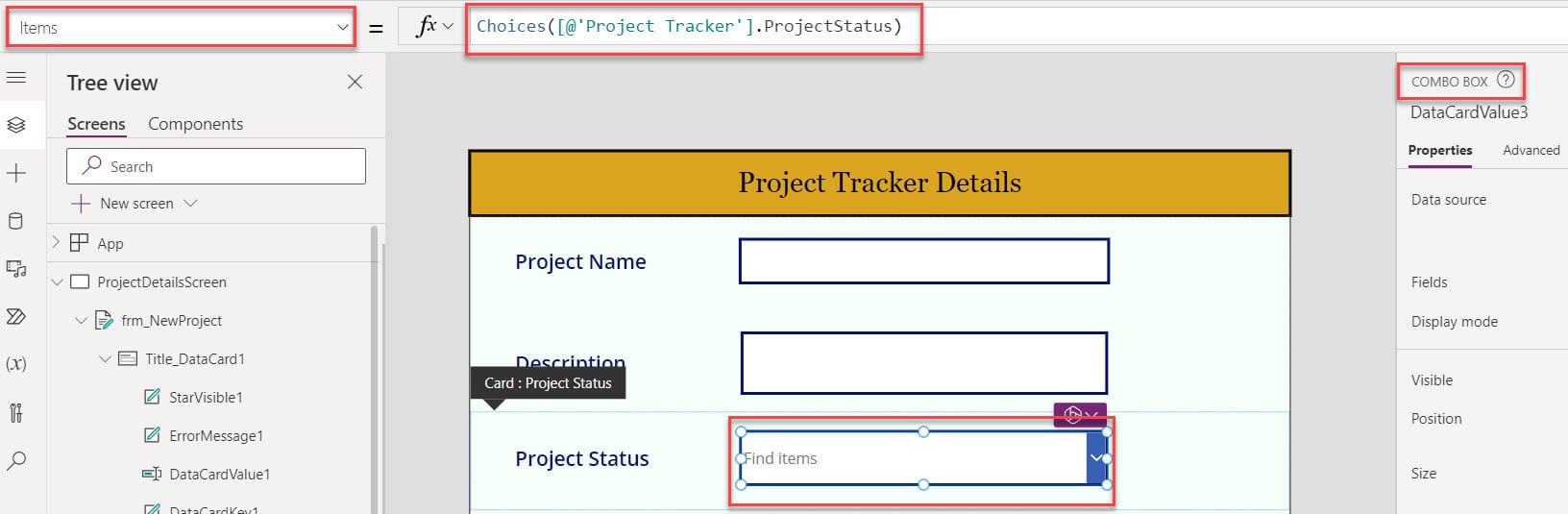
If you prefer a dropdown, for example to match the rest of your screen, you can swap it. Here’s the form I used, with its DataSource set to Project Tracker and Default mode set to New:
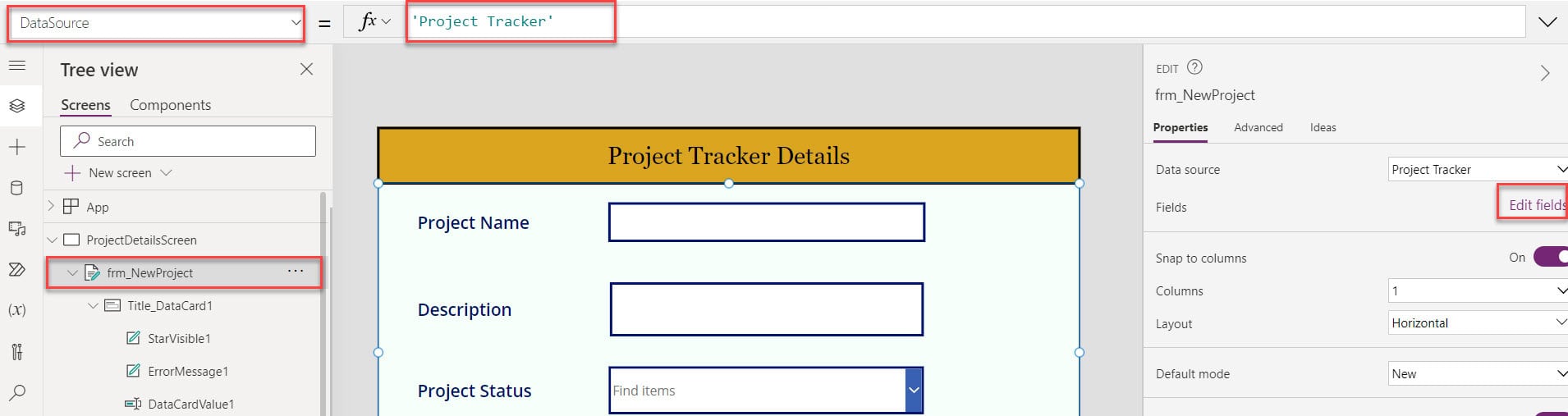
- Select the Project Status card, go to the Advanced tab and select Unlock to change properties.
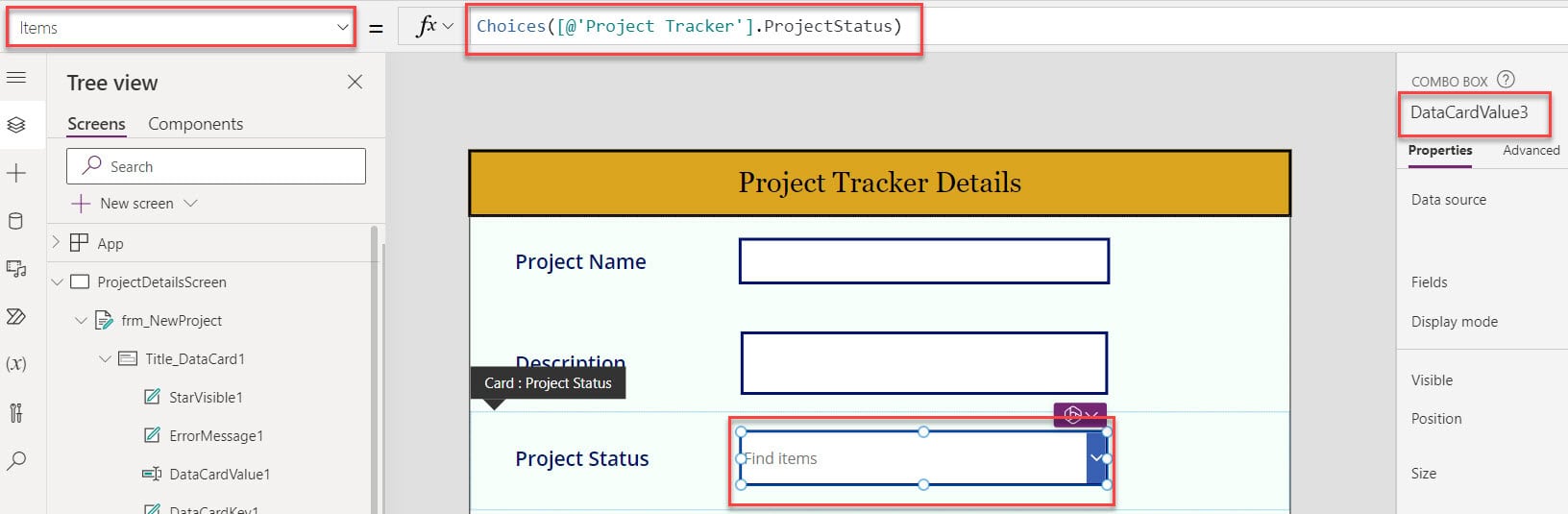
- Note the combo box’s name (in my app, DataCardValue3), then delete it.
- With the card selected, insert a Drop down, and rename it to the old control’s name so the card’s other formulas keep working.
- Set its Items to
Choices([@'Project Tracker'].ProjectStatus)and its Default toParent.Default.Value. - Set the card’s Update property to
DataCardValue3.Selected.
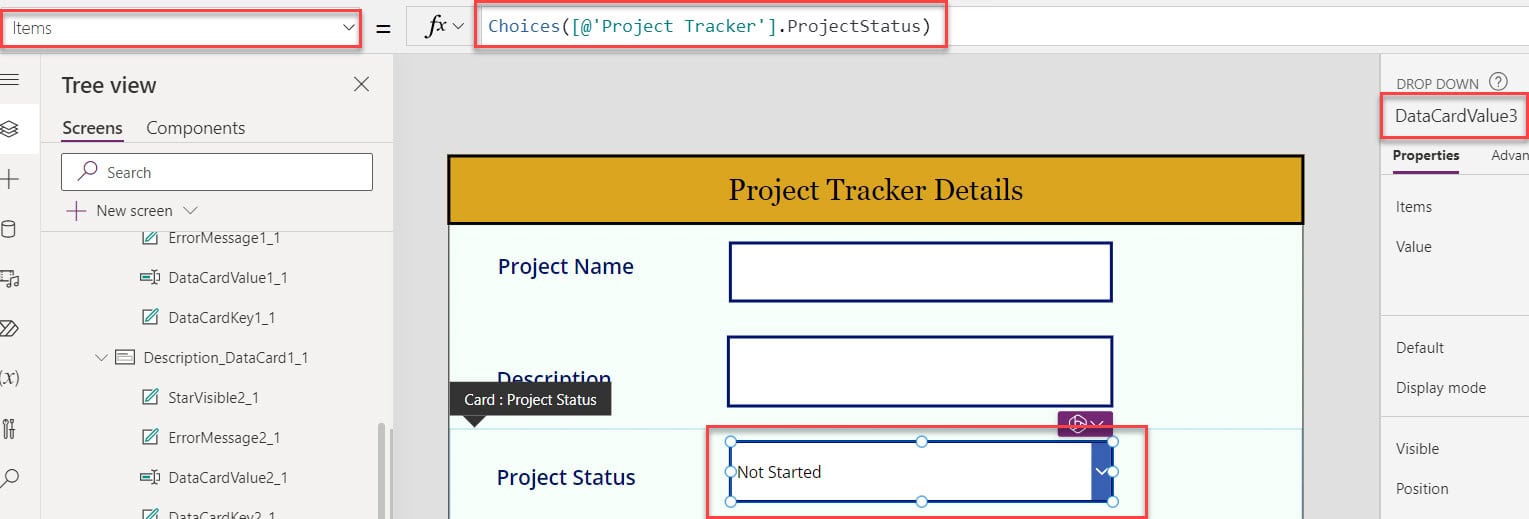
Preview the app, and the Project Status field now uses a dropdown with all three choices:

The Update step is the one people miss. Without it, the form saves a blank status. For more on this swap, see how to change a Power Apps data card to a dropdown.

The modern dropdown
The new modern Dropdown, still marked as preview in Microsoft’s controls list, uses slightly different properties. Items works the same, but you choose what to display with ItemDisplayText, for example ThisItem.Value, and set the starting value with Default.
Both dropdowns allow one selection only. If users need to pick several values, use a combo box. See the Power Apps multi-select dropdown options.
Still not showing? Check these
- Only some values appear. A dropdown shows at most 500 items, and Choices() and Distinct() can’t be delegated, so they only read the first 500 rows (2,000 if you raise the Data row limit in Settings > General).
- The list is big. Filter it first, or use a separate list of options. See how to fix Power Apps delegation warnings.
- New values are missing. Refresh the data source in the Data pane after you add choices in SharePoint.
- The first item is blank. That’s the AllowEmptySelection setting. See how to handle blank values in a Power Apps dropdown.
- A filter returns nothing. Check the Filter condition in Items. There are examples in how to filter a Power Apps dropdown.
These dropdown tutorials will help you finish your screen:
Frequently Asked Questions
Why is my Power Apps dropdown blank?
The column is probably a Choice, Lookup or Person column, which Power Apps reads as records. Use Choices() in the Items property. Microsoft explains it in the Choices function reference.
Is “the columns produced by this rule are all nested tables or records” a delegation warning?
No. It means the dropdown received records instead of text. Use Choices() for Choice and Lookup columns, or point the display field at a text field.
Why does my dropdown show only 500 items?
A dropdown displays up to 500 items, and non-delegable formulas like Distinct and Choices read only the first 500 to 2,000 rows. Filter the data first.
Should I use a dropdown or a combo box for a choice column?
Use a dropdown for a single choice and a short list. Use a combo box when users need to search or pick several values.

Preeti Sahu is a Microsoft MVP for Power Apps with over six years of experience working with SharePoint Online and the Power Platform. She is the co-author of the book Microsoft Power Platform: A Deep Dive. As a Power Platform developer, she has built various tools with Power Apps and Power Automate, and she makes Microsoft 365 videos for YouTube.