
Today, I will provide the solution for an error that comes in Windows Server VMware. The error appears as “No images are available for Windows Server 2022 VMware.“
No Images Are Available Windows Server 2022 VMware
Recently, I was creating a new VM to install the SharePoint On-premises version. There, I want to install Windows Server 2022. But I received an error that says: No images are available. It looks like the screenshot below.

The same error can occur in any version of Windows Server, including Windows 2022, 2019, or 2016.
The “No images are available” message appears when the Windows installation process cannot detect valid installation images on your installation media. This can happen due to:
- Corrupted installation media
- BIOS/UEFI configuration issues
- Hardware compatibility problems
- Driver-related issues
I will explain to you the exact steps I followed to fix the error. Follow the steps below:
- In the New Virtual Machine Wizard, choose Custom (Advanced) to create a virtual machine with advanced options, such as SCSI controller type, virtual disk type, and compatibility with older VMware products.

- Then, choose, I will install the operating system later. The virtual machine will be created with a blank hard disk.

- Then, choose “Microsoft Windows” as shown below and select Version as Windows Server 2022.

- Then, in the next screen, give a Virtual machine name and Location like below:

- Then choose Firmware type as BIOS like below:

- Then, choose the Number of processors and the Number of cores per processor.

- Then choose the RAM required for the virtual machine (VM).

- Then choose Use network address translation (NAT) in Network Type like below:

- Then choose I/O controller types as LSI logic SAS, like below:

- Then choose Virtual disk type as SCSI, as shown below:

- Then choose Create a new virtual disk like below:

- Then choose the Maximum disk size in GB for the Windows Server virtual machine.

- Then you can specify a disk file in the Windows Server VM.

- In the next screen, it will display all the details that you have selected in the above steps.
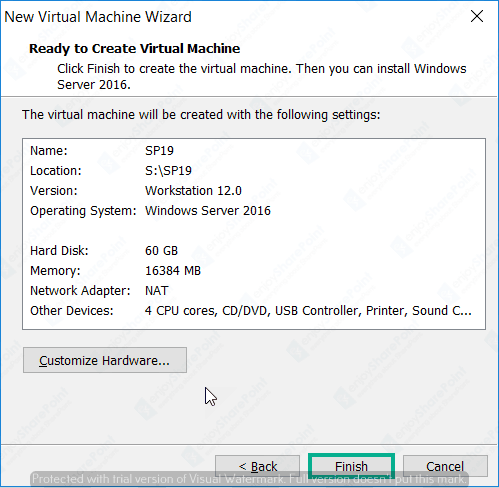
- Then, click the Finish button to complete the Windows Server virtual machine setup.

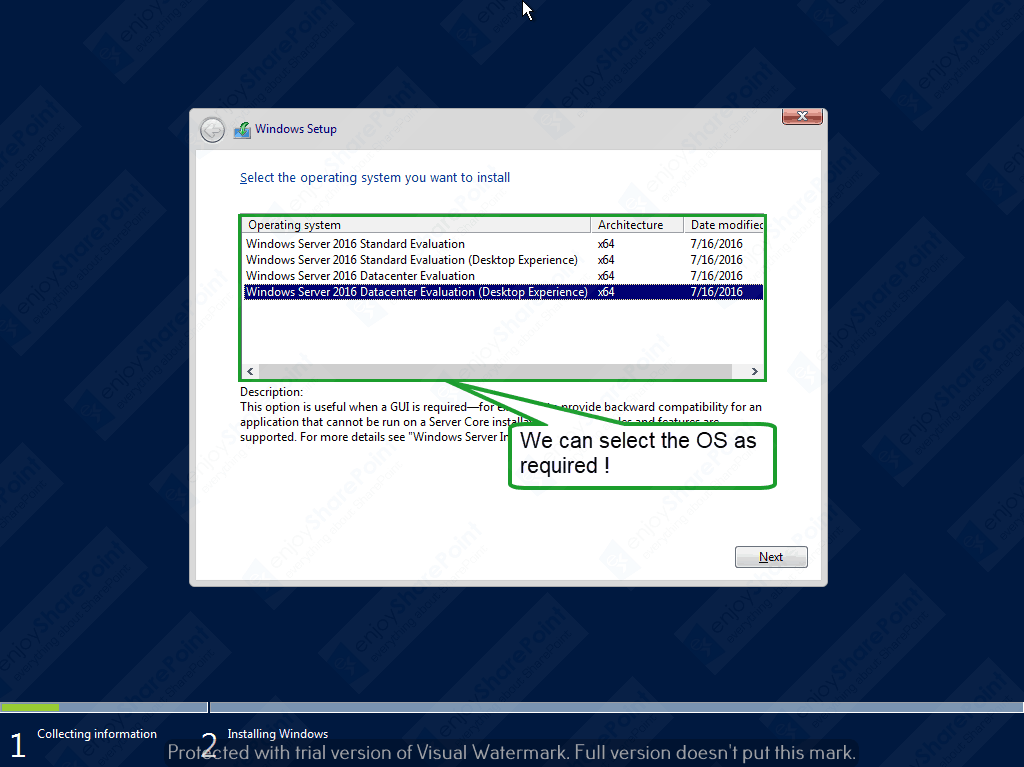
- Now you can view the Windows Server virtual machine, select the language, time, and currency format, as well as the keyboard input method.

- Now you can see the Windows Server datacenter desktop experience like below.
In this way, you can fix the error “no images are available on Windows Server“. If you continue to experience difficulties after trying these methods, consider contacting Microsoft Support or your server manufacturer’s technical support team for hardware-specific guidance.
You may like the following tutorials:
- This edition cannot be upgraded error in Windows Server
- Turn Off Microsoft Authenticator App in Microsoft 365
- SharePoint User Information List
- The database engine instance you selected is not valid for this edition of reporting services
- Your Organization’s Policies Don’t Allow You To Share With These Users While Sharing Files In SharePoint Online

I am Krishna.Vandanapu a SharePoint architect working in IT from last 13+ years, I worked in SharePoint 2007, 2010, 2013, 2016 and Office 365. I have extensive hands on experience in customizing SharePoint sites from end to end. Expertise in SharePoint migration tools like Sharegate, Doc Ave and Metalogix. Migrated SharePoint sites from SharePoint 2007 to 2010 and 2010 to 2013 several times seamlessly. Implementing CSOM with Microsoft best practices. Spent quality time in configuring SharePoint application services like User Profile, Search, Managed Meta data services etc. Now exploring SharePoint Framework and SharePoint 2019


It worked! TYSM!
It worked, this is the only doc that I could make it work – thank you 🙂
Thank you Gentleman!!
thanks a lot bro
Thanks for the help, also solved the issue when installing WS 2019.