
A sales manager at one of my clients once asked why the margin in her Power BI report said 4,736%. The model used a calculated column for the margin and the table visual simply added up every row’s percentage. Switching it to a measure fixed the number in two minutes.
That mix-up is the heart of the Power BI calculated column vs measure question. In this tutorial, I’ll show you how each one works, build both on the same Contoso sales data, and give you simple rules so you pick the right one every time.
Quick answer: A calculated column is computed row by row when the data refreshes and is stored in the table, so you can use it in slicers, filters, rows and axes. A measure is computed when a visual asks for it, in the current filter context, and isn’t stored, so it’s the right choice for totals, ratios and KPIs. When both could work, use a measure.
What is a calculated column in Power BI?
A calculated column is a new column you add to a table with a DAX formula. Power BI evaluates the formula once for every row, in row context, so the formula can read the other columns of the same row.
The results are calculated during data refresh and saved in the model, just like imported columns. That makes them easy to use, but it also means they take memory. If you’re new to DAX formulas, start with multiplying columns and measures with DAX.
Here’s my example. The Sales table has Quantity, Unit Price and Unit Cost, and I want profit for each order line:
Line Total = Sales[Quantity] * Sales[Unit Price]
Profit = Sales[Quantity] * (Sales[Unit Price] - Sales[Unit Cost])
Margin % Column = DIVIDE(Sales[Profit], Sales[Line Total])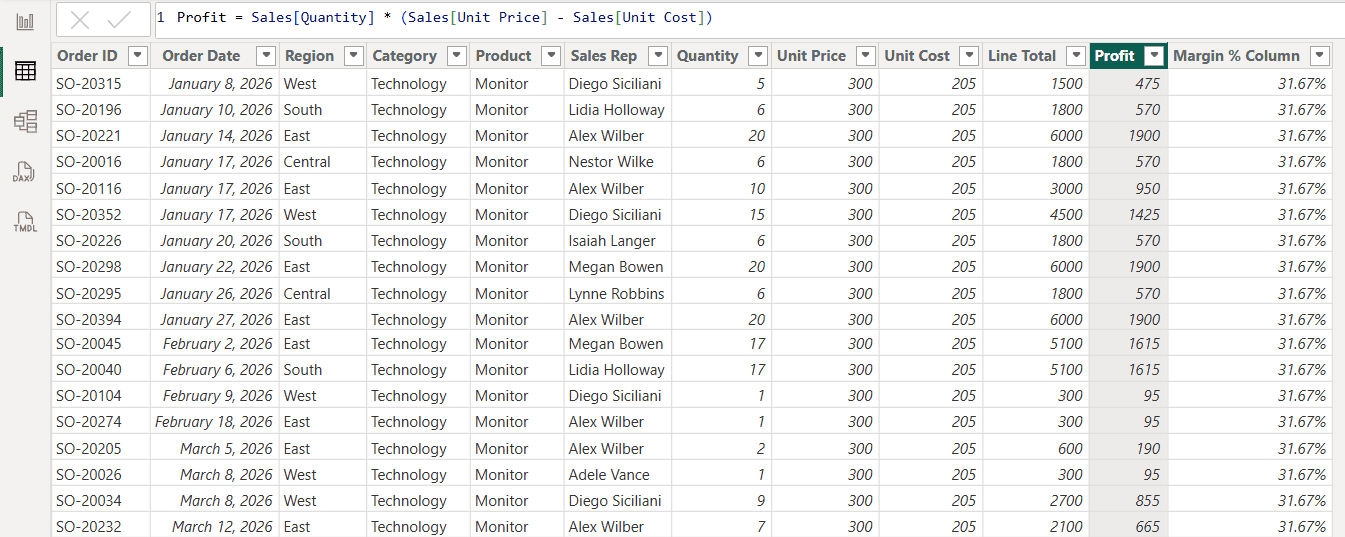
Every row now has its own Profit value, such as 475 for five monitors. You can see the values in Table view, sort by them and use them anywhere a normal column works.
How to create a calculated column
- In Power BI Desktop, select the table in the Data pane.
- Select Table tools > New column, or right-click the table and choose New column. This works in Report, Table and Model view.
- Type the formula in the formula bar, for example
Profit = Sales[Quantity] * (Sales[Unit Price] - Sales[Unit Cost]), and press Enter. - Set the format on the Column tools tab, for example Whole number or Percentage.
Good uses for a calculated column are a price band (Low, Medium, High), a fiscal year label, a full name or a key for a relationship. You’ll also see them in a date table built with DAX, where columns like Month Name or Quarter are calculated per date.
What is a measure in Power BI?
A measure is a DAX formula that returns one value for whatever the visual is showing. It isn’t stored per row. Power BI calculates it on demand, in filter context: the slicers, filters, rows and columns that apply to that cell of the visual.
For my profit margin, I create three measures:
Total Sales = SUM(Sales[Line Total])
Total Profit = SUM(Sales[Profit])
Profit Margin % = DIVIDE([Total Profit], [Total Sales])![Power BI Measure tools ribbon and formula bar with Profit Margin % = DIVIDE([Total Profit], [Total Sales])](https://www.enjoysharepoint.com/wp-content/uploads/2026/10/power-bi-new-measure-profit-margin-formula.png "power bi new measure profit margin formula")
To add one, select Home > New measure, or right-click the table and choose New measure. Then set the format on the Measure tools tab. For a full walkthrough, see how to create a measure in Power BI.
Measures are the best place for ratios, year-to-date totals, counts and anything that should change when a user clicks a slicer. I use DIVIDE instead of the / operator because it returns blank instead of an error when the total is zero, as explained in these DIVIDE measure examples.
Calculated column vs measure: the example that shows the difference
I put both versions in one table visual by Category. The column version uses the default Sum aggregation, and the measure divides total profit by total sales:
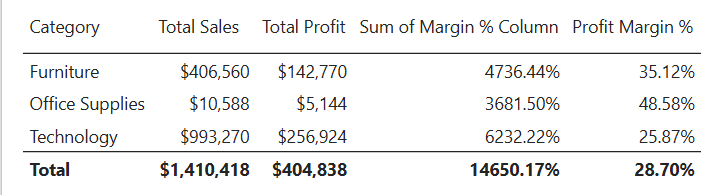
Look at Furniture. Sum of Margin % Column shows 4736.44% because it adds the margin of every order line. The Profit Margin % measure shows 35.12%, which is $142,770 profit divided by $406,560 sales. The total row has the same problem: 14650.17% against a correct 28.70%.
Changing the column’s aggregation to Average doesn’t fix it either, because a simple average treats a $12 binder order like a $24,000 laptop order. A ratio of sums needs a measure. The same idea is behind the difference between SUM and SUMX.
Side-by-side comparison
| Calculated column | Measure | |
|---|---|---|
| When it’s calculated | At data refresh | When a visual needs it |
| Context | Row context (one row at a time) | Filter context (slicers, filters, visual rows) |
| Stored in the model | Yes, one value per row | No, only the formula |
| Uses memory and file size | Yes, more rows means more memory | Almost none |
| Can go in slicers, filters, rows, axes, legends | Yes | No (only values and visual-level filters) |
| Reacts to slicer selections | No, values are fixed until refresh | Yes |
| Data pane icon | Column with a formula symbol | Calculator |
| Typical use | Categories, labels, keys, per-row math | Totals, ratios, KPIs, time intelligence |
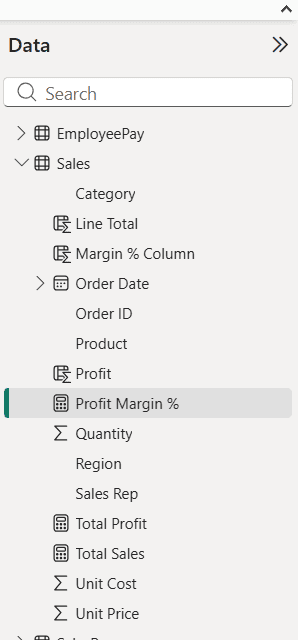
You can spot the difference in the Data pane too. Calculated columns such as Line Total and Profit have a column icon with a formula mark, while Total Sales, Total Profit and Profit Margin % have the calculator icon:
When to use a calculated column
- You need to slice or group by the result. A slicer for Price Band or an axis for Fiscal Quarter needs a column.
- You need a value per row that a later formula reads, such as Profit used inside
SUMX. - You need a relationship key, for example a combined Region-Product key.
- The result doesn’t depend on report filters. An order’s size band doesn’t change when someone picks a region.
If you only need a column to sort another column, for example month names in calendar order, the Sort by column option on the Column tools tab works with any calculated or imported column.
Before you add a DAX column, ask if it can be a custom column in Power Query instead. Microsoft’s import modeling guidance prefers Power Query columns because they compress better and load with the table. The difference between Power Query and Power BI explains where each step belongs.
When to use a measure
- Totals and averages that should follow slicers and filters.
- Ratios and percentages, such as margin, conversion rate or share of total.
- Time intelligence, such as year-to-date sales or same period last year.
- KPIs and cards that show one number for the current selection.
- Large tables, where a stored column for every row would make the model bigger.
Measures can also change their own filters with CALCULATE, which a column can’t do for the visual. That’s how I filter a measure with CALCULATE and KEEPFILTERS. To keep dozens of measures tidy, I put them in a dedicated measure table.
Measures have another advantage: dynamic format strings. On the Measure tools tab you can set Format to Dynamic, so one measure shows USD for revenue and % for margin while staying numeric. A FORMAT() column returns text, which breaks charts and sorting.
What about implicit measures and visual calculations?
When you drag a numeric column such as Quantity into a visual, Power BI creates an implicit measure (the sigma icon) that sums it. That’s fine for quick checks, but explicit measures are better for anything you reuse. In Model view, the semantic model property Discourage implicit measures stops report authors from dragging raw columns as values.
Visual calculations are a third option. You add one with Home > New visual calculation, and it only exists inside that visual, which is handy for running totals or a percent of the parent row.
A visual calculation can’t be reused in other visuals or slicers, so a measure is still the default for shared logic. If you want to compare values with a condition, the IF function in a measure is a good next step.
Common mistakes and how to fix them
- Percentages that add up past 100%: a ratio was stored as a column and summed. Replace it with a
DIVIDEmeasure. - A column that doesn’t change with the slicer: columns are calculated at refresh. If the value should react to filters, write a measure.
- A measure missing from the slicer list: slicers need columns. Create a column, or use a field parameter or a disconnected table for the choices.
- A slow or large model: remove helper columns that only feed one measure and use an iterator such as
SUMXinstead, or move the column into Power Query. - Different results in DirectQuery: calculated columns there are limited to row-level expressions that can be sent to the source, and some functions aren’t available.
Keep building your DAX skills with these Power BI tutorials:
Frequently Asked Questions
Is a calculated column or a measure faster in Power BI?
Measures usually keep the model smaller and are the better default. Calculated columns are computed once at refresh, so they don’t slow down visuals, but they add memory for every row and can make refresh longer.
Can I use a measure in a slicer?
No. Slicers, rows, columns, axes and legends need columns. A measure can only be a value in a visual or a visual-level filter. Create a calculated column or a separate table for the slicer choices.
Why does my percentage total look wrong in Power BI?
The percentage is probably a calculated column, and the visual sums or averages it. Create a measure that divides the totals, such as DIVIDE([Total Profit], [Total Sales]).
Should I use Power Query or a DAX calculated column?
Use a Power Query custom column when the value only depends on the same row, because it compresses better. Use a DAX column when it needs DAX-only functions or other tables. Microsoft compares all options in its guide to calculation options in Power BI.
Where do I find New column and New measure in Power BI Desktop?
New measure is on the Home tab in the Calculations group. New column is on the Table tools tab. You can also right-click a table in the Data pane and choose New column or New measure.

I have worked with Microsoft technologies for more than 18 years, including SharePoint, Microsoft 365 and the Power Platform (Power Apps, Power Automate and Power BI), at companies like HP, TCS and KPIT. I started EnjoySharePoint in 2011 to share the solutions I build in real projects with readers in the United States, Canada, the United Kingdom, Australia, New Zealand and beyond. Microsoft has recognized this work with the Microsoft MVP award 13 times since 2014.