
Contoso’s project managers kept opening every task record just to change its status from Not Started to In Progress. With 40 tasks per project, that was a lot of clicks. Switching the task list on the project form to the Power Apps grid control let them edit the status right in the grid.
In this tutorial, I’ll show you what the Power Apps grid control is, how to add it to a subgrid in a model-driven app, which properties to turn on (editing, colors, grouping and totals), what users can do with it, and how it compares with the grid options in canvas apps.
Quick answer: The Power Apps grid control is the modern grid for model-driven apps built on Dataverse. To add it to a form subgrid, open the form in the form designer, select the subgrid, go to Components > + Component > Power Apps grid control, set properties such as Enable editing to Yes, select Done and then Save and publish.
What is the Power Apps grid control?
It’s a Microsoft-built grid component for views and subgrids in model-driven apps. It replaces both the old read-only grid and the editable grid with one control that supports inline editing, infinite scrolling, grouping, totals, colored choice values and nested child grids.
Microsoft deprecated the Editable Grid control and the Power Apps read-only grid in March 2026. They still work, but they only get security fixes, and nothing switches your forms automatically.
If you build canvas apps instead, you’re looking for a different control, such as the Data table control in canvas apps, which I compare at the end of this post.
| Grid | Where | Status in 2026 |
|---|---|---|
| Power Apps grid control | Model-driven views and subgrids | Current, recommended |
| Power Apps read-only grid | Model-driven (default for views) | Deprecated March 2026 |
| Editable Grid | Model-driven views and subgrids | Deprecated March 2026 |
What you need
- A Power Platform environment with Dataverse and a model-driven app. Use a trial or sandbox environment for testing, because new unmanaged developer environments stop being created from November 15, 2026.
- Permission to customize tables and forms (System Customizer or System Administrator).
- A table with related rows. My demo uses ESP Demo Project and ESP Demo Task, with a Project lookup on each task.
Each task has Task Name, Project, Assigned To, Task Status (a choice with Not Started, In Progress, Completed and Blocked), Priority (High, Medium, Low) and Estimated Hours. Choice columns matter here, because the grid can show their colors. The same choices work in canvas apps too, as in displaying Dataverse choice values in a gallery.
Add the Power Apps grid control to a subgrid
I added the grid to the main form of the Project table, so each project shows its tasks:
- In Power Apps, go to Tables, open your table (ESP Demo Project), select Forms and open the main form.
- If the form doesn’t have a subgrid yet, select Components on the left, expand Grid and choose Read Only Grid. Turn on Show related records, pick the related table (ESP Demo Tasks (Project)) and the default view, then select Done.
- Select the subgrid. In the properties pane on the right, scroll down to Components and select + Component.
- If Power Apps grid control isn’t in the list, select Get more components, choose it and select Add.
- Pick Power Apps grid control from the Add component list. The settings panel opens.
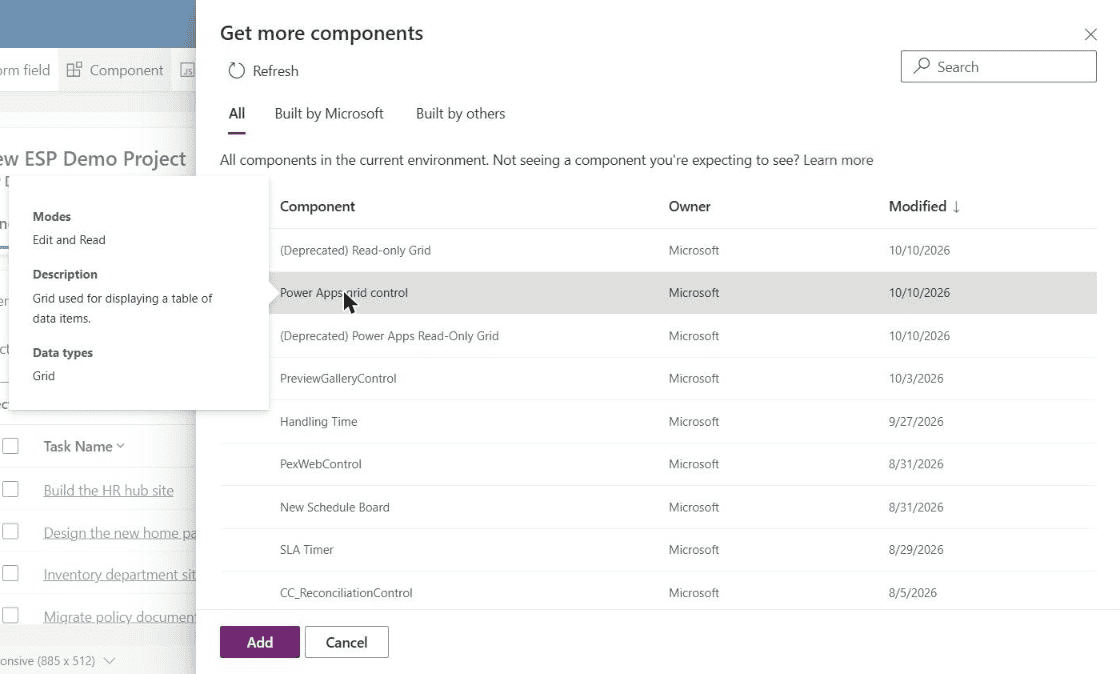
Notice the two deprecated entries in the same list. Pick the one without “Deprecated” in its name.
Configure the most useful properties
The panel lists every property with a Value drop-down. Editing is off by default, so this is the first one to change:
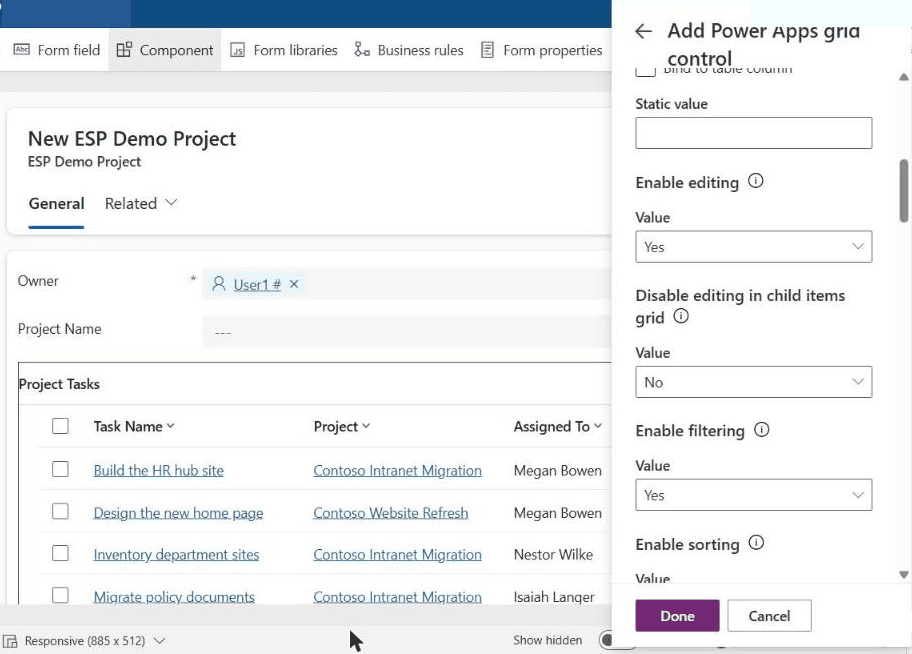
| Property | Default | What it does |
|---|---|---|
| Enable editing | No | Lets users change cells directly in the grid |
| Enable filtering | Yes | Adds Filter by to each column header |
| Enable sorting | Yes | Sorts by a column (Shift for several columns) |
| Enable grouping | No | Adds Group by to column headers |
| Enable aggregation | No | Adds Totals (Sum, Average, Minimum, Maximum) for numbers |
| Allow column reordering | No | Lets users drag columns (preview) |
| Enable multi-select | Yes | Lets users select several rows |
| Allow range selection | Yes | Lets users select and copy a block of cells |
| Enable jump bar | No | Shows an A to Z bar for quick navigation |
| Enable pagination | No | Shows page buttons instead of infinite scroll |
| Enable OptionSet colors | No | Shows choice values with their colors |
| Navigation types allowed | All | Controls which links in the grid open records |
| Reflow behavior | Reflow | Switches to a card list on narrow screens |
| Child items | None | Shows related rows as nested grids |
For my task list, I set Enable editing, Enable grouping, Enable aggregation and Enable OptionSet colors to Yes, and raised Maximum number of rows to 10. Then I selected Done and Save and publish. To check which fields people should be able to change, the DisplayMode guide for Power Apps explains the same idea for canvas forms.
Add the grid to every view of a table
The steps above change one subgrid. To use the control in every view of a table, Microsoft still documents the classic way: open the solution in the classic solution explorer, go to the table’s Controls tab, select Add Control, choose Power Apps grid control, set the properties, then Save and Publish.
If you’d rather change many rows at once outside the app, see how to update multiple Dataverse rows with Power Automate.
What users see in the app
After publishing, open a project in the app. The Project Tasks subgrid now shows Task Status and Priority with their choice colors, which makes blocked and high-priority work easy to spot:
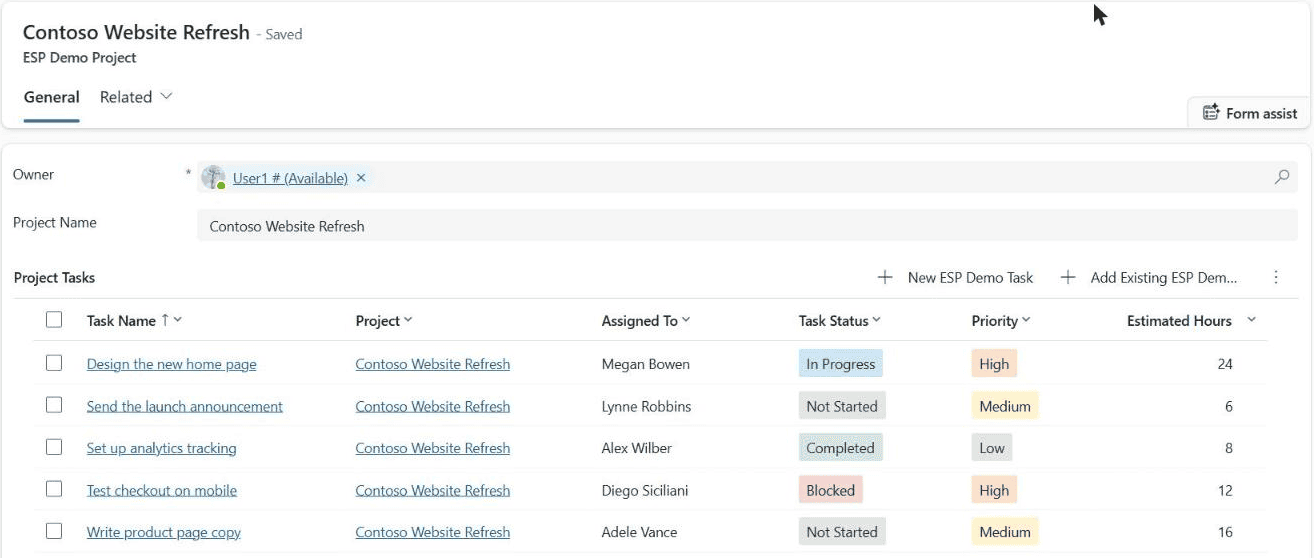
I set the colors on each choice in the table’s column settings. Colors only appear in the grid when Enable OptionSet colors is Yes. In canvas apps you do something similar by hand, as in conditional formatting in a Power Apps gallery.
Edit a value inline
Select a cell, and with editing on, it turns into an input. For a choice column you get a drop-down with the colored options. The change saves when you move to another cell or row, and the command bar shows Edit, Activate and Deactivate for the selected row:
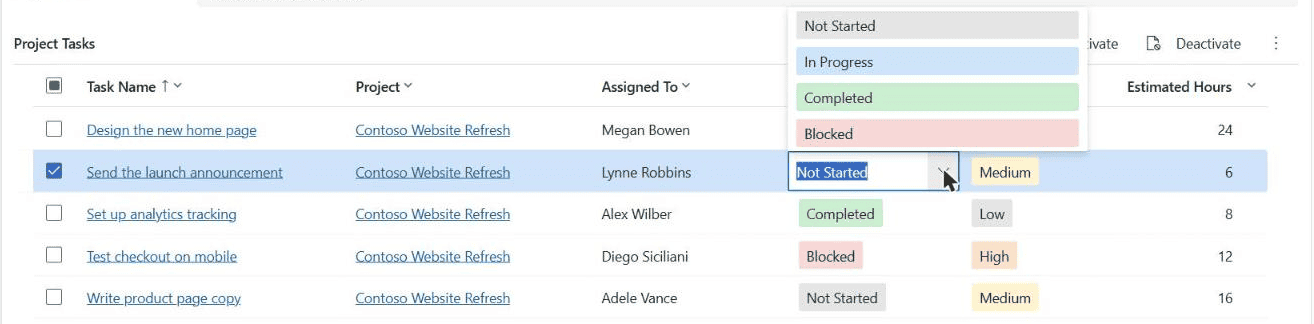
Lookup cells (like Project) can be edited too, but customizing how an editable lookup cell looks isn’t supported. If you need to set choice values from a canvas app instead, see how to patch a Dataverse choice column.
Group, filter and total columns
Every column header has a menu. With the properties I turned on, a numeric column such as Estimated Hours offers sorting, Group by, Filter by, Column width and Totals with None, Average, Maximum, Minimum and Sum:
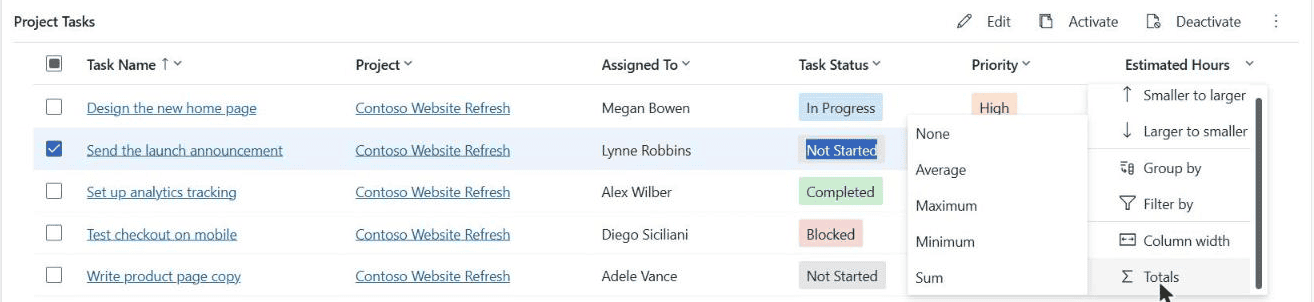
Grouping works on one column at a time, and date columns can be grouped by day, week, month, quarter or year. Groups and totals aren’t saved to the view, so they reset when the user leaves the page.
Limits and known issues
- Select all isn’t available with infinite scroll, and users can select up to 1,000 rows at a time.
- Grouping isn’t available on lookup columns or when pagination is on.
- In the narrow card list view (phones), sorting, Select all and the jump bar aren’t available.
- Legacy themes aren’t supported, and empty cells show blank instead of dashes.
- If users only have read access to the parent record, they can’t edit rows in its subgrid.
- Only one customizer control (a PCF component that changes how specific columns render) can be attached to a grid.
For very large tables, turn on pagination so users see page buttons instead of loading rows as they scroll. Lists of related records can also be shown as nested child grids, which works like a nested gallery in a canvas app but without any formulas.
Power Apps grid control vs canvas app grids
The name confuses people, because canvas apps have their own grid-like controls. The model-driven Power Apps grid control isn’t available in canvas apps. Here’s how they compare:
| Control | App type | Inline editing | Notes |
|---|---|---|---|
| Power Apps grid control | Model-driven | Yes | Grouping, totals, colors, child grids |
| Data table | Canvas | No | Read-only, one selected row |
| Table (modern, preview) | Canvas | No | Microsoft now points makers to Data Grid instead |
| Data Grid (modern) | Canvas | No | Search, sort, multi-select, fast with large data |
| Gallery | Canvas | Yes, with your own controls | Fully custom layout and Patch formulas |
If you need editing in a canvas app, a gallery with text inputs and Patch is still the most flexible option. Start with how to use the gallery control in Power Apps.
These Power Apps tutorials will help you go further:
Frequently Asked Questions
Is the Power Apps grid control the default grid in model-driven apps?
No. Views still use the Power Apps read-only grid by default, which Microsoft deprecated in March 2026. You need to add the Power Apps grid control to a subgrid or to the table’s views yourself.
How do I enable inline editing in the Power Apps grid control?
Open the subgrid’s Power Apps grid control settings in the form designer and set Enable editing to Yes, then save and publish the form. Editing is off by default.
Can I use the Power Apps grid control in a canvas app?
No. It’s only for model-driven apps. In canvas apps, use the modern Data Grid control for display, or a gallery with input controls for editing.
Why are my choice colors not showing in the grid?
Set Enable OptionSet colors to Yes and give each choice a color in the column settings. Microsoft lists every property in its Power Apps grid control documentation.
Are grouping and totals saved for other users?
No. Group by and Totals are personal, temporary settings in the grid and aren’t saved to the view.

I have worked with Microsoft technologies for more than 18 years, including SharePoint, Microsoft 365 and the Power Platform (Power Apps, Power Automate and Power BI), at companies like HP, TCS and KPIT. I started EnjoySharePoint in 2011 to share the solutions I build in real projects with readers in the United States, Canada, the United Kingdom, Australia, New Zealand and beyond. Microsoft has recognized this work with the Microsoft MVP award 13 times since 2014.