
A few months ago, I worked on an HR leave request Canvas app where the team kept asking the same question: “Why does the date show 12:00 AM everywhere?” The app saved leave dates correctly to a SharePoint list, but the screens looked messy because users only cared about the date, not the time.
This happens a lot in real projects. You connect a Date and Time column, drop it into a Label, Gallery, or Form, and Power Apps shows the full value even when the time part adds no business value. In this guide, I’ll show you exactly how to display a date without time in Power Apps using the cleanest formulas for labels, galleries, forms, and data sources.
Why Power Apps Shows Time With Dates
In many business apps, the source column stores a full date-time value even when users only enter a date. That is common with SharePoint list columns, Dataverse date fields, imported Excel data, and even values returned from the Patch function.
For example, in an HR leave app, you may store a request date like this:
Patch(
    LeaveRequests,
    Defaults(LeaveRequests),
    {
        EmployeeName: User().FullName,
        LeaveDate: DatePicker_LeaveDate.SelectedDate
    }
)
This formula creates a new record and saves the selected date from the Date Picker control. Even if the user chooses only one date, the backend may still hold it as a date-time value, which is why Power Apps often shows something like 7/23/2026 12:00 AM instead of just 7/23/2026.
That is why the fix is usually not changing the stored value. The real fix is formatting how the value displays on the screen.
Pro Tip: In my experience, the biggest mistake is trying to “remove” the time from the source value first. Most of the time, you do not need to change the stored data at all. You only need to format it properly where users see it.
Display Date Without Time in Power Apps
This topic fits best as a step-by-step guide because the core goal is simple: keep the stored date as-is, but show only the date in the app. In real projects, I usually use the Text function because it is reliable, readable, and easy for beginners to maintain.
Use Power Apps Text function in a Label
The easiest way to display a date without time in Power Apps is to wrap the date value in the Text function.
If your Label is showing a field from a record, use:
Text(ThisItem.LeaveDate, "dd-mmm-yyyy")
This formula converts the raw date-time value into a text string like 23-Jul-2026. The time part is no longer shown because you are telling Power Apps exactly how to format the value.
You can also use other formats based on your app requirement:
Text(ThisItem.LeaveDate, "dd/mm/yyyy")
Text(ThisItem.LeaveDate, "mm/dd/yyyy")
Text(ThisItem.LeaveDate, "dddd, dd mmmm yyyy")
If you are new to formulas, think of the Text function as a display formatter. It does not change the original data source. It only changes what the user sees in the control.
If you are building the app from a list-backed solution, this works well alongside guides on creating a canvas app from a SharePoint list and building an app in Power Apps.
Use Text function in a Power Apps Gallery
This same approach works inside a Gallery control. In fact, this is where I use it most often because gallery rows usually expose raw values directly from a SharePoint list or Dataverse table.
Suppose your gallery is bound to leave requests:
Gallery_LeaveRequests.Items = LeaveRequests
Then the date label inside that gallery can use:
Text(ThisItem.LeaveDate, "dd-mmm-yyyy")
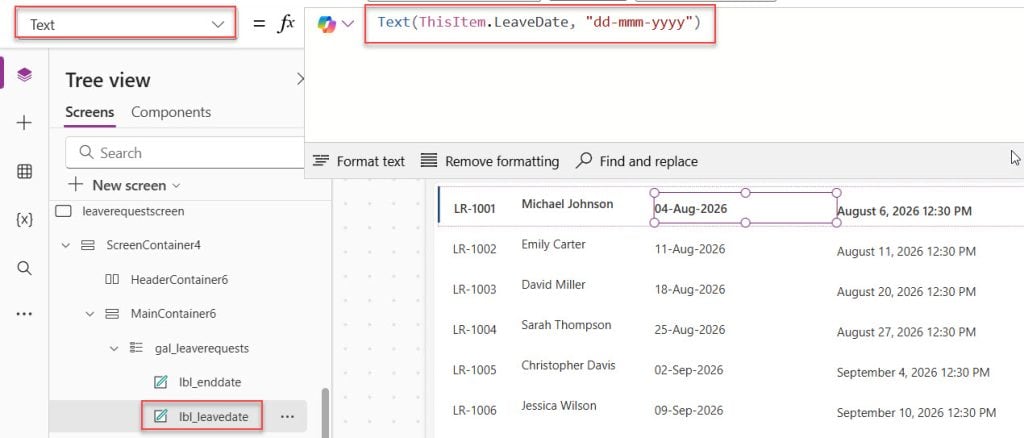
Now every row shows a clean date without the unnecessary 12:00 AM part. This is especially important in approval apps, task trackers, and service request screens where users scan rows quickly.
If your gallery also has filters, keep the formatting inside the label, not in the gallery’s source query. For example:
Filter(
    LeaveRequests,
    EmployeeEmail = User().Email
)
Then format the date only in the label:
Text(ThisItem.LeaveDate, "dd-mmm-yyyy")
That keeps your filtering logic clean and easier to troubleshoot later. If you are working on filtered views, these related guides can help: Power Apps filter data by current user, Power Apps gallery filter.
Pro Tip: I’ve found that many makers format the date in the gallery’s Items formula using
AddColumns. That works, but for beginner-friendly apps, I prefer formatting directly in the date label unless I need the formatted value in multiple places.
Use same idea in Power Apps Forms and Data Cards
In an Edit Form or Display Form, date values often appear through a DataCardValue control. If the form is in display mode and the field shows date-time, update the text property of the inner control.
For a display label inside the card, use:
Text(Parent.Default, "dd-mmm-yyyy")
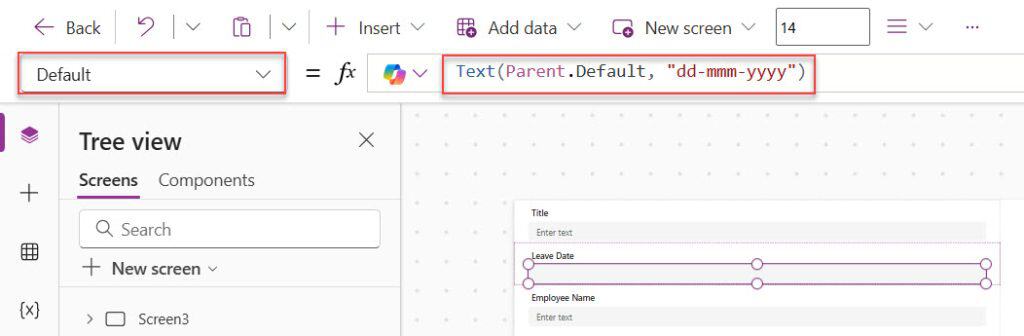
Here, Parent.Default refers to the value coming from the form’s current record. The Text function formats it before display.
If you are working with forms connected to SharePoint, this is a common pattern when customizing list forms or building a form-based app. These related posts are useful here: create form in Power Apps, customize SharePoint list forms with Power Apps based on conditions.
Format a selected date from a Power Apps Date Picker
Sometimes the problem is not stored data. You just want to show the selected date from a Date Picker without time in a preview label, confirmation message, or summary card.
Use:
Text(DatePicker_LeaveDate.SelectedDate, "dd-mmm-yyyy")
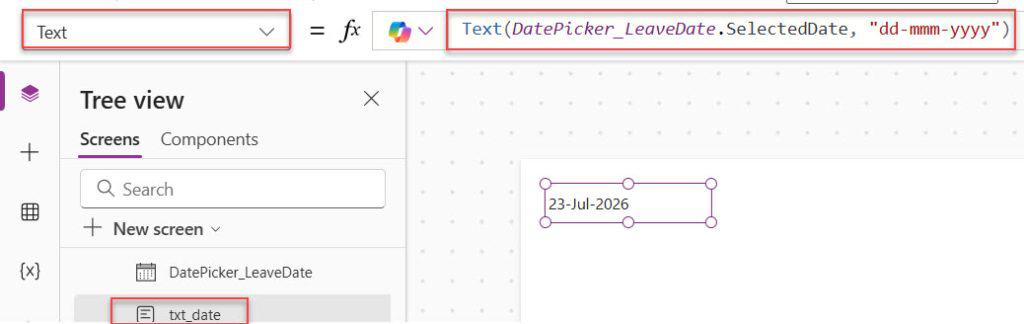
This is common in submit screens where the user picks a date, and you want to show a clean confirmation like:
"Your leave request is for " & Text(DatePicker_LeaveDate.SelectedDate, "dd-mmm-yyyy")
That gives users a readable message without exposing any time portion. If you need more help with date controls, see Power Apps date picker, set default date in Power Apps date picker.
Best Date Formats to Use in Power Apps
The right format depends on your users, region, and business process. I always pick a format that avoids confusion, especially for mixed teams.
Recommended formats in Power Apps
Here are the formats I use most in client projects:
dd-mmm-yyyy→23-Jul-2026, clear and hard to misread.dd/mm/yyyy→ common in India and many global business teams.mm/dd/yyyy→ common in US-based apps.dddd, dd mmmm yyyy→ useful for friendly confirmation screens.
For example:
Text(ThisItem.LeaveDate, "dd-mmm-yyyy")
This is my default choice for business apps because users can instantly read the month name. It avoids the classic confusion between 03/04/2026 meaning March 4 or April 3.
When to keep the time in Power Apps
Not every app should hide the time. In service desk apps, visitor logs, audit apps, shift scheduling, or ticket escalations, the time may matter. In those cases, format both parts clearly instead of stripping the time blindly.
For example:
Text(ThisItem.EndDate, "dd-mmm-yyyy hh:mm AM/PM")
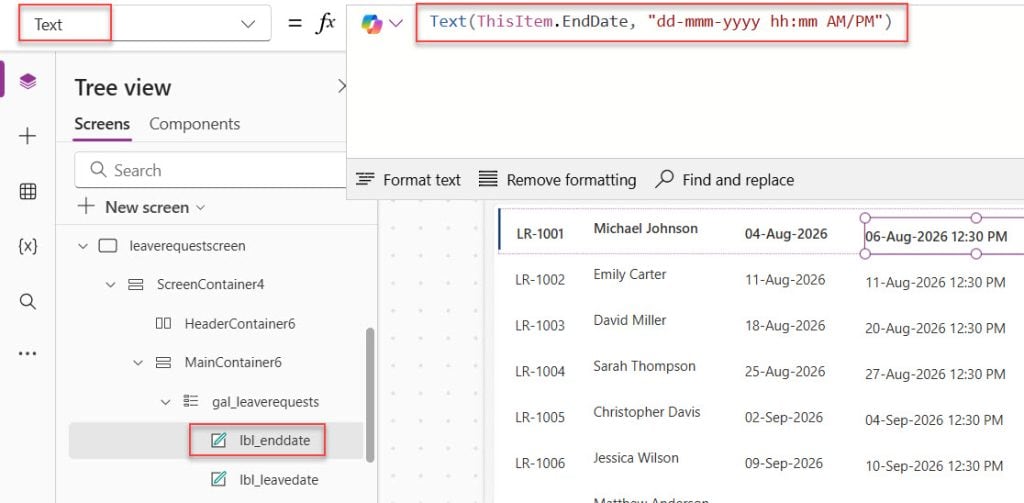
So before hiding time, ask one question: does the business process care about the hour and minute? In an HR leave request app, usually no. In an approval audit app, often yes.
Pro Tip: In my experience,
dd-mmm-yyyyis the safest format for shared business apps. It cuts down support questions because users do not argue over month and day order.
Real Example: HR Leave Request App in Power Apps
Let me use one full example so this feels practical, not theoretical. Imagine an HR team with 200 employees using a Canvas app connected to a SharePoint list called LeaveRequests.
The list has columns like:
- Title
- EmployeeName
- EmployeeEmail
- LeaveDate
- EndDate
- Reason
- Status
The user creates a request through a form and submits it like this:
SubmitForm(frmLeaveRequest)
Or with the Patch function:
Patch(
    LeaveRequests,
    Defaults(LeaveRequests),
    {
        Title: "Leave Request - " & User().FullName,
        EmployeeName: User().FullName,
        EmployeeEmail: User().Email,
        LeaveDate: dpStartDate.SelectedDate,
        EndDate: dpEndDate.SelectedDate,
        Status: "Pending"
    }
)
This saves the dates correctly. Then on the manager screen, a Gallery shows the requests:
Filter(
    'Leave Requests',
    Status.Value = "Pending"
)
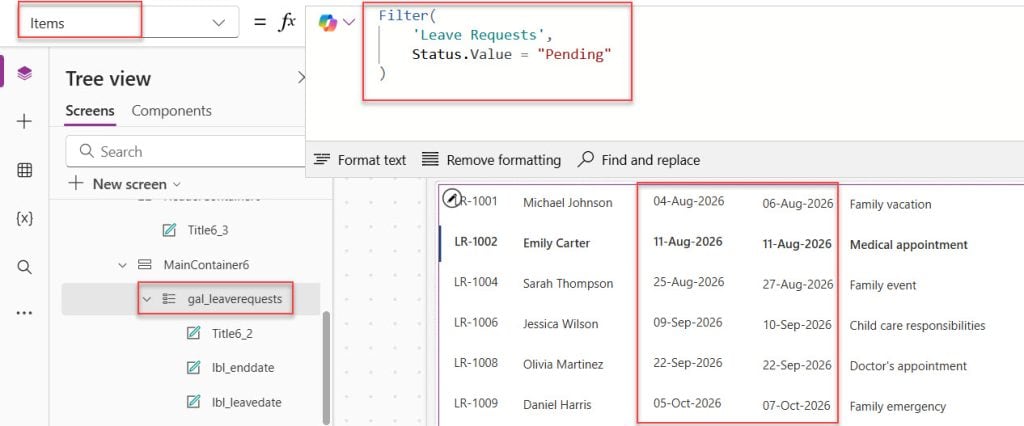
Inside the gallery, the start and end dates should display like this:
Text(ThisItem.LeaveDate, "dd-mmm-yyyy")
Text(ThisItem.EndDate, "dd-mmm-yyyy")
That small formatting change makes the app feel much more polished. It also pairs nicely with related patterns like Power Apps CRUD operations, update SharePoint list item using Power Apps Patch function.
If you later automate approvals, the same clean date formatting also helps in emails, approval summaries, and generated messages through Power Automate multilevel approvals.
When the Date Still Shows Wrong in Power Apps
Sometimes makers use the correct formula but still think the app is “showing time.” In most cases, one of these issues is causing the confusion.
You formatted the wrong control in Power Apps
This happens often in forms. You may update the DataCard, but the visible text still comes from the inner DataCardValue control. Always check which control actually displays the value.
The value is text, not a date in Power Apps
If the source field is already stored as text, the Text function may not behave as expected. In that case, convert it first:
Text(DateValue(ThisItem.StartDateText), "dd-mmm-yyyy")
This tells Power Apps to treat the text as a real date first, then format it. If you work with imported or messy values, convert text to date in Power Apps is a useful next step.
You are mixing display logic with save logic in Power Apps
I see this a lot in beginner apps. Makers try to reformat the value before saving:
Patch(
    LeaveRequests,
    Defaults(LeaveRequests),
    {
        LeaveDate: Text(dpStartDate.SelectedDate, "dd-mmm-yyyy")
    }
)
I do not recommend this when your column expects a date. That formula converts the value into text, which can create data type issues later when filtering, sorting, or comparing dates. Save the date as a date, then format it only when displaying.
Regional settings are affecting your output
Date formats can behave differently across tenants and user regions. If your app serves a mixed audience, choose a format that removes ambiguity. Again, dd-mmm-yyyy is usually the cleanest option.
Things to Keep in Mind
- Format for display only — Save date fields as real dates, not text, so filtering and sorting still work correctly.
- Use clear date patterns — A format like
dd-mmm-yyyyavoids confusion across regional settings. - Check the actual control — In forms, the visible value usually comes from the inner DataCardValue or Label control.
- Do not overuse Text in data logic — Use the Text function for display, not inside filters unless you truly need string comparison.
- Keep source columns correct — In a SharePoint list, choose the right column type from the start, especially when the app only needs a date.
- Test with real users — A date format that looks obvious to you may confuse HR, finance, or operations users in another region.
Frequently Asked Questions
How do I display a date without time in Power Apps?
Use the Text function with your date field, such as Text(ThisItem.LeaveDate, "dd-mmm-yyyy"). This keeps the stored value unchanged and only removes the time from what users see.
Why does Power Apps show 12:00 AM with dates?
This usually happens because the source stores a date-time value even if users only selected a date. Power Apps then displays the full value unless you format it.
Can I remove time from a SharePoint date column in Power Apps?
Yes, for display purposes. Use a formula like Text(ThisItem.LeaveDate, "dd-mmm-yyyy") in your Label, Gallery, or form control.
Should I save the date as text to hide the time?
No, I would avoid that in most business apps. Save the field as a proper date value, then format it on the screen so sorting, filtering, and calculations still work.
How do I format a Date Picker value in Power Apps?
Use the selected date like this: Text(DatePicker1.SelectedDate, "dd-mmm-yyyy"). This is useful for preview labels, confirmation messages, and summary screens.
What is the best date format for Power Apps?
For most client projects, I prefer dd-mmm-yyyy. It is easy to read, avoids regional confusion, and looks cleaner in galleries and forms.
You may also like
- Power Apps Date Picker control explained with examples
- Create a Power Apps Collection From Excel
- Set a default date in the Power Apps Date Picker
- Filter a Power Apps gallery with a Date Picker
In Power Apps, displaying a date without time is usually a formatting task, not a data storage problem. Use the Text function in your labels, galleries, and forms, and stick with a clear format like dd-mmm-yyyy for most business apps. I hope you found this article helpful.

I have worked with Microsoft technologies for more than 18 years, including SharePoint, Microsoft 365 and the Power Platform (Power Apps, Power Automate and Power BI), at companies like HP, TCS and KPIT. I started EnjoySharePoint in 2011 to share the solutions I build in real projects with readers in the United States, Canada, the United Kingdom, Australia, New Zealand and beyond. Microsoft has recognized this work with the Microsoft MVP award 13 times since 2014.