
A purchasing team I worked with had a request form where urgent requests skipped the manager approval step. People kept forgetting to change the Approval Required field to No, and the requests sat waiting for approvals nobody needed. Setting that choice automatically from the Request Type field took one formula and removed the problem.
In this tutorial, I’ll show you five ways to set a SharePoint choice field from another field in Power Apps: in a form with DefaultSelectedItems, with a variable, with Switch for several conditions, with Patch from a button, and for multi-select choice columns.
Quick answer: In the edit form, unlock the target field’s data card, select its combo box, and set DefaultSelectedItems to something like If(DataCardValue_RequestType.Selected.Value = "Urgent", {Value: "No"}, Parent.Default). A SharePoint choice is a record with a Value field, so pass {Value: "No"}, not the text “No”. To write the value directly, use Patch(List, record, {Status: {Value: "Approved"}}).
How choice values work in Power Apps
A SharePoint choice column doesn’t hold plain text in Power Apps; each choice is a record with a Value field, such as {Value: "Approved"}. That’s why formulas that pass “Approved” fail with a type error. Multi-select choice columns hold a table of those records.
In a SharePoint form, choice fields use a combo box. Its default selection comes from DefaultSelectedItems. The combo box’s Default property is deprecated, so formulas there are ignored or behave unpredictably.
The sample form
My example is a Purchase Requests list with two choice columns: RequestType (Standard or Urgent) and ApprovalRequired (Yes or No). When someone picks Urgent, Approval Required should switch to No:
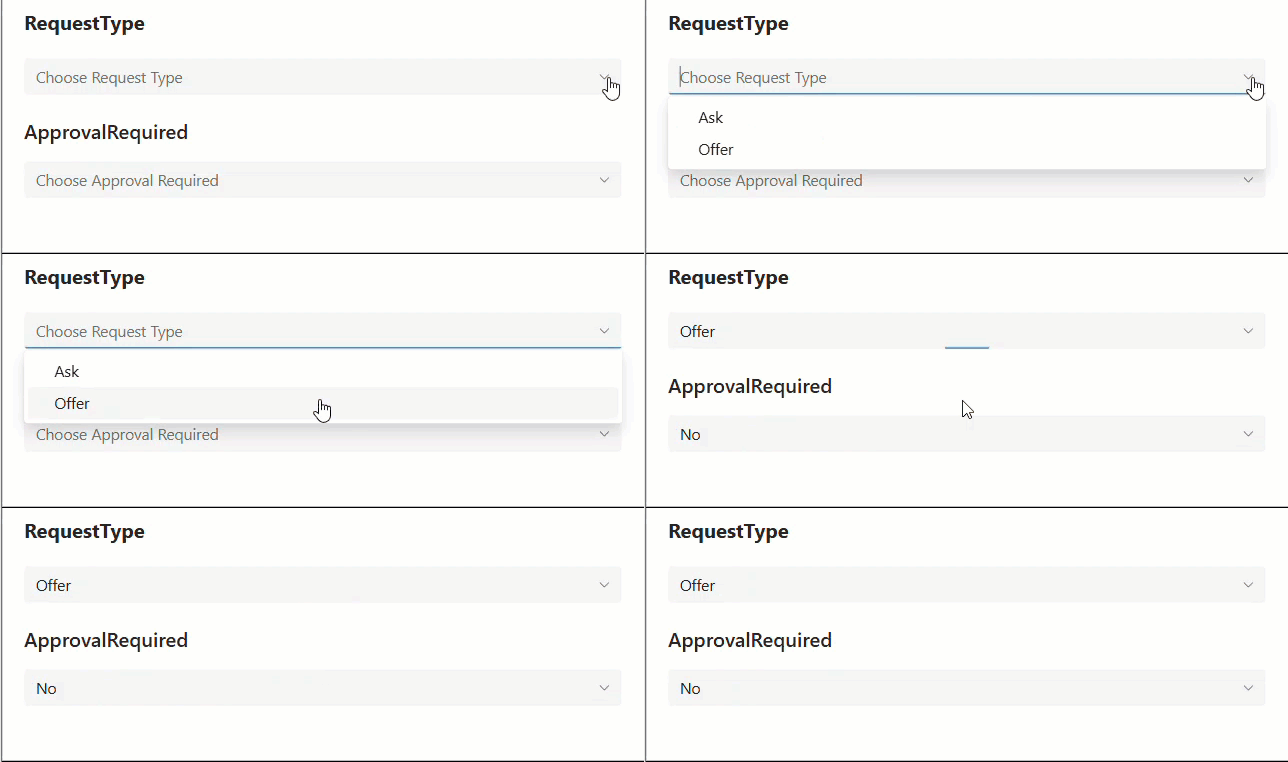
Method 1: Set DefaultSelectedItems with If
This is the simplest option for forms.
- Select the ApprovalRequired data card.
- In the properties pane, go to Advanced and select Unlock to change properties. You can’t lock a card again after unlocking it.
- Select the combo box inside the card (for example DataCardValue_ApprovalRequired).
- Set its DefaultSelectedItems property to the formula below.
If(
    DataCardValue_RequestType.Selected.Value = "Urgent",
    LookUp(Choices([@'Purchase Requests'].ApprovalRequired), Value = "No"),
    Parent.Default
)
When RequestType is Urgent, the box shows No; otherwise it keeps Parent.Default, which is the saved value in Edit mode or the column’s default for new items. LookUp finds the exact choice record, so it always matches the list; {Value: "No"} works too. If you use the modern combo box, wrap the result in Table(...), because it expects a table.
Check that the card’s Update property still points to the combo box (DataCardValue_ApprovalRequired.Selected). Update is what gets saved, so the default only reaches SharePoint if Update reads the control.
Method 2: Use a variable and OnChange
A variable gives you more control, for example when other logic also needs the value. In the RequestType combo box’s OnChange property:
Set(varApprovalRequired, {Value: If(Self.Selected.Value = "Urgent", "No", "Yes")})The original version wrote two separate Set calls inside If, which does the same thing:
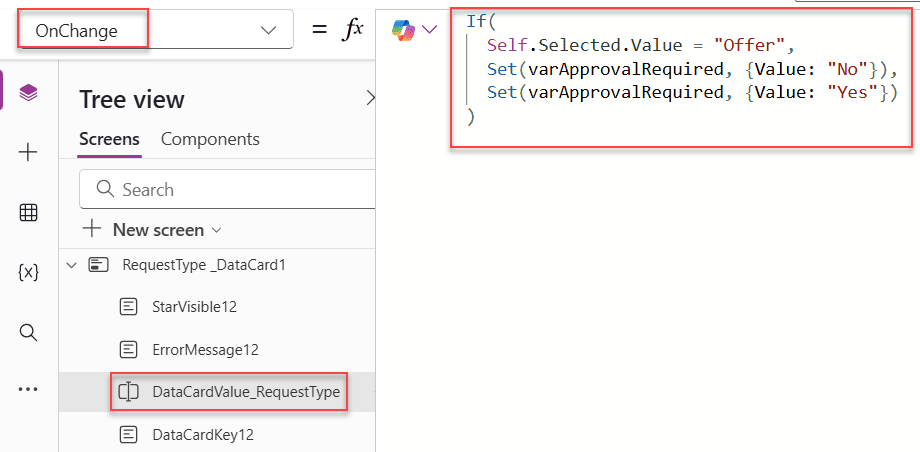
Then set the ApprovalRequired combo box’s DefaultSelectedItems to the variable:
varApprovalRequired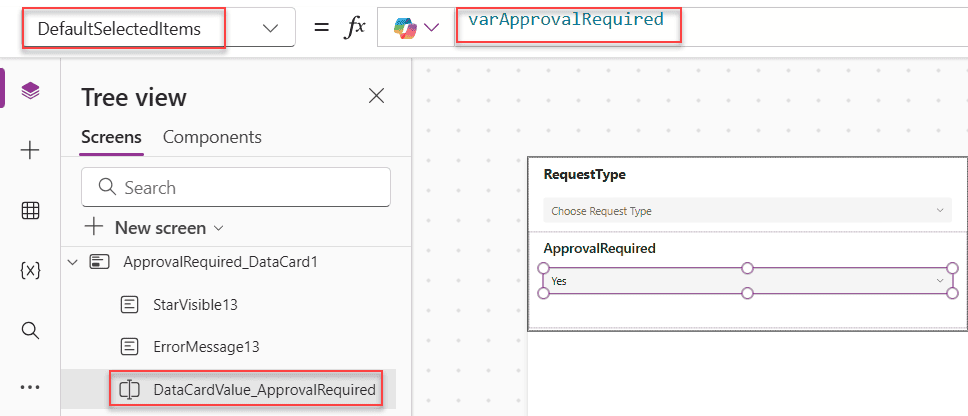
When the default changes, Power Apps resets the control to the new value, so the second box follows the first:
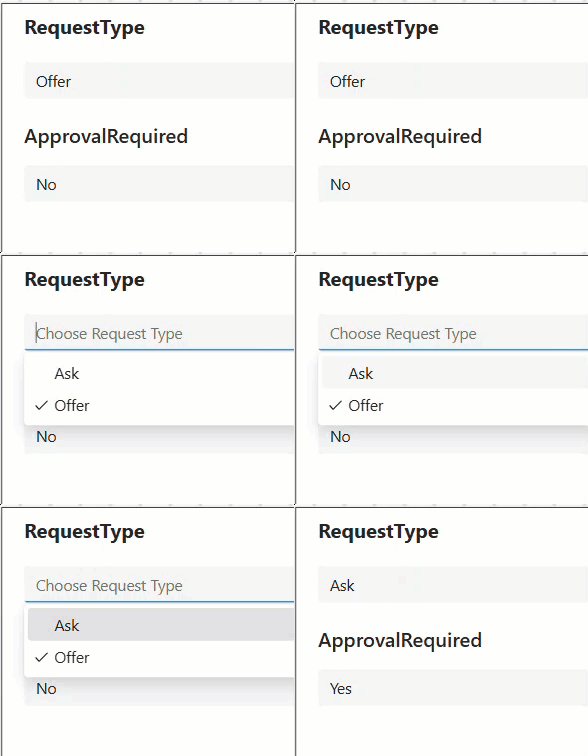
Set the variable when the screen opens, in the screen’s OnVisible (forms don’t have one), so it isn’t blank and doesn’t carry over from the last record you viewed. When editing, start it from the saved value: Set(varApprovalRequired, Gallery1.Selected.ApprovalRequired).
Method 3: Switch for several conditions
With more than two options, Switch reads better than nested If. Here a Department choice decides the default Priority:
Switch(
    DataCardValue_Department.Selected.Value,
    "HR", {Value: "Low"},
    "IT", {Value: "High"},
    "Finance", {Value: "Medium"},
    "Legal", {Value: "Critical"},
    Parent.Default
)
Put this in the Priority combo box’s DefaultSelectedItems. The last argument, Parent.Default, is used when no department matches:
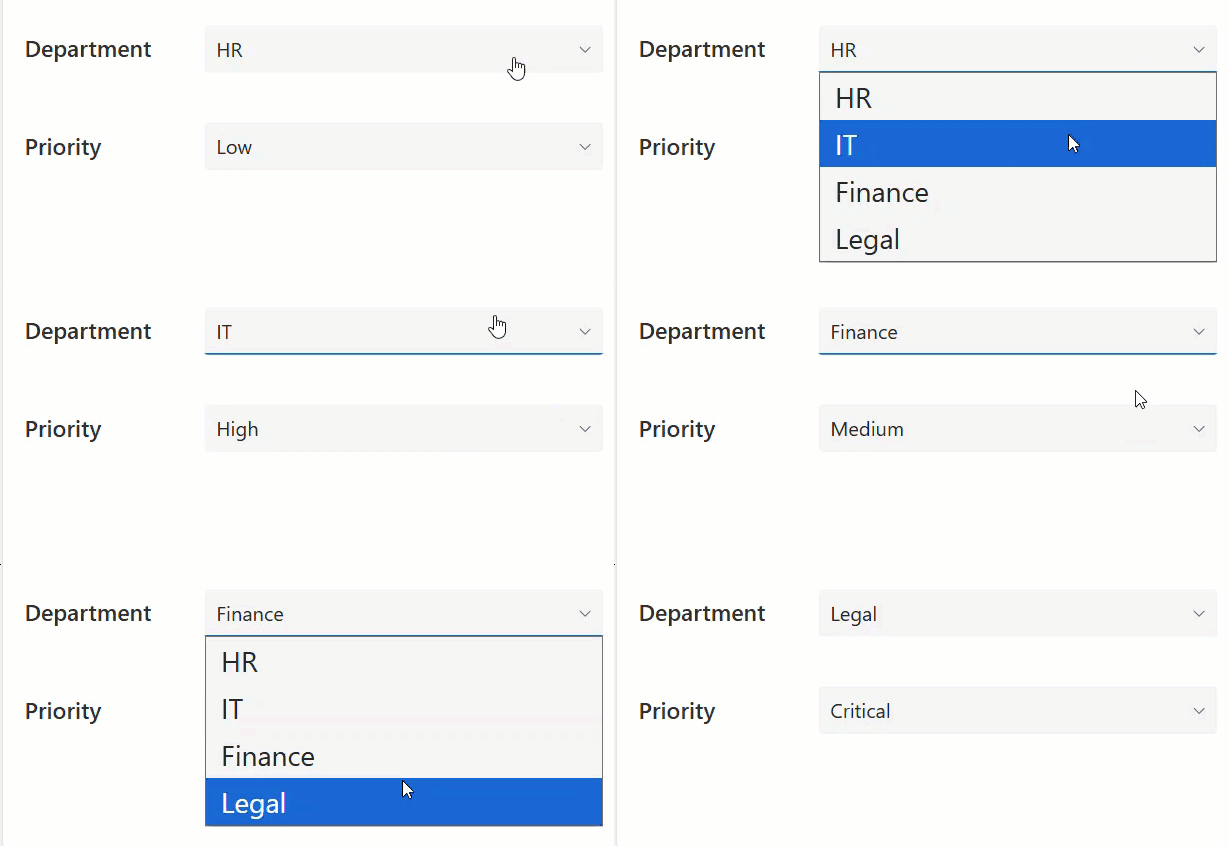
Keep existing values when editing
A dependent default can overwrite values when someone opens an existing item. If the rule should only apply to new items, check the form mode:
If(
    frmRequest.Mode = FormMode.New && DataCardValue_RequestType.Selected.Value = "Urgent",
    {Value: "No"},
    Parent.Default
)
Method 4: Set a choice with Patch
For a button that changes a value without a form, such as Approve on a gallery item, use Patch with a choice record:
Patch(
    'Leave Requests',
    LookUp('Leave Requests', ID = Gallery1.Selected.ID),
    {Status: {Value: "Approved"}}
)
Status: "Approved" would fail, because the column expects a record. If the value comes from a dropdown whose Items are Choices([@'Leave Requests'].Status), pass its selection: {Status: Dropdown_Status.Selected}.
For more Patch examples, see how to update a SharePoint list item with Patch.
Method 5: Multi-select choice columns
A multi-select column needs a table of choice records:
Patch(
    'Support Tickets',
    LookUp('Support Tickets', ID = Gallery1.Selected.ID),
    {Tags: Table({Value: "Urgent"}, {Value: "Escalated"})}
)
From a combo box, pass its SelectedItems, which is already a table: {Tags: ComboBox_Tags.SelectedItems}. The combo box’s Items must be Choices([@'Support Tickets'].Tags). See how to save multiple combo box values to SharePoint for the full pattern.
Which method to use
| Situation | Approach |
|---|---|
| Default one field from another in a form | DefaultSelectedItems with If |
| Several possible values | DefaultSelectedItems with Switch |
| Other logic also needs the value | OnChange + variable + DefaultSelectedItems |
| A button sets the value | Patch with {Value: “…”} |
| Multi-select column | Patch with Table() or SelectedItems |
Common mistakes
- Formula on Default instead of DefaultSelectedItems. The combo box’s Default property is deprecated.
- Text instead of a record. Use {Value: “Choice”}, not “Choice”.
- Square brackets around records.
[{Value: "No"}]creates a table with a column named Value holding the record, which doesn’t match. Use a record, or Table() for a table. - The card is locked. Unlock it to edit the generated formulas.
- Edit mode overwrites saved values. Guard the rule with the form’s Mode.
These Power Apps tutorials work well with choice fields:
- How to set default value in Power Apps data card?
- How to filter SharePoint choice field within Power Apps?
- Power Apps Dropdown Control With SharePoint [Complete Guide]
- How to Set Combo Box Default Value in Power Apps? [With Useful Examples]
- How to Save Power Apps Combobox Multiple Values to SharePoint List?
- How to Update SharePoint List Item Using Power Apps Patch Function?
Frequently Asked Questions
How do I set a choice field based on another field in Power Apps?
Set the combo box’s DefaultSelectedItems to an If or Switch formula that returns a choice record, such as {Value: “No”}. Microsoft explains data card properties in Understand data cards.
Why does my formula on the Default property do nothing?
The combo box’s Default property is deprecated. Put the formula in DefaultSelectedItems.
How do I patch a SharePoint choice column?
Pass a record: Patch(List, record, {Status: {Value: “Approved”}}). For multi-select, pass Table({Value: “A”}, {Value: “B”}).
How do I keep the saved value when editing an item?
Use Parent.Default as the fallback, and apply the rule only when the form’s Mode is FormMode.New.

Preeti Sahu is a Microsoft MVP for Power Apps with over six years of experience working with SharePoint Online and the Power Platform. She is the co-author of the book Microsoft Power Platform: A Deep Dive. As a Power Platform developer, she has built various tools with Power Apps and Power Automate, and she makes Microsoft 365 videos for YouTube.