
Our support team kept answering the same questions about our training courses: which courses we offer, what each one covers, and how to sign up. All of it was already on our public website. So I built a Copilot Studio agent that answers from that website, and now people get an answer in seconds, with a link to the page it came from.
In this tutorial, I’ll show you how to add a public website as a knowledge source to a Copilot Studio agent, step by step. I’ll also cover the limits you should know before you start, how the web search settings change the answers, how to test which pages the agent used, and what to check when it can’t find an answer.
Quick answer: Open your agent in Copilot Studio, select Add knowledge on the Overview or Knowledge page, and choose Public websites. Enter the URL in Public website link, select Add, give it a name and description, and select Add to agent. When the status shows Ready, the agent can answer from that site. You can add up to 25 websites.

How public website knowledge works
A public website source doesn’t copy the site into Copilot Studio. When someone asks a question, the agent sends it to Bing, limited to the websites you listed, and writes an answer from the pages Bing returns. The answer includes citations with links to those pages.
That has two consequences worth knowing up front:
- The site must be public and indexed by Bing. Pages behind a sign-in, including SharePoint sites, don’t work as a public website source.
- Answers are only as fresh as Bing’s index. If you just updated a page, it may take a while before the agent sees the change.
For internal content, add SharePoint as a knowledge source instead. It uses each person’s own permissions. If you’re new to Copilot, this comparison of the Microsoft Copilot products explains where Copilot Studio fits.
Before you start: limits and URL rules
| Rule | Details |
|---|---|
| Number of websites | Up to 25 per agent with generative orchestration, and 4 with classic orchestration |
| The 4-site trap | If any topic’s Create generative answers node lists its own sources, the limit is 4 for the whole agent |
| URL depth | Up to two levels after the domain, such as www.contoso.com/products/software |
| Subdomains | contoso.com covers www.contoso.com and news.contoso.com, but www.contoso.com doesn’t cover news.contoso.com |
| Redirects | A URL that redirects to a different site returns no answers |
| Not supported | Sites that need a sign-in, sites Bing hasn’t indexed, and search engine URLs |
A path includes everything below it. For example, www.contoso.com/products also covers www.contoso.com/products/software/pricing, but not www.contoso.com/support. Avoid forums and social networks as sources, because they lead to less relevant answers.
Create the agent
Sign in to Copilot Studio at copilotstudio.microsoft.com with your work account. In 2026, Copilot Studio opens in a New experience by default. The steps in this tutorial use the standard agent pages, so turn off New experience at the top of the page if it’s on.
Go to Agents and create a new agent:

You can describe the agent in plain language and let Copilot Studio fill in the details, or create a blank agent and set it up yourself. My screenshots show the configure view, where you enter a Name (up to 42 characters) and a Description, then select Create:
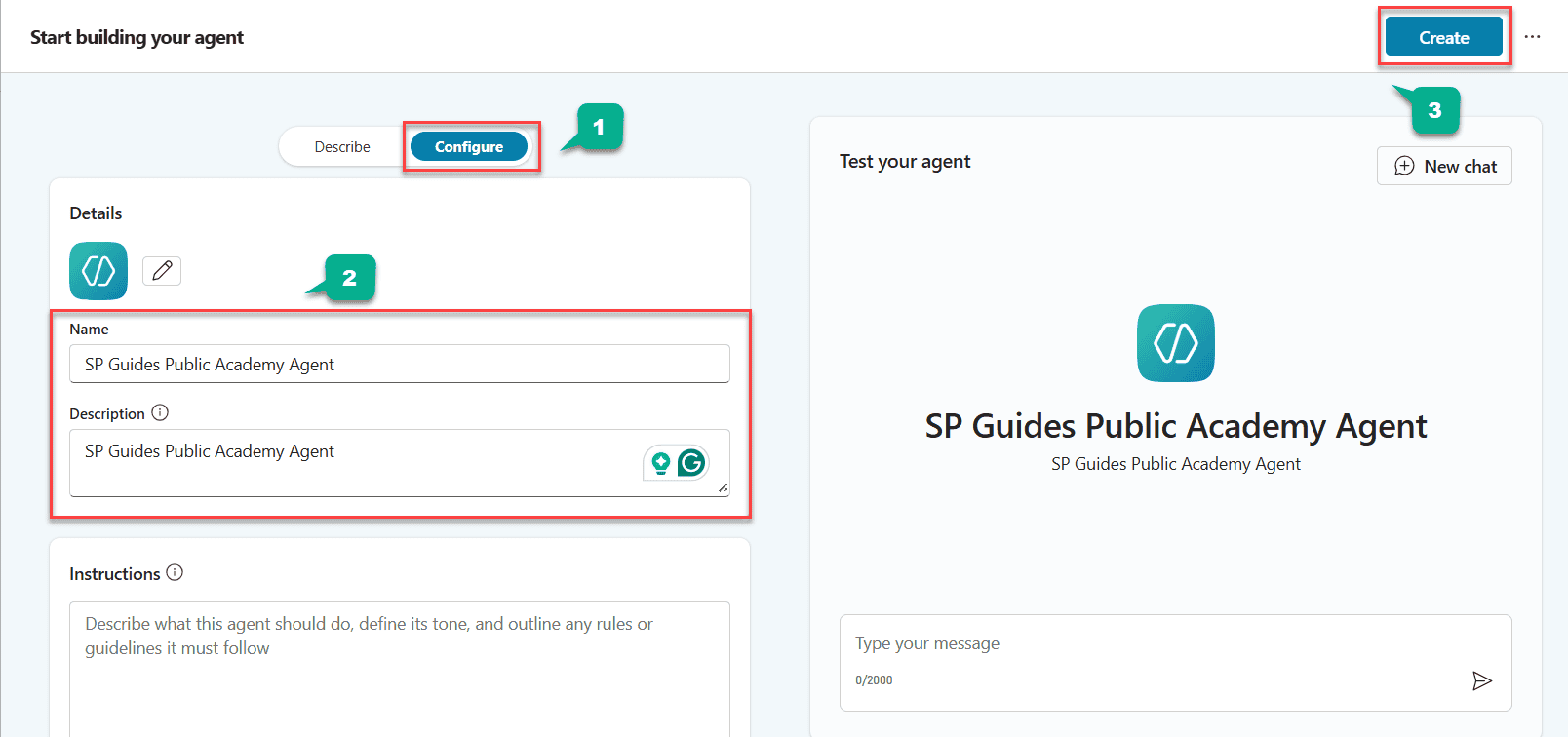
Write clear Instructions too, such as “Answer questions about our training courses using only our website. Always include a link to the page you used. If you can’t find the answer, say so.” You can edit the name, description and instructions later on the agent’s Overview page.
Add the public website
- When the agent is ready, open the Knowledge tab and select Add knowledge.
- In the Add knowledge dialog, choose Public websites.
- Enter the address in the Public website link box and select Add. Repeat this for each site you want.
- Check the Name (it defaults to the URL) and the Description.
- Select Add to agent.

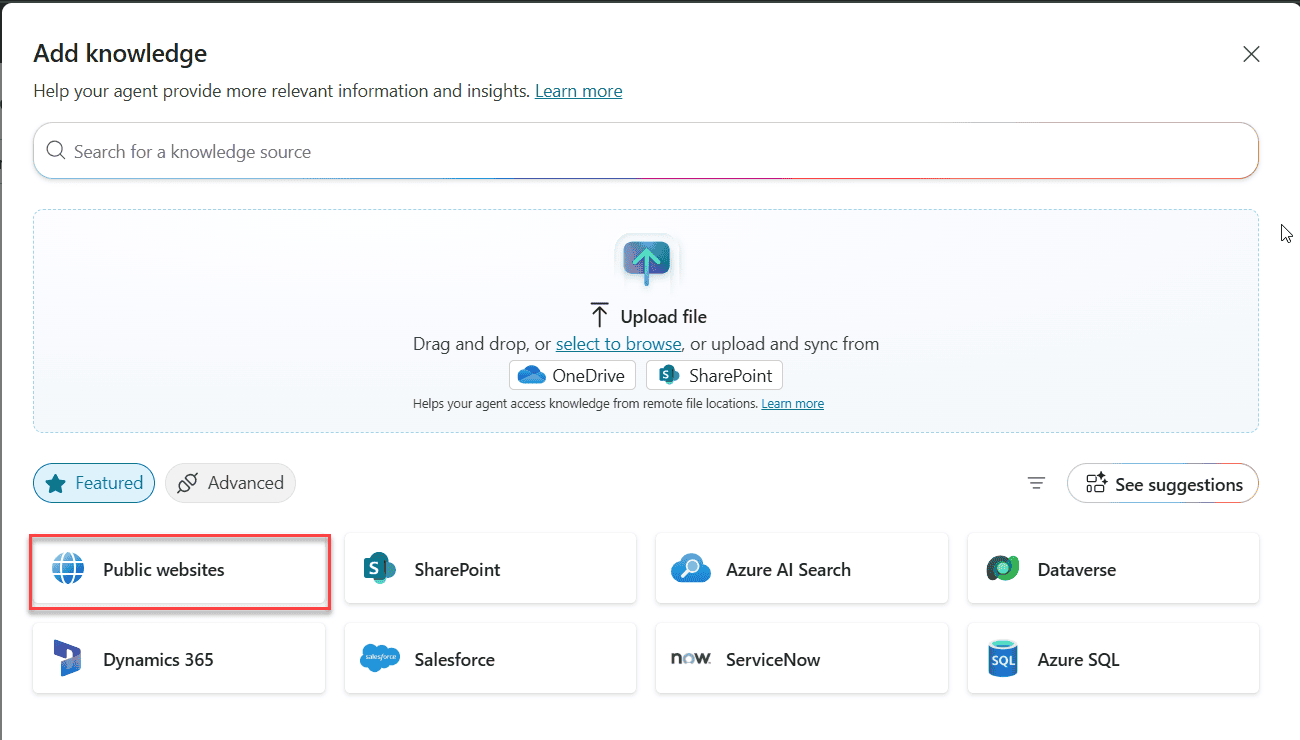
Don’t skip the description. With generative orchestration, the agent reads each source’s description to decide which one to search. A description like “Course catalog, course outlines and enrollment steps” works much better than the default text.
The source appears on the Knowledge page. When its status shows Ready, the agent can use it. Select … next to it to edit, delete or open the link:

You can also use a variable in the URL, such as https://www.contoso.com/{Region}, if the right site depends on the user. The variable must be a global text variable, and the two-level depth rule still applies.
Check the web search settings
Two settings decide whether your agent stays on your website or wanders further. Both are in the agent’s Settings on the Generative AI page:
- Use information from the web (also shown as Web Search on the Overview page) searches the whole web in addition to your sites and mixes the results. Turn it off if answers should only come from your websites.
- Allow ungrounded responses lets the agent answer from the AI model’s general knowledge when your sources don’t have the answer. Older pages call it Use general knowledge. Turn it off for an agent that must stick to your content.
With ungrounded responses off, the agent only returns an answer that includes a citation. If answers sometimes don’t appear, add an instruction like “Always include an in-text citation to the page you used.” Content moderation is set to High by default on the same page.
Test the agent and check its sources
Select Test to open the Test your agent panel, and ask questions your website answers:
- “Which courses do you offer for Power Apps?”
- “Give me an overview of the employee satisfaction survey app, in three bullet points.”
- “List all course titles in a table.”
To see where an answer came from, select … in the test panel and turn on Show activity map when testing. Select the knowledge step in the map to see the question sent to Bing, the answer, and the pages the agent used.
If an answer surprises you, add site: and your URL to the question to see the top pages Bing returns for it. That quickly tells you whether the problem is your agent or what Bing has indexed.
When you’re happy with it, select Publish. To use it in Teams, go to Channels, choose Teams and Microsoft 365 Copilot, and select Add channel. To automate what happens after a conversation, you can also call a flow; see how to use Copilot in Power Automate.
What it costs
Copilot Studio usage is counted in Copilot Credits, which replaced messages. Each generative answer uses 2 Copilot Credits. When an employee with a Microsoft 365 Copilot license uses the agent while signed in, those answers aren’t charged, within fair-use limits.
If you only need a simple agent over a few public sites, the agent builder in Microsoft 365 Copilot is a lighter option. It supports up to four public websites, and agents grounded in public websites are included with Copilot Chat.
Troubleshooting
| Problem | What to check |
|---|---|
| The agent says it can’t find an answer | Is the page public and indexed by Bing? Try the site: test. Check that the URL is no more than two levels deep and doesn’t redirect. |
Publishing fails with TooManyPublicSiteSearchSources | A generative answers node lists its own sources, so the limit is 4. Remove sites or move them to the agent level. |
| The source shows Unknown | A data policy may block it. Ask your admin about the “Knowledge source with public websites and data in Copilot Studio” connector. |
| Long questions return nothing | The whole Bing request can’t exceed 2,048 characters. Shorter questions and new test sessions help. |
| No web answers at all in an environment | An admin may have turned off Bing search for the environment under Generative AI features in the Power Platform admin center. |
| Answers include other websites | Turn off Use information from the web and Allow ungrounded responses. |
Also keep in mind that questions needing calculations or comparisons, like “What’s your cheapest course?”, often fail with website knowledge. Add that information to a page or use a different knowledge source.
If you’re building with Copilot, these tutorials may help next:
- How to Use Microsoft Copilot in Power Automate?
- GitHub Copilot vs Microsoft Copilot vs ChatGPT: Which One Do You Need?
- How to Use Microsoft Copilot in Teams, Word and Excel
- How to Send Teams Messages Using Power Automate?
- How to Send Approval Requests to Outlook and Teams Using Power Automate?
Frequently Asked Questions
How many public websites can I add to a Copilot Studio agent?
Up to 25 with generative orchestration, and 4 with classic orchestration or when a generative answers node lists its own sources. Microsoft explains the rules in its guide to adding a public website as knowledge.
Can I use a SharePoint site as a public website source?
No. SharePoint sites need a sign-in, so add them with the SharePoint knowledge source instead. It respects each user’s permissions.
Why doesn’t my agent find information that’s on my website?
The page must be indexed by Bing, the URL can be at most two levels deep, and it can’t redirect to another site. Use the site: test and the activity map to check.
How do I stop the agent from answering from the rest of the web?
In the agent’s Generative AI settings, turn off Use information from the web and Allow ungrounded responses.
Does a public website knowledge source cost extra?
Each generative answer uses 2 Copilot Credits, but employee use by people with a Microsoft 365 Copilot license isn’t charged, within fair-use limits.

I have worked with Microsoft technologies for more than 18 years, including SharePoint, Microsoft 365 and the Power Platform (Power Apps, Power Automate and Power BI), at companies like HP, TCS and KPIT. I started EnjoySharePoint in 2011 to share the solutions I build in real projects with readers in the United States, Canada, the United Kingdom, Australia, New Zealand and beyond. Microsoft has recognized this work with the Microsoft MVP award 13 times since 2014.