
An HR team I worked with exported an employee report to Excel every week and then uploaded it to a SharePoint document library by hand, adding the department, an expiry date and an approver to each file. It was exactly the kind of repetitive job Power Automate Desktop is good at, because the files start on a local PC.
In this tutorial, I’ll show you how to upload a file from your computer to a SharePoint library with a desktop flow, how to put it in a folder, and how to fill in the library’s metadata columns in the same run. The steps are the same for Excel, CSV, Word, PDF or any other file type.
Quick answer: In Power Automate Desktop, add Convert file to binary data to read the local file into a BinaryData variable. Then add the SharePoint Create file action and set Site Address, Folder Path (starting with the library, for example /EmployeeDocuments), File Name (including the extension) and File Content (%BinaryData%). To set columns, follow it with Update file properties, using the item ID that Create file returns.
Before you start
SharePoint actions in Power Automate Desktop are cloud connector actions: they’re the same SharePoint connector you use in cloud flows, running inside a desktop flow. You’ll find them in the SharePoint group of the Actions pane. The first time you use one, you’ll be asked to pick or create a connection reference, which is how the flow signs in to SharePoint.
Check your license before you plan a production flow. Microsoft’s documentation for these actions lists an Attended RPA license (Power Automate Premium) as a prerequisite, so confirm what your organization has. You also need a recent version of Power Automate Desktop with Microsoft Edge WebView2 installed, because connections are created through it.
For the examples, I created a document library called Employee Documents on an HR site. Here’s the Excel file we’ll upload first:


Example 1: Upload an Excel file to a SharePoint library
Step 1: Read the file as binary data
Create a new desktop flow, then add Convert file to binary data from the File group. Select the file in File path. The action stores the file’s content in a variable called BinaryData, which is the format SharePoint’s Create file action expects.

Step 2: Create the file in SharePoint
Expand SharePoint in the Actions pane and add Create file. Fill in the four fields:
- Site Address: choose your SharePoint site.
- Folder Path: choose the library. The path must start with an existing library, such as
/EmployeeDocuments. - File Name: the name the file will have in SharePoint, including the extension, such as
Employee Details.xlsx. - File Content:
%BinaryData%.

Don’t forget the extension. SharePoint uses it to know what kind of file it is, and without it the file won’t open in Excel or show a preview.
Step 3: Run the flow
Save and run the flow, then refresh the library. The file is there, uploaded under the name you gave it:

Example 2: Upload a CSV file
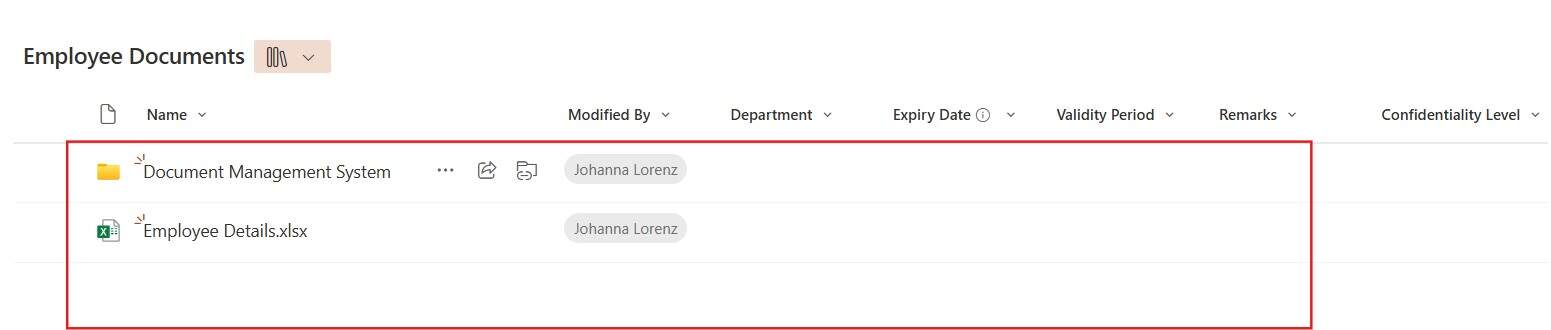
The steps don’t change with the file type. For a CSV file, convert it to binary data and give it a .csv file name. This library already contains a folder and the Excel file from the first example:
Add Convert file to binary data for the CSV file. I renamed the output variable to AppraisalDocument so it’s easy to tell apart from other files in the same flow:

Then add Create file with the same site and library, a file name ending in .csv, and %AppraisalDocument% as the content:

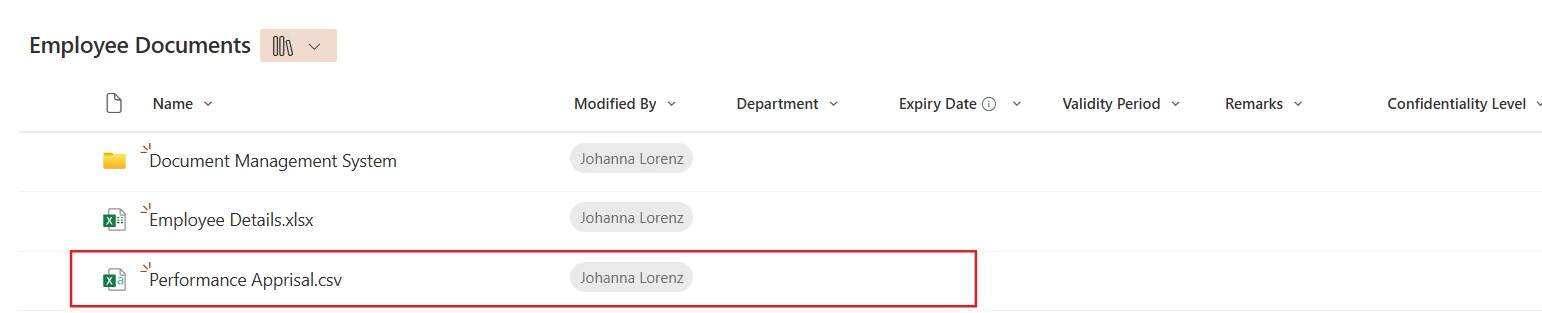
After the run, the CSV file appears in the library next to the Excel file:
Example 3: Upload a file into a folder
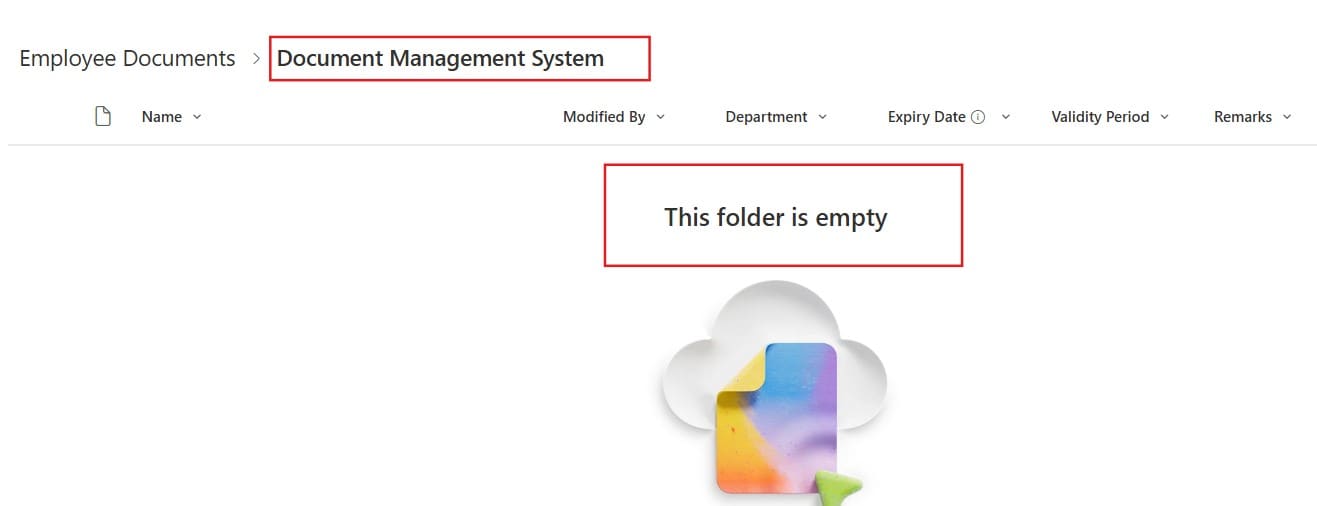
To put the file in a folder, add the folder to the end of the Folder Path. The library has an empty folder called Document Management System:
Convert the Word file to binary data, then set the Create file Folder Path to /EmployeeDocuments/Document Management System:


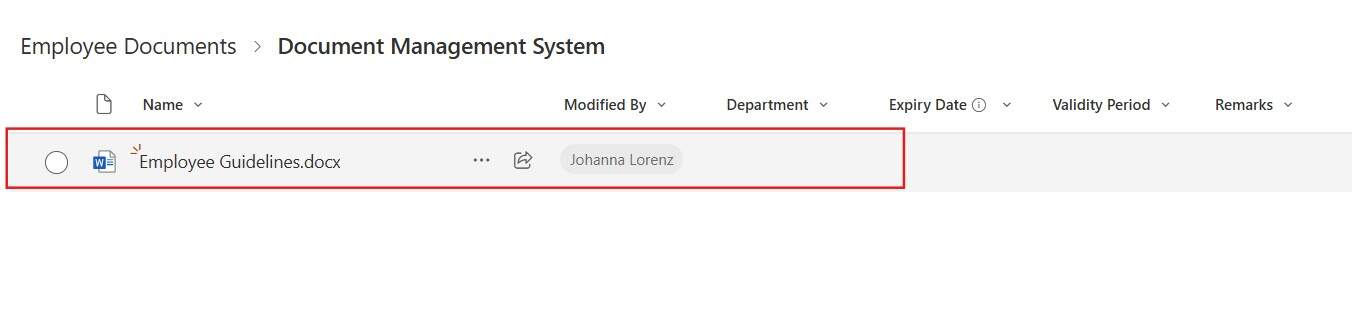
The Word document lands in the folder:
The folder has to exist already. Create file doesn’t create missing folders, so if you need a new one, create it first in SharePoint, or with a cloud flow’s Create new folder action.
Upload a file and set its metadata
Most libraries have columns you want filled in, not just the file. This library has six: Department (Choice), Expiry Date (Date and Time), Validity Period (single line of text), Remarks (multiple lines of text), Confidentiality Level (Choice) and Approver (Person).
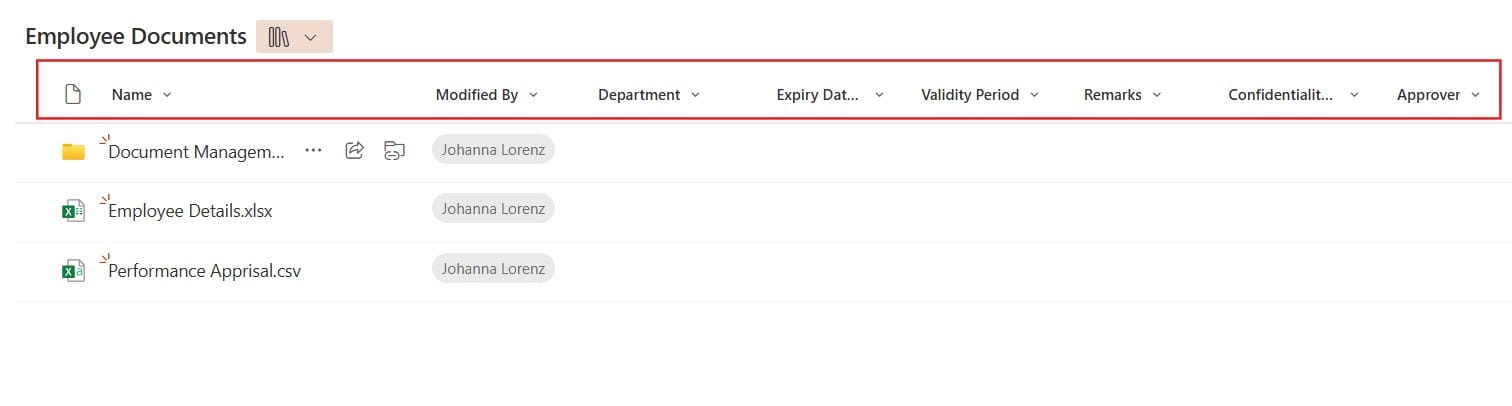
The approach is to upload the file first and then update its properties. Start with Convert file to binary data for the file:

For the date column, add Convert text to datetime from the Text group and enter the date as text, such as 2026-08-28. The action produces TextAsDateTime, a proper date value SharePoint can store.

Add Create file as before:

Then add Update file properties from the SharePoint group. Choose the same site and library. In Id, use the item ID returned by Create file, for example %CreateFileResponse.ItemId% (check the variable name your Create file action produced). The library’s columns then appear as fields:
- Expiry Date:
%TextAsDateTime% - Validity Period: 2 Years
- Remarks: any text you want
- Department Value and Confidentiality Level Value: the exact choice, such as IT and Internal
- Approver Claims: the approver’s email address

Run the flow. The file appears in the library with every column filled in:
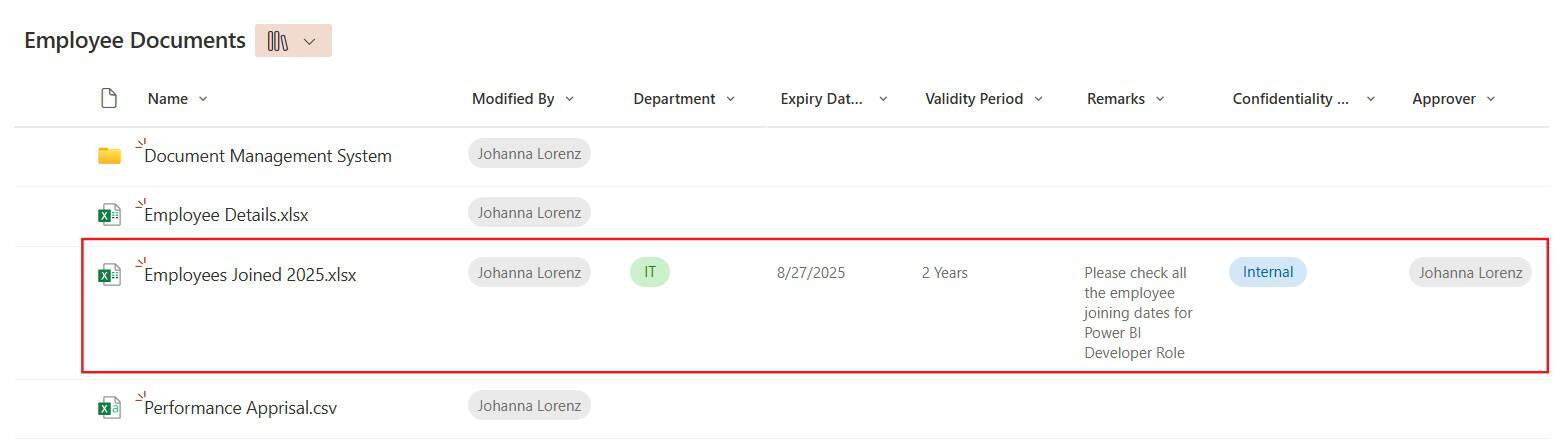
Look closely at the Expiry Date: the flow sent August 28, but SharePoint shows 8/27/2026. That’s a time zone shift, because the date is converted to UTC on the way. If you need the exact date, send a date with a midday time, such as 2026-08-28 12:00, or check your site’s regional settings.
Troubleshooting
If Create file fails with a “not found” error, check the Folder Path. It must start with the library, and every folder in it must already exist. Use the folder picker to avoid typos.
If a Choice column isn’t set, the value probably doesn’t match one of the choices exactly. For a Person column, use the person’s email address in the Claims field.
If a file with the same name is already in the folder, test what happens in your environment before relying on it, and add a date or time to the file name if you need to keep every version side by side.
Finally, the SharePoint connector allows 600 calls per connection every 60 seconds. That’s plenty for a few uploads, but if you loop through hundreds of files, add a short Wait between them.
For more Power Automate Desktop and SharePoint automation, see:
- Power Automate Desktop Flow Examples [5 Practical Examples]
- How to Schedule Power Automate Desktop Flows?
- How to Export and Import Power Automate Desktop Flows?
- Send Outlook Email with Attachments using Power Automate Desktop
- Extract Data from an Excel using Power Automate Desktop
- What Is Power Automate Desktop [How to Install]
Frequently Asked Questions
How do I upload a file to SharePoint with Power Automate Desktop?
Use Convert file to binary data to read the file, then the SharePoint Create file action with the site, folder path, file name and %BinaryData% as the content. Microsoft walks through the same pattern in its SharePoint actions reference.
Why won’t my uploaded file open in SharePoint?
The file name is probably missing its extension. Include it in the File Name field, for example Report.xlsx or Guidelines.docx.
How do I set SharePoint columns when I upload a file from a desktop flow?
Upload the file with Create file, then use Update file properties with the item ID that Create file returns, and fill in the column fields.
Can Create file upload a file into a folder that doesn’t exist?
No. The folder path must start with an existing library, and every folder in it must already exist. Create the folder first.

Preeti Sahu is a Microsoft MVP for Power Apps with over six years of experience working with SharePoint Online and the Power Platform. She is the co-author of the book Microsoft Power Platform: A Deep Dive. As a Power Platform developer, she has built various tools with Power Apps and Power Automate, and she makes Microsoft 365 videos for YouTube.