
A sales director asked me for a simple matrix: products down the side, years across the top, and in each cell, every city where that product sold. I dragged Location into Values and got one city per cell. Power BI wasn’t broken; it was doing exactly what it does with text in a matrix, which is to show a single value.
In this tutorial, I’ll explain why that happens and show you three ways to list all the values: a CONCATENATEX measure, a quick measure that writes it for you, and a different matrix layout.
Quick answer: A matrix cell can only show one value, so a text field in Values is summarized as First or Last. To show every value, create a measure with CONCATENATEX(VALUES(Sales[Location]), Sales[Location], ", ", Sales[Location], ASC) and put it in Values instead. You can also use the Concatenated list of values quick measure, or move the field to Rows and use a tabular layout.
Why the matrix shows only one value
Here’s the matrix, with Product on Rows, Year on Columns and Location in Values. Each cell shows one city:


The data has several locations for each product and year:

Anything in the Values well gets summarized. For text, Power BI offers First, Last, Count and Count (Distinct), which you can switch from the field’s dropdown in the Values well. First and Last each return a single value, based on sort order rather than the order of rows in your source, so you can’t choose “all of them” there.
The fix: a CONCATENATEX measure
CONCATENATEX goes through a table and joins the values into one piece of text. Select Home > New measure. The formula bar opens above the report. Enter:
Locations List =
CONCATENATEX (
    VALUES ( Sales[Location] ),
    Sales[Location],
    ", ",
    Sales[Location], ASC
)
The four parts: VALUES gives the distinct locations in the current cell, Sales[Location] is what to show, “, ” is the separator, and the last two arguments sort the list alphabetically. Write ASC explicitly: if you give a sort column without it, CONCATENATEX sorts in descending order.
Many examples use the whole table as the first argument, CONCATENATEX(Sales, Sales[Location], ","):
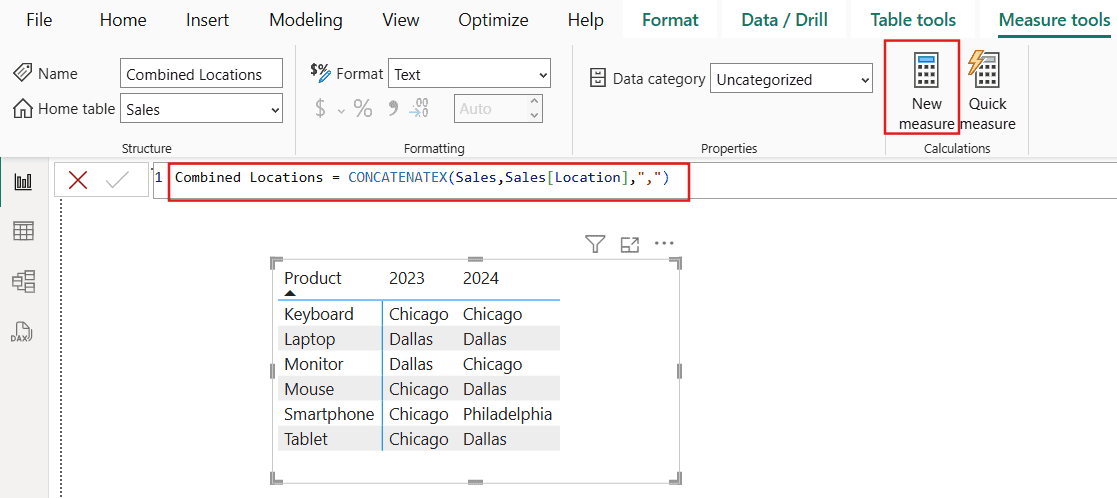
That works, but it lists a city once for every sale, so busy cities repeat. Replace the measure in Values with yours:

With the whole-table version, you get every sale’s city, repeats included:

With VALUES(), each city appears once per cell, in alphabetical order. Result: Chicago, New York, Philadelphia, San Diego instead of a long list with duplicates.
Hide the list on total rows
On the total row, the measure lists every city, which is usually too long to be useful. Show it only on product rows:
Locations List =
IF (
    ISINSCOPE ( Sales[Product] ),
    CONCATENATEX ( VALUES ( Sales[Location] ), Sales[Location], ", ", Sales[Location], ASC )
)
Turn on Values > Text wrap in the matrix’s format settings so long lists wrap instead of getting cut off.
No DAX: the Concatenated list of values quick measure
If you’d rather not write the formula, right-click the table in the Data pane and choose New quick measure. Under Text, pick Concatenated list of values, drag Location into the field box, and select Add. Power BI writes a CONCATENATEX measure for you, which you can then edit in the formula bar.
Another option: one row per value
If the list is long, a cell full of names can be hard to read. Instead, put Location on Rows under Product, and switch the matrix to Layout > Tabular, so each city gets its own row. See how to show matrix rows without a hierarchy for that layout.
Things to know
- CONCATENATEX isn’t supported in calculated columns or row-level security rules in DirectQuery mode. In a measure, it’s fine.
- The list doesn’t have a fixed order unless you give a sort column, so always include one.
- Very long lists can slow down large matrices; filter the visual or use the one-row-per-value layout.
These Power BI matrix tutorials may help next:
- Display Multiple Rows in Matrix Without Hierarchy in Power BI
- Hide or Remove Column Headers on Power BI Matrix Visual
- Power bi show value as percentage + 13 Examples
- Power bi show items with no data
- Power BI Slicer Dropdown [Setup, Search, Sort, Fixes & When to Use It]
- Power Bi count function – DAX Examples
Frequently Asked Questions
Why does a Power BI matrix show only the first value?
Text in the Values well is summarized, as First, Last, Count or Count (Distinct), because each cell can only show one value.
How do I show all values in a Power BI matrix cell?
Create a measure with CONCATENATEX(VALUES(Table[Column]), Table[Column], “, “) and use it in Values. Microsoft documents the function in its CONCATENATEX reference.
Why does my CONCATENATEX list have duplicates?
It iterates the whole table. Use VALUES(Table[Column]) as the first argument to get each value once.
Is there a way to do this without DAX?
Yes. Use the Concatenated list of values quick measure under Text, or put the field on Rows with a tabular layout.

I have worked with Microsoft technologies for more than 18 years, including SharePoint, Microsoft 365 and the Power Platform (Power Apps, Power Automate and Power BI), at companies like HP, TCS and KPIT. I started EnjoySharePoint in 2011 to share the solutions I build in real projects with readers in the United States, Canada, the United Kingdom, Australia, New Zealand and beyond. Microsoft has recognized this work with the Microsoft MVP award 13 times since 2014.