
A consulting client of mine tried to share a project page with a partner who used a Gmail address, and SharePoint refused: “Your organization’s policies don’t allow you to share with these users. Go to External Sharing in the Office 365 admin center to enable it.” The page owner assumed they’d done something wrong. They hadn’t; the organization simply hadn’t allowed sharing with people outside it, at least not on that site.
The fix is usually one or two settings in the SharePoint admin center. But since 2026 there are more places this can be blocked, so in this guide I’ll go through every layer in the order I check them.
Quick answer: The error means external sharing is blocked for that content. A SharePoint administrator needs to allow it at the organization level (SharePoint admin center > Policies > Sharing) and on the site (Sites > Active sites > select the site > Settings > More sharing settings), usually to New and existing guests. If it still fails, check domain restrictions and the guest settings in Microsoft Entra.
How the error appears
You select a file, list item or page and choose Share. This is the Site Pages library, where the page is being shared:
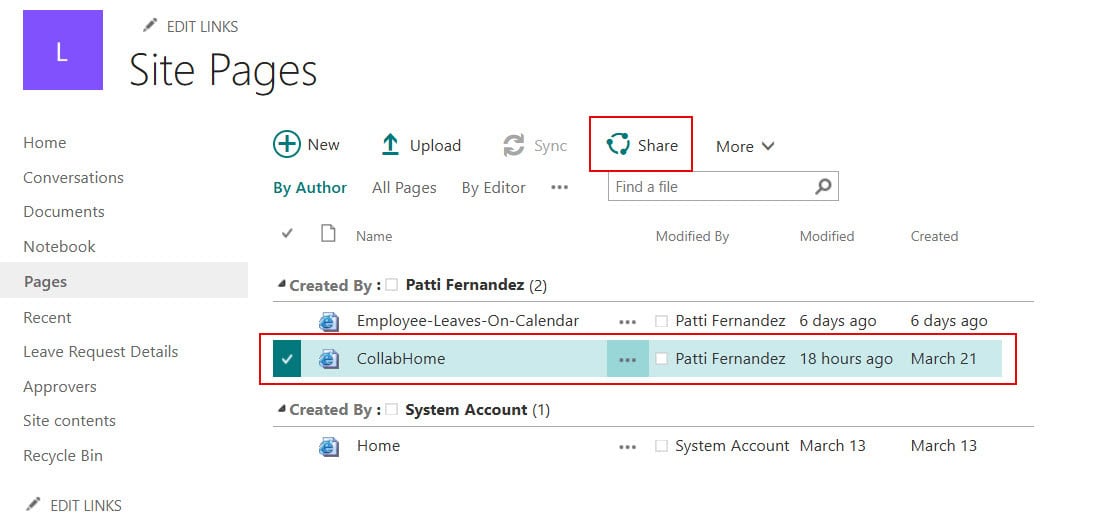
When you type an address outside your organization, such as a Gmail or Outlook.com account, the share dialog shows the error in red under the address, and the Share button doesn’t work. The message still mentions the “Office 365 admin center”, but the setting you need is in the SharePoint admin center.
It can appear when you share anything with an outside person: a site, a page, a list or list item, a library, a file or a folder. It’s most common on communication sites and classic sites, because they don’t allow external sharing by default.
Why it happens
External sharing is controlled in layers, and the strictest one wins. The organization sets the maximum, each site can be the same or stricter, and Microsoft Entra ID adds its own rules for guests. If any layer says no, you get this error. Only a SharePoint administrator (or higher) can change these settings; site owners can’t.
Step 1: Allow external sharing for the organization
Open the SharePoint admin center (from the Microsoft 365 admin center, select Admin centers > SharePoint). Go to Policies > Sharing. Under External sharing, there are two sliders, one for SharePoint and one for OneDrive:
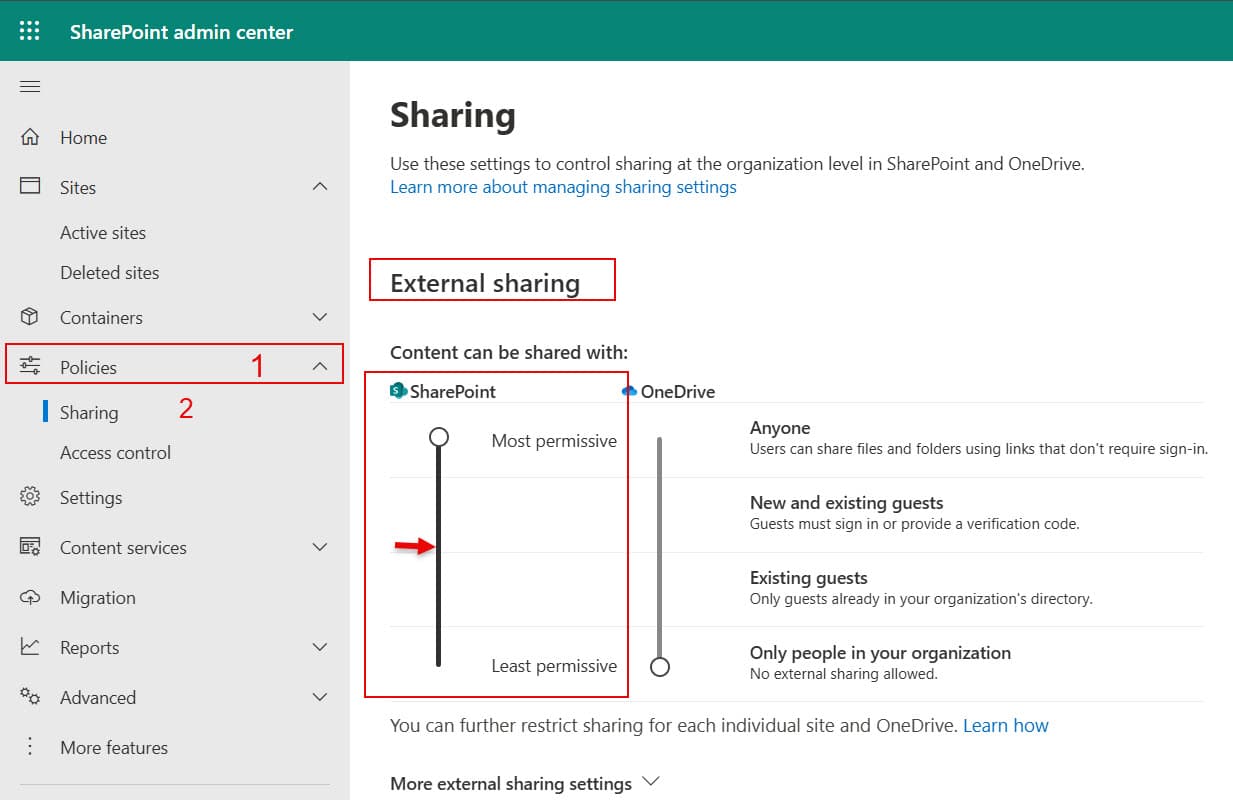
To share with a Gmail user, New and existing guests is enough: the guest signs in or gets a verification code. Choose Anyone only if you need links that work without signing in. OneDrive can be the same as SharePoint or stricter, never more open. Select Save.
Step 2: Allow external sharing on the site
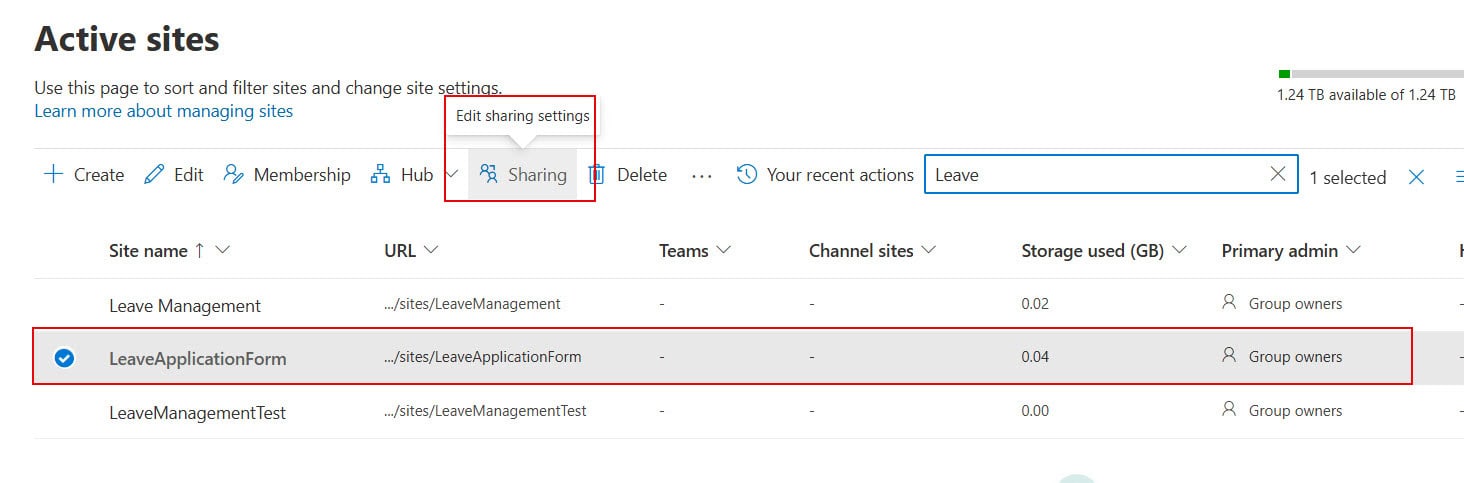
Each site has its own setting, which can’t be more open than the organization’s. In the SharePoint admin center, go to Sites > Active sites:

Select the site. In the current admin center, open the Settings tab and choose More sharing settings; in older versions, it was the Sharing button in the command bar, as in this screenshot:
Choose New and existing guests and select Save:

By default, communication sites, classic sites and team sites without a group allow only people in your organization. Group-connected team sites allow new and existing guests only if group owners are allowed to add people from outside the organization.
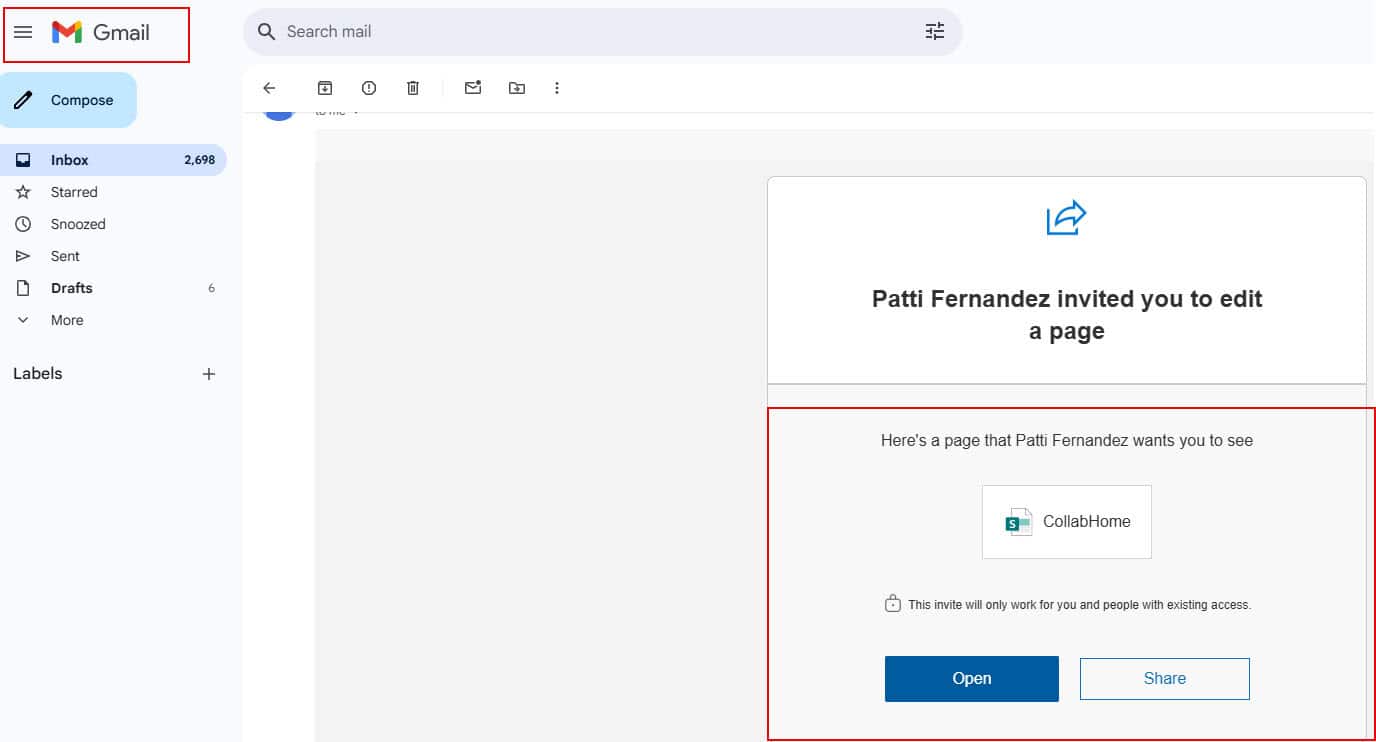
Try sharing again. For most people, the error is gone now, and the guest receives the invitation:
Step 3: Look for a domain restriction
If the error continues, your organization may allow or block specific domains. In Policies > Sharing, expand More external sharing settings and look at Limit external sharing by domain. If it’s set to Allow only specific domains and gmail.com isn’t on the list, or to Block specific domains and it is, sharing fails. Sites can have their own domain list too, under the site’s advanced sharing settings.
Step 4: Check who is allowed to share
In the same section, Allow only users in specific security groups to share externally limits sharing to certain people. If it’s on and you’re not in one of those groups, you can’t share outside the organization, even though the site allows it.
Step 5: Check Microsoft Entra guest settings
This is the most common hidden cause today. Starting in May 2026, Microsoft turned on SharePoint and OneDrive integration with Microsoft Entra B2B for every tenant, and it can’t be turned off. That means Entra’s guest settings now always apply to SharePoint sharing, and when they’re stricter than SharePoint’s, Entra wins.
In the Microsoft Entra admin center, go to Entra ID > External Identities > External collaboration settings. Check two things: Guest invite settings, which decide who can invite guests (if it’s set so no one can, sharing fails), and Collaboration restrictions, which can allow or deny invitations to specific domains.
Other settings that can block sharing
For team sites connected to a Microsoft 365 group, the Microsoft 365 admin center has group settings under Settings > Org settings > Microsoft 365 Groups: whether group owners can add outside people, and whether guests can access group content. A sensitivity label applied to the site can also set its external sharing level.
Changes can take a little while to apply, so if you’ve just updated a setting, wait a few minutes before trying again.
Checklist
- Organization setting: Policies > Sharing allows New and existing guests (or Anyone).
- Site setting: the site allows New and existing guests.
- Domain lists in SharePoint don’t block the guest’s domain.
- You’re in the security group allowed to share externally, if that setting is on.
- Microsoft Entra guest invite settings and collaboration restrictions allow the invitation.
- Group guest settings and any sensitivity label on the site allow guests.
These SharePoint sharing and permission guides may also help:
- “Sharing is Limited on This Item” Error in SharePoint and OneDrive
- SharePoint Online List Permissions: Step‑by‑Step Guide for Unique, Item‑Level & Anonymous Access
- How to Give Unique Permissions For a SharePoint Library
- Access Requests in SharePoint Online
- Share SharePoint Site With External Users and Anonymous Users
- Turn Off Microsoft Authenticator App in Microsoft 365
Frequently Asked Questions
What does ‘Your organization’s policies don’t allow you to share with these users’ mean?
External sharing is blocked for the content you’re sharing, at the organization level, on the site, or by another guest setting such as a domain restriction.
How do I fix the SharePoint external sharing error?
A SharePoint administrator allows external sharing in Policies > Sharing and on the site under More sharing settings. Microsoft’s troubleshooting article describes the same cause.
Do I need to choose Anyone to share with a Gmail user?
No. New and existing guests is enough; the guest signs in or enters a verification code. Anyone is only needed for links that work without signing in.
Can a site owner turn on external sharing?
No. Only a SharePoint administrator or higher can change the organization and site sharing settings.
Why do I still get the error after enabling sharing?
Check domain restrictions, the security group sharing setting, and the guest settings in Microsoft Entra, which apply to SharePoint sharing for all tenants since May 2026.

I have worked with Microsoft technologies for more than 18 years, including SharePoint, Microsoft 365 and the Power Platform (Power Apps, Power Automate and Power BI), at companies like HP, TCS and KPIT. I started EnjoySharePoint in 2011 to share the solutions I build in real projects with readers in the United States, Canada, the United Kingdom, Australia, New Zealand and beyond. Microsoft has recognized this work with the Microsoft MVP award 13 times since 2014.
I understand your walk-through. Thanks for the helpful info; however, everyone in the list i’m trying to share with is INTERNAL. I’m still getting the same error message.