
I used Outlook or email when sending information through Power Automate. But did you know you can also send a text message (SMS) directly through Power Automate? This feature opens up a whole new way to instantly reach people on their phones.
In this tutorial, I will tell you how to send a text message SMS using Power Automate.
Send a Text Message SMS Using Power Automate
For this example, I created a SharePoint list called Support Tickets with various columns like:
| Columns | Data Types |
|---|---|
| Ticket ID | Single line of text |
| Client Name | Single line of text |
| Client Phone Number | Single line of text |
| Issue Description | Multiple lines of text |
| Status | Choice |
| Last Updated | Date and Time |

Now, I want to send SMS notifications to clients whenever a new ticket is created or when any ticket is updated, specifically when the status changes.
I will use Twilio, a third-party service that integrates smoothly with Power Automate, to send SMS notifications. Twilio allows us to send SMS messages directly to our client’s phones.
First, you must set up an account on Twilio and use your Account SID and Auth Token. These are used to connect Power Automate with Twilio securely.
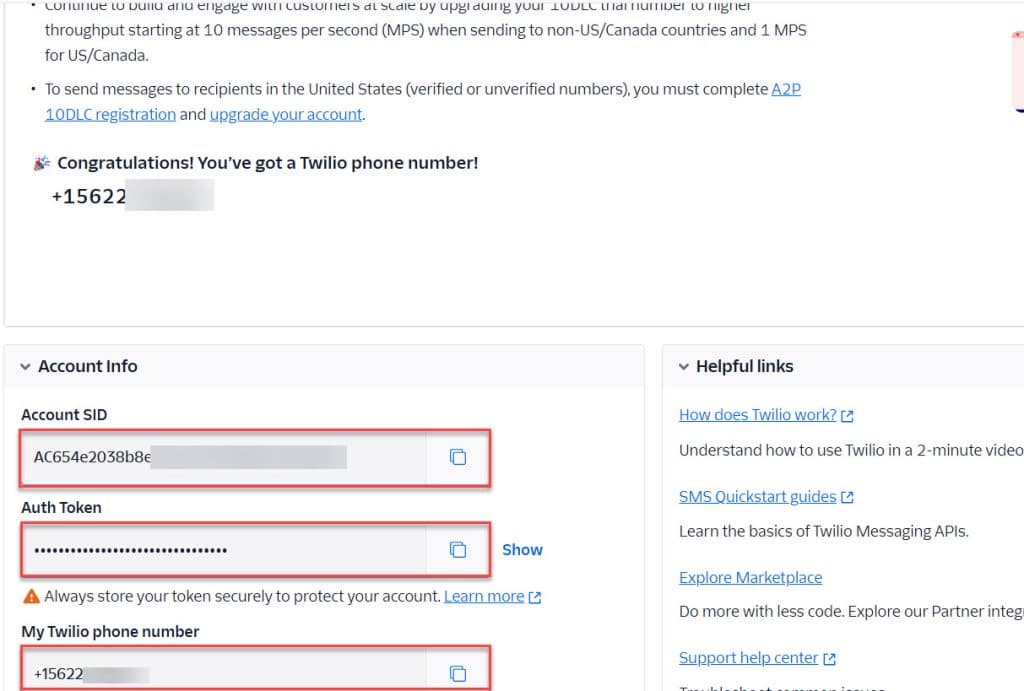
To do this, follow the below steps:
1. Create an automated cloud flow. Give the flow name and select the trigger When an item is created or modified. Also, provide the Site Address and List Name.

2. Add the Send Text Message (SMS) action for the Twilio connection. Then, it will ask to Create a New Connection. Enter your connection name, Twilio Account Id, and Twilio Access Token (available in your Twilio account dashboard). This step securely connects Power Automate to Twilio.

3. Now, Specify the recipient’s phone number using the Client Phone Number from the SharePoint list and the message content.

Now click on Save and run the Flow manually. Once the flow runs, add an item to the SharePoint list.

After the flow runs successfully, check the client’s phone. The client must receive an SMS.

This way, you can send a text message sms using Power Automate.
Now, only SMS, but many connectors help you to send text SMS:
- Nexmo: This service allows SMS messages to be sent globally and provides voice call capabilities. It’s a good alternative to Twilio for messaging needs.
- Plivo: Like Twilio, Plivo offers SMS and voice call functionalities. It’s known for its easy-to-use API and competitive pricing.
- Infobip: This platform offers a comprehensive communication solution through SMS, voice, and chat app messaging services.
Conclusion
In this tutorial, I showed how to send SMS notifications using Power Automate and Twilio connectors. I also mentioned other SMS services like Nexmo, Plivo, and Infobip that can be used with Power Automate for similar functionality.
Related Power Automate articles:
- Convert Word Files to PDF Using Power Automate
- Copy File From Network Drive to SharePoint Using Power Automate
- Get Microsoft 365 Usage Reports Using Microsoft Graph in Power Automate
- Rename Subfolders in a SharePoint Document Library Using Power Automate

I have worked with Microsoft technologies for more than 18 years, including SharePoint, Microsoft 365 and the Power Platform (Power Apps, Power Automate and Power BI), at companies like HP, TCS and KPIT. I started EnjoySharePoint in 2011 to share the solutions I build in real projects with readers in the United States, Canada, the United Kingdom, Australia, New Zealand and beyond. Microsoft has recognised this work with the Microsoft MVP award 13 times since 2014.