
A few days back, I was working on a Power Apps project where the client wanted to save form data into an Excel file. The requirement was simple: users should fill out a Power Apps form, click a submit button, and have all the data stored in Excel for reporting and sharing.
In this tutorial, I will explain how to submit data from Power Apps to Excel spreadsheet step by step with an example.
Submit Data From Power Apps to Excel
Let’s follow the instructions below to store Power Apps form data in Excel.
- Format an Excel sheet as a table.
- Power Apps connects a data source to OneDrive for Business.
- Insert a Power Apps Edit form and connect it to Excel.
- Submit Data From Power Apps to Excel.
Step 1: Format an Excel sheet as a table
I have an Excel file regarding Customer Details that has fields like:
| Column Name | Data type |
|---|---|
| Customer ID | Text |
| Customer Name | Text |
| Gender | Choice |
| Country And Area Code | Text |
| Mobile Number | Number |
| Emergency Number | Number |
| Text |

Set up the Excel Sheet as Format As a Table.

Once the Excel Sheet is ready, you need to provide the Table name [Customer_Details] under the Table Design below.

Step 2: Power Apps Connect a data source to OneDrive for Business
Now, we will create a blank canvas app and connect the data source to OneDrive for Business in Power Apps:
- Sign in to your Power Apps with your valid Microsoft 365 credentials.
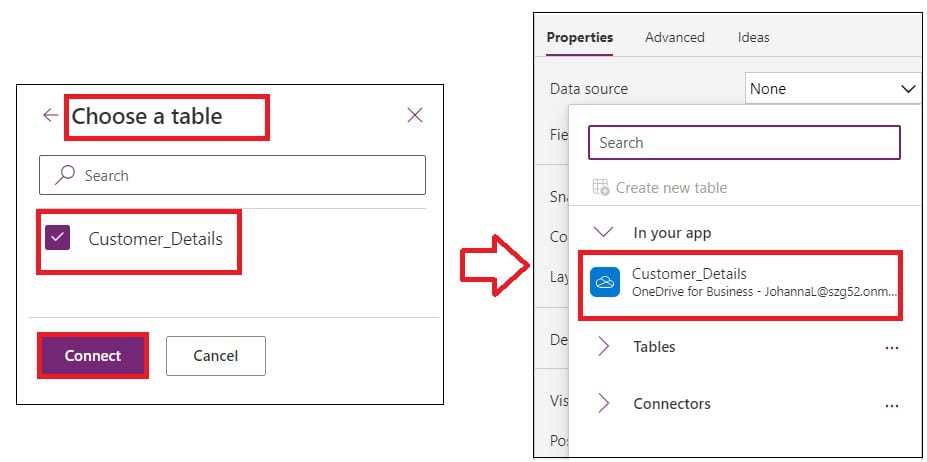
- Create a Power Apps Blank canvas app -> Select the + Add data -> Select a data source as OneDrive for Business -> Choose an Excel file [Customer Details.xlsx] as in the screenshot below.

Next, choose the Excel table [Customer_Details] -> Click on the Connect button. Once it is connected to the app, you will get a data source under the In your app drop-down, as shown below.
Step 3: Insert a Power Apps Edit form and Connect Excel to it
On the Power Apps screen, insert an Edit form -> Set its Data Source property to:
Customer_DetailsWhere,
- Customer_Details = Excel table name
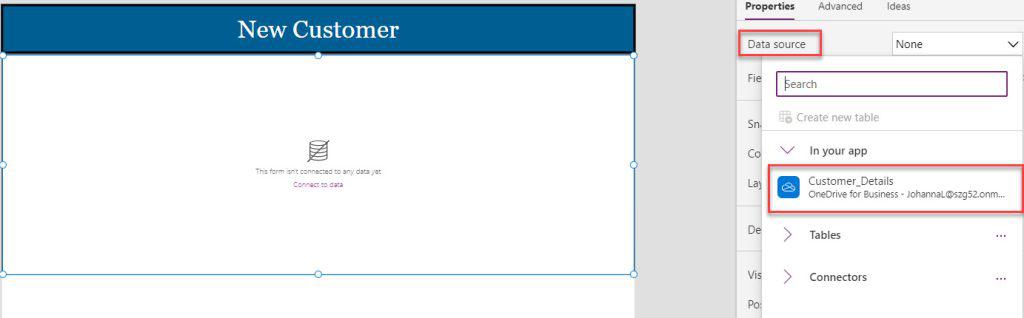
Then select the Edit fields option to add the required Excel fields.

The Power Apps form looks like the screenshot below:

Step 4: Submit Data From Power Apps to Excel
On the Power Apps screen, insert a Save icon/Submit button -> Set its OnSelect property to:
SubmitForm(frm_NewCustomer);
ResetForm(frm_NewCustomer)
Where,
- SubmitForm() = This Power Apps function helps us to save any changes in a form control to the data source
- frm_NewCustomer = Power Apps Edit Form Control
- ResetForm() = This Function resets the contents of a form to their initial values before the user makes any changes.
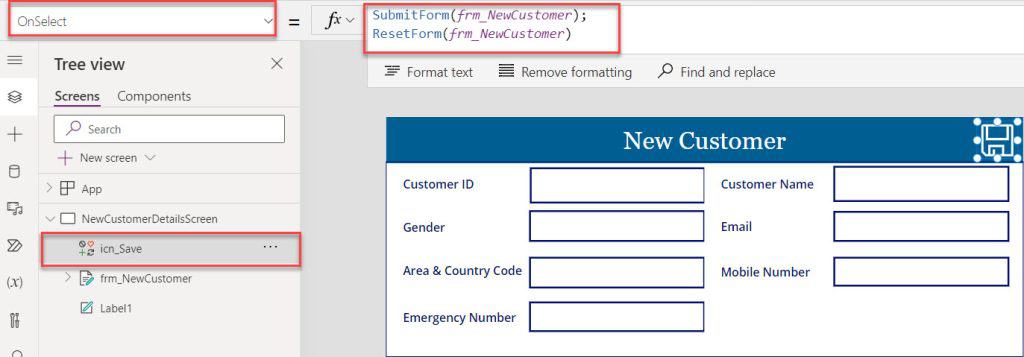
Once your Power Apps app is ready, save, publish, and preview the app. When a user enters a new record in the Power Apps edit form and clicks the save icon, the data will be submitted to the Excel sheet.

This way, we can submit Power Apps form data to an Excel Sheet.
Conclusion
I trust this Power Apps tutorial helped you find a solution by explaining how to submit data from Power Apps to Excel.
We can easily connect an Excel table to a Power Apps edit form, and the SubmitForm() function can quickly submit data from Power Apps to Excel.
Also, you may like some more Power Apps tutorials:
- Power Apps Form field validation on submit
- Expected Record Value in Power Apps
- Power Apps Create Custom Progress Bar Using SharePoint Choice Values
- Power Apps Collection Contains
- Power Apps Button OnSelect

Preeti Sahu is an expert in Power Apps and has over six years of experience working with SharePoint Online and the Power Platform. She is the co-author of Microsoft Power Platform: A Deep Dive book. As a Power Platform developer, she has worked on developing various tools using Power Apps and Power Automate. She also makes Microsoft 365 videos and shares them on YouTube.

