
The first time I patched a Dataverse choice column, I did what I’d always done with SharePoint and wrote {Value: "Married"}. Power Apps rejected it with a type error. Dataverse choices work differently: you pick them from a list of named values, called an enum, and once you know the syntax, it’s actually simpler than SharePoint.
In this tutorial, I’ll show you how to patch single-select and multi-select Dataverse choice columns from a form, a button, a dropdown and a combo box, and how to update existing records safely.
Quick answer: For a single-select choice, use the choice name and the option: Patch(Table, record, {'Marital Status': 'Marital Status (Patient Registrations)'.Married}). Type the name and a dot, and IntelliSense lists the options. For a multi-select choice, pass a table: [Choice.Diabetes, Choice.Fever] or a combo box’s SelectedItems. Don’t use the SharePoint-style {Value: "..."} for Dataverse.
Dataverse choice columns
Dataverse has two kinds: a choice column holds one option, and a choices column (with Selecting multiple choices is allowed turned on) holds several. Each option has a label and a number, and in Power Apps you refer to options by name, such as Status.Active.
My sample table, Patient Registrations, has a Reason multi-select column that uses a global choice called Patient Disease Reason:

It also has a single-select Marital Status column (Married, Single, Divorced, Widowed), plus Patient Name, Phone Number, DOB, Age and Address:

Connect the table
In Power Apps Studio, select Data > Add data and pick the table. Dataverse tables in the current environment are listed directly:

Patch a multi-select choice from a form
This registration form has a combo box for Reason that allows several selections:

The Register button creates the record with Patch. The combo box’s SelectedItems is already a table of choices, so it goes straight into the column:
Patch(
    'Patient Registrations',
    Defaults('Patient Registrations'),
    {
        'Patient Name': DataCardValue1.Text,
        'Patient Phone Number': DataCardValue6.Text,
        DOB: DateValue1.SelectedDate,
        Age: Value(DataCardValue3.Text),
        Address: DataCardValue4.Text,
        Reason: DataCardValue5.SelectedItems
    }
)
Fill in the form, pick two reasons and select Register:

The new row appears in Dataverse with both reasons:

When all the controls are in an edit form, SubmitForm(Form1) does the same with less typing. Patch is useful when you save from standalone controls or need to set extra values. For the DOB column, use the Date Only behavior in Dataverse so birthdays don’t shift by a day in other time zones.
Patch a single-select choice
Here, a button sets Christiana’s Marital Status, which is empty:

Patch(
    'Patient Registrations',
    LookUp('Patient Registrations', 'Patient Name' = "Christiana"),
    {'Marital Status': 'Select Marital Status'.Married}
)
The part before the dot is the name of the choice, not the column. For a global choice, it’s the choice’s own name, here Select Marital Status. For a choice created with the column (a local choice), it usually includes the table name, like 'Marital Status (Patient Registrations)'.Married.
You don’t have to guess: type the column name, and IntelliSense suggests the right one. The button in my app uses a shorter form Power Apps accepted:


Choice values aren’t text, so 'Marital Status' = "Married" doesn’t work in a condition either. Compare with the option, 'Marital Status' = 'Select Marital Status'.Married, and use Text(ThisItem.'Marital Status') when you need the label as text.
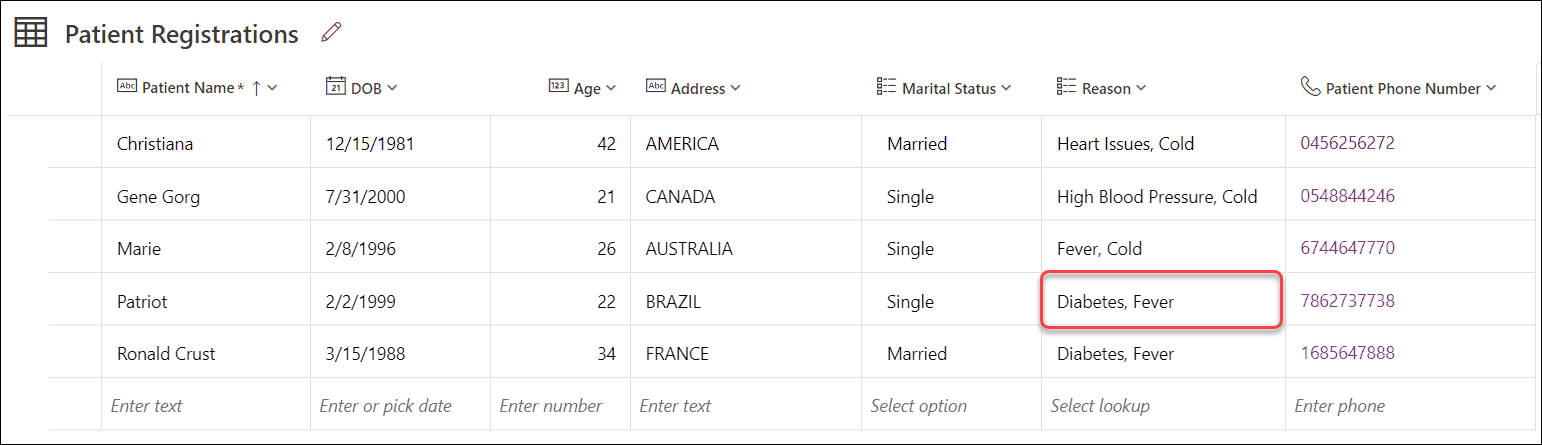
Patch a multi-select choice with fixed values
To set specific options on a multi-select column, put them in square brackets, which makes a table:
Patch(
    'Patient Registrations',
    LookUp('Patient Registrations', 'Patient Name' = "Patriot"),
    {Reason: ['Patient Disease Reason'.Diabetes, 'Patient Disease Reason'.Fever]}
)

Patch replaces the column’s whole value, so this sets exactly those two options. To add one to the existing list, combine them first, for example with Ungroup or by collecting the current values.
Patch from a dropdown
For standalone controls, bind a dropdown to the choice column:
Choices('Patient Registrations'.'Marital Status')Then patch its selection. Selected is a record with a Value field, and Value holds the choice itself:
Patch(
    'Patient Registrations',
    Defaults('Patient Registrations'),
    {'Patient Name': txtName.Text, 'Marital Status': ddMaritalStatus.Selected.Value}
)
If Power Apps shows a type error, try the other form (ddMaritalStatus.Selected); the error message tells you which type it expected.
Patch from a combo box
For a multi-select column, use a combo box with Items set to Choices('Patient Registrations'.Reason). On the modern combo box, set ItemDisplayText to ThisItem.Value and leave SelectMultiple on (it’s the default). Then patch Reason: cmbReason.SelectedItems.
If you get a type mismatch, check that the combo box’s Items come from Choices(...), not a text list, and that the column really allows multiple selections.
Update an existing record safely
LookUp finds the record to update. If it finds nothing, Patch fails, so check first and show a message:
With(
    {rec: LookUp('Patient Registrations', 'Patient Name' = txtSearchName.Text)},
    If(
        IsBlank(rec),
        Notify("No matching record found.", NotificationType.Warning),
        IfError(
            Patch('Patient Registrations', rec, {
                Reason: cmbReason.SelectedItems,
                'Marital Status': ddMaritalStatus.Selected.Value
            }),
            Notify(FirstError.Message, NotificationType.Error)
        )
    )
)
Patch itself isn’t subject to delegation, but the LookUp or Filter that finds the record can be, so filter on columns Dataverse can search. For showing choices in a gallery, see how to display Dataverse choices in a Power Apps gallery.
Common errors
- Type mismatch with {Value: “…”}. That’s SharePoint syntax. Use the choice option, such as ‘Choice Name’.Option.
- The option name isn’t found. You used the column name instead of the choice name. Let IntelliSense complete it.
- A multi-select column rejects a single option. Wrap it in square brackets to make a table.
- Patch fails on update. LookUp returned nothing. Check with IsBlank before patching.
These Power Apps and Dataverse tutorials may help next:
- The Best Way to Display Dataverse Choices in Power Apps Gallery
- Power Apps Get Value Of Choice Field Dataverse
- Update Multiple Rows in Dataverse Using Power Automate [Bulk Update Guide]
- How to Patch Power Apps Date Picker [SharePoint, Excel]
- How to Update SharePoint List Item Using Power Apps Patch Function?
- Power Apps Gallery Patch [With Various Examples]
Frequently Asked Questions
How do I patch a Dataverse choice column in Power Apps?
Use the choice name and option, such as {Status: ‘Status (Accounts)’.Active}. Microsoft shows this in the Patch function reference.
How do I patch a multi-select choice column?
Pass a table of options, such as [Choice.Diabetes, Choice.Fever], or a combo box’s SelectedItems.
Why does {Value: “…”} fail for Dataverse?
That record format is for SharePoint choice columns. Dataverse expects the option itself.
How do I compare a Dataverse choice value in a formula?
Compare with the option, such as Status = Status.Active, or convert it to text with Text(ThisItem.Status).

Preeti Sahu is a Microsoft MVP for Power Apps with over six years of experience working with SharePoint Online and the Power Platform. She is the co-author of the book Microsoft Power Platform: A Deep Dive. As a Power Platform developer, she has built various tools with Power Apps and Power Automate, and she makes Microsoft 365 videos for YouTube.
Very good post, Thank you.
I’ve use a gallery instaed of dropdown to update my choices field, it works well.