
I was building a patient intake app for a clinic when I hit a problem most people run into the first time they use Dataverse choices. The Patient Registrations table had a Reason column where staff could pick several reasons for a visit, such as Fever and Cold. In the gallery, I added a label, set it to the Reason column, and got an error instead of the reasons.
The reason is simple once you know it: a multi-select choice column isn’t a single value, it’s a small table of values. In this tutorial, I’ll show you two ways to display it, a nested gallery that lists each choice, and a one-line version with Concat().
Quick answer: A multi-select choice column is a table, so a label can’t show it directly. Either add a gallery inside the main gallery, set its Items to ThisItem.Reason and its label’s Text to ThisItem.Value, or show the choices on one line with Concat(ThisItem.Reason, Text(Value), ", ") in a label. A single-choice column works in a label as is, for example ThisItem.Category.
Why a label can’t show a multi-select choice column
When a Dataverse choice column allows multiple selections, Power Apps gives you a single-column table for each record. The column is called Value, and each row is one of the selected choices. A label’s Text property needs a single text value, so it can’t display a table.
Here’s the example table, Patient Registrations. Each patient can have one or more reasons:

Set a label in the gallery to ThisItem.Reason, and the label shows an error. The formula bar tells you why: the data type is Table.
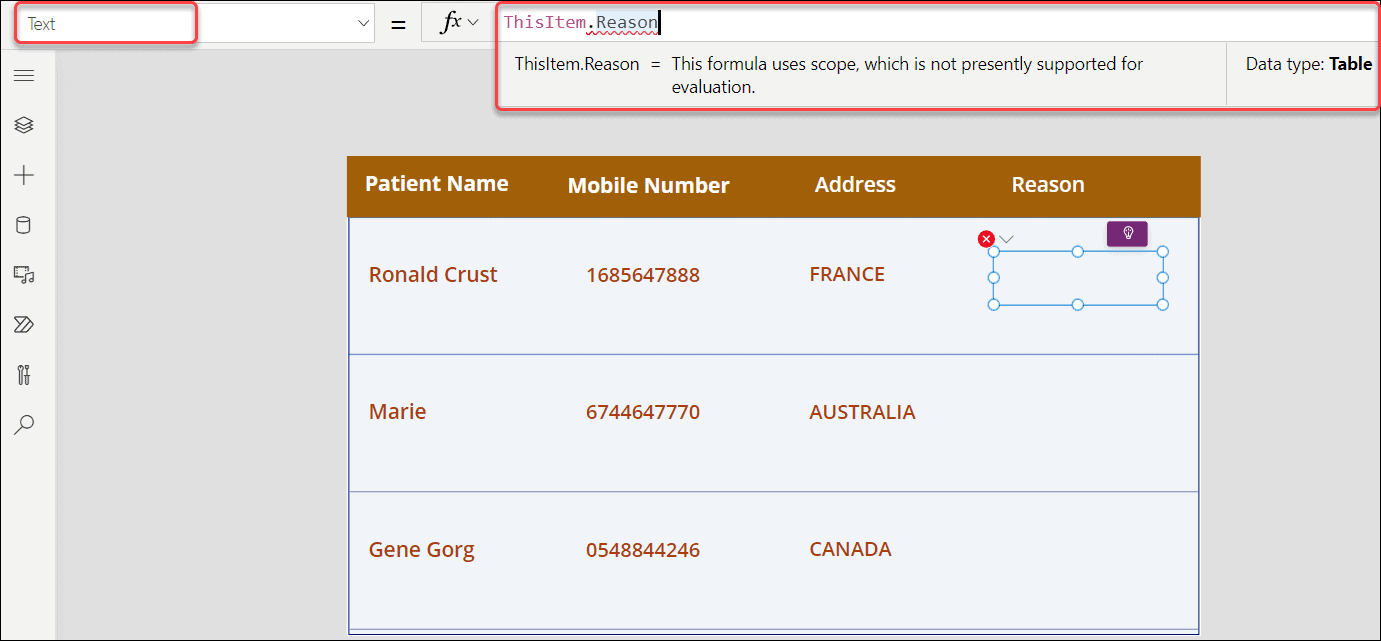
Single-choice columns don’t have this problem. A label with ThisItem.Category shows the choice’s label text directly.
Option 1: List the choices in a nested gallery
A gallery repeats its template for every record in a table, which is exactly what we need for the Reason table: one row per reason, inside each patient’s row.
Step 1: Set up the main gallery
Add a vertical gallery and set its Items to the table. In Power Apps Studio, Dataverse tables use their plural name:
'Patient Registrations'
Add labels for the patient’s name, phone number and address. If you already added a label for Reason that shows an error, delete it.
Step 2: Insert a gallery inside the main gallery
Select the first row (the template) of the main gallery, then insert a Vertical gallery from the Insert menu. Because the template is selected, the new gallery goes inside it and repeats in every row:

Rename it to something clear, such as Child Gallery, and position it under the Reason heading:

Power Apps allows two levels of galleries: you can’t put a gallery inside a gallery that’s already nested.
Step 3: Use a simple layout
With the child gallery selected, open Layout in the properties pane and choose the title-only layout, so each row has a single label:

Step 4: Bind the child gallery to the choice column
Set the child gallery’s Items to the Reason column of the current patient:
ThisItem.Reason
Here, ThisItem refers to the main gallery’s current patient. The formula bar shows the type as Table, which is exactly right for a gallery’s Items.
Step 5: Show each choice
Select the label inside the child gallery and set its Text to:
ThisItem.Value
Inside the child gallery, ThisItem now means one selected choice, so each row shows one reason: Diabetes and Fever for Ronald Crust, Fever and Cold for Marie, and so on. If you need the patient’s own fields in the child gallery, give the main gallery a name for its records, such as 'Patient Registrations' As Patient, and use Patient.Name.
Step 6: Tidy up the design
The child gallery comes with a separator and a next arrow for each row, which you don’t need here. Delete both from the tree view:

Then tighten the layout. Reduce the child gallery’s TemplateSize (the height of each row) and TemplatePadding (the space between rows), and adjust the font size and color so the reasons stand out:

Option 2: Show the choices on one line with Concat
If you’d rather keep the layout flat, turn the table into a single line of text. In the main gallery, add a label and set its Text to:
Concat(ThisItem.Reason, Text(Value), ", ")Concat() goes through each selected choice, converts it to text with Text(Value), and joins them with a comma and a space, so Ronald Crust’s row reads Diabetes, Fever. This version is lighter than a nested gallery and easier to fit into a compact row.
Useful things to know about Dataverse choices
To filter by a choice, compare with the choice value itself, not its text. For a single-choice column, write something like Filter('Patient Registrations', Status = Status.Active) rather than comparing with the text “Active”.
To list every possible choice, for example in a dropdown filter, use Choices('Patient Registrations'.Reason). Keep in mind that Choices can’t be delegated, which rarely matters because the list of choices is small.
If you add new choices to the column in Dataverse and they don’t show in your app, refresh the table: in the Data pane, select the … next to it and choose Refresh. And if you’re creating the column yourself, decide on multiple selections at the start: the Selecting multiple choices is allowed option can’t be changed after the column is created.
These Power Apps tutorials cover more gallery and choice techniques:
- Patch Dataverse Choice Column in Power Apps [Single & Multi-choices]
- Easiest Way to Filter Gallery By Radio Button in Power Apps
- Power Apps Gallery Filter: Search, Dropdown, Date & More
- How to Use Power Apps Nested Gallery? [With Examples]
- How to Patch Power Apps Combo Box [With Examples]
- How to Use Power Apps Gallery Dropdown [Step-by-Step]
Frequently Asked Questions
Why can’t I show a multi-select choice column in a Power Apps label?
A multi-select choice column is a table of values, and a label can only show one value. Use a nested gallery, or Concat to join the values into one line of text.
How do I display a Dataverse multi-select choice column in a gallery?
Add a gallery inside the main gallery, set its Items to ThisItem.YourColumn, and set its label’s Text to ThisItem.Value.
How do I show multiple choice values as comma-separated text in Power Apps?
Use Concat(ThisItem.Reason, Text(Value), “, “) in a label. Microsoft uses the same pattern in its training module on choice columns.
How many levels of nested galleries does Power Apps allow?
Two. You can put a gallery inside another gallery, but not inside a gallery that’s already nested.

Preeti Sahu is a Microsoft MVP for Power Apps with over six years of experience working with SharePoint Online and the Power Platform. She is the co-author of the book Microsoft Power Platform: A Deep Dive. As a Power Platform developer, she has built various tools with Power Apps and Power Automate, and she makes Microsoft 365 videos for YouTube.