
I often see this issue in service desk and inventory apps. A Power Apps Dropdown connected to a SharePoint list shows “IT,” “HR,” and “Finance” several times because multiple records use the same department value.
That makes a simple filter look unpolished and forces users to scroll through repeated options. The good news is that you can remove duplicates in a Power Apps Dropdown with one practical Power Fx formula.
This guide shows how to build a clean, sorted dropdown for a service request app, including text, Choice, and lookup-style columns.
Why Power Apps Dropdowns Show Duplicates
A Power Apps Dropdown control displays every record returned by its Items property. If you set the Items property to a data source column without transforming it, Power Apps returns every matching row.
For example, imagine a SharePoint list named ServiceRequests.
| Title | Department | Status |
|---|---|---|
| Laptop setup | IT | Open |
| New employee access | IT | Closed |
| Leave policy question | HR | Open |
| Payroll query | Finance | Open |
| VPN issue | IT | Open |
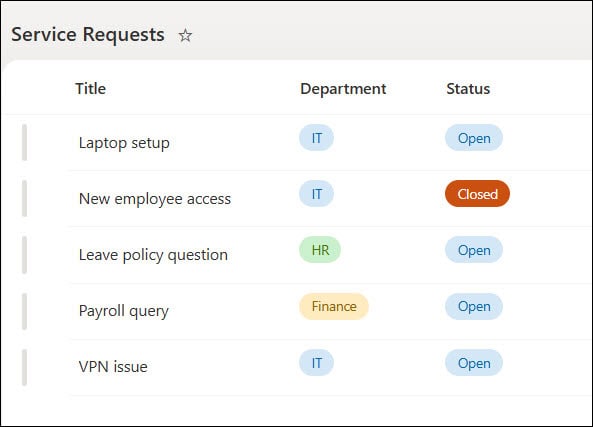
If you use this formula in a Power Apps Dropdown control:
'Service Requests'.Department
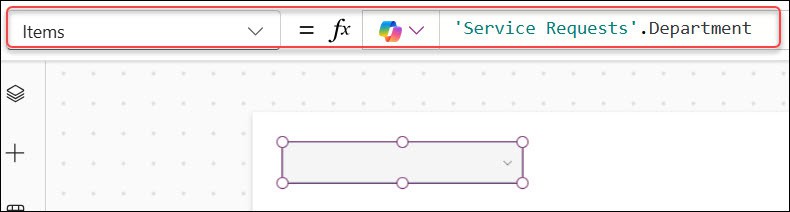
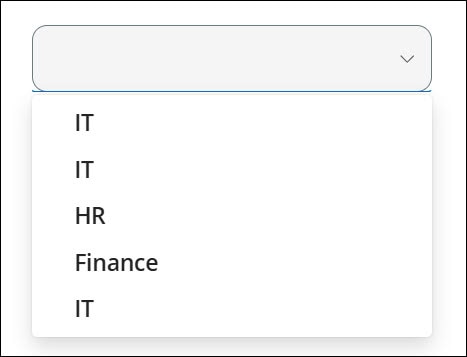
The Dropdown shows IT three times. It pulls values from every list item, not a unique list of departments.
The solution is the Distinct function. It creates a one-column table containing only unique values.
If you are still learning the basics of the control, review this guide on the Power Apps Dropdown control before building the formula.
Remove Duplicates in Power Apps Dropdown
Let’s create a department filter dropdown in a Canvas app. A Canvas app gives you full control over the screen layout, controls, and Power Fx formulas.
In this example, the app uses a SharePoint list called ServiceRequests with a text column named Department.
Step 1: Add the SharePoint list
Open your Canvas app and add the ServiceRequests list as a data source.
- Select Data from the left navigation.
- Select Add data.
- Search for and select SharePoint.
- Choose your SharePoint site.
- Select the
ServiceRequestslist. - Select Connect.
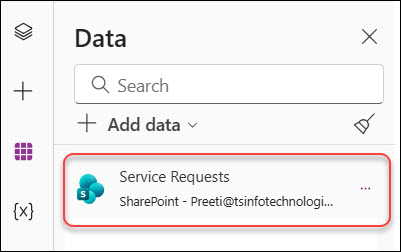
A SharePoint list works well for lightweight business apps such as issue trackers, leave requests, and inventory registers. If you need help with the setup, see how to create a Canvas app from a SharePoint list.
Step 2: Insert a Dropdown control
Insert a modern Dropdown control on the screen and rename it to:
drpDepartment
Clear control names save time later. When a screen contains several filters, names like drpDepartment, drpStatus, and drpPriority make your formulas much easier to read.
Select the Dropdown, then choose the Items property from the formula bar.
Step 3: Use Distinct to remove duplicate values
Set the Items property to this formula:
Choices('Service Requests'.Department)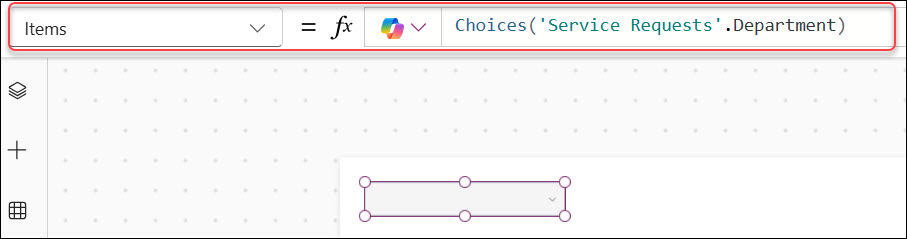
As the Department column is a SharePoint choice column, we need to provide the Choices function.
If your SharePoint column (Departments) is a text column, then we can write the code as:
Distinct('Service Requests', Departments)
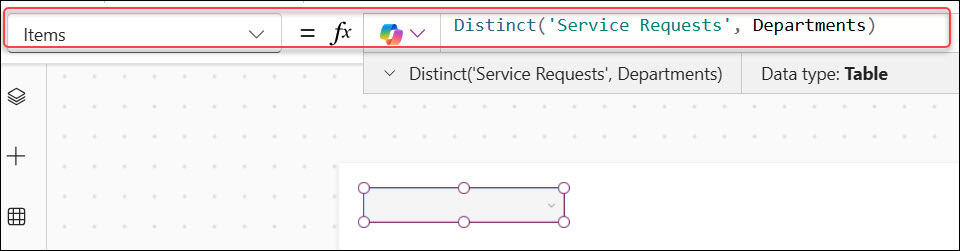
The Distinct function checks the Department value in every ServiceRequests record and returns each department only once.
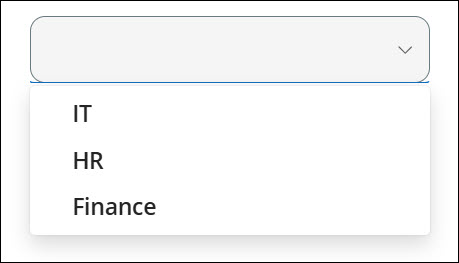
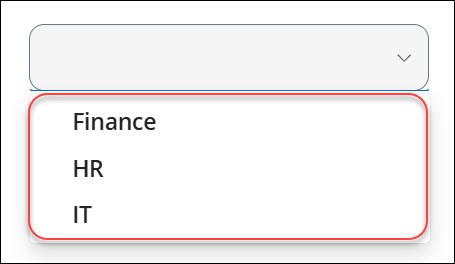
Your Dropdown now shows:
- Finance
- HR
- IT
Instead of repeated values.
Distinct returns a single-column table. In current Power Apps, that output column is called Value Select the Dropdown and set its ItemDisplayText property to:
ThisItem.Value
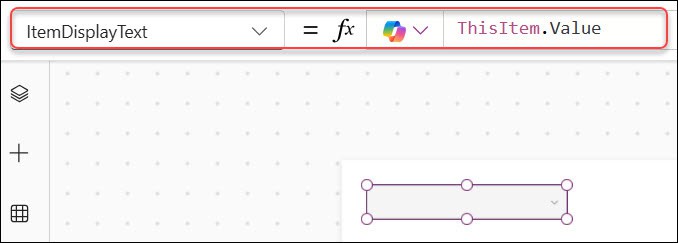
This tells the Dropdown which column it should display to the user.
Once you preview the app and expand the chevron menu from the dropdown menu, you can see the unique values as shown below:
Pro Tip: In client apps, I always check the output of
Distinctin a temporary Gallery before I finish the formula. It quickly confirms the returned column name and helps catch blank or unexpected values early.
Sort Unique Power Apps Dropdown Values
Removing duplicates solves half the problem. Users also expect options to appear in a sensible order.
Use this formula in the Dropdown’s Items property to remove duplicates and sort the result alphabetically:
Sort(
    Choices('Service Requests'.Department),
    Value,
    SortOrder.Ascending
)
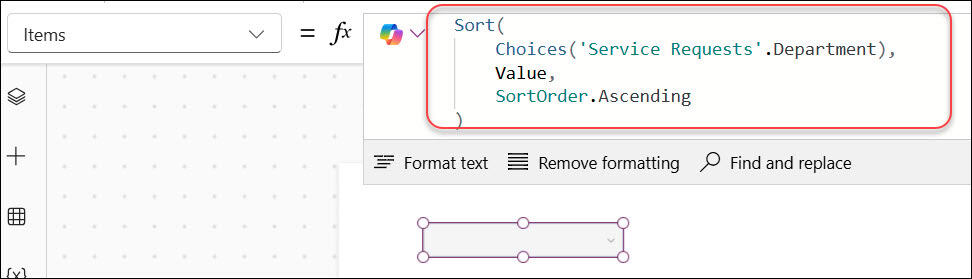
This formula works from inside out:
- Choices builds a unique list of department names.
- Sort arranges that unique list alphabetically.
- Value identifies the one column returned by Distinct.
- SortOrder.Ascending places A–Z values first.
Keep the Dropdown’s ItemDisplayText property set to:
ThisItem.Value
This pattern works especially well when users filter a Gallery. A Gallery is a control that repeats a layout for every record, such as every service request or inventory item.
For more ideas on using dropdown selections with galleries, see this tutorial on using a Gallery dropdown in Power Apps.
Filter Power Apps Gallery With Dropdown
Now connect the clean department list to a Gallery named galRequests.
Set the Gallery’s Items property to:
Filter(
    'Service Requests',
    IsBlank(drpDepartment.Selected.Value) ||
    Department.Value = drpDepartment.Selected.Value
)
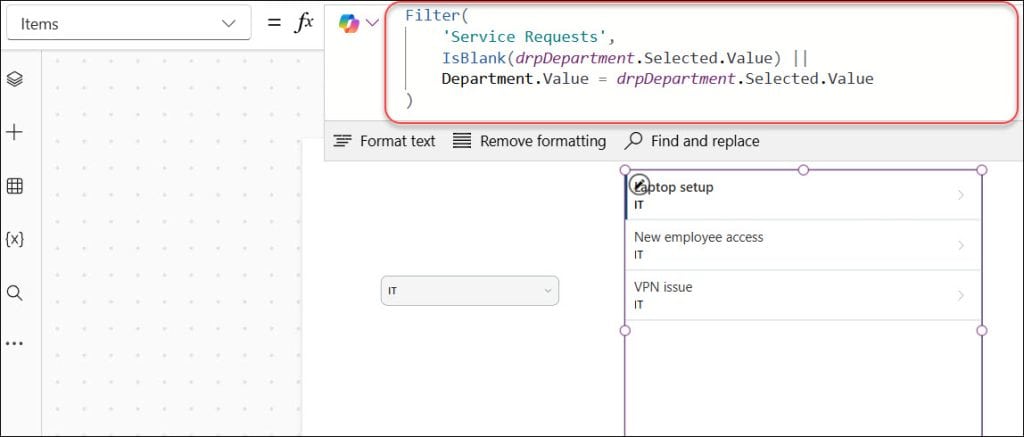
This formula does two useful things:
- It shows all service requests when the user has not selected a department.
- It filters the Gallery when the user selects IT, HR, or Finance.
The Selected.Value expression reads the value selected in the Dropdown. The IsBlank check prevents the Gallery from appearing empty before the user chooses an option.
You can also add an “All Departments” option if your app needs a clearer filter experience. For more filtering patterns, see how to filter a Power Apps Gallery with multiple dropdowns.
Remove Power Apps Dropdown Duplicates From a Choice Column
Many SharePoint apps use a Choice column instead of a plain text column. A Choice column stores a structured value, so you need to reference its .Value property.
For example, if Department is a SharePoint Choice column, use this formula:
Sort(
    Distinct('Service Requests', Department.Value),
    Value,
    SortOrder.Ascending
)
Then keep the Dropdown’s ItemDisplayText property as:
ThisItem.Value
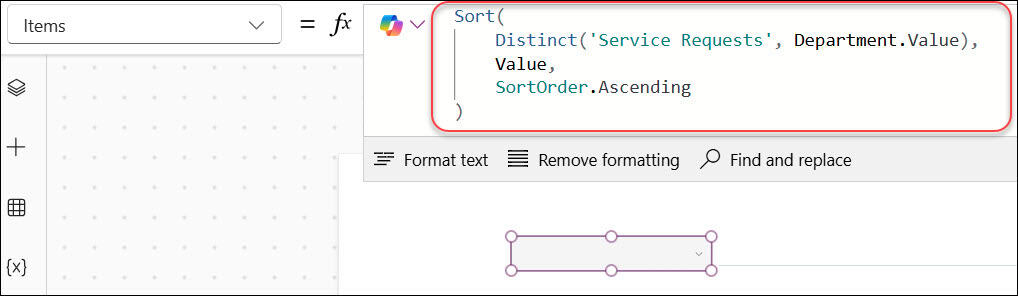
The important difference is Department.Value. It extracts the readable text, such as “IT,” from the SharePoint Choice record.
This same idea applies when you work with other complex columns. If Power Apps reports a record-versus-text error, check whether the column needs .Value, .Title, or another field from the record.
Remove Blank Values Too
A blank option often appears because one or more SharePoint records have an empty Department value. You can remove blanks while you remove duplicates.
Use this formula:
Sort(
    Distinct(
        Filter(
            'Service Requests',
            !IsBlank(Departments)
        ),
        Departments
    ),
    Value,
    SortOrder.Ascending
)
This formula first filters out records where Department is blank. It then creates a unique list and sorts it.
For a SharePoint Choice column, use:
Sort(
    Distinct(
        Filter(
            'Service Requests',
            !IsBlank(Department.Value)
        ),
        Department.Value
    ),
    Value,
    SortOrder.Ascending
)
I use this approach in production apps because blank filter options confuse users. A blank department does not tell users what the filter will do.
Use a Collection for Reusable Dropdown Values
For a single Dropdown, placing the formula directly in the Items property is usually enough. However, a collection helps when several controls need the same unique department list.
A collection is a temporary in-memory table stored while the app runs. Add this formula to the app’s OnStart property:
ClearCollect(
    colDepartments,
    Sort(
        Distinct(
            Filter(
                ServiceRequests,
                !IsBlank(Department)
            ),
            Department
        ),
        Value,
        SortOrder.Ascending
    )
)
Then set the Dropdown’s Items property to:
colDepartments
Set the ItemDisplayText property to:
ThisItem.Value
ClearCollect clears the old collection and loads a fresh set of department values. This makes sense when your app uses the same department filter on multiple screens.
Learn more about creating a collection when a Power Apps app starts if you want to use this pattern.
Refresh the collection after adding records
If users create new service requests inside the app, refresh the list and rebuild the collection after saving.
For example, after a successful form submission, use:
Refresh(ServiceRequests);
ClearCollect(
    colDepartments,
    Sort(
        Distinct(
            Filter(
                ServiceRequests,
                !IsBlank(Department)
            ),
            Department
        ),
        Value,
        SortOrder.Ascending
    )
)
Without this refresh, a newly added department may not appear until the user restarts the app.
Things to Keep in Mind
- Use the correct column type: Text columns use
Department, while SharePoint Choice columns usually needDepartment.Value. - Remove blanks deliberately: Add
Filter(..., !IsBlank(...))when empty options do not serve a clear purpose. - Watch delegation warnings: Distinct may not delegate to SharePoint, which means Power Apps may only process the first set of records from a large list. Review Power Apps delegation warnings before using this formula against large data sources.
- Sort after Distinct: Run Distinct first, then sort the smaller unique result table for a cleaner formula and better user experience.
- Avoid collections by default: Use a collection only when multiple controls need the same data or when you need to control refresh timing.
- Use controlled values where possible: A SharePoint Choice column prevents users from typing “IT,” “I.T.,” and “Information Technology” as separate department values.
Frequently Asked Questions
How do I remove duplicates from a Power Apps Dropdown?
Use the Distinct function in the Dropdown’s Items property. For a text column, use Distinct(DataSource, ColumnName), then set the Dropdown’s Value property to "Value".
Why does my Power Apps Dropdown still show duplicate values?
Check whether you used the actual field value. For a SharePoint Choice column, use ColumnName.Value instead of only ColumnName; otherwise, Power Apps works with the full record rather than the displayed text.
How do I remove blank values from a Power Apps Dropdown?
Filter blank records before using Distinct. For example, use Distinct(Filter(ServiceRequests, !IsBlank(Department)), Department) and wrap it in Sort if you want alphabetical values.
Can I use Distinct with a SharePoint list in Power Apps?
Yes, you can use Distinct with a SharePoint list. However, it may create a delegation warning for large lists, so test the result with realistic data volumes.
What is the Value property in a Power Apps Dropdown?
The Value property tells a classic Dropdown which field from its Items table it should display. Since Distinct returns a one-column table named Value, set this property to "Value".
Should I use a Dropdown or Combo box for unique values?
Use a Dropdown when users need to select one value from a short list. Use a Combo box when the list is long, users need to search, or users can select multiple values; compare the two controls in this guide on Power Apps Combo box vs Dropdown.
You may also like:
- Populate distinct values in a Power Apps Combo box
- Power Apps Gallery Dropdown
- Sort a Power Apps Dropdown alphabetically
- Set a default value in a Power Apps Dropdown
- Get the selected value from a Power Apps Dropdown
- Validate a Power Apps Dropdown control
A clean Dropdown starts with a focused data source, filters blank records, removes duplicates with Distinct, and sorts the final values. Start with the direct Items formula, then use a collection only when your app genuinely needs reusable dropdown data. I hope you found this article helpful.

Preeti Sahu is a Microsoft MVP for Power Apps with over six years of experience working with SharePoint Online and the Power Platform. She is the co-author of the book Microsoft Power Platform: A Deep Dive. As a Power Platform developer, she has built various tools with Power Apps and Power Automate, and she makes Microsoft 365 videos for YouTube.
Hi Bijay, This is very detailed article and guide. I got this query – I got SharePoint list is called DataForHardwareALert and I have two columns in this list. 1) HardwareName 2) HardwareStatus
Both column list is set to allow duplicate entries in sharepoint list. I can see duplicate entries of the same HardwareName(Test1) with different HardwareStatus(Offline or Online) with different timestamps, For e.g If Test1 has two entries saved where HardwareStatus is Offline but at different timestamps under the “Created” column in the sharepoint list.
Q1) I want to use this SharePoint list to be displayed in the power apps’s gallery. I want to use the most recent (timestamp) for the same HardwareName and HardwareStatus. For e.g I got 2:00 AM and 04:00 AM entries for Test1, I want to lsit the 04:00 AM entry in power Apps gallery.