
Power Automate employee onboarding works best with a SharePoint list as the hub: HR adds one row per new hire, and flows send the welcome email, remind the manager before the start date, and track the checklist. The key is to schedule the reminders with a daily check, not with long Delay until steps.
I’ll build that setup for Contoso with a New Hires list and two flows. One sends a welcome email when a start date is confirmed. The other runs every morning and emails managers whose hire starts in seven days. Along the way, I’ll show the design mistakes that send duplicate emails, or none at all.
Quick answer: Create a SharePoint list with Employee Name, Start Date, Manager (Person) and Hire Status. Build a scheduled cloud flow that runs daily, uses Get items with a filter such as StartDate ge today + 7 days and StartDate lt today + 8 days, and sends Send an email (V2) to each manager. Use trigger conditions on any created or modified flow.
What an onboarding workflow should do
Most teams need the same few things, in this order:
- Capture the new hire in one place, usually a SharePoint list that HR fills in.
- Welcome the employee once the start date is final.
- Remind the manager and IT a week before day one: laptop, accounts, access, first-week schedule.
- Track tasks until everything is done, with reminders for overdue items.
Power Automate handles each of these with standard SharePoint and Outlook actions, so you don’t need a premium license. If you want new hires added to Teams or SharePoint groups too, see how to add multiple users to a SharePoint group.
Step 1: Create the New Hires list
My list is called Contoso New Hires. I renamed the Title column to Employee Name and added these columns:
| Column | Type | Why |
|---|---|---|
| Job Title | Single line of text | Used in emails |
| Department | Choice | Routes tasks to the right team |
| Start Date | Date only | Drives every reminder |
| Manager | Person or Group | Gives the flow an email address |
| Hire Status | Choice: Offer Accepted, Start Date Final, Started | Stops emails until the date is confirmed |
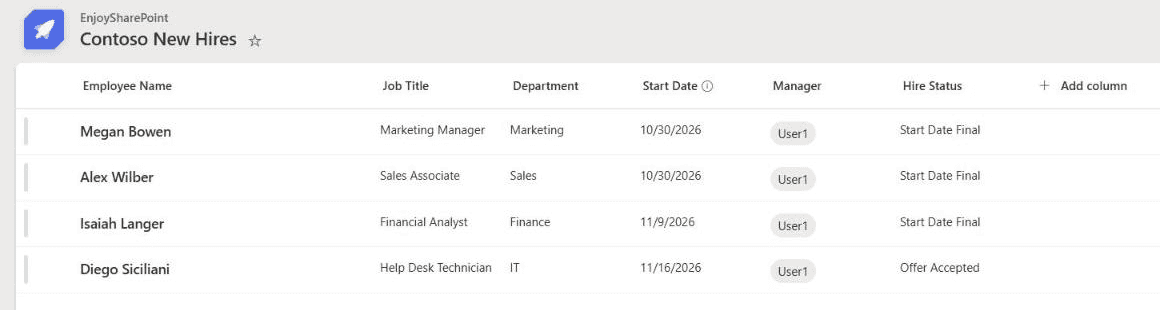
Use a Person column for the manager rather than typing an email address. It keeps addresses valid, and the flow reads the email from Manager/Email. Microsoft Lists also has a ready-made Employee onboarding template if you’d rather start from that.
Why Delay until is the wrong tool
Many onboarding flows, including an earlier version of this post, use the When an item is created or modified trigger and then Delay until the start date minus seven days. It looks simple, but it breaks in three ways:
- Every edit starts another run. If HR fixes a typo, a second run starts waiting, and the manager gets two emails.
- Runs time out after 30 days. Microsoft limits a cloud flow run to 30 days, including waiting steps. A hire added six weeks ahead never gets the reminder.
- Date changes are missed. A waiting run keeps the old start date, even if HR moves it.
A scheduled flow avoids all three. It runs once a day, reads the current data, and only acts on hires whose date matches today’s window. The same pattern works for any date-based reminder, such as a monthly due date reminder email.
Step 2: Build the daily reminder flow
Select Create > Scheduled cloud flow, name it, set Repeat every to 1 Day and a start time such as 8:00 AM, and select Create.
Get the hires who start in seven days
Add Get items, select the site and the Contoso New Hires list, and open Advanced parameters. In Filter Query, enter this. The two formatDateTime() parts become expression tokens:
HireStatus eq 'Start Date Final' and StartDate ge '@{formatDateTime(addDays(utcNow(), 7), 'yyyy-MM-dd')}' and StartDate lt '@{formatDateTime(addDays(utcNow(), 8), 'yyyy-MM-dd')}'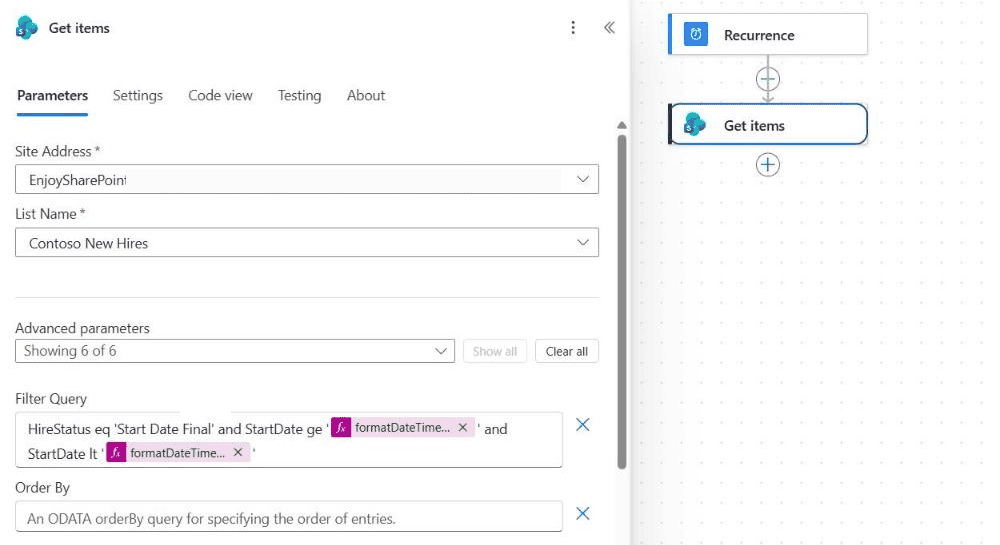
The ge and lt pair selects one full day, which is safer than eq on a date column. The choice value must match exactly, including spaces: 'Start Date Final', not 'StartDateFinal'. For more operators, see Power Automate filter query operators.
Email each manager
Add an Apply to each over the Get items value, and inside it add Send an email (V2):
- To: the Manager Email dynamic content,
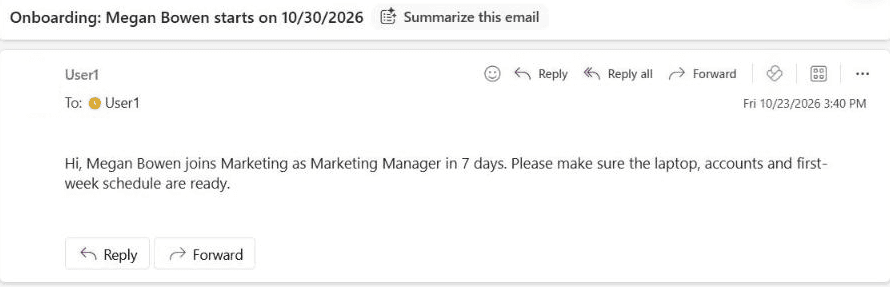
items('Apply_to_each')?['Manager/Email']. - Subject: Onboarding: [Employee Name] starts on [Start Date], with the date formatted as
MM/dd/yyyy. - Body: the department, job title, and what the manager should prepare.
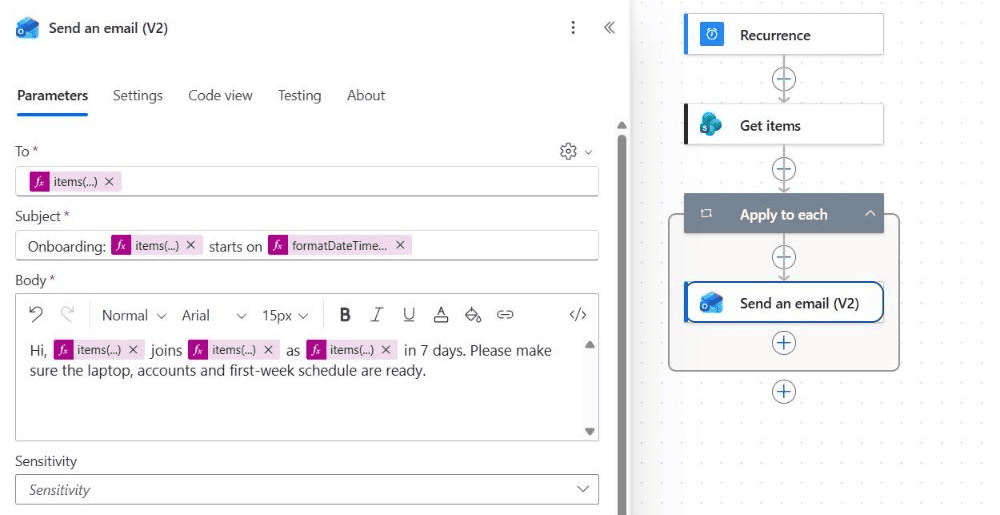
If the To box won’t accept an expression, open its settings (gear icon) and select Use dynamic content. For the other email options, see how to use the Send an email (V2) action.
Test the flow
I tested on 10/23/2026. Megan Bowen and Alex Wilber both start on 10/30/2026, so the loop ran twice. Isaiah Langer starts later, and Diego Siciliani’s date isn’t final yet, so neither got an email.
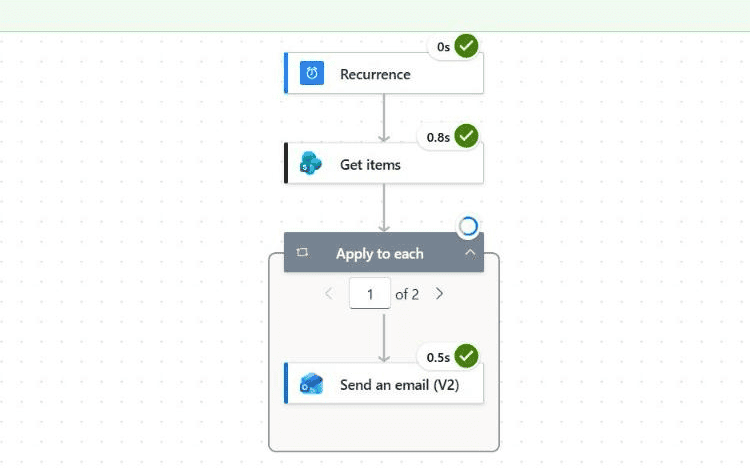
Add more reminders the same way: change 7 to 1 for a day-before email, or to -1 for a first-day follow-up. Each one is just another filter window.
Step 3: Send the welcome email without duplicates
For the welcome email, an automated flow with When an item is created or modified is fine, as long as it only runs when it should. Open the trigger, go to Settings, and under Trigger conditions select + Add:
@equals(triggerOutputs()?['body/HireStatus/Value'], 'Start Date Final')When the condition isn’t met, the flow doesn’t run at all, so edits to other hires don’t send anything. To send the welcome only once, add a Yes/No column such as Welcome Sent, add a second condition that it’s false, and set it to Yes with Update item after the email.
The welcome email goes to the new hire’s personal address, which you can store in another column. If several people need it, see how to send an email to multiple recipients from a SharePoint list.
Step 4: Track onboarding tasks
For the checklist, create an Onboarding Tasks list with Task, Assigned To, Due Date and Status. When the start date becomes final, a flow can create the standard tasks with Create item, each with a due date relative to the start date. See how to create SharePoint list items using Power Automate.
Then reuse the daily pattern: one more scheduled flow that finds tasks with Status ne 'Done' and DueDate lt today and reminds the person assigned.
Best practices
- Use a service account or shared mailbox for the connections, so reminders don’t stop when someone leaves.
- Keep names and addresses in the list, not hard-coded in the flow.
- Add an error alert: a parallel branch with Configure run after set to has failed, which emails the flow owner.
- Check the run history weekly for the first month, then rely on the alert.
- Start small: welcome email and manager reminder first, tasks and approvals later.
These Power Automate tutorials help with the rest of onboarding:
Frequently Asked Questions
Can Power Automate handle employee onboarding without a premium license?
Yes. SharePoint, Outlook, Teams and Planner actions are standard connectors, so a SharePoint list plus scheduled flows works with a Microsoft 365 license.
Why did my onboarding flow send duplicate emails?
A created or modified trigger starts a new run on every edit. Use trigger conditions, a Welcome Sent column, or a daily scheduled flow instead of Delay until.
How long can a Delay until step wait?
A cloud flow run can last up to 30 days, including waiting steps, as listed in Power Automate limits and configuration. Anything longer times out.
How do I filter SharePoint items by a date in seven days?
Use StartDate ge with formatDateTime(addDays(utcNow(), 7), ‘yyyy-MM-dd’) and StartDate lt with addDays(utcNow(), 8) in the Get items Filter Query.
Where does the manager’s email come from?
Use a Person or Group column for the manager. The flow reads the address from Manager/Email.

I have worked with Microsoft technologies for more than 18 years, including SharePoint, Microsoft 365 and the Power Platform (Power Apps, Power Automate and Power BI), at companies like HP, TCS and KPIT. I started EnjoySharePoint in 2011 to share the solutions I build in real projects with readers in the United States, Canada, the United Kingdom, Australia, New Zealand and beyond. Microsoft has recognized this work with the Microsoft MVP award 13 times since 2014.