
A project manager I worked with wanted their task list to react differently depending on priority. Low-priority tasks only needed a quick Teams message, medium ones needed a reminder as the deadline got close, and high-priority tasks called for a meeting with the person doing the work. My first draft used nested Conditions, and after the third level even I had trouble following which branch did what.
I rebuilt it with a Switch control, and the flow became much easier to read: one Switch, one case per priority, and a default for anything else. In this tutorial, I’ll walk you through that flow.
Quick answer: Add a Switch control, set On to the value you want to check (for example a SharePoint choice column’s Value), and select + Add case for each value, such as Low, Medium and High. Add the actions for each case inside it, and put the actions for any other value in Default. Only the first matching case runs, case values must be fixed text or numbers, and a Switch can have up to 25 cases.
What the Switch control does
A Switch looks at one value and runs the branch whose case matches it. If none of the cases match, it runs the Default branch. Only one branch ever runs, so it’s a tidy replacement for a chain of “if this, else if that” Conditions. Microsoft documents the behavior in the switch action article, which applies to Power Automate as well, because both use the same workflow engine.
There are a few rules to know before you design a flow around it. Each case compares the value for equality only, so there’s no “greater than” or “contains”. Case values must be unique, and they must be static values that you type in, not dynamic content or expressions. And a Switch can hold up to 25 cases, according to the Power Automate limits.
When should you choose a Switch over a Condition? I use a Switch when I’m checking one value against several known options, such as a status, a priority or a department. When the logic depends on ranges or on several different fields, Conditions are still the better tool.
The example: a Task Details list
The flow runs on a SharePoint list called Task Details. It has Task Title (the Title column), Task Description, Assigned To (Person), Task Priority (a Choice column with Low, Medium, High and No Priority), Task Start Date, Task End Date, a Manager (Person) column and a Task Deadline calculated column, set to two days before the end date with the formula =[Task End Date]-2.

The Switch checks Task Priority and runs a different action for each value:
| Case | Task Priority | What the flow does |
|---|---|---|
| Case 1 | Low | Sends a Teams message to the assigned person |
| Case 2 | Medium | Sends a reminder email if the end date is within 10 days, otherwise a Teams message |
| Case 3 | High | Creates a Teams meeting with the assigned person and their manager |
| Default | Any other value (No Priority) | Sends a standard email with the task details |
Step 1: Create the flow and add the Switch
In Power Automate, select + Create > Automated cloud flow, give the flow a name, and choose the SharePoint trigger When an item is created or modified. Then select the Site Address and List Name.

Add a Switch action from the Control group. In On, select Task Priority Value from the dynamic content. For a Choice column, it’s the Value property that holds the text, so make sure you pick that rather than the column itself. The Switch appears with an Add case button and a Default branch.

Step 2: Case 1, Low priority
Select + Add case and type Low in the case’s Equals box. The value must match the choice exactly, so I always copy it from the list’s choices to avoid typos or stray spaces.

Inside the case, add the Teams action Post message in a chat or channel. Set Post as to Flow bot, Post in to Chat with Flow bot, and Recipient to the Assigned To email from the dynamic content, then write the message with the task details (Teams connector reference).

Step 3: Case 2, Medium priority
Add a second case with the value Medium. For medium tasks, the flow should nudge people only when the deadline is getting close, so this case contains a Condition of its own.

Add a Condition inside the case. On the left, choose Task End Date; pick is less than; and on the right, enter this expression, which works out the date 10 days from now:
addDays(utcNow(), 10)
In the True branch, add Send an email (V2) with the Assigned To email in To, a subject such as Task deadline reminder, and the task details in the body.

In the False branch, add the same Post message in a chat or channel action as in Case 1, so the person still hears about the task without an urgent-looking email.

Step 4: Case 3, High priority
Add a third case with the value High. High-priority tasks get a meeting, so the assigned person and their manager can agree on the plan.

Inside it, add the Teams action Create a Teams meeting. Choose the Calendar id, use the Task Title as the Subject and the Task Description in Event message content, and pick your Time zone.
For Start time, select Task Deadline; for End time, add one hour to it with an expression like the one below (use your column’s internal name). Put the Assigned To email in Required attendees and the Manager email in Optional attendees.
addHours(triggerOutputs()?['body/TaskDeadline'], 1)
Step 5: The Default case
Anything that doesn’t match Low, Medium or High, including No Priority, lands in Default. Here I added a Send an email (V2) that tells the assigned person about the new task, with its details in the body.
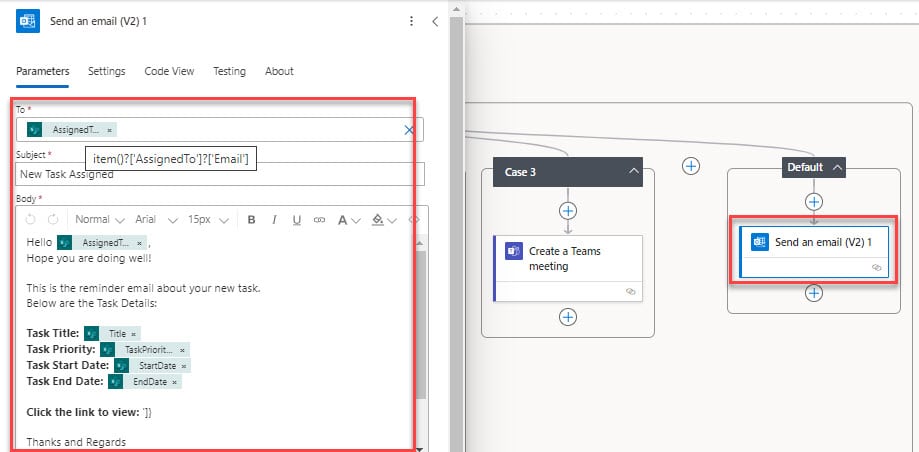
It’s worth always putting something in Default, even if it’s just an email to yourself. It catches values you didn’t expect, such as a choice someone added to the list later.
Step 6: Test the flow
Save the flow and add a few items to the list with different priorities:

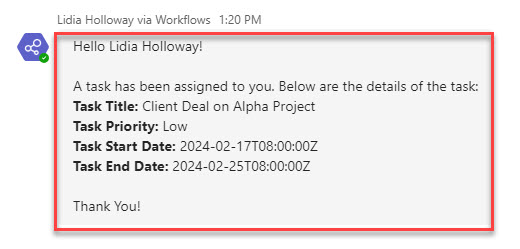
Each item runs exactly one branch. The Low task produced a Teams message from the Flow bot:
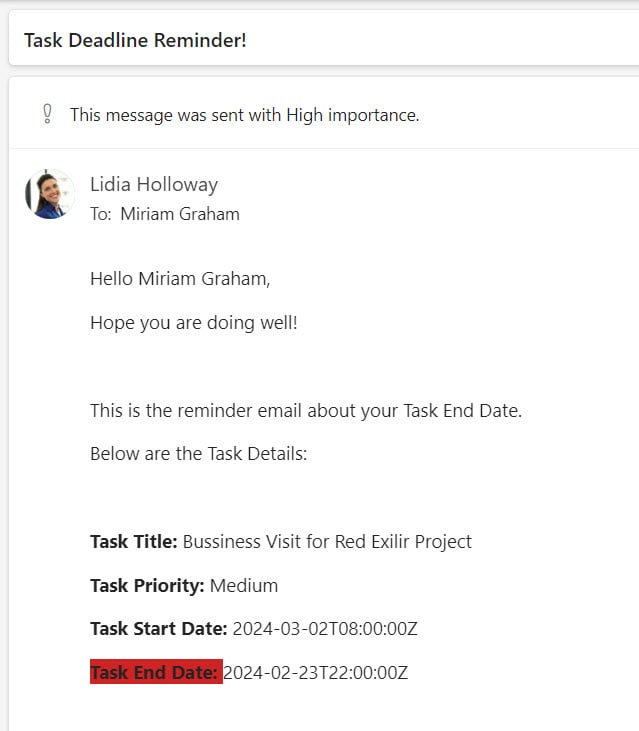
The Medium task, due within 10 days, produced the reminder email:
The High task created a Teams meeting in the calendar:

And the task with No Priority went to the Default branch and sent the standard email:

You may notice that the dates in these messages appear in the raw format, such as 2026-02-17T08:00:00Z. To make them friendlier, wrap them in formatDateTime(), for example formatDateTime(triggerOutputs()?['body/TaskEndDate'], 'MMMM d, yyyy').
Can one case match several values?
Not directly: each case holds one value, and it can’t be an expression. When I need several values to share a branch, for example High and Critical, I put an expression in the Switch’s On box that turns them into one value first:
if(or(equals(triggerOutputs()?['body/TaskPriority/Value'], 'High'), equals(triggerOutputs()?['body/TaskPriority/Value'], 'Critical')), 'Urgent', triggerOutputs()?['body/TaskPriority/Value'])Then a single case with the value Urgent handles both. If the list of values grows, a Condition with an or may be clearer.
Tips from real flows
Because this flow uses When an item is created or modified, it runs every time someone edits a task, and people can get the same message several times. If you only want it once, use When an item is created instead, or add a trigger condition that checks whether the priority has changed.
Also watch for exact matches. A case value of High won’t match “High ” with a trailing space, and I wouldn’t rely on the comparison ignoring upper and lower case. When the value comes from free text rather than a choice column, I tidy it up first with trim() and toLower() in the On box, and type the case values in lower case.
Finally, remember the limit of 25 cases. If you’re getting close, it’s usually a sign that the mapping belongs in a SharePoint list that the flow looks up, rather than in the flow itself. For more on filtering when the flow starts, see trigger conditions in Power Automate.
These Power Automate guides cover more ways to branch a flow:
- Power Automate Trigger Conditions Examples
- How to Send Email Using If Condition in Power Automate?
- Power Automate If Contains [With Examples]
- How to Check If a String is Empty in Power Automate?
- How to Update SharePoint List Items Based On Condition Using Power Automate?
- How to Send Teams Messages Using Power Automate?
Frequently Asked Questions
What is the Switch control in Power Automate?
Switch checks one value and runs the case whose value matches it. If no case matches, it runs the Default branch. Only one branch runs each time.
How many cases can a Switch have in Power Automate?
Up to 25 cases per Switch, according to the Power Automate limits. Case values must be unique.
Can I use an expression or dynamic content as a Switch case value?
No. Case values must be static text or numbers. You can use an expression in the Switch’s On box instead, for example to combine several values into one.
When should I use Switch instead of a Condition?
Use Switch when you compare one value against several fixed options, such as a status or priority. Use Conditions for ranges, contains checks or logic that uses several fields.
How do I use a SharePoint choice column in a Switch?
Set On to the column’s Value property from the dynamic content, such as Task Priority Value, and type each choice exactly as it appears in the list as a case value.

I have worked with Microsoft technologies for more than 18 years, including SharePoint, Microsoft 365 and the Power Platform (Power Apps, Power Automate and Power BI), at companies like HP, TCS and KPIT. I started EnjoySharePoint in 2011 to share the solutions I build in real projects with readers in the United States, Canada, the United Kingdom, Australia, New Zealand and beyond. Microsoft has recognized this work with the Microsoft MVP award 13 times since 2014.