
A regional sales director once asked me why the “average sale” in their Power BI report didn’t match the number their finance team calculated in Excel. Both were right. Power BI was averaging individual transactions; finance was averaging monthly totals. The fix was one line of DAX: switching from AVERAGE to AVERAGEX.
DAX has three averaging functions, AVERAGE, AVERAGEA and AVERAGEX, and they differ in what they count and what they skip. In this tutorial, I’ll explain each one with a small example, and then walk through four real-world measures, including a 7-day rolling average.
Quick answer: Use AVERAGE(Table[Column]) for the mean of a numeric column; it skips blanks and counts zeros. Use AVERAGEA when the column holds TRUE/FALSE values, which count as 1 and 0. Use AVERAGEX(Table, Expression) when you need to average a calculation row by row, or averages of totals, such as AVERAGEX(VALUES('Date'[Month]), [Total Sales]).
AVERAGE, AVERAGEA and AVERAGEX at a glance
| Function | Syntax | Blanks | TRUE/FALSE | Best for |
|---|---|---|---|---|
| AVERAGE | AVERAGE(<column>) | Ignored | Ignored | The mean of a numeric column |
| AVERAGEA | AVERAGEA(<column>) | Ignored | TRUE = 1, FALSE = 0 | Yes/No columns and mixed data |
| AVERAGEX | AVERAGEX(<table>, <expression>) | Ignored | Not supported | Averages of calculations or totals |
All three return a decimal number. They also share two rules worth knowing: if there are no rows to average, the result is blank, but if there are rows and none of them meet the criteria, the result is 0. And none of them are supported in calculated columns or row-level security rules on a DirectQuery model.
The sample data
For the first examples, I use a small table with five products, an Amount column where product C has no amount, a Boolean column and a Sale date:

AVERAGE
AVERAGE returns the arithmetic mean of the numbers in a column. Here’s a measure on the Amount column:
Avg Amount = AVERAGE ( 'Table'[Amount] )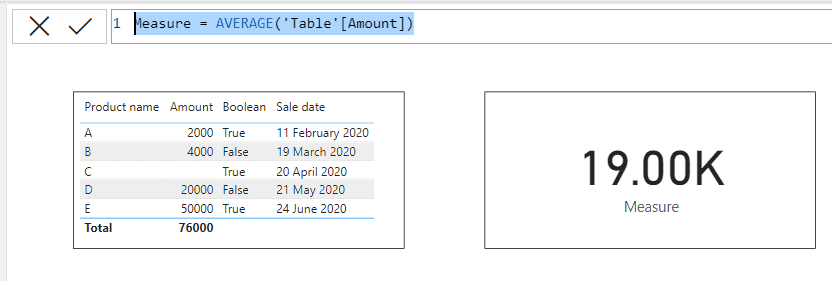
The result is 19,000. The four amounts add up to 76,000, and AVERAGE divides by 4, not 5, because it ignores product C’s empty cell. A zero, by contrast, would be counted and pull the average down. That’s the most important detail to remember: a blank and a 0 give different averages, so replacing blanks with zeros in Power Query changes your results.
In a Power BI model, each column has one data type, so a numeric column can’t contain text. The rule about text (AVERAGE returns blank) matters mostly if you’re coming from Excel.
AVERAGEA
AVERAGEA also averages a column, but it evaluates values that aren’t numbers: TRUE counts as 1, FALSE as 0, and text, including empty text (“”), counts as 0. That makes it handy for Yes/No columns. On the Boolean column, three TRUE values and two FALSE values give 3 / 5 = 0.60, the share of TRUE values:
Share True = AVERAGEA ( 'Table'[Boolean] )
On a numeric column, AVERAGEA behaves like AVERAGE. On the Amount column, it also returns 19,000:
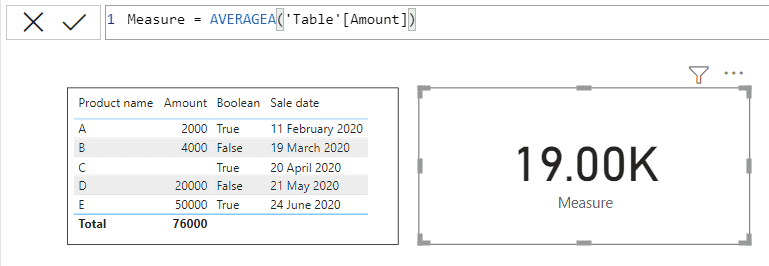
AVERAGEX
AVERAGEX goes through a table row by row, calculates an expression for each row, and averages the results. With just a column as the expression, it matches AVERAGE:
Avg Amount X = AVERAGEX ( 'Table', 'Table'[Amount] )
Its real value is that both arguments can be anything. The table can be filtered, and the expression can be a calculation, such as Sales[Price] * Sales[Quantity]. Here’s the average amount for product A only:
Avg Amount A = AVERAGEX ( FILTER ( 'Table', 'Table'[Product name] = "A" ), 'Table'[Amount] )
For a simple filter like this, CALCULATE(AVERAGE('Table'[Amount]), 'Table'[Product name] = "A") gives the same result. I reach for AVERAGEX when I need a row-by-row calculation or an average of totals.
Example 1: Average sale per month (and average monthly sales)
This example uses a table of sales with a salesperson, a sale date and an amount:

A measure with AVERAGE, placed in a table by month, shows the average sale in each month:
Average Sale = AVERAGE ( Data[Sales] )
January shows 20,000 because it had three sales totaling 60,000. The total row, 16,857, is the average of all seven sales. That’s not the same as the average month. If you want the average of the monthly totals, which is what the finance team calculated, sum each month first and then average the months, using a date table:
Total Sales = SUM ( Data[Sales] )

Avg Monthly Sales =
AVERAGEX (
    VALUES ( 'Date'[Month] ),
    [Total Sales]
)
For January to April, that returns 29,500: 118,000 in total divided by four months. Always ask which average your audience means before you build the measure.
Example 2: Average sales for one salesperson
Using the same sales table, this measure averages John’s sales:

Avg Sales John = AVERAGEX ( FILTER ( Data, Data[Sales person] = "John" ), Data[Sales] )
John has two sales, 15,000 and 16,000, so the average is 15,500. In a real report, I wouldn’t hard-code the name. Put a plain AVERAGE(Data[Sales]) measure in a visual with the salesperson on the rows, or let a slicer choose the person, and the same measure works for everyone.
Example 3: Average billed per person in each category
This table lists what each person was billed, with their profession, and some people appear more than once:

To get the average total per person in each profession, add up each person’s rows first, then average those totals:

The formula in the screenshot works, but it’s more complicated than it needs to be. In a visual grouped by Profession, this shorter version returns the same results:
Avg Billed per Person =
AVERAGEX (
    VALUES ( sheet[Name] ),
    CALCULATE ( SUM ( sheet[Price] ) )
)
For Bullrider, Steve billed 2,000 and John 5,000, so the average per person is 3,500.
Example 4: 7-day rolling average
A rolling average smooths out daily ups and downs. Here’s a table of daily prices:

The original version of this measure used the date column of the sales table itself:
measure 2 =
IF (
    COUNTROWS ( DATESINPERIOD ( 'Table 2'[Date], LASTDATE ( 'Table 2'[Date] ), -7, DAY ) ) > 2,
    CALCULATE (
        AVERAGE ( 'Table 2'[Price] ),
        DATESINPERIOD ( 'Table 2'[Date], LASTDATE ( 'Table 2'[Date] ), -7, DAY )
    )
)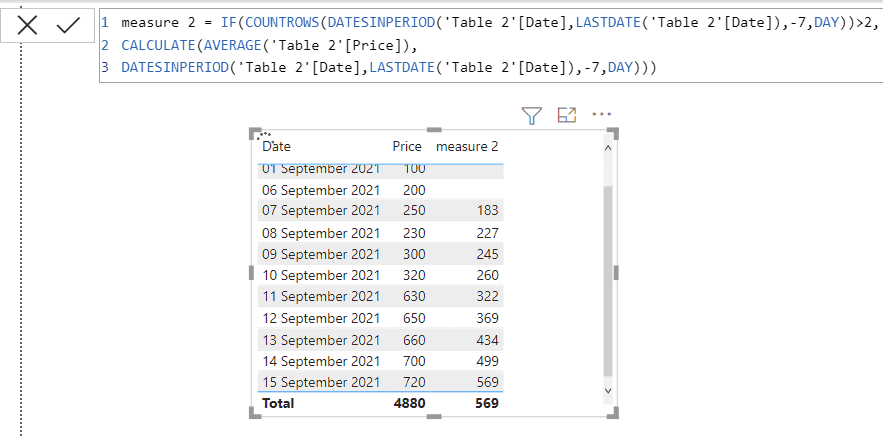
It works, but it has two weaknesses: the dates come from the data, so days without a sale are simply missing from the window, and the > 2 check is an arbitrary rule for hiding the first few days. Microsoft’s recommended pattern uses a date table marked as a date table:
Sales 7-Day Avg =
CALCULATE (
    AVERAGE ( Sales[Price] ),
    DATESINPERIOD ( 'Date'[Date], MAX ( 'Date'[Date] ), -7, DAY )
)
MAX('Date'[Date]) finds the current date in the visual, and DATESINPERIOD steps back seven days from it. If you don’t have a date table yet, see how to create a date table in Power BI.
Which averaging function should you use?
Use AVERAGE for a plain numeric column. Use AVERAGEA for TRUE/FALSE columns, where you want the share of TRUE values. Use AVERAGEX whenever the thing you’re averaging isn’t a single column: a calculation per row, a total per month, or a total per person. And check blanks against zeros before you trust the number.
These Power BI DAX tutorials go well with the averaging functions:
- Power Bi count function – DAX Examples
- Power BI SUM Measure | SUMX() in Power BI
- Power bi measure examples (20 useful examples)
- Power bi measure count with filter
- Power bi measure divide + 9 examples
- Power bi show value as percentage + 13 Examples
Frequently Asked Questions
What is the difference between AVERAGE and AVERAGEX in Power BI?
AVERAGE averages the values in one column. AVERAGEX calculates an expression for each row of a table and averages the results, so it can average calculations and totals.
Does AVERAGE include blanks or zeros in Power BI?
AVERAGE ignores blank cells and TRUE/FALSE values, but it counts zeros. Microsoft lists these rules in the AVERAGE function reference.
When should I use AVERAGEA?
Use AVERAGEA for columns with TRUE/FALSE values, which it counts as 1 and 0. Text and empty text count as 0.
How do I calculate the average of monthly totals in DAX?
Use AVERAGEX over the months, such as AVERAGEX(VALUES(‘Date'[Month]), [Total Sales]), so each month’s total is calculated before averaging.
How do I calculate a 7-day rolling average in Power BI?
Use CALCULATE(AVERAGE(Sales[Price]), DATESINPERIOD(‘Date'[Date], MAX(‘Date'[Date]), -7, DAY)) with a marked date table.

I have worked with Microsoft technologies for more than 18 years, including SharePoint, Microsoft 365 and the Power Platform (Power Apps, Power Automate and Power BI), at companies like HP, TCS and KPIT. I started EnjoySharePoint in 2011 to share the solutions I build in real projects with readers in the United States, Canada, the United Kingdom, Australia, New Zealand and beyond. Microsoft has recognized this work with the Microsoft MVP award 13 times since 2014.