
A sales manager once sent me a screenshot of a Power BI report showing $696 million in revenue. The company sells about $720 thousand a year. The measure multiplied total quantity by total price, and that one wrong function choice inflated the number almost a thousand times.
SUM and SUMX look similar, but they work in different ways. In this tutorial, I’ll explain how SUMX in Power BI works compared with SUM, using a real sales model. You’ll see five examples, including the one that fixes totals that don’t add up.
Quick answer: SUM adds up one numeric column: SUM(Sales[Quantity]). SUMX goes through a table row by row, calculates an expression for each row, then adds the results: SUMX(Sales, Sales[Quantity] * Sales[Unit Price]). Use SUM when the number already exists in a column, and SUMX when you need to calculate something per row first, such as quantity times price.
SUM vs SUMX at a glance
| SUM | SUMX | |
|---|---|---|
| Syntax | SUM(<column>) | SUMX(<table>, <expression>) |
| What it adds | The values in one column | The result of an expression, row by row |
| Type of function | Aggregator | Iterator |
| Can multiply columns first | No | Yes |
| Can use RELATED | No | Yes, inside the expression |
| Typical use | Total quantity, total amount | Revenue, cost, weighted totals, fixing measure totals |
| Speed | Fastest | Fast for simple expressions, slower for complex ones |
Both functions are usually written as measures. If you haven’t created one before, start with how to create a measure in Power BI.
The SUM function
SUM adds all the numbers in a single column, after the report’s filters are applied. It takes exactly one argument, a column reference.
Total Quantity = SUM(SalesData[Quantity])In my sample model, SalesData has 400 order lines from 2026 with Quantity, Unit Price and Discount columns. This measure returns 6,270 units in total, and it splits correctly by product, region or month because the filter context does the work.
SUM ignores blanks, and it only works on numeric columns. You can’t write SUM(SalesData[Quantity] * SalesData[Unit Price]), because SUM accepts a column, not an expression. That’s the limit that SUMX removes.
SUM itself is equivalent to SUMX(Table, Table[Column]), so you lose nothing by using SUM when the number is already in a column. For adding with conditions, see summing with a filter in a measure.
The SUMX function
SUMX is an iterator. It takes a table, evaluates an expression once for every row of that table, and then adds up all the results.
SUMX(<table>, <expression>)- table: a table name or any expression that returns a table, such as
FILTER(...)orVALUES(...). - expression: the calculation to run on each row. Inside it you can refer to any column of the current row.
SUMX returns a decimal number. Like SUM, it skips blanks, and it ignores text and TRUE/FALSE values. Microsoft also notes that SUMX isn’t supported in calculated columns or row-level security rules when the model uses DirectQuery.
The other X functions follow the same pattern: AVERAGEX for row-by-row averages, COUNTX and MAXX and MINX in Power BI.
Example 1: Calculate revenue from quantity and price
Each order line has a quantity, a unit price and a discount. Revenue for a line is quantity times price, minus the discount. There’s no revenue column, so SUM can’t help directly. SUMX can:
Revenue =
SUMX (
    SalesData,
    SalesData[Quantity] * SalesData[Unit Price] * ( 1 - SalesData[Discount] )
)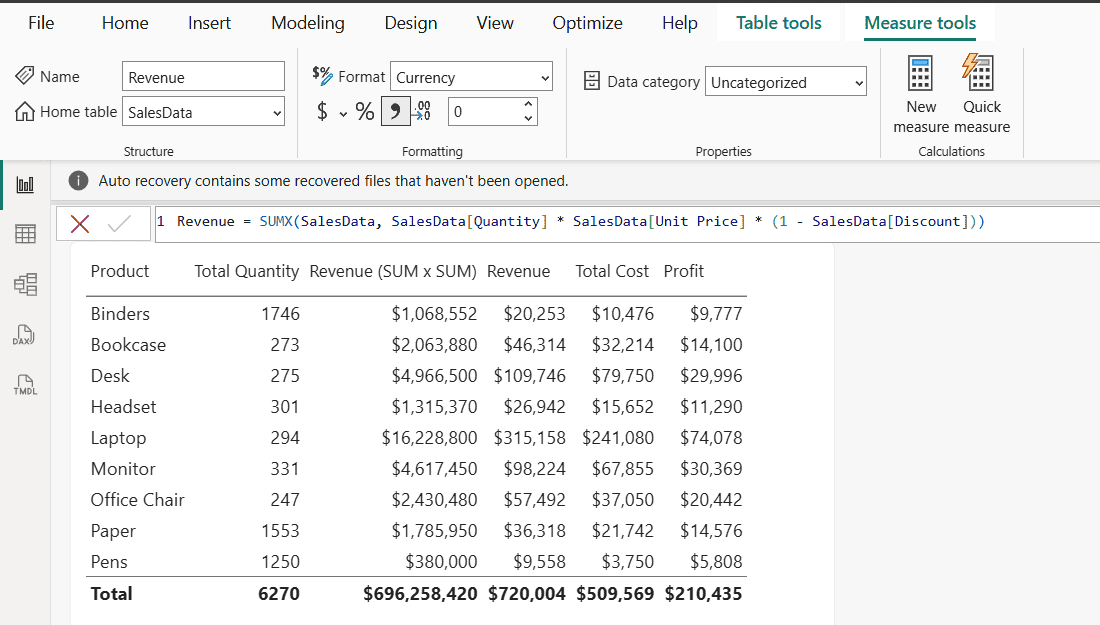
For every row, Power BI multiplies that row’s quantity by that row’s price and discount, then adds the 400 results. Here’s what happens if you try to get the same number with SUM instead:
Revenue (SUM x SUM) = SUM(SalesData[Quantity]) * SUM(SalesData[Unit Price])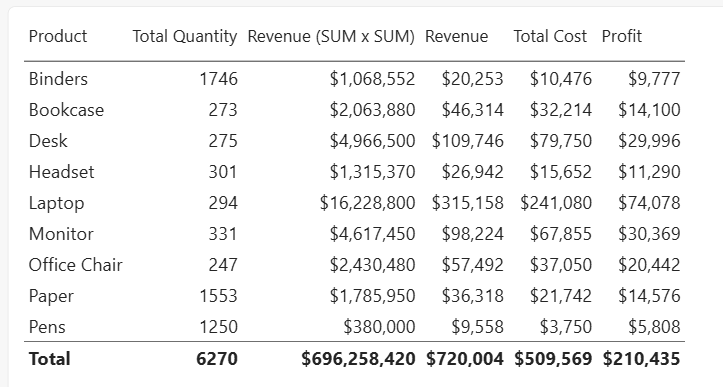
The SUM version multiplies the total quantity by the total of all prices, so every product is wildly overstated. Laptop shows $16.2 million instead of $315,158. SUMX does the multiplication on each row first, which is what you meant.
For more ways to multiply columns and measures, see how to multiply in Power BI with DAX.
Example 2: Use a column from another table with RELATED
Unit cost lives in a separate ProductList table, related to SalesData on Product (many-to-one). Because SUMX works row by row, you can pull the matching cost for each order line with RELATED:
Total Cost =
SUMX (
    SalesData,
    SalesData[Quantity] * RELATED ( ProductList[Unit Cost] )
)

Profit = [Revenue] - [Total Cost]
In my model, Total Cost comes to $509,569 and Profit to $210,435, and both split correctly by product, as you can see in the table above. RELATED only works in a row context and needs a relationship from the many side to the one side, which SUMX provides.
Example 3: SUMX with FILTER (and when CALCULATE is better)
You can pass a filtered table to SUMX to add up only some rows. This returns revenue for the West region only:
West Revenue =
SUMX (
    FILTER ( SalesData, SalesData[Region] = "West" ),
    SalesData[Quantity] * SalesData[Unit Price] * ( 1 - SalesData[Discount] )
)
It works, but for a simple column filter I prefer reusing the Revenue measure with CALCULATE. It’s shorter, easier to maintain and usually faster:
West Revenue = CALCULATE ( [Revenue], SalesData[Region] = "West" )Keep FILTER inside SUMX for conditions CALCULATE can’t express as a simple filter, such as comparing two columns of the same row.
Example 4: SUMX with IF for conditional totals
Because the expression runs per row, you can decide row by row whether to include a value. This adds the revenue of discounted lines only:
Discounted Revenue =
SUMX (
    SalesData,
    IF (
        SalesData[Discount] > 0,
        SalesData[Quantity] * SalesData[Unit Price] * ( 1 - SalesData[Discount] ),
        0
    )
)
The IF returns 0 for lines without a discount, so they add nothing. For more patterns, see how to use IF in a Power BI measure.
Example 5: Fix a measure total that doesn’t add up
This is the SUMX use most tutorials skip, and it’s the one I use most. Say each region manager earns a 5% bonus if their region sells more than $175,000:
Bonus = IF ( [Revenue] > 175000, [Revenue] * 0.05, 0 )By region, the numbers are right: South and West qualify, Central and East don’t. But the total row shows $36,000. Power BI doesn’t add up the rows. It evaluates the measure again for the whole company: total revenue of $720,004 is over $175,000, so it pays 5% of everything.
To get the sum of the regional bonuses, iterate over the regions with SUMX:
Total Bonus = SUMX ( VALUES ( SalesData[Region] ), [Bonus] )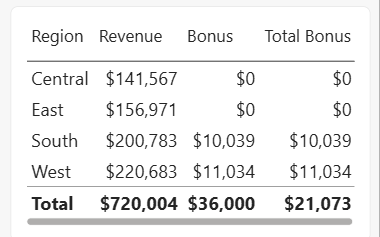
VALUES returns the list of regions visible in the current context. SUMX calculates the Bonus measure for each one and adds them up: $10,039 + $11,034 = $21,073. On each region row, there’s only one region, so the result is the same as before.
Use this pattern whenever a measure contains IF, a threshold, MAX or a ratio, and the total needs to be the sum of the rows. To group by more than one column, iterate over SUMMARIZE instead of VALUES, as shown in summing and grouping by multiple columns.
SUMX in a calculated column vs a measure
A common mistake is putting SUMX in a calculated column. In a calculated column, SUMX(SalesData, ...) iterates the whole table for every row, so every row gets the same grand total.
In a calculated column you’re already in a row context, so plain arithmetic is enough: Line Revenue = SalesData[Quantity] * SalesData[Unit Price] * (1 - SalesData[Discount]). Then SUM(SalesData[Line Revenue]) works as a measure.
Which is better? The calculated column uses memory for every row but makes the measure a simple SUM. The SUMX measure stores nothing extra. For most models under a few million rows, I go with the SUMX measure and keep the model smaller.
Performance tips
- Use SUM when the column already exists. It’s the simplest and fastest option.
- Keep the expression simple. Multiplying columns is cheap. Calling complex measures for every row of a large fact table is not.
- Iterate the smallest table you can.
SUMX(VALUES(SalesData[Region]), [Bonus])loops 4 times, not 400. - Prefer CALCULATE for simple filters instead of FILTER over the whole table.
- Use variables (VAR) when the same value is needed twice in the expression.
Common SUMX errors and fixes
- “A single value for column … cannot be determined”: you referenced a column directly in a measure, for example
SalesData[Quantity] * SalesData[Unit Price]. Wrap it in SUMX so there’s a row context. - SUMX returns a huge or identical number on every row: it’s in a calculated column. Use plain arithmetic there, or move it to a measure.
- RELATED gives an error: there’s no relationship, or it points the wrong way. RELATED goes from the many side to the one side; use RELATEDTABLE the other way.
- The total still looks wrong: iterate over the column the rows are grouped by, as in Example 5.
- Divide by zero inside the expression: use DIVIDE instead of /. See how to divide in a Power BI measure.
These DAX tutorials pair well with SUM and SUMX:
Frequently Asked Questions
What is the difference between SUM and SUMX in Power BI?
SUM adds the values of one column. SUMX evaluates an expression for each row of a table and adds the results, so it can multiply columns or use RELATED first. See Microsoft’s SUMX function reference for the syntax.
When should I use SUMX instead of SUM?
Use SUMX when the value you want to add doesn’t exist as a column yet, such as quantity times price, or when a measure’s total row must be the sum of the rows below it.
Is SUMX slower than SUM?
Slightly, because it evaluates an expression per row. For simple expressions the difference is small. Use SUM when the column already exists.
Can SUMX use columns from another table?
Yes. Use RELATED inside the expression to get a value from the one side of a relationship, for example RELATED(ProductList[Unit Cost]).
Why does my measure total not match the sum of the rows?
Power BI evaluates a measure again at the total level instead of adding the rows. Wrap it in SUMX over the grouping column, for example SUMX(VALUES(Sales[Region]), [Bonus]).

I have worked with Microsoft technologies for more than 18 years, including SharePoint, Microsoft 365 and the Power Platform (Power Apps, Power Automate and Power BI), at companies like HP, TCS and KPIT. I started EnjoySharePoint in 2011 to share the solutions I build in real projects with readers in the United States, Canada, the United Kingdom, Australia, New Zealand and beyond. Microsoft has recognized this work with the Microsoft MVP award 13 times since 2014.
How can we calculate running total per account for last X number of days. Considering we have three main columns as Account Key, Amount, Date. For each current day we want to know sum of amount for past x days for each account.
Account no. Amount Date Answer Expected for x = 2
a 1000 11/5/22 2100
a 1100 11/5/22 2100
a 1700 12/5/22 3800
a 800 13/5/22 4600
b 1900 10/5/22 1900
Superb Content.thank you
Excellent explanation 🙂