
Last month, my manager gave me a CSV file and Informed me to import the data into a SharePoint list. I went to the SharePoint site and created a new SharePoint list, directly importing the CSV file into the list. However, they sent me another CSV file last week and Informed me to import it into the same SharePoint list. I thought automating this process using Power Automate would be more efficient.
In this article, I will explain how to import a CSV file into a SharePoint list using Power Automate.
Import CSV to SharePoint List in Power Automate
Let’s see how to import CSV to a SharePoint List using Power Automate.
I have taken a SharePoint list named ‘Issue Tracker’ with a few columns and their data type.
| Columns | Data Types |
| Issue ID | Number |
| Issue (Title column) | Single lines of text |
| Issue Description | Multiline of text |
| Issue Status | Choice |
| Issue Registered Date | Date and Time |
| Issue Assigned To | Person and Group |
| Issue Faced by Department | Choice(multi-select value) |

I created a CSV file with the same columns as the SharePoint list for this example. This CSV table has some data, as shown below.

Then, select the Issue Faced by Department column and replace (,) with (;).

After importing the data from CSV to a SharePoint list using Power Automate, it will appear as shown below.
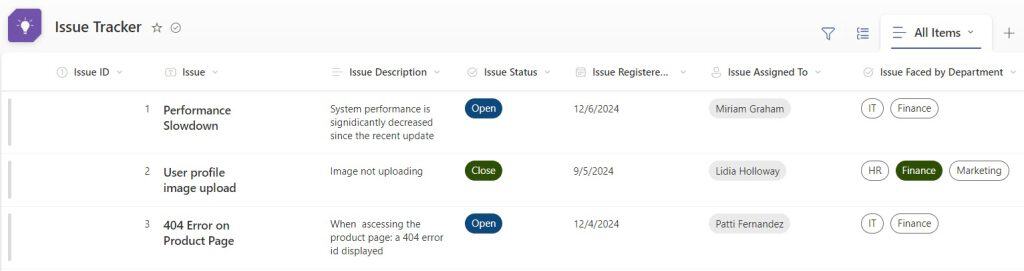
To achieve this, follow the steps below.
1. Open the Power Automate home page, click + Create, select the Instant cloud flow, enter the flow name, and choose the trigger’s flow (manually trigger the flow).
- Add an input as ‘File content‘ to this trigger, as shown below.

2. Insert the Compose flow action (renamed as CSV Data) and insert the expression used to decode the data encoded in Base64 format.
base64ToString(triggerBody()['file']['contentBytes'])This expression in Power Automate converts a Base64-encoded string to its equivalent plain text (string) representation.

3. Then add the ‘Compose’ flow action (renamed as New Line), hit enter into inputs, and leave.

4. Add another ‘Compose’ flow action (renamed as Array) to provide expression, as shown below.
skip(split(outputs('CSV_Data'),outputs('New_Line')),1)Where this expression skip(split(outputs(‘CSV_Data’), outputs(‘New_Line’)), 1) in Power Automate is used to split a CSV (Comma-Separated Values) string into an array of values and then skip the first element in that array.

5. Next, add the Filter array action to selectively include or exclude elements from an array based on specified conditions and set the required fields.
- From: Here, I have given the Outputs of the Array(Compose) flow action from dynamic content.
item() is not equal to ' ' 
6. Now, add the Apply to each flow action used to iterate over a collection of items and perform a set of actions for each item.
- Here, I have Selected output from the previous steps as ‘Body’ of the Filter array flow action.

7. Then add the ‘Select’ flow action to choose and manipulate data to suit their specific needs selectively and set the required fields.
- From: Here, I have given the expression as listed below.
split(split(item(),',')?[6],';')Where it splits a string first by commas and then by semicolons of the 6th column, extracting specific values from the resulting array.
- Map: I have selected item() from the Expression as shown below.

8. Now, add the ‘Create item‘ flow action to add a new item or record in the SharePoint list and set all the details as shown below.
- Site Address: Provide the SharePoint site address.
- List Name: Select the name of the SharePoint list.
| Columns | Value | Description |
| Title | split(item(),’,’)?[1] | To split a string by commas and semicolons, extracting specific values from the resulting array. [1] = indicates column index |
| Issue ID | split(item(),’,’)?[0] | To split a string by commas and semicolons, extracting specific values from the resulting array. [0] = indicates column index |
| Issue Description | split(item(),’,’)?[2] | To split a string by commas and semicolons, extracting specific values from the resulting array. [2] = indicates column index |
| Issue Status Value | split(item(),’,’)?[3] | To split a string first by commas and then by semicolons, extracting specific values from the resulting array. [3] = indicates column index |
| Issue Registered Date | split(item(),’,’)?[4] | To split a string by commas and semicolons, extracting specific values from the resulting array. [4] = indicates column index |
| Issue Assigned To | split(item(),’,’)?[5] | To split a string by commas and semicolons, extracting specific values from the resulting array. [5] = indicates column index |
- Issue Faced by Department: Here, I have selected the outputs of the Selected flow action from dynamic content.

9. Now, it’s time to Save and Test. Then test it Manually -> Now, inside the Run flow tab, import the CSV file from your local device that you have created -> Click on Run flow.

10. Open the SharePoint list and refresh it once. The screenshot below shows that all the CSV data has been converted to the SharePoint list items.
This is how to import CSV to SharePoint List using Power Automate.
Conclusion
I hope this Power Automate tutorial taught you the step-by-step procedure to import CSV to SharePoint List using Power Automate.
Moreover, you may like some more Power Automate tutorials:
- Import Data from Excel to a SharePoint list using Power Automate
- Create an Excel File When an Item is Created in SharePoint List Using Power Automate
- Create an Excel file from SharePoint list items using Power Automate
- Convert CSV to Excel in Power Automate

Preeti Sahu is an expert in Power Apps and has over six years of experience working with SharePoint Online and the Power Platform. She is the co-author of Microsoft Power Platform: A Deep Dive book. As a Power Platform developer, she has worked on developing various tools using Power Apps and Power Automate. She also makes Microsoft 365 videos and shares them on YouTube.

