
A sales team I worked with had an approval email that said “Total: 12500.5”. It was right, but it didn’t look like money, and one manager replied asking whether it was twelve thousand or a hundred and twenty-five thousand. Changing one expression to show “$12,500.50” ended the questions.
In this tutorial, I’ll show you how to use formatNumber() in Power Automate for currency, commas, decimal places, percentages and leading zeros, plus custom patterns for US phone numbers and ZIP codes. All the results below are for the default US English (en-US) locale.
Quick answer: Use formatNumber(number, 'format'). For US currency, formatNumber(1234.5, 'C2') returns $1,234.50. For commas without a dollar sign, use 'N2' (1,234.50). For a percentage, pass a fraction: formatNumber(0.0725, 'P2') returns 7.25%. The result is always text, so store it in a String variable and format numbers at the last step, after any math.
How formatNumber() works
formatNumber(<number>, '<format>', '<locale>')- number: an integer or decimal. If the value comes from a SharePoint text column, Excel or an HTTP response, it may be text; wrap it in
float()orint()first. - format: a standard format such as
C2orN0, or a custom pattern such as'#,##0.00'. - locale: optional. It defaults to
en-us, which gives the dollar sign, commas for thousands and a period for decimals.
The result is always a string. If you put it in an Integer or Float variable, the flow fails, so use a String variable. And if you still need to add or compare the value, do the math first and format it at the end.
Quick reference
| Format | What it does | Example | Result |
|---|---|---|---|
| C | Currency | formatNumber(56789, 'C2') | $56,789.00 |
| N | Commas and decimals | formatNumber(56789, 'N2') | 56,789.00 |
| F | Fixed decimals, no commas | formatNumber(89.145263, 'F3') | 89.145 |
| P | Percentage (multiplies by 100) | formatNumber(0.1, 'P1') | 10.0% |
| D | Minimum number of digits, with leading zeros | formatNumber(89, 'D3') | 089 |
| E | Scientific notation | formatNumber(596, 'E2') | 5.96E+002 |
| X | Hexadecimal | formatNumber(255, 'X') | FF |
The number after the letter sets the decimal places (or, for D, the minimum digits). Always give it explicitly, such as N2 or P1, so you get the same result everywhere.
Format as currency
Create an instant cloud flow with Manually trigger a flow and add a Number input. Then add Initialize variable with Type set to String and this value:
formatNumber(triggerBody()['number'], 'C0')
Show the variable in a Compose action, then save and test:


| Expression | Result |
|---|---|
formatNumber(56789, 'C0') | $56,789 |
formatNumber(56789, 'C2') | $56,789.00 |
formatNumber(1234.5, 'C2') | $1,234.50 |
formatNumber(1234.5, 'C0') | $1,235 (rounded) |
formatNumber(7895, 'C0') | $7,895 |
For negative amounts, the style depends on the runtime: you might see ($1,250.50) or -$1,250.50. To control it, use a custom pattern with a separate section for negatives: formatNumber(-1250.5, '$#,##0.00;-$#,##0.00') always returns -$1,250.50.
Add commas (thousands separators)
N adds commas and a fixed number of decimals, without the dollar sign:
formatNumber(triggerBody()['number'], 'N1')
For 8574126, that returns 8,574,126.0:

Use 'N0' for whole numbers (56,789) and 'N2' for two decimals (56,789.00).
Set decimal places
F fixes the number of decimals without adding commas, which is handy for values going into another system:
formatNumber(triggerBody()['number'], 'F2')
For 58412, that returns 58412.00:

With 'F3', a value like 471.8209 becomes 471.821. formatNumber rounds rather than cutting off digits:


Format as a percentage
P multiplies the number by 100 and adds a percent sign, so pass a fraction, such as 0.1 for 10 percent:
formatNumber(triggerBody()['number'], 'P2')
For 0.1, that returns 10.00%. Some runtimes put a space before the sign, as in this older run:

If your value is already a percentage, such as 7.25, either divide it first with div(7.25, 100), or keep it and add the sign yourself: concat(formatNumber(7.25, '0.00'), '%') returns 7.25%.
Add leading zeros
D pads whole numbers with zeros up to a minimum number of digits. D and X only work with whole numbers, so convert the input with int() first. Here, a variable named Digit has Type Integer:
int(triggerBody()['number'])
Then format it with 'D3':
formatNumber(variables('Digit'), 'D3')
For 89, the output is 089:
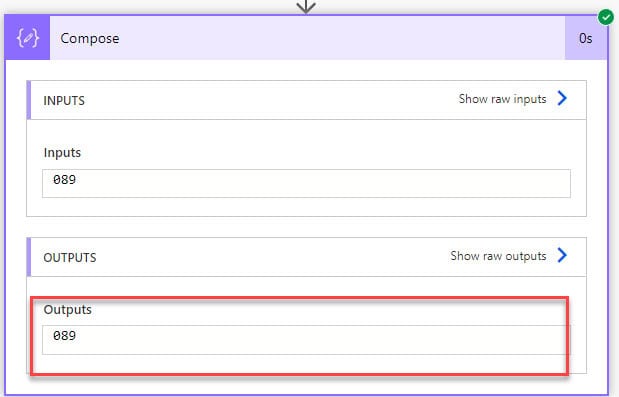
D sets the minimum, not a fixed length: formatNumber(567, 'D2') is still 567, and formatNumber(567, 'D5') is 00567.
Custom patterns for US phone numbers and ZIP codes
Custom patterns use 0 for a required digit and # for an optional one, and anything else is copied as is:
| Expression | Result |
|---|---|
formatNumber(4155550123, '(###) ###-####') | (415) 555-0123 |
formatNumber(2134, '00000') | 02134 (a ZIP code with its leading zero) |
formatNumber(1234.5, '$#,##0.00') | $1,234.50 |
formatNumber(1234567890, '#,##0,,') | 1,235 (in millions) |
formatNumber(5, '000') | 005 |
Scientific notation and hexadecimal
E shows the number in scientific notation, with six decimals by default:


Use 'E2' for 5.96E+002. X converts a whole number to hexadecimal, using the digits 0 to 9 and the letters A to F. For 986, that’s 3DA:


Use lowercase 'x' for lowercase letters, and add digits for padding: formatNumber(255, 'x4') returns 00ff.
Other currencies and locales
Add a locale as the third argument when you need another country’s format:
| Expression | Result |
|---|---|
formatNumber(1234567.5, 'C2', 'en-GB') | £1,234,567.50 |
formatNumber(1234567.5, 'C2', 'de-DE') | 1.234.567,50 € |
formatNumber(1234567.5, 'C2', 'en-CA') | $1,234,567.50 |
Use the full culture name with a hyphen, such as en-US. An invalid locale makes the action fail.
Troubleshooting
- “expects its first parameter to be an integer or a decimal number.” The value is text. Wrap it:
formatNumber(float(outputs('Get_item')?['body/Price']), 'C2'). - The variable step fails. formatNumber returns text; use a String variable.
- D or X fails. The number has decimals. Convert it with
int(), or use a custom pattern like'000'. - A percentage is 100 times too big. P multiplies by 100; pass 0.25, not 25.
- Different decimals than expected. Give the precision explicitly, such as N2 instead of N.
The older Format data by examples helper you may see in screenshots is deprecated; write the expression directly. There’s also a Format number action under Number Functions if you prefer not to write expressions. For converting text to numbers, see how to convert a string to a float.
These Power Automate tutorials go well with formatNumber():
- How to Convert String to Float in Power Automate?
- How to Convert String to Integer in Power Automate?
- How to Convert Float to Integer in Power Automate [3 Methods]
- Power Apps Format Number With Commas and Decimal Places [6 Best Approaches]
- Power Automate String Functions + 10 Examples
- How to Use formatDateTime() Function in Power Automate?
Frequently Asked Questions
How do I format a number as currency in Power Automate?
Use formatNumber(value, ‘C2’), which returns $1,234.50 for 1234.5. Microsoft documents the function in its expression functions reference.
How do I add commas to a number in Power Automate?
Use formatNumber(value, ‘N0’) for whole numbers or ‘N2’ for two decimal places.
How do I add leading zeros in Power Automate?
Use formatNumber(int(value), ‘D5’) or a custom pattern like ‘00000’. D only works with whole numbers.
Why does formatNumber fail with my SharePoint value?
The value is text. Convert it with float() or int() inside formatNumber.
Does formatNumber return a number?
No. It always returns text, so use a String variable and do any math before formatting.

Preeti Sahu is a Microsoft MVP for Power Apps with over six years of experience working with SharePoint Online and the Power Platform. She is the co-author of the book Microsoft Power Platform: A Deep Dive. As a Power Platform developer, she has built various tools with Power Apps and Power Automate, and she makes Microsoft 365 videos for YouTube.