
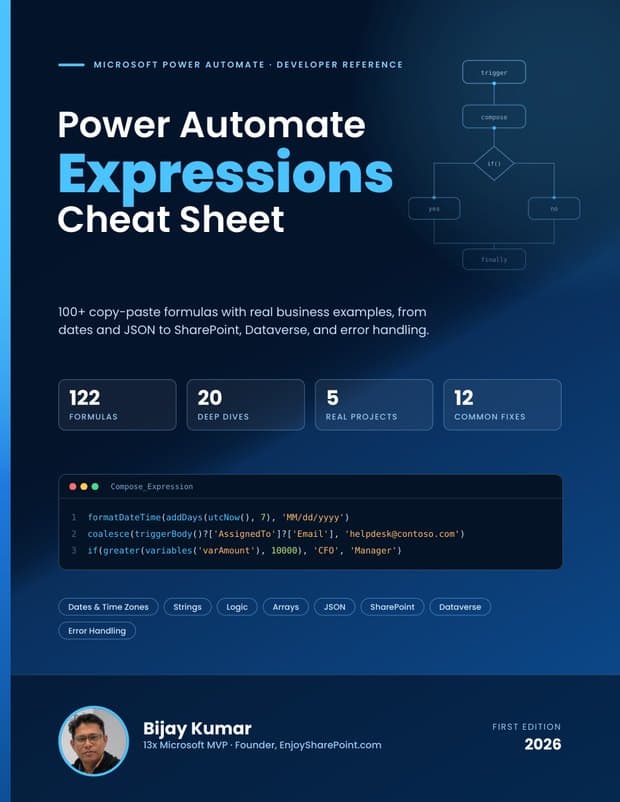
Power Automate Expressions Cheat Sheet
100+ copy-paste formulas with real business examples, from dates and JSON to SharePoint, Dataverse and error handling. Keep it open beside the flow designer and jump straight to the formula you need.
- 122 formulas, each with the business need, the expression to copy, a breakdown and the result
- 20 deep dives on time zones, SharePoint Person and Choice columns, null values and error handling
- 5 complete real-world projects, 12 common fixes and a printable two-page quick card
 By Bijay Kumar
13x Microsoft MVP
 86 pages · 122 formulas
For the moment dynamic content alone isn’t enough
Most flows start without a single expression. Then a requirement arrives that dynamic content can’t handle: show a date in Eastern time, use a fallback when a field is blank, or pull the domain out of an email address.
Searching for the same formulas again
Date formats, null checks, the email from a Person column: you look them up online every time, and many of the answers are out of date.
Flows that save but fail when they run
The designer only checks syntax. A valid expression still fails when a field is empty or text like N/A reaches a number conversion.
Dates in the wrong time zone
utcNow() returns UTC, so deadlines, timestamps and “created today” filters are off by hours until you convert them properly.
15 chapters, 122 formulas and one index to find them
Not sure which function you need? The Find a Formula by Task index lists everyday jobs, like “set a due date” or “get an email from a Person column”, and gives you the formula number to jump to.
The rules and your flow data
- What an expression is, when it runs, and how to use the expression editor in the new and classic designer
- Syntax at a glance: quotes, null, nested properties, the ?['property'] operator and path syntax
- Reading trigger values, earlier action outputs, loop items and environment variables
The functions you use every day
- Dates and time zones: due dates, SLA deadlines, weekdays, weekends and dates typed as text
- Strings: names, emails, file names, line breaks and safe truncation
- Logic, arrays and JSON: conditions, defaults for blank fields, filtering, sorting, removing duplicates and parsing JSON
- Conversions and numbers: totals without a loop, averages, percentages and currency formatting
SharePoint, Dataverse and errors
- SharePoint Person, Choice and Lookup columns, Get items filters and links to items and files
- Dataverse lookups and choices as text, linking a new row to an account and filtering by a lookup
- Combining expressions, plus Try, Catch and Finally with scopes and a troubleshooting guide
Real projects and quick reference
- Five complete projects: IT help desk SLA calculator, employee onboarding reminder, expense approval routing, SharePoint document naming and an automated escalation flow
- Developer best practices for naming, readability and maintenance
- The ultimate quick reference and a two-page printable quick card
The same seven parts, every time
- Business Requirement: the real-world problem the formula solves
- Copy This: the expression, ready to paste
- What It Does: what the expression returns
- When to Use It: where it fits, and where it doesn’t
- Breakdown: each function and argument explained
- How to Implement It: where to put it in your flow
- Example Result: what the output looks like
Written against Microsoft’s function reference
- Every expression was checked against Microsoft’s published function reference for Power Automate and Azure Logic Apps as of September 2026.
- Each formula is labeled Beginner, Intermediate or Advanced.
- Formula numbers stay the same in the projects and the quick reference, so you can move between them easily.
- Examples use clear naming conventions, such as Compose_Due_Date and varTotalAmount, that you can swap for your own.
Written for people who build cloud flows
You should know how to create a flow, add actions and pick dynamic content. No prior experience with expressions is needed.
Power Automate makers
who keep searching online for date formats, null checks or SharePoint Person column values.
SharePoint and Power Apps developers
who maintain the flows behind Power Apps or SharePoint solutions.
Dataverse builders and support teams
who integrate with Dataverse or support production flows that fail in ways they can’t explain.
Bijay Kumar
Bijay is a 13-time Microsoft MVP, first recognized in 2014, with more than 18 years of experience in SharePoint and Microsoft 365, including roles at TCS, Hewlett Packard and KPIT. He founded EnjoySharePoint in 2011 and still builds and tests the solutions behind its tutorials. He is the author of two books published by BPB Publications.
Get the free cheat sheet in your inbox
Enter your email and the 86-page PDF is on its way. No spam. Unsubscribe anytime.
Send me the free cheat sheetAbout the cheat sheet
Is the cheat sheet really free?
Yes. Enter your email address and Kit sends you the download link straight away. You will also receive new SharePoint and Power Platform tutorials by email, and you can unsubscribe at any time.
What format is it?
An 86-page PDF with 15 chapters and 122 numbered formulas, written by Bijay Kumar, a 13-time Microsoft MVP. It’s the first edition, published in 2026.
Do I need to know expressions already?
No. You should know how to create a flow, add actions and pick dynamic content. Chapter 1 covers the rules every formula in the book depends on, and each formula is labeled Beginner, Intermediate or Advanced.
Are the formulas up to date?
Every expression was checked against Microsoft’s published function reference for Power Automate and Azure Logic Apps as of September 2026. Test each formula in a development environment before you use it in production.
I didn’t receive the email. What should I do?
Check your Promotions or Spam folder first. If it is not there after a few minutes, send us a message through the contact page.